Devices or units? You choose units in this wizard, but the settings belong to the tracking hardware behind each one. The copy changes the devices of the destination units, not the units.
Copy a configuration when you have one unit set up well and several others of the same make that must match. This changes the destination units at once. It writes to every unit you choose, so check the import type before you continue.
¶ Before you start
- You need Import/Export > Export, Import/Export > Import and Devices > Read. The built-in Owner role of a dealer account has all three.
- The destination units must have a device of the same manufacturer as the source. Others are greyed out.
- Know the import type you want. Replace overwrites the destination's settings of the kinds you copy. See Configuration file format and import modes.
¶ Choose the source unit and what to copy
-
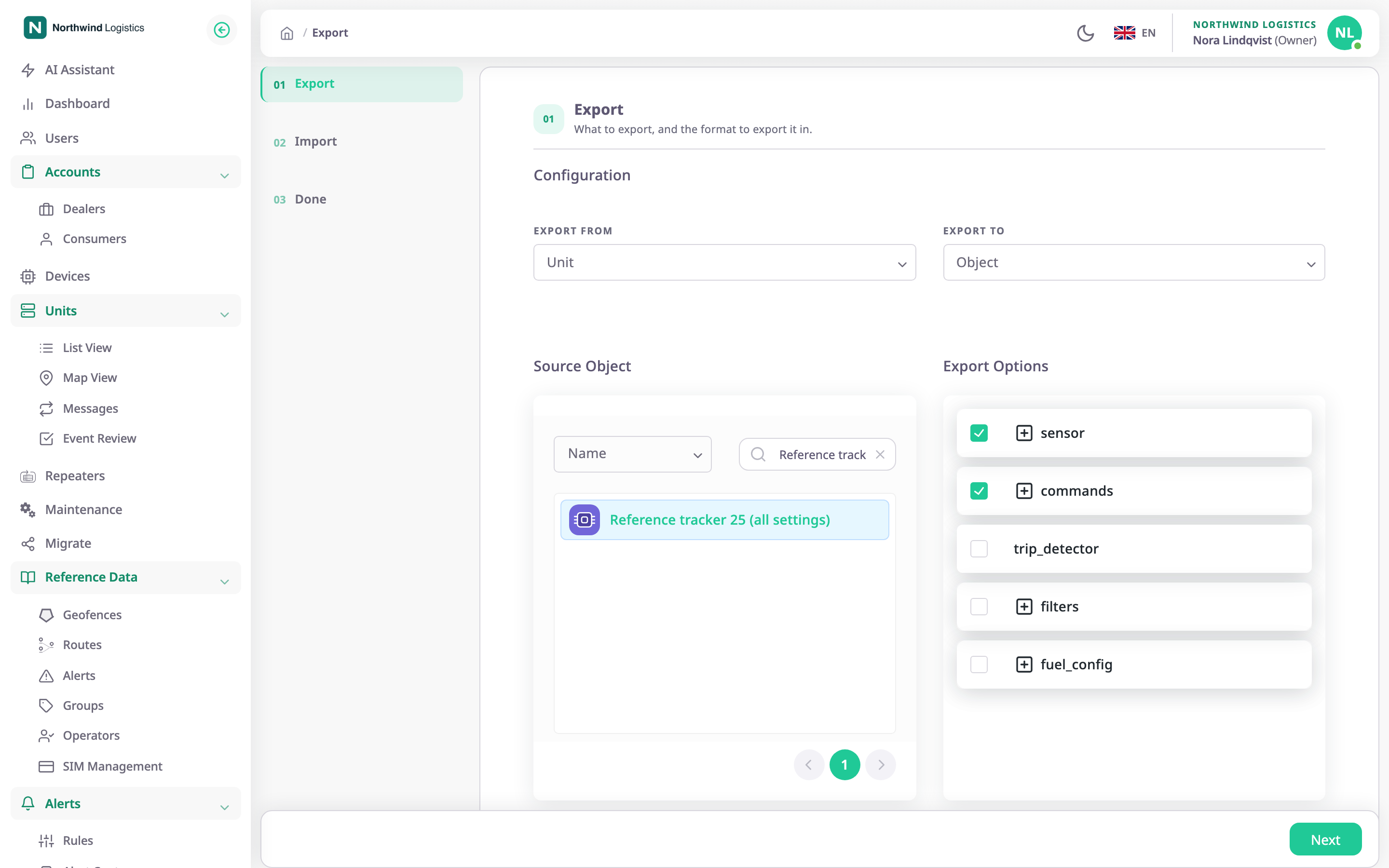
In the side menu, select Import/Export > Export.
The Export wizard opens. -
Under Export To, select the Object tile.
The wizard now has three steps: Export, Import and Done. -
In the search box above the list, find the source unit and select it.
Its setting groups appear under Export Options. -
In Export Options, tick the groups to copy.
-
Select Next.
The Import step opens.
¶ Choose the destination units
- Under Import Type, select the Replace, Merge or Append tile. Replace is the default.
- In Destination Object, search for the units to change and select each one.
A tick marks each selected row. Units of another manufacturer are greyed out; their tooltip reads "A different device type from the one in the file". - Check Import Options. It shows the groups you ticked.
¶ Import and read the result
- Select Import.
The app writes the settings to each destination unit and moves to Done. - If the app shows the Import Summary dialog, read the list. Each failed unit shows its name and the reason. Select Close.
- On Done, select Close.
The Import/Export hub opens.
If every unit succeeded, a message says "N devices imported successfully, 0 failed." A unit can succeed with parts skipped: a unit with no GPS sensor gets no trip detector or filters, a unit with no fuel sensor gets no fuel settings, and a unit with no video sensor gets no video commands. The app does not say so in the dialog; open the unit to check.
¶ What happens next
- The destination devices have the new settings. Open one and check its settings tabs.
- The source unit is not changed.
- The wizard has no undo. To go back after a Replace, you need a file or another unit that still has the old settings.