Devices or units? You pick a unit in this wizard, but the settings belong to the tracking hardware behind it. The file holds the device settings of that unit. To copy them straight to other units, see Copy a configuration from one unit to others.
Export a unit that is set up correctly, to keep its settings as a template or to apply them to other units later. Nothing changes on the unit.
¶ Before you start
- You need Import/Export > Export and Devices > Read. The built-in Owner role of a dealer account has both.
- The unit's device must be allocated to your account. Units of your sub-accounts show too.
¶ Choose the unit to export from
- In the side menu, select Import/Export > Export.
The Export wizard opens at step 1. - Check that Export From reads Unit and that the File tile is selected under Export To.
- In the field above the list, choose what to search by, for example Name.
- In the search box, enter part of the name, for example Reference.
The list shows the matching units, each as unit name / device name. - Select the unit, for example Reference tracker 25 (all settings).
The setting groups of its device appear under Export Options.
¶ Choose what to export
-
In Export Options, tick the groups to export: Sensors, Command, Trip detector, Position filter or Fuel config.
-
Optional: select the arrow at the end of a group to open it, and tick single rows to export part of it.
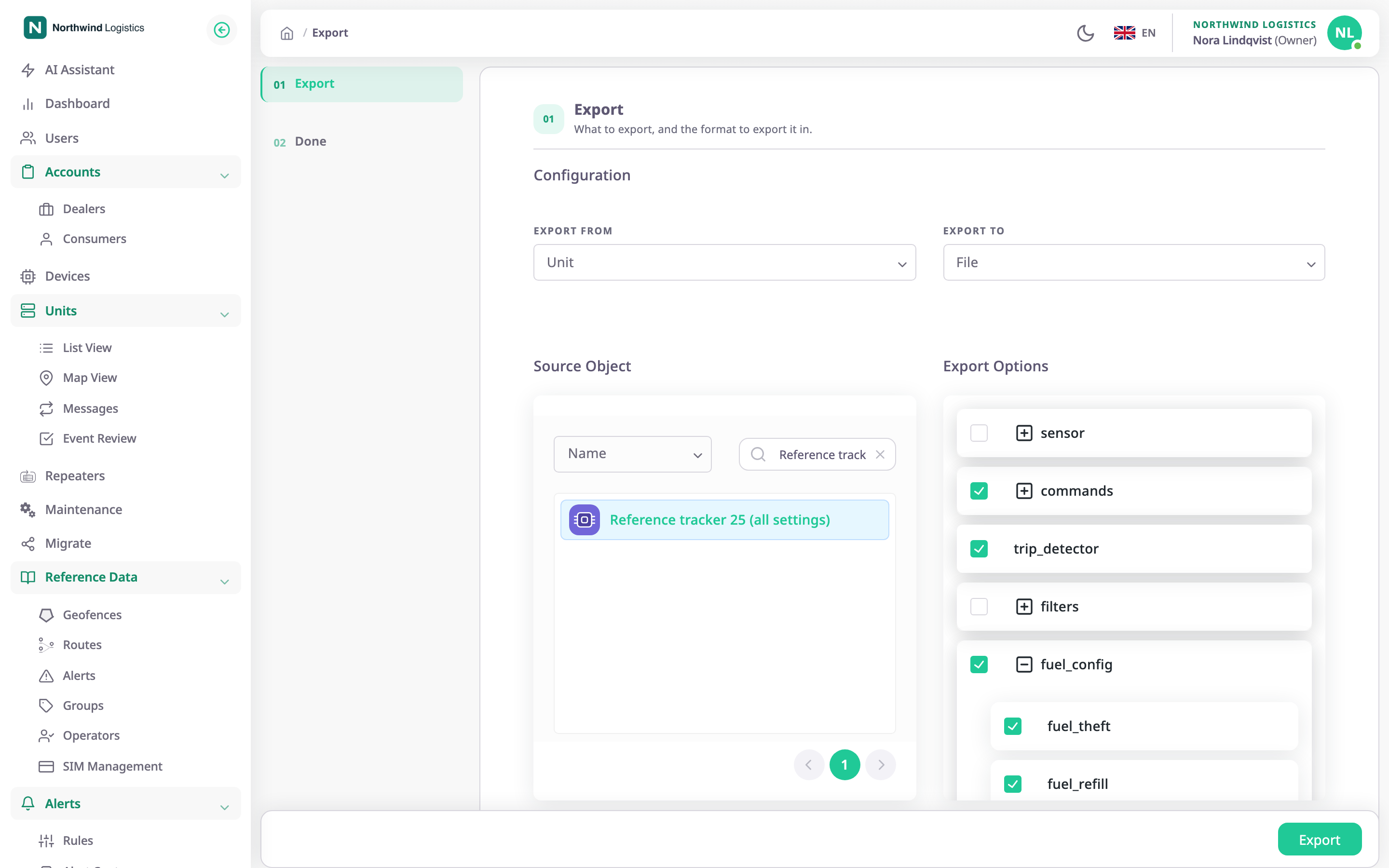
A group shows only when the unit has it. If none shows, the unit has no settings to export.
¶ Download the file
- Select Export.
Your browser saves a file named export_ followed by a number, for example export_1791430008350.json. The wizard moves to Done and shows "Export Successful". - Select Close.
The Import/Export hub opens.
¶ What happens next
- The file holds the groups you ticked, with the name of the source unit, the date and the manufacturer. See Configuration file format and import modes.
- The app keeps no copy. Keep the file safe: sensor expressions and the commands it holds describe how your units are set up.
- To use the file, see Import a configuration file into units. It only fits units of the same manufacturer as the source.