A schedule runs a report for you on a timer and emails the file. Use it for reports you read every morning, every Monday or at the start of each month.
¶ Before you start
- You need the Read template action of Reports, and the data-source permissions the template reads. The Owner role has them all.
- The report must use a saved template. You cannot schedule a preview from the builder; save the template first.
- You create schedules on the Generate screen only. The Scheduled screen lists them but has no form.
¶ Choose the template and units
- In the side menu, select Reports > Create Report.
- On the template's card, select Generate.
The Generate screen opens. - In Units, select the units the schedule should cover.
The schedule keeps the units, routes and display options you choose here. The date range does not matter: each run works out its own period.
¶ Set up the schedule
-
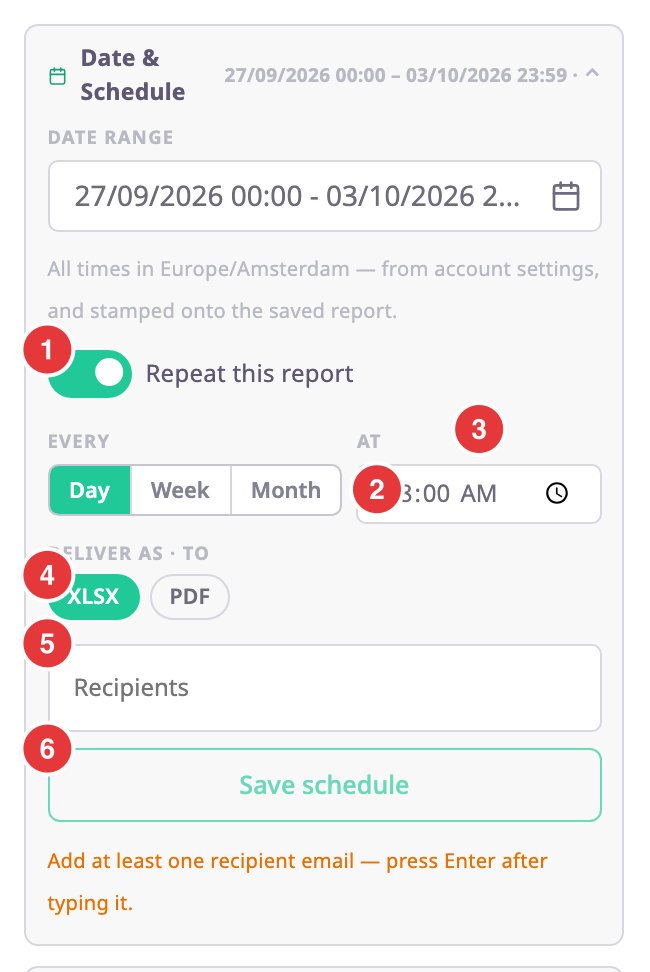
In Date & Schedule, turn on Repeat this report, marked 1.
The schedule fields appear. -
Under Every, choose Day, Week or Month, marked 2.
-
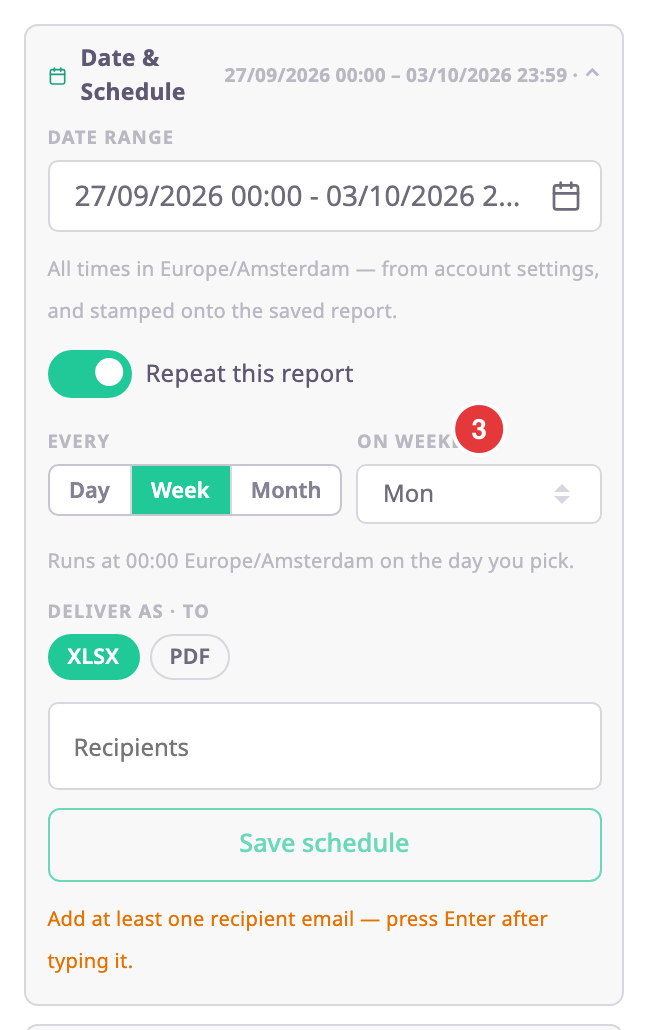
Set when it runs, marked 3:
- For Day, in At, enter the time. The default is 08:00.
- For Week, in On weekday, choose the day.
- For Month, in On day of month, choose the day.
-
Under Deliver as · to, choose XLSX or PDF, marked 4.
-
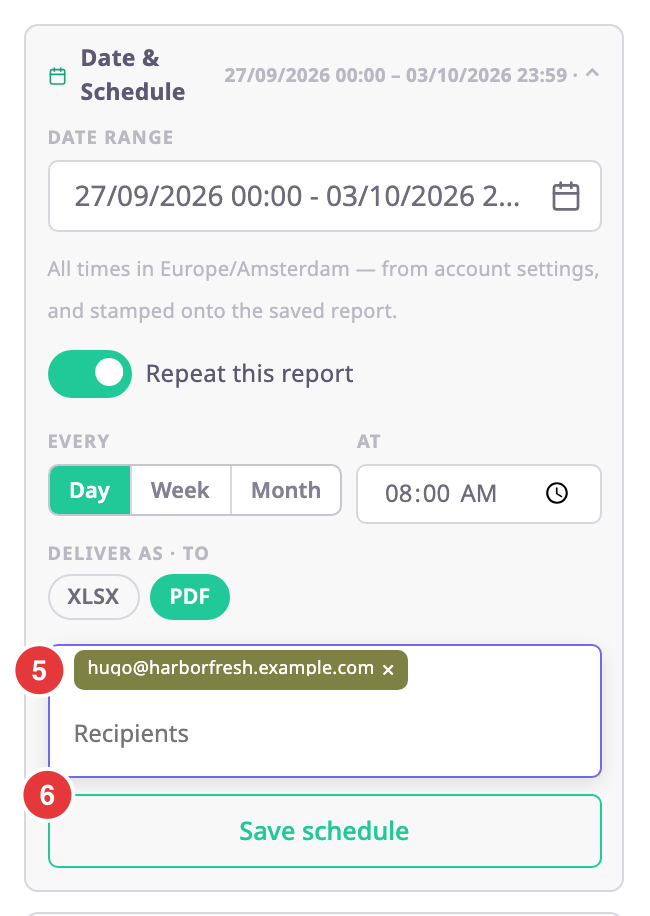
In Recipients, enter an email address and press Enter, marked 5. Repeat for each recipient.
-
Select Save schedule, marked 6.
The toast "Schedule saved — first delivery" with the date and time of the first run confirms it.
Save schedule stays disabled until the schedule can work. The line under it says what is missing, for example "Add at least one recipient email — press Enter after typing it." An address that is not valid shows "Not a valid email address".
¶ When it runs and what it covers
| Every | Runs | Covers |
|---|---|---|
| Day | Every day at the time you set. | The previous day. |
| Week | At 00:00 on the weekday you chose. | The previous week, Monday to Sunday. |
| Month | At 00:00 on the day you chose. Shorter months run on their last day. | The previous calendar month. |
Times use your account's time zone, and the email uses the language you are using when you save. The schedule keeps both even if you change them later.
¶ What happens next
- Each recipient gets an email with the file attached, or a download link when the files are larger than 15 MB.
- The file also appears in your Saved reports.
- If Polygon is recalculating part of the period at run time, it skips the run instead of sending an incomplete report. The next run catches up.
- The schedule takes its name from the template and the period, for example "Harbor trips by vehicle — day". It appears on Reports > Scheduled, where you can pause or delete it. See Scheduled reports.
To change a schedule, delete it on the Scheduled screen and save a new one.