The Generate screen is where you choose what a report covers and run it. To open it, select Generate on a template card in Reports > Create Report. The result appears under the template header, on the same screen.
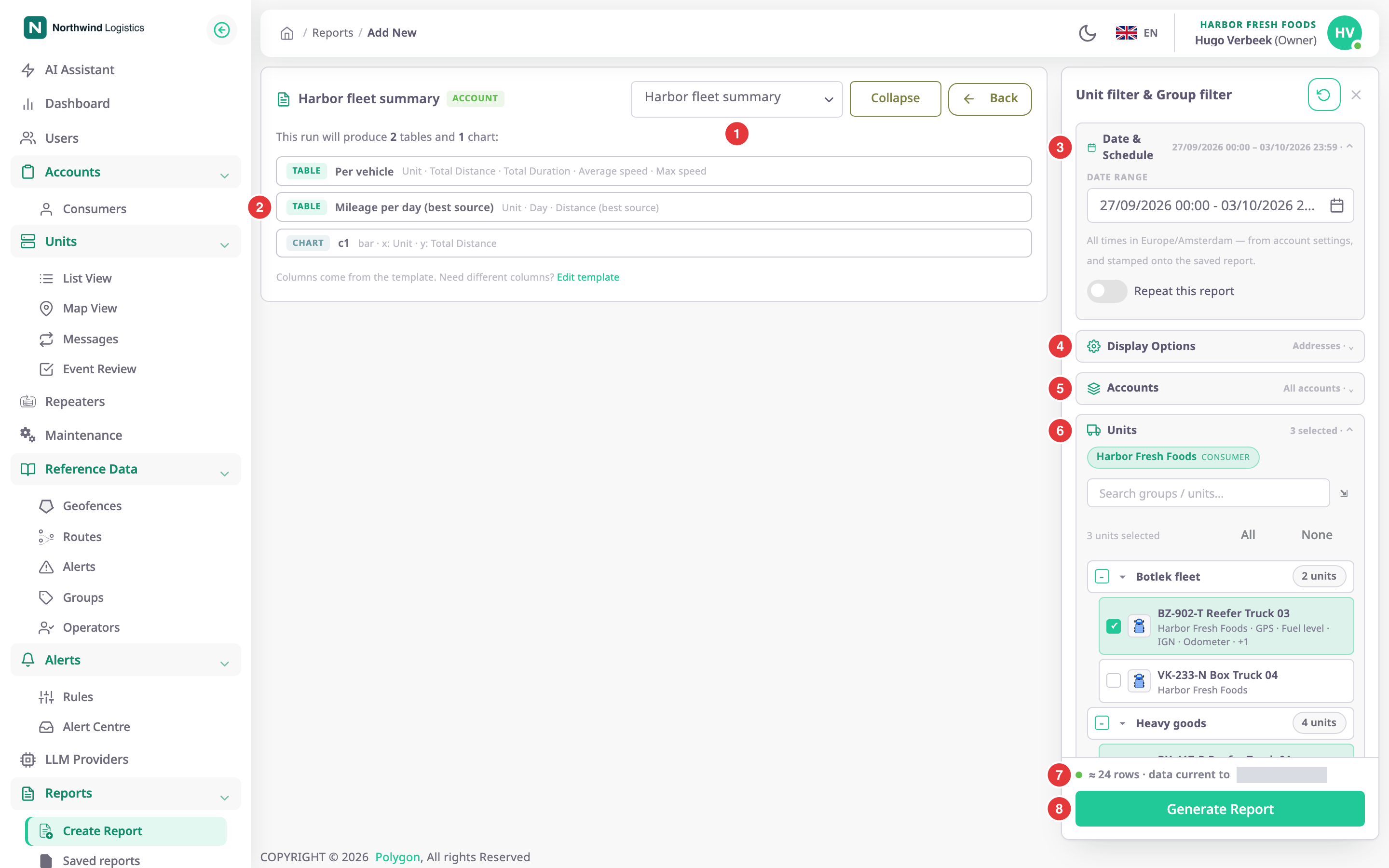
¶ Template header and contents preview
The header names the template and its scope (Account, for example). The list next to it (1) switches to another template; your unit selection stays.
When the units you selected have sensors that a system template needs, the list starts with Suggested for these units. It holds the system templates whose sensor needs those units meet, for example Fuel level for units with a fuel level sensor. Templates that need no sensor are not suggested, since they suit every unit.
The preview (2) lists every table with its columns and every chart. A table that combines several kinds without a name of its own shows all of them, for example "Fuel drains + Fuel refills". The result leaves out a table marked "not printed — feeds the charts only". Under the preview:
- Edit template opens your own or an account template in the builder.
- Clone & edit template appears for a system template. It saves a copy to My templates and opens the copy.
Collapse hides the preview; What's in this report shows it again. Back returns to the template library.
¶ The options panel
The panel on the right has the title Unit filter & Group filter. Its sections show their current value in the header, so a closed section still tells you what it holds. Select a header to open or close it. The ✕ at the top hides the panel; Options brings it back.
¶ Date and schedule
Date range (3) is the period the report covers. Select the field to open the calendar.
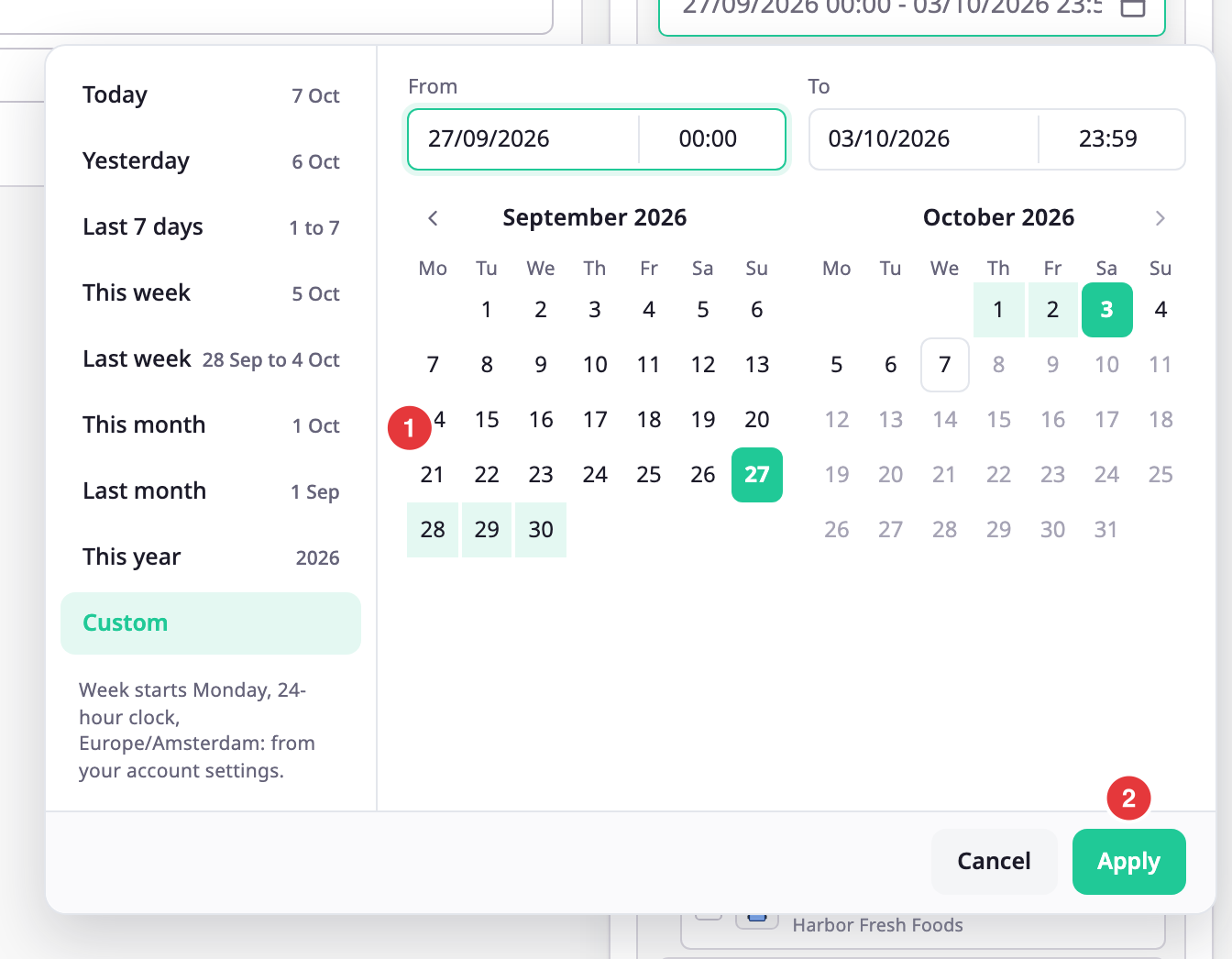
- Choose a preset on the left, such as Yesterday or Last Week, or select a start day and an end day.
- Set the start and end times under the calendars.
- Select Apply.
- You cannot choose days after today.
All times are in the time zone of your account settings. A template that lists individual records can cover up to 184 days. A template that groups its rows, for example one row per unit or per day, can cover up to 366 days. These are the default limits; your installation can set others. If the range is too long, the panel says so and Generate Report stays disabled.
A template that reads only fleet records has no date. The report records the range, but the range does not change the rows.
Repeat this report turns the panel into a schedule form. See Send a report on a schedule.
¶ Display options
(4) The first line repeats the unit system and duration format from your account settings.
- Resolve addresses turns start and end positions into addresses. On screen, Polygon looks up only the rows on the current page; an export resolves the whole file. On by default.
- Show zero-activity units adds a zero row for each selected unit with nothing in the period. Shown only when a table has one row per unit.
- Include intervals still in progress adds trips and other records that have not finished. A "live" tag marks them.
¶ Accounts
(5) Shown only if your role has Sub accounts report generate and there are accounts below yours. Choose the accounts to report on. With Include sub-accounts on, each chosen account brings the accounts below it. The Units list follows this choice.
¶ Units, drivers, devices and SIM cards
(6) Shown when the template reads tracking data. Pick units one by one or a whole group at a time.
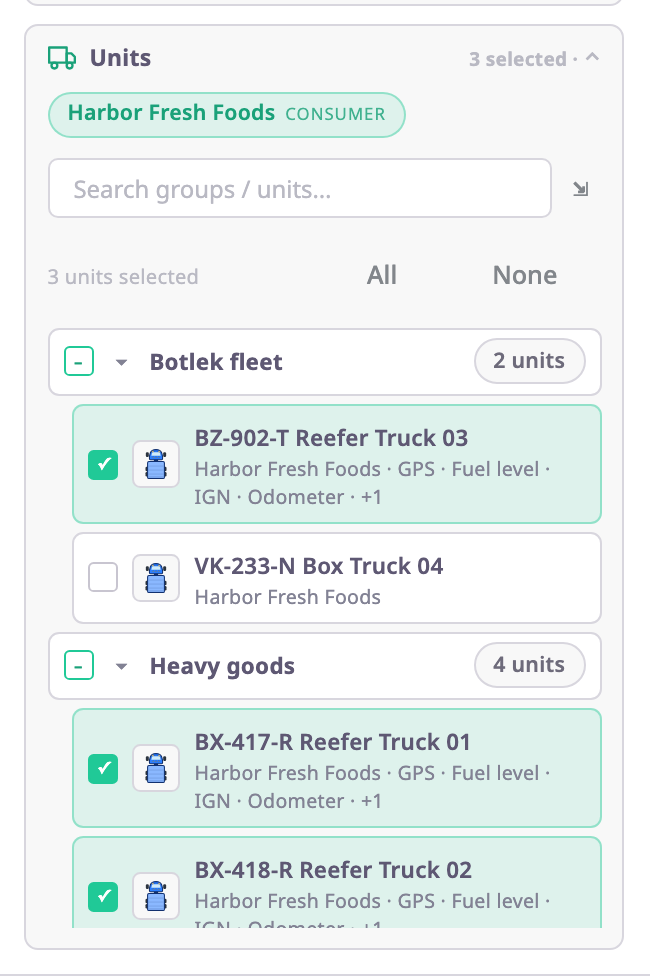
- The search box at the top filters the list by group or unit name.
- All selects every unit; None clears the selection.
- A group checkbox selects all of its units. Units in no group are under Ungrouped.
- Each unit shows its account and the sensors it has.
Templates that read fleet records may show Devices, Drivers or SIM cards sections in the same form. With nothing chosen they cover all records.
¶ Routes & places
Shown for templates about routes, schedules or geofences.
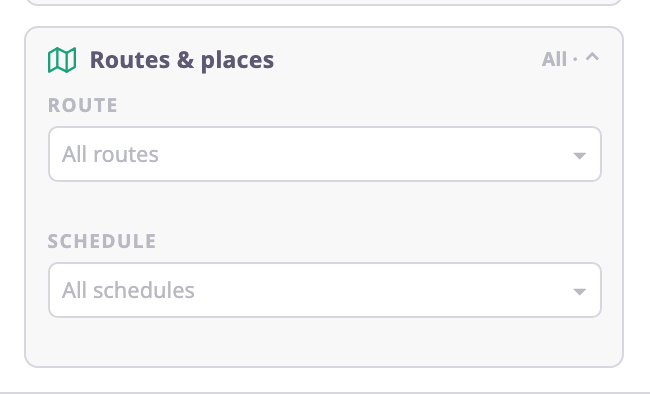
Choose one or more routes, route schedules or geofences. A ride or checkpoint template needs at least one unit, route or schedule. Until you choose one, the estimate line says "Select at least one — Units, Route, Schedule".
¶ Warnings and stale-data choices
When some selected units lack a sensor the template needs, a warning names them and the columns that will show a dash. When two tables need the same sensor, for example fuel level, the warning shows once for both.
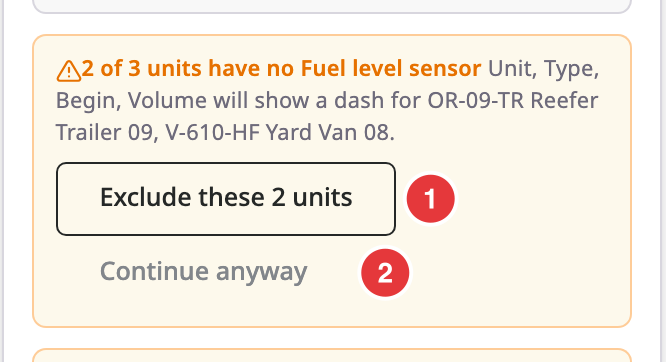
- The exclude button (1), labelled "Exclude these 2 units" in this example, removes those units from the selection.
- Continue anyway (2) hides the warning. The units stay in the report with dashes.
When a column reads different sensors for different units, a note lists the columns.
Its title is "Some columns are measured from different sensors across this selection."
When Polygon is recalculating the stored figures for the range, or has never calculated part of it, a notice explains it and offers a choice:
| Choice | What it does |
|---|---|
| Compute it now | Queues the missing part and runs the report when it is ready. Offered only for a range that was never calculated. |
| Prioritise and wait | Moves the recalculation forward and runs the report when it finishes. |
| Use stored data | Runs now. Rows for the missing part are absent, and the report says so. |
| Run without it | Stops waiting and runs with the stored figures. |
The demo data has no range that raises this notice, so it has no screenshot.
¶ Estimate and run
The line above the button (7) estimates the size of the report, for example "≈ 24 rows". It also says how current the stored data is. It warns you when the report is too large for a PDF or for any export. For a fleet-records template it says "Fleet records — size is known once it runs". When a required selection is missing, it names it.
Generate Report (8) runs the report. It stays disabled while the range is invalid, a required selection is empty or the template has problems.
¶ Fields
| Field | Required | What it does | Allowed values / example | Notes |
|---|---|---|---|---|
| Template list | Yes | Picks the template the report runs. | Your templates, account templates and system templates. | Hidden: templates that read data your role may not use. |
| Date range | Yes | Sets the period the report covers. | End after start; up to 184 days for a list of records, 366 days for grouped rows (defaults). Example: 27/09/2026 00:00 - 03/10/2026 23:59 | Ignored by fleet-records templates. |
| Repeat this report | No | Shows the schedule fields. | On or off. | Off by default. See Send a report on a schedule. |
| Resolve addresses | No | Turns positions into addresses. | On or off. | On by default. |
| Show zero-activity units | No | Adds zero rows for idle units. | On or off. | Only for tables with one row per unit. |
| Include intervals still in progress | No | Adds unfinished trips and intervals. | On or off. | Off by default. |
| Accounts | No | Reports across accounts below yours. | Your account and active accounts below it. | Needs Sub accounts report generate. |
| Include sub-accounts | No | Lets a chosen account bring the accounts below it. | On or off. | The hint says how many accounts it adds. |
| Units | Conditional | Picks the units the report covers. | Any of your units, alone or by group. Example: BX-417-R Reefer Truck 01 | Required for tracking-data templates. |
| Route, Schedule, Geofence | Conditional | Narrows a route or geofence report. | Routes, route schedules or geofences of the account. | Empty means all, but a rides template needs a unit, route or schedule. |
| Devices, Drivers, SIM cards | No | Narrows a fleet-records report. | Records of your account. | Empty means all. |
For the schedule fields, see Send a report on a schedule.
¶ Buttons and actions
| Action | What happens |
|---|---|
| Edit template | Opens the template in the builder. |
| Clone & edit template | Copies a system template to My templates and opens the copy. |
| Collapse / What's in this report | Hides or shows the contents preview. |
| Back | Returns to the template library, or to the builder when you came from Preview. |
| Generate Report | Runs the report and shows the result below the header. |
¶ Permissions
- You need the Read template action of Reports. The Owner role has it.
- The Accounts section needs Sub accounts report generate.
- Templates whose data sources your role may not use are not offered.