The Scheduled screen lists the reports you set to repeat. Each schedule produces a file on a timer and emails it. To open the screen, in the side menu select Reports > Scheduled.
You cannot create or edit a schedule here. Create it from the Generate screen with Repeat this report; see Send a report on a schedule. To change a schedule, delete it and create a new one.
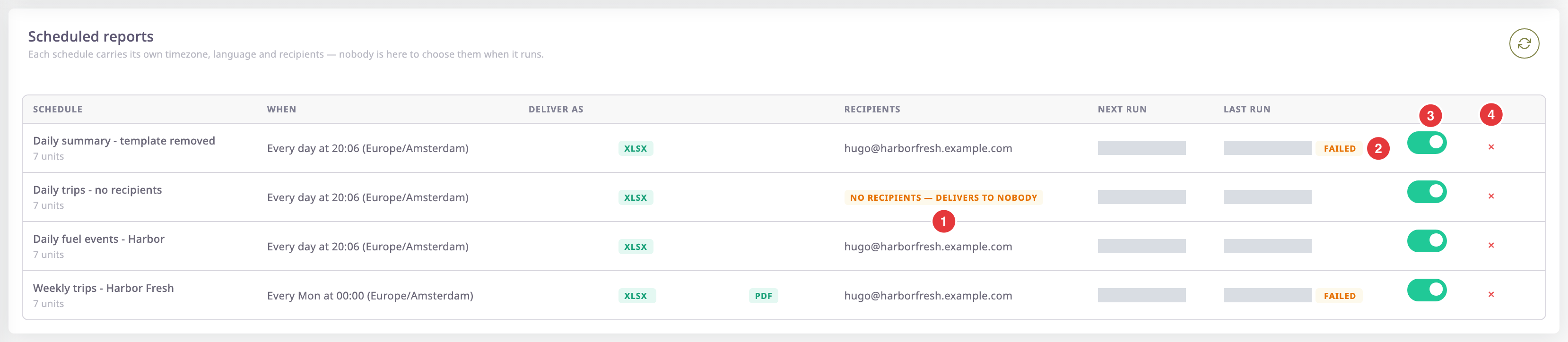
The screen shows only the schedules you created, newest first.
¶ Columns
| Column | What it shows |
|---|---|
| Schedule | The schedule name and how many units it covers, or "all units". A schedule made on the Generate screen takes its name from the template and the period, for example "Daily summary — day". |
| When | The timing and its time zone. Examples: "Every day at 08:00 (Europe/Amsterdam)" and "Every Mon at 00:00 (Europe/Amsterdam)". |
| Deliver as | The file formats: XLSX, PDF or both. |
| Recipients | The email addresses. A schedule with none shows the tag "no recipients — delivers to nobody" (1). |
| Next run | When it runs next. An "overdue" tag means the time has passed and the run has not started yet. |
| Last run | When it last ran, with a tag that says how it went. |
¶ Last-run states
| What you see | Meaning |
|---|---|
| A date, no tag | The last run built the files and sent them to every recipient. |
| "failed" (2) | The run stopped with an error. Hover over the tag to read the error. |
| "some recipients missed" | Polygon built the files, but some addresses did not receive them. Hover over the tag to see which. |
| "waiting for data" | Polygon was recalculating part of the period, so it skipped the run rather than send an incomplete report. The next run carries the corrected data. |
| — | The schedule has not run yet. |
A schedule whose template someone deleted fails, and its error reads "POLY_ERR_REPORTV2_TEMPLATE_NOT_FOUND".
¶ Pause or delete a schedule
| Control | What it does |
|---|---|
| Switch (3) | Turns the schedule off or on. A schedule that is off does not run; turning it on again sets the next run from now. |
| × (4) | Asks "Do you really want to delete the schedule" with the schedule name, then removes it. The toast "Schedule deleted successfully" confirms it. |
| Circular arrows | Reloads the list. |
¶ What each run sends
- A daily schedule reports on the previous day, and a weekly one on the previous Monday to Sunday. A monthly one reports on the previous calendar month. All use the schedule's time zone.
- Each recipient gets their own email. The email carries the files when together they are 15 MB or smaller; otherwise it has download links only. Links work for up to 7 days, and never longer than the file exists.
- A recipient who has unsubscribed from non-essential emails does not receive scheduled reports, and the run shows "some recipients missed".
- The files also appear in your Saved reports.
¶ Permissions
- You need the Read template action of Reports to open this screen, and Show Menu for the menu item. The Owner role has both.
- A schedule runs with your permissions at the time it runs. If you lose access to its units or data, its runs fail.