Export a report when you need a file to keep, print or send. Polygon builds the file in the background, so you can keep working. When the file is ready, the app downloads it for you. It also keeps the file in Saved reports.
¶ Before you start
- Run the report first. See Run a report.
- You need the Read template action of Reports. The Owner role has it.
- Hide the columns you do not want, and set any filters or sort in the tables. The file follows what the tables show: hidden columns are left out, and your filters and sort apply.
¶ Choose a format
-
Above the report, select Export.
The export menu opens.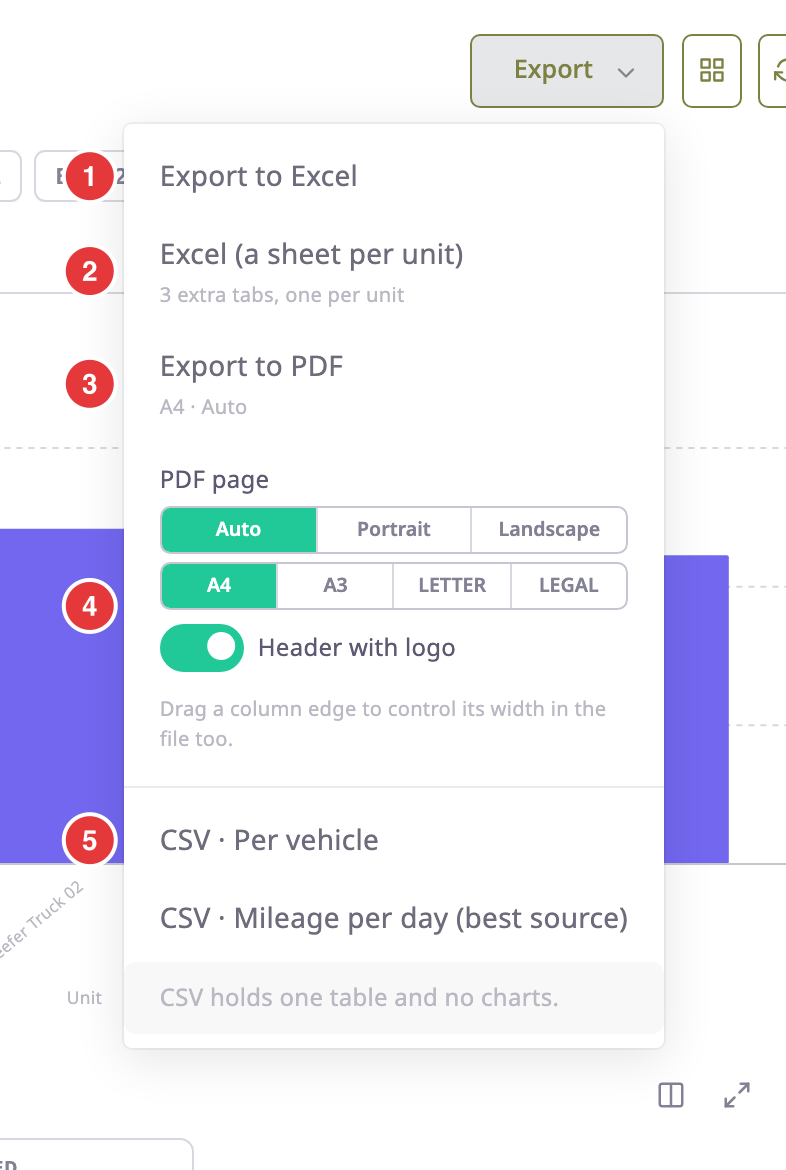
-
Choose a format:
- Export to Excel (1): one workbook with one sheet per table.
- Excel (a sheet per unit) (2): the same workbook plus one tab per unit. Offered when the report covers more than one unit.
- Export to PDF (3): the report as a document, with charts. The line under it shows the page setup, for example "A4 · Auto".
- CSV · table name (5): one table as a CSV file, without charts. There is one entry per table.
The PDF and the Excel workbook draw a Fuel level chart from every message, with its refill and drain markers on the line. The chart opens on the axis set in the template. The workbook shows it as a picture, without the readings behind it.
The notification centre opens on its Tasks tab, with your export at the top.
¶ Follow the download
You can close the notification centre and keep working. You do not need to select Download: when the file is ready, the app fetches it for you.
- The task reads "Queued", then "Generating" while Polygon builds the file. A bar shows the percentage and the rows written when the server reports them.
- It reads "Downloading" while the browser fetches the file, with the size fetched so far.
- It reads "Downloaded" when the file is in your browser's downloads. Select the task to download it again.
If the export fails, the task shows the reason in red. If only the download failed, the task says "download failed — click to retry". Select the task to try again.
Cancel on the task stops an export that is queued or generating. A downloaded task leaves the list 30 minutes later; the file stays in Saved reports. To reopen the list, select the bell icon at the top right, then the Tasks tab. See Notifications and background tasks.
When an export you started is ready, a "Report ready" notification can also arrive in the Notifications tab. Select it to download the file where you are.
¶ Set up the PDF page
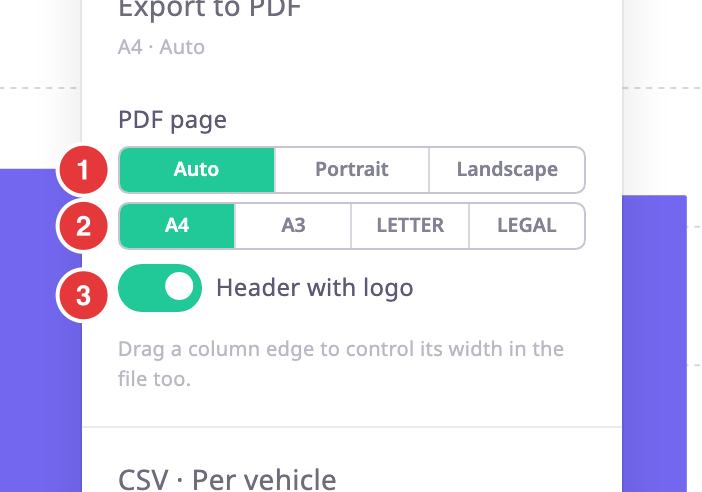
Set the page before you select Export to PDF. The settings sit in the same menu, under PDF page (4).
| Setting | Choices |
|---|---|
| Orientation (1) | Auto, Portrait or Landscape. Auto turns a section to landscape when its table is wider than about eight columns. |
| Paper size (2) | A4, A3, LETTER or LEGAL. |
| Header with logo (3) | Puts your account's logo in the page header. On by default. |
To control column widths in the PDF, drag the column edges in the table before you export. The note under the settings says how many widths it will use.
¶ Download it again from Saved reports
- In the side menu, select Reports > Saved reports.
Your export is at the top of the list. A progress bar shows while Polygon builds the file. - When the status reads Ready, select Download.
The notification centre opens on the Tasks tab and shows the download's progress.
See Saved reports and background tasks.
¶ Size limits
Each format has a row limit. These are the defaults; your installation can set others.
| Format | Rows |
|---|---|
| 20,000 | |
| Excel | 300,000 |
| CSV | 5,000,000 |
The estimate on the Generate screen warns you before you run a report that is too large for a PDF or for any export.
With Resolve addresses on, an export looks up the addresses for every row, not only the page on screen.
¶ If the app refuses the export
| Message | What to do |
|---|---|
| "Export is too large" | Export as CSV, choose a shorter period, or use a template that groups rows by day. |
| "Too many exports running" | You already have two exports in progress. Wait for one to finish, then try again. |
| "Daily export limit reached" | Your account has exported its daily allowance of rows. Try again tomorrow, or export a smaller report. |
| "Too many worksheets" | Excel (a sheet per unit) would need too many sheets. Select fewer units, or use Export to Excel. |