Saved reports lists the report files you exported and the exports still in progress. Scheduled runs that you own appear here too. To open it, in the side menu select Reports > Saved reports.
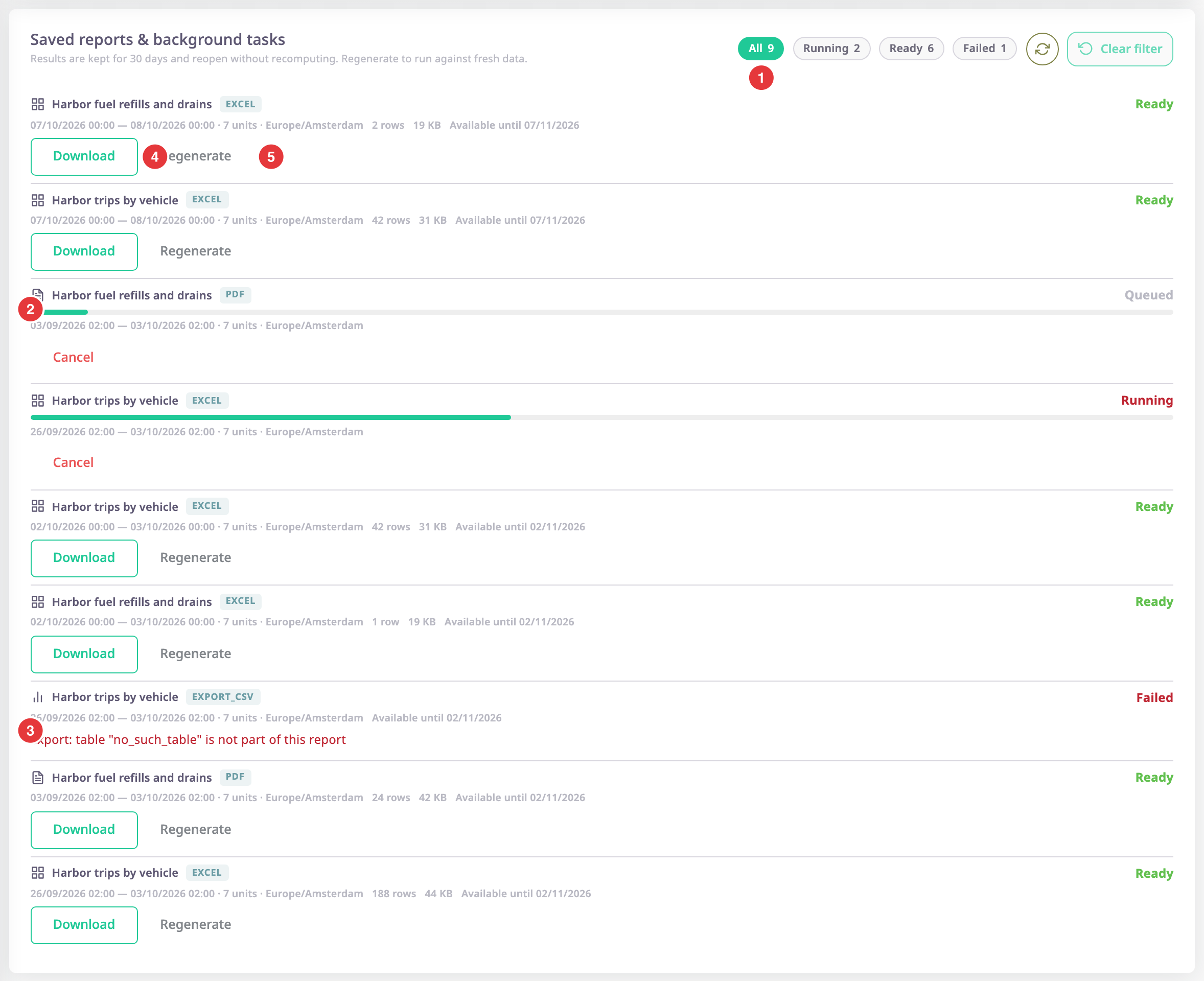
The screen shows only your own exports, newest first, up to 50. Running a report on screen does not add an entry: only exports and scheduled deliveries do.
¶ Filters
The chips at the top right (1) filter the list. Each shows how many entries it holds.
| Filter | Shows |
|---|---|
| All | Every entry. |
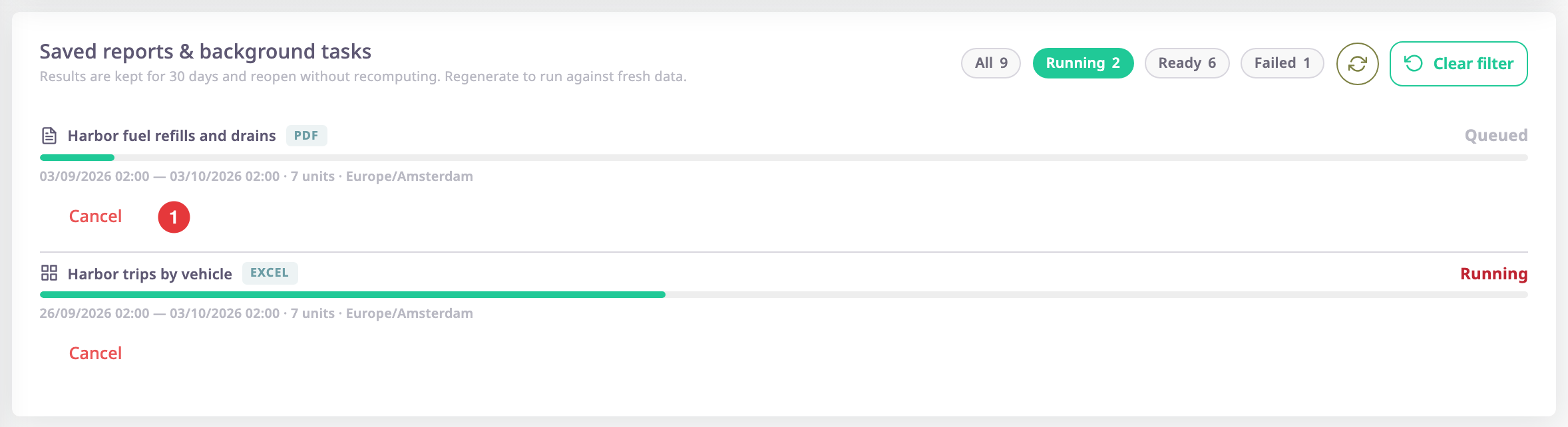
| Running | Exports that are waiting or in progress. |
| Ready | Files you can download. |
| Failed | Exports that stopped with an error. |
The circular arrows reload the list. While something is running, the list also refreshes itself every few seconds.
¶ What each entry shows
- The template name, and a tag for the file type: pdf, excel or a CSV tag.
- The status on the right: Queued, Running, Ready, Failed or Cancelled.
- A progress bar (2) while the export waits or runs.
- The period, the number of units and the time zone the report covered.
- For a finished file: the number of rows, the file size and "Available until" with the date Polygon removes the file.
- For a failed export, the reason in red (3).
¶ Actions
| Action | Shown when | What happens |
|---|---|---|
| Download (4) | The file is ready. | Downloads the file. The notification centre opens on its Tasks tab and shows the download's progress. |
| Regenerate (5) | The file is ready. | Opens the Generate screen with the same template and period. Choose the units and select Generate Report to run it against current data. |
| Cancel | The export waits or runs. | Stops the export. The entry shows Cancelled. |
¶ How long files stay
Polygon keeps files for 30 days by default, as the note under the title says. After the "Available until" date the file is gone; use Regenerate to build it again.
Each entry keeps the template as it was when it ran. If someone changes the template later, the file does not change.
¶ Background tasks in the notification centre
When you export a report, the notification centre opens on its Tasks tab. It shows each export's progress and a Cancel link while it runs, so you can keep working. When the file is ready, the app downloads it for you. To reopen the list, select the bell icon at the top right, then Tasks. See Notifications and background tasks.