Adjust a role when a job changes, and delete roles you no longer use. Changes apply at once to everyone who holds the role.
¶ Before you start
- To edit you need Roles > Update; to delete, Roles > Delete. The built-in Owner role has both.
- You cannot edit or delete the built-in roles Owner and Operator, or your own role. Their rows show only Clone and View.
- You cannot rename a role. To change a name, clone the role under the new name and delete the old one.
¶ Change a role's permissions
-
In the side menu, select Users.
-
Select the Roles tab.
-
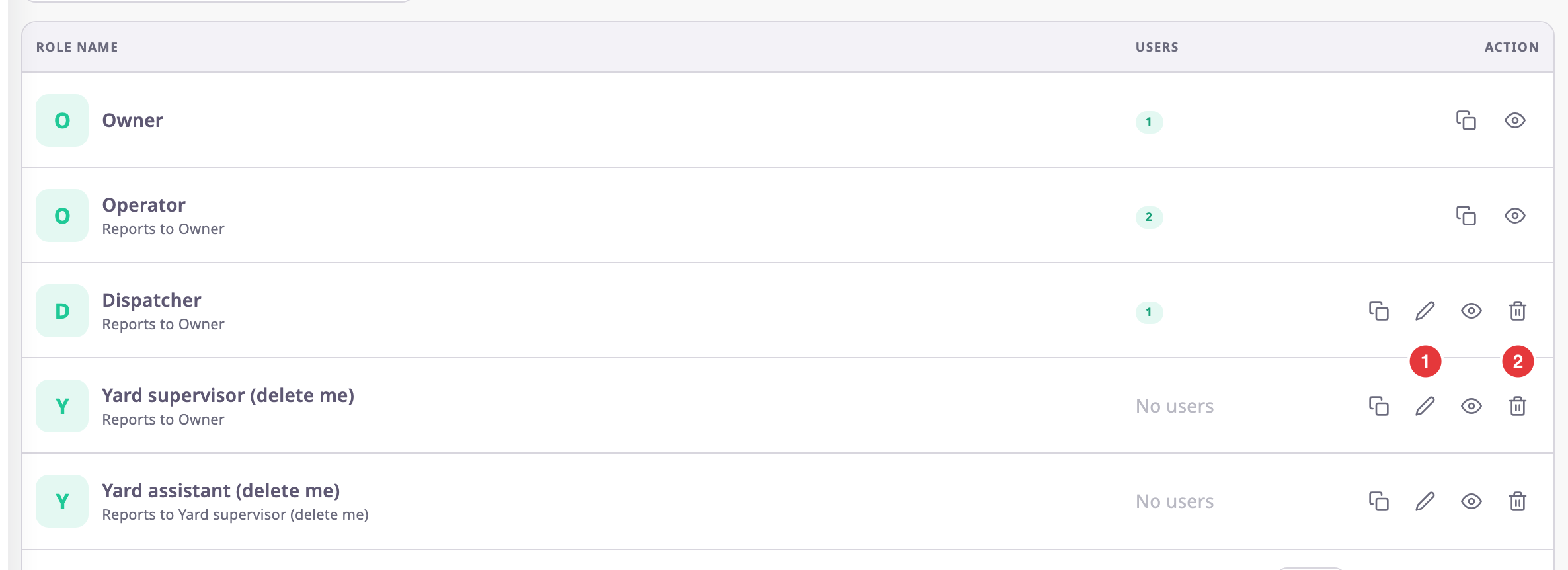
On the role's row, select Edit, marked 1.
The role page opens. -
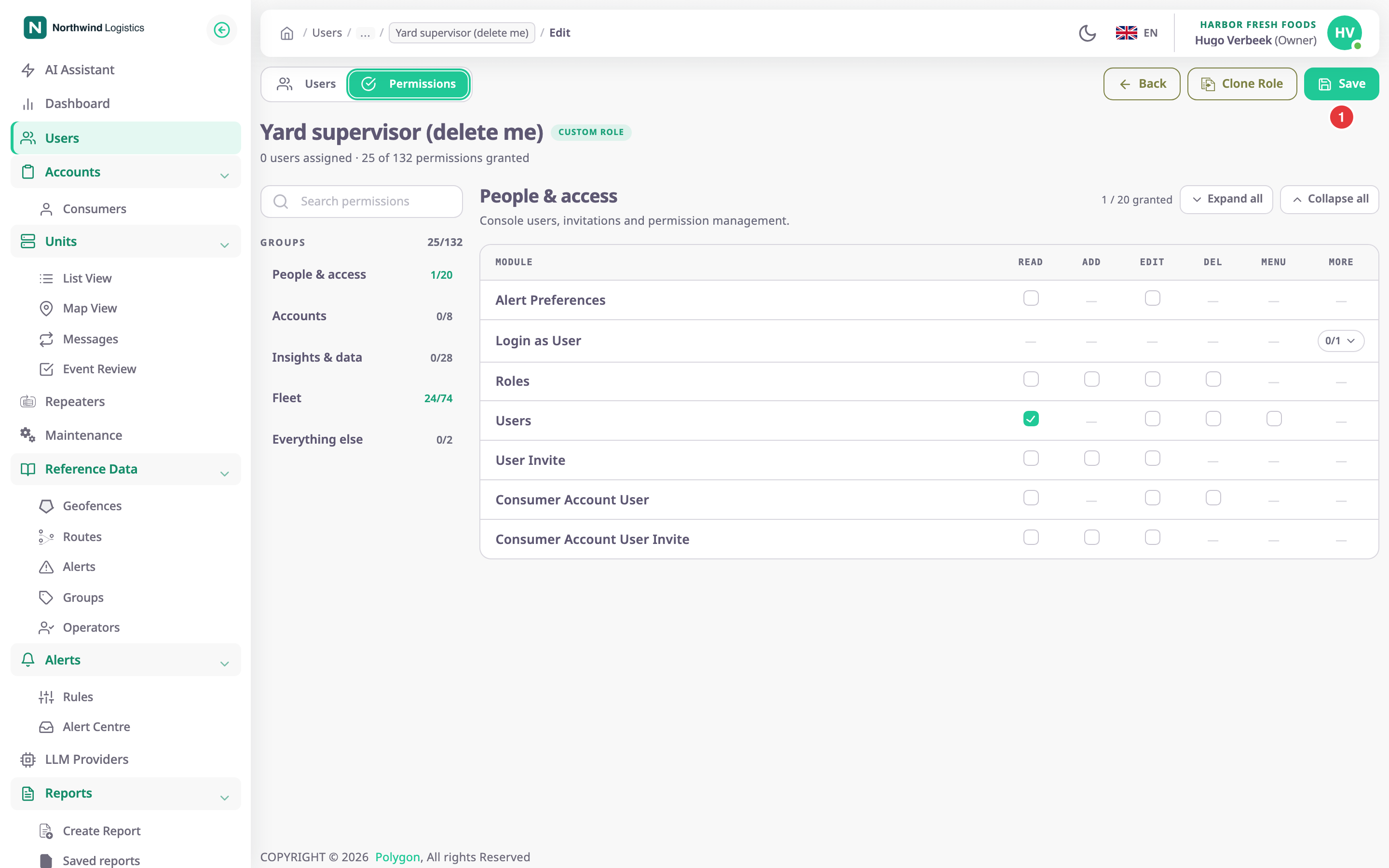
Select the Permissions tab.
-
Turn actions on or off, as in the role wizard.
-
Select Save, marked 1.
The app shows "Role updated successfully."
A permission you take away also disappears from every role below this one. A permission you add does not reach the roles below; add it to them too if they need it.
¶ Add or remove users of a role
- On the role page, select the Users tab.
- Select Add User.
The Add User dialog opens. - In Select Users, choose a user.
- Select the plus button. Repeat for each user.
- Select Save in the dialog.
- Select Save at the top of the page.
A user holds one role per account. Adding them here replaces their current role.
The bin icon on a user's row does more than take them off the role. It removes the user from the account, after asking "Are you sure you want to permanently remove this user from this account ?". To move someone to another role instead, use Edit on the Users tab. See Change a user's role or remove a user.
¶ Delete a role
- On the Roles tab, select Delete, marked 2, on the role's row.
A dialog asks "Are you sure?". - Select Remove.
The app shows "Role removed successfully" and the role leaves the list.
¶ When the app refuses to delete a role
| The dialog says | Why | What to do |
|---|---|---|
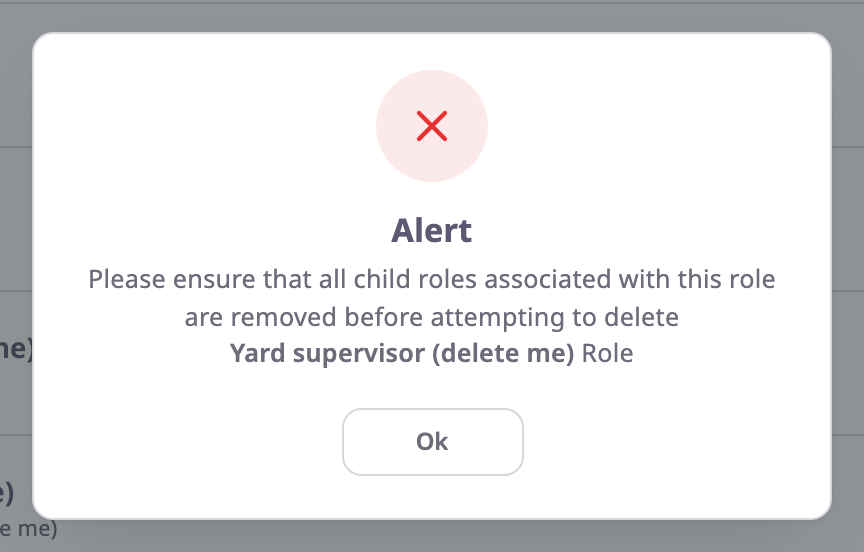
| "Please ensure that all child roles associated with this role are removed before attempting to delete" | Other roles report to this one. | Delete those roles first, starting at the bottom. |
| "Please assign users to other roles before deleting" | Users still hold this role. | Give those users another role. |
In both cases the dialog only has Ok, and the app deletes nothing.