When an incident opens, someone should own it. Acknowledge it to tell your team you are on it and to stop its escalation. Resolve it when you have dealt with a problem the app cannot see clearing by itself.
¶ Before you start
- You need Alert Incidents with Edit. The Owner role has it.
- Acknowledging and resolving change the incident for everyone in the account, not only for you.
¶ Acknowledge an incident
-
In the side menu, select Alerts > Alert Centre.
The Active tab lists the open incidents. -
In the incident's row, select Acknowledge, marked 1.
The message "“rule” acknowledged" confirms it. The incident moves to the Acknowledged tab.
You can also acknowledge from the incident panel: select the row, then select Acknowledge at the bottom.
An acknowledged incident stays until its condition clears or someone resolves it. The app cancels escalation steps that have not run yet.
¶ Acknowledge or resolve several incidents
-
On the Active tab, select the checkbox of each incident. To take every incident on the page, select the checkbox in the header, marked 1.
A bar above the list counts the selected incidents.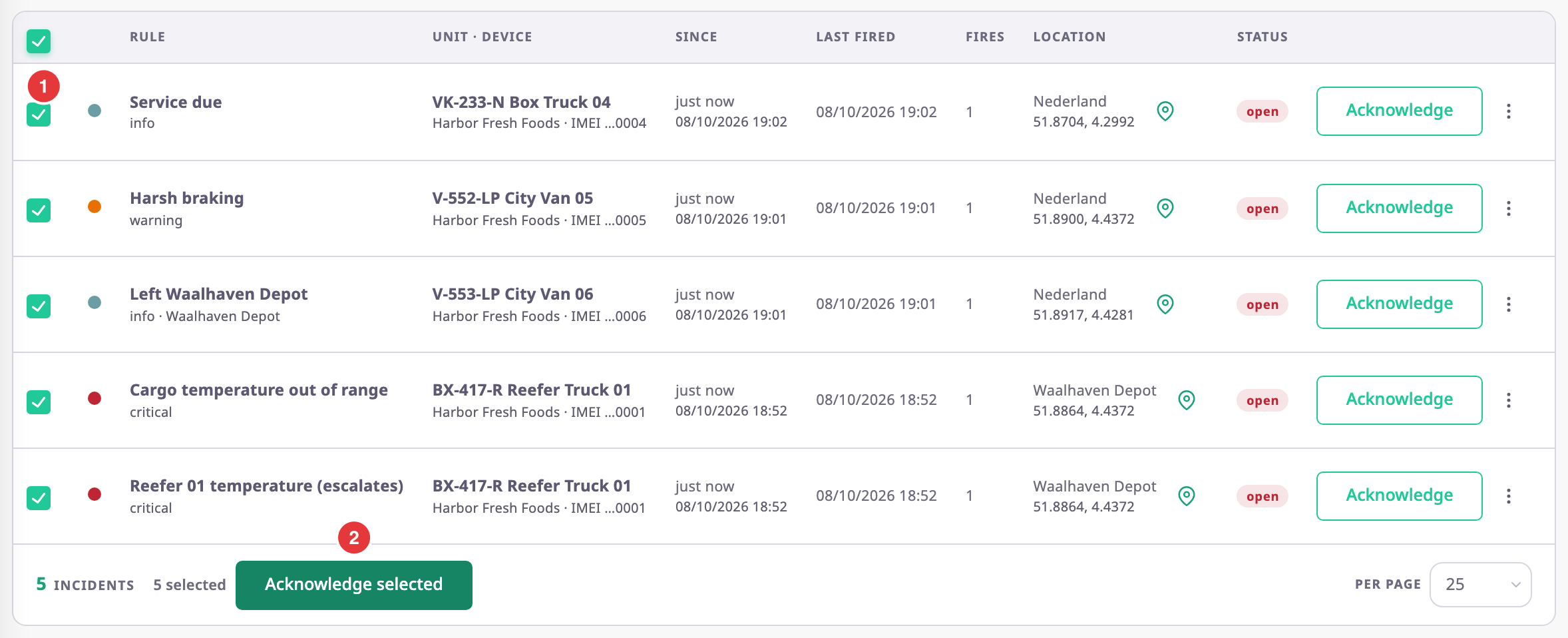
-
Optional: if more incidents match than the page shows, select Select all {n} matching.
The bar says that all matching incidents are selected. -
Select Acknowledge in the bar.
To close the incidents instead, select Resolve. -
Select Yes to confirm.
Result shows how many incidents succeeded and failed. -
Select Ok.
The list and the counters refresh.
Batch Resolve records no comment. On the Acknowledged tab the bar offers only Resolve. Only open, suppressed and acknowledged incidents have a checkbox. Use the severity, rule and unit filters first to narrow the list; changing a filter clears the selection.
If some incidents failed, Result lists each one with its reason. Select failed ticks them again so you can retry.
¶ Resolve an incident
Resolve an incident when you have dealt with the problem but the rule cannot see it clear. For example, you booked the service a reminder asked for, or a sensor stays out of range for a known reason.
-
In the incident's row, select More actions (⋮).
-
Select Resolve….
For an acknowledged incident, select Resolve in the row instead.
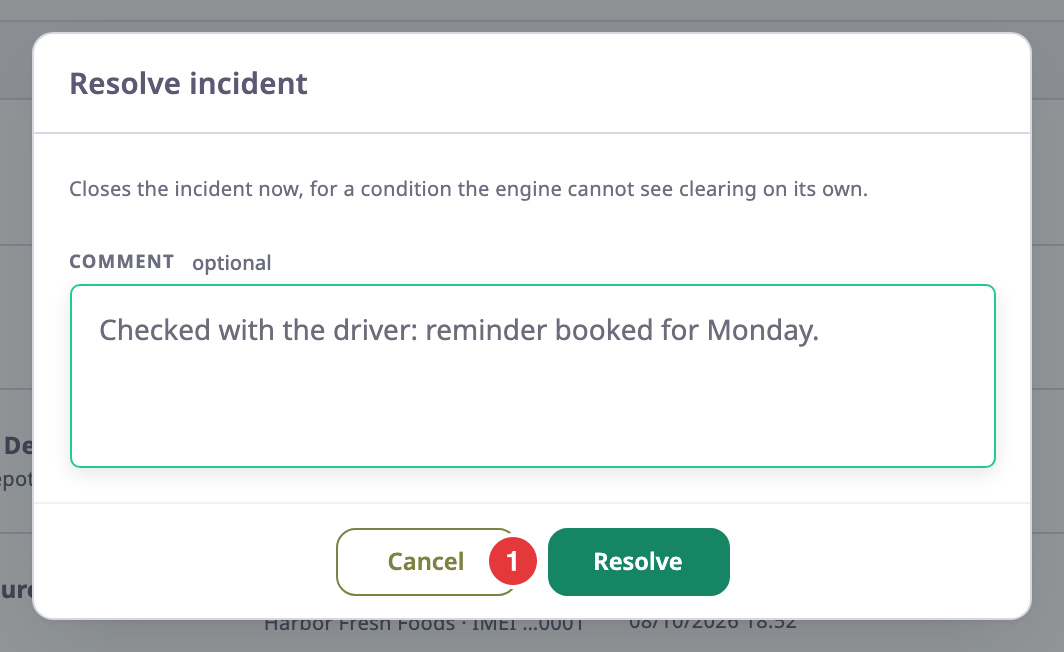
The Resolve incident dialog opens. -
Optional: in Comment, enter what you did, or why you close it.
-
Select Resolve, marked 1.
The message "“rule” resolved" confirms it. The incident leaves the Active and Acknowledged tabs and shows as resolved under History.
The comment shows in quotes in the incident's timeline. It can be up to 1000 characters.
¶ Retry a failed delivery
When a webhook call fails on every attempt, its delivery shows as dead in the incident's timeline, with a Retry button.
- Select the incident to open it.
- In Timeline, find the webhook line that shows dead.
- Select Retry.
The message "Queued for another attempt" confirms it. The delivery shows as pending until the next attempt.
A delivery that shows failed met an error a retry cannot fix, such as a webhook address on a private network. Point at the label to see the reason, then fix the rule's webhook.
See Incident details.