Turn a rule off during roadworks, copy a rule to cover another depot, or remove a rule you no longer need. All of this starts on the Alert rules screen.
¶ Before you start
- To turn rules off or on you need Alert Rules with Edit. To duplicate, you need Add. To delete, you need Del. The Owner role has all three.
- You can only change rules of your own account. Rules marked Inherited come from a parent account; copy them instead.
- Muting is different: Mute rule for me stops a rule's notifications to you alone. See Silence alerts at night or mute a rule.
¶ Turn a rule off or on
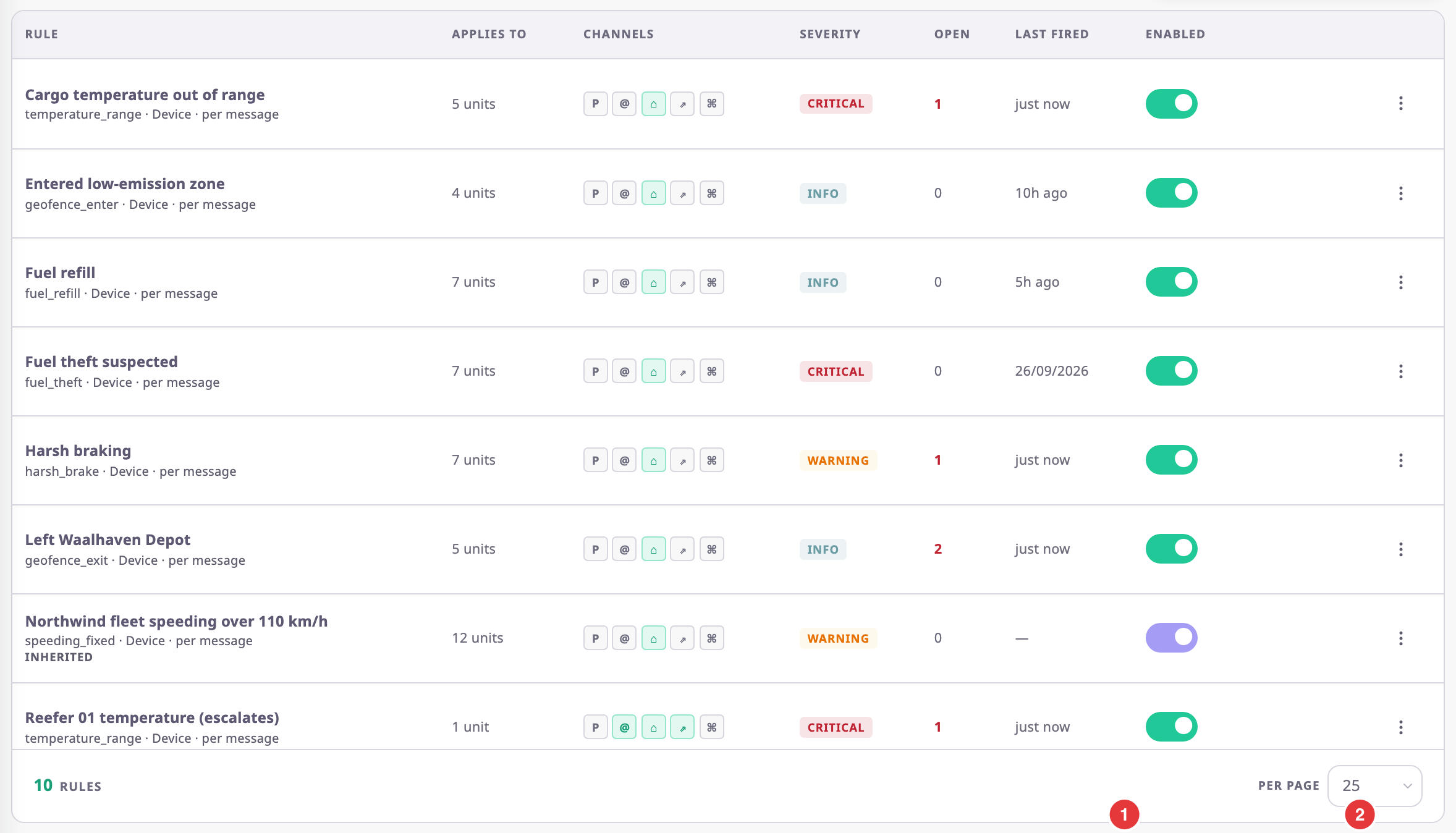
- In the side menu, select Alerts > Rules.
- In the rule's row, turn off the Enabled switch, marked 1.
The message "“name” is off. Open incidents stay until they clear." confirms it.
To turn it back on, turn on the switch. The message "“name” is on" confirms it. You can also use Disable or Enable in the row menu, marked 2.
A rule that is off opens no new incidents. Its open incidents stay in the Alert Centre until they clear or someone resolves them.
The app can also switch a rule off by itself. The rule's row then says why. A rule on an app's event says "Switched off: its app was uninstalled"; others say "Switched off by the platform". Turning the rule back on clears the note.
¶ Turn several rules off or on, or delete them
- In the side menu, select Alerts > Rules.
- Select the checkbox of each rule. To take every rule on the page, select the checkbox in the header.
A bar above the list counts the selected rules. - Optional: if more rules match than the page shows, select Select all {n} matching.
- In the bar, select Disable, Enable or Delete.
A dialog asks you to confirm and states the number of rules. - Select Yes, or Delete for a delete.
Result shows how many rules succeeded and failed. - Select Ok.
The list refreshes.
Only rules of your own account have a checkbox. Filter the list first, for example by family, to pick the rules faster.
¶ Duplicate a rule
-
In the rule's row, select More actions (⋮).
-
Select Duplicate.
The rule form opens with a copy, named "Copy of name".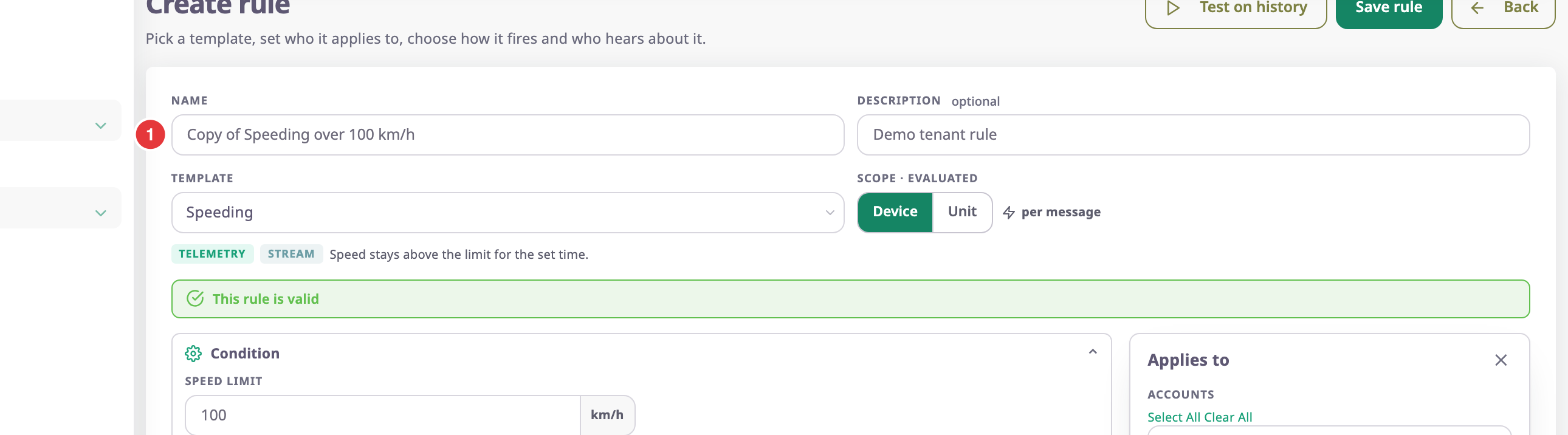
-
In Name, enter a name for the new rule.
-
Change what differs, for example the units in Applies to.
-
Select Save rule.
The new rule appears in the list, switched on.
The copy keeps everything except a webhook secret and a MAX bot token. Enter them again if the new rule needs them.
See Alert rule form.
¶ Change an inherited rule by duplicating it
In your account, you can only read an inherited rule. To change it for your units:
- In the inherited rule's row, select More actions (⋮).
- Select Duplicate.
- Change the copy.
- Select Save rule.
The copy is your own rule, in your account.
The original keeps running from the parent account. To stop it for your units, ask the parent account to change it.
¶ Delete a rule
-
In the rule's row, select More actions (⋮).
-
Select Delete.
A dialog asks you to confirm and names the rule.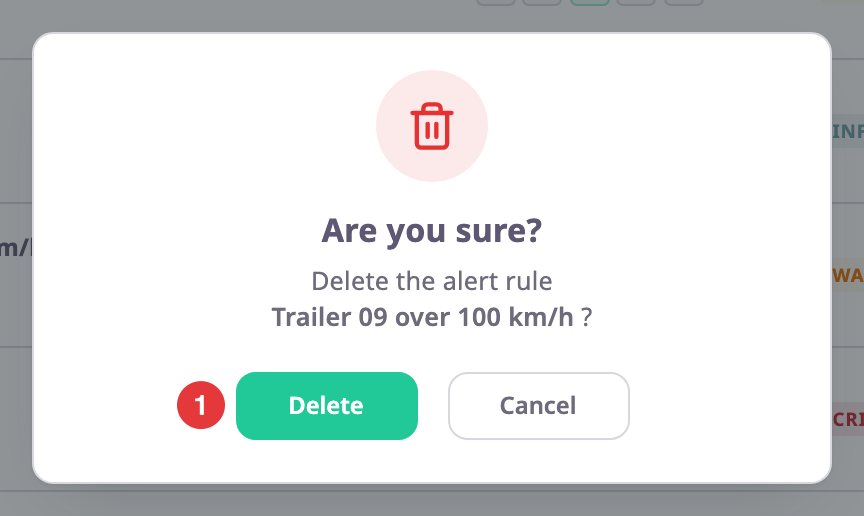
-
Select Delete, marked 1.
The message "“name” deleted" confirms it, and the rule leaves the list.
Deleting cannot be undone from the app. If you might need the rule again, turn it off instead.