The Alert rules screen lists the rules of your account, with whom each applies to, how it notifies and what it is doing now. To open it, in the side menu, select Alerts > Rules.
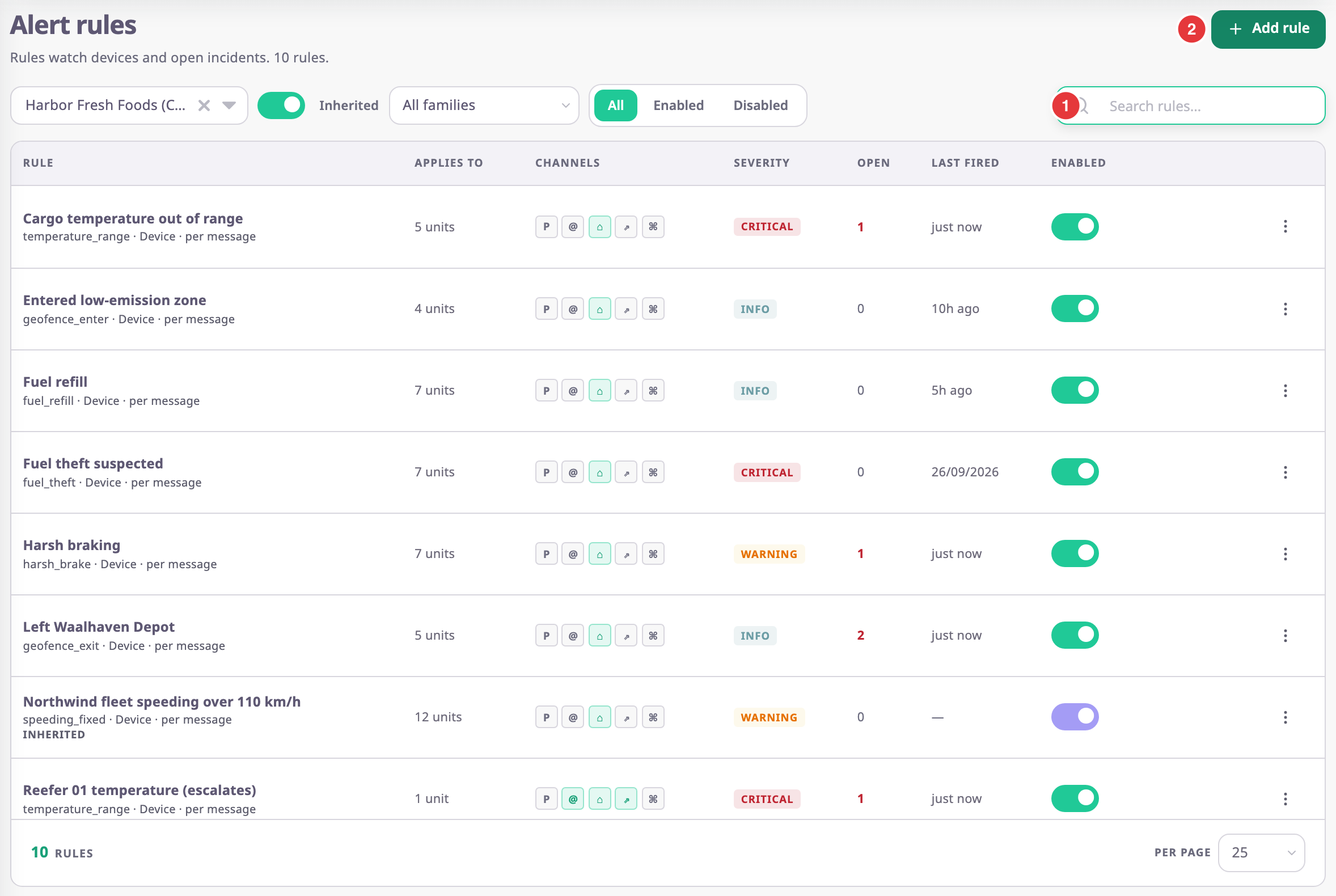
The line under the title counts the rules that match your filters.
¶ Filters
The filter row, marked 1, narrows the list. The app keeps your filters in the address, so a bookmark or a shared link opens the same view.
| Filter | What it does | Notes |
|---|---|---|
| Account | Shows the rules of the account you choose. | Only if your role can manage sub-account rules and your account has sub-accounts. Defaults to your account. |
| Inherited | Also shows rules of other accounts that watch units in this account. | Shown with the account filter. On by default. |
| All families | Shows only rules whose template is in one family, such as Connectivity or Geo. | See Alert rule template catalogue. |
| All / Enabled / Disabled | Shows every rule, or only rules that are on or off. | Default All. |
| Search | Finds rules by name. | Not case-sensitive. |
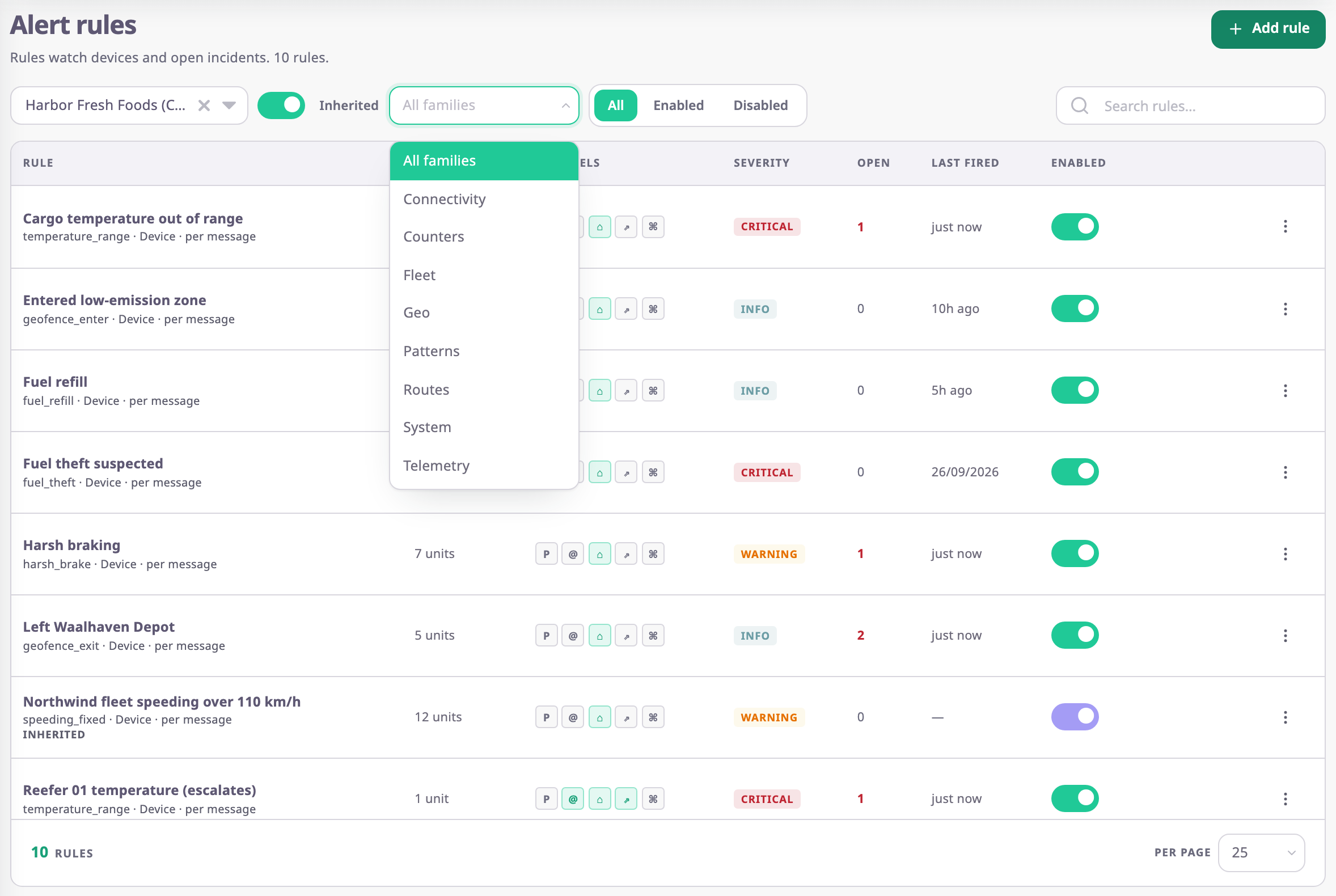
¶ Columns
| Column | What it shows |
|---|---|
| Checkbox | Selects the rule for a batch action or an export. Only rules you can change have one; inherited rules do not. |
| Rule | The rule name, then its template key, scope (Device or Unit) and how often it checks, for example "per message". An Inherited tag marks a rule from another account. A rule the platform switched off shows why, for example "Switched off: its app was uninstalled". |
| Applies to | How many units or groups the rule watches, or "All units". "+ sub-accounts" means it also watches units of your sub-accounts. |
| Channels | Six icons: Push (P), Email (@), In-app (⌂), Webhook (⇗), Command (⌘) and MAX (M). A coloured icon means the rule uses it. Point at an icon to see its name. |
| Severity | info, warning or critical. |
| Open | How many of the rule's incidents are open or acknowledged now. Select the number to see them in the Alert Centre. |
| Last fired | How long ago the rule last fired, or the date for older fires. A dash means it never fired. |
| Enabled | Turns the rule on or off at once. |
The Group action has no icon in Channels. Open the rule to see it.
¶ Buttons and actions
| Action | What happens |
|---|---|
| Add rule, marked 2 | Opens an empty rule form. See Create an alert rule. |
| Rule name | Opens the rule in the form, if you can edit it. |
| Enabled switch | Turns the rule off or on. The message "“name” is off. Open incidents stay until they clear." or "“name” is on" confirms it. |
| More actions (⋮) | Opens the row menu below. |
| Per page | Shows 10, 25 or 50 rules per page. Default 25. |
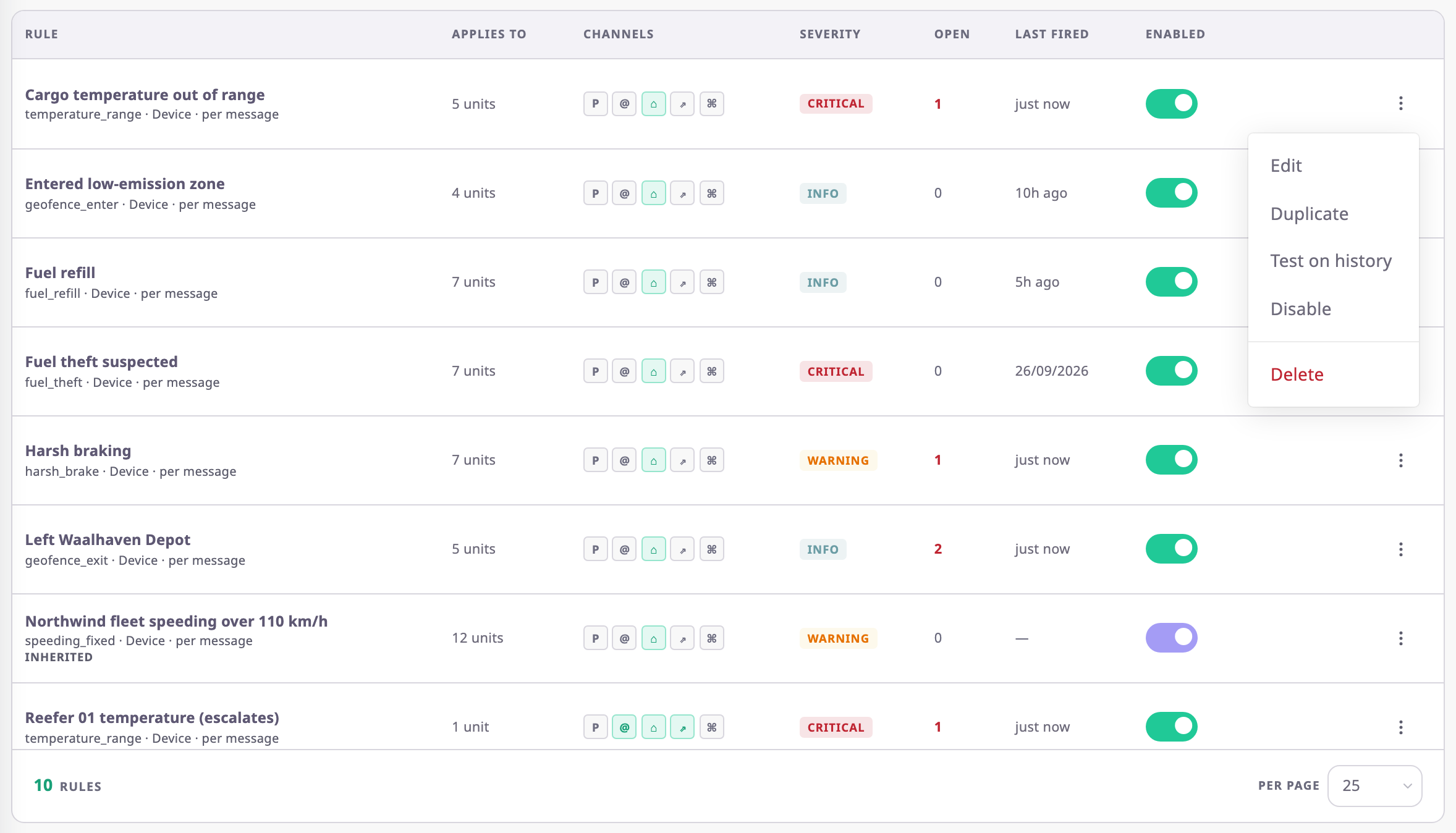
| Menu item | What happens |
|---|---|
| Edit | Opens the rule in the form. |
| Duplicate | Opens a new rule form filled with a copy of this rule, named "Copy of name". The app saves nothing until you select Save rule. |
| Test on history | Opens the rule form with the test dialog open. See Test a rule on past data. |
| Disable / Enable | Same as the Enabled switch. |
| Delete | Asks you to confirm, then deletes the rule. The message "“name” deleted" confirms it. |
See Turn off, copy or delete an alert rule.
¶ Batch actions and export
Tick rules to act on several at once. A bar above the list counts them and offers the actions your role allows.
| Control | What it does |
|---|---|
| Header checkbox | Selects every rule on this page that has a checkbox. |
| Select all {n} matching | Shown when the whole page is ticked and more rules match. Selects every rule that matches the filters. |
| Enable | Asks "Turn on n selected rules?", then turns them on. Not offered on the Enabled filter. |
| Disable | Asks "Turn off n selected rules? Open incidents stay until they clear.", then turns them off. Not offered on the Disabled filter. |
| Delete | Asks "Delete n selected items? This cannot be undone.", then deletes the rules. |
| Clear selection | Unticks everything. |
After a batch, Result shows how many rules succeeded and failed, with the reason for each failure. Select failed ticks the failed rules again. Changing a filter or the search clears the selection.
Export saves the ticked rules as a file. Excel (.xlsx) takes up to 10,000 rules. PDF opens the browser's print dialog and takes up to 2,000 rules. Until you tick a rule, the menu shows "Select rows to export". The file has the columns Rule, Type, Applies to, Channels, Severity, Open, Last fired and Enabled.
¶ Inherited rules
A dealer can write one rule for the units of its customers' accounts. In those accounts, the rule shows with the Inherited tag. The demo account above shows such a rule, "Northwind fleet speeding over 110 km/h".
In your account, you can only read an inherited rule:
- Its name is not a link, its Enabled switch is unavailable, and it has no checkbox.
- Its row menu offers only Duplicate and Test on history.
- If you open it, the form says "This rule belongs to a parent account and is read-only here. Duplicate it to make your own."
To change it for your account, duplicate it, change the copy, and save the copy as your own rule.
¶ Permissions
The Owner role has all of these. For other roles, see Permissions reference.
- To open this screen you need Alert Rules with Read.
- Add rule and Duplicate need Alert Rules with Add. Test on history runs only with Add, too.
- Edit, the Enabled switch, Disable and Enable need Alert Rules with Edit.
- Delete needs Alert Rules with Del.
- The checkboxes, and with them Export, need Alert Rules with Edit or Del.
- The account filter and the Inherited switch need Alert Sub Account on Alert Rules.
A user without Edit sees the rules but cannot open them; the names are plain text and the switches are unavailable.