When you keep running the same report, pin it to a dashboard. The widget runs the same template for the same units, and you can open it as a full report again with one link.
¶ Before you start
- You need the Add action of Dashboard Widgets and Read of Reports.
- You can pin only a report that runs a saved template. A preview of an unsaved template has no Pin to dashboard button.
- On an account dashboard, only a user with the Owner role can add widgets.
- Run the report first. See Generate report screen.
¶ Pin from the report
-
Run the report. In the side menu, select Reports > Create Report. Choose a template and units, and select Generate Report.
-
Above the results, select the dashboard icon, marked 1. Its tooltip reads "Watch this report on a dashboard", and its screen reader label is Pin to dashboard.

The Dashboard screen opens with the Add widget dialog on top.
¶ Finish the widget
The dialog opens on the dashboard that opens first for you: your default, otherwise the account's default, otherwise the first one. If you have no dashboard, the app creates a personal one named My dashboard first.
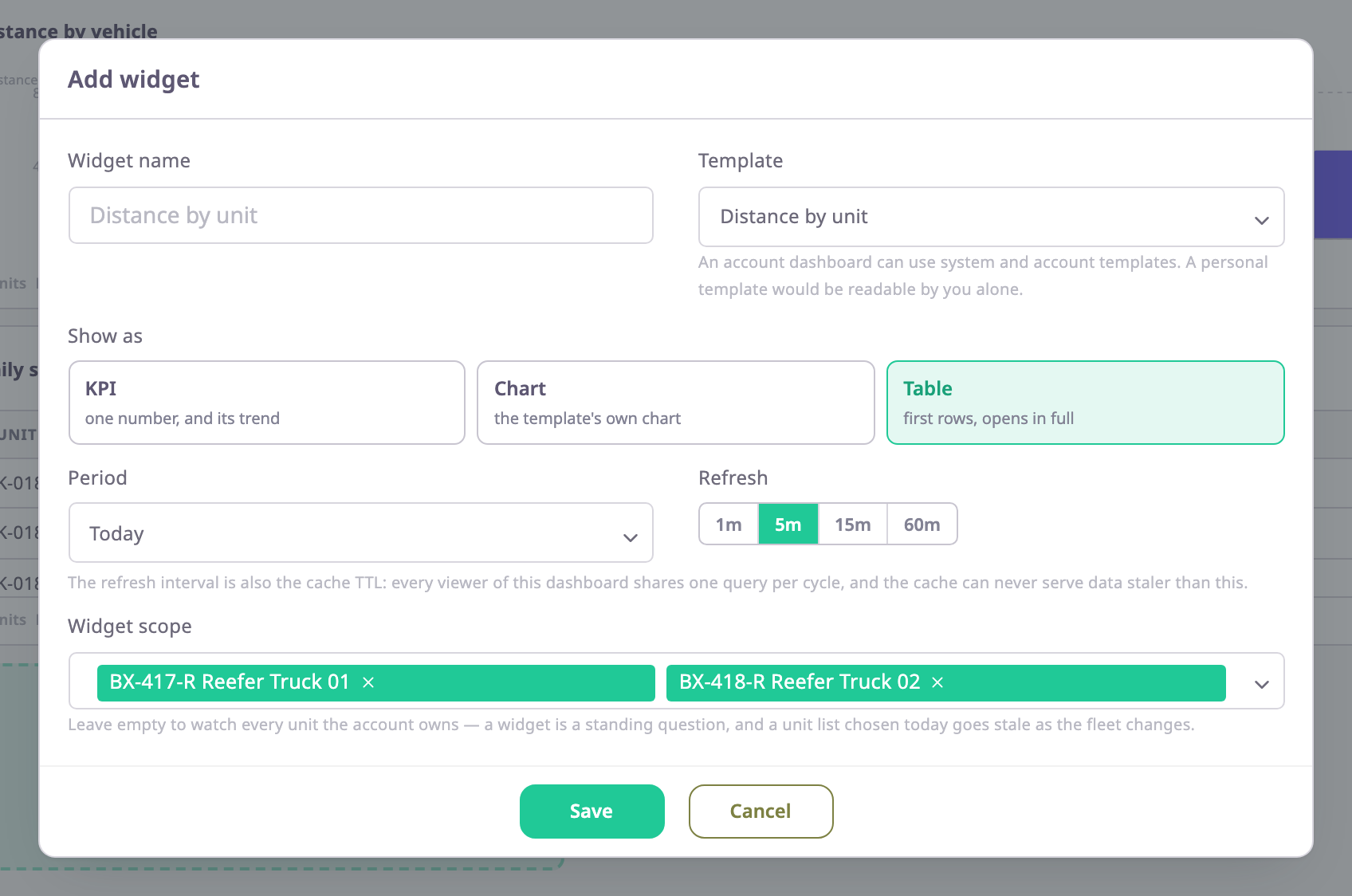
- Check Template and Widget scope.
They come from the report: its template, and the units you selected. - In Show as, choose how to show it.
A new widget starts as Table. - In Period, choose the period.
The period is not carried over from the report. - Select Save.
The widget appears on the dashboard.
To pin to another dashboard, select Cancel, choose that dashboard in the list, and add the widget there with the same settings. See Add a widget to a dashboard.
Some templates cannot go on the dashboard that opened, such as a personal template on an account dashboard. Then Template is empty, and a red note says "This widget's template cannot be used on this dashboard. Choose another one to make the widget work again."
¶ Open a widget as a report
Each widget has the link open as report ↗ in its footer.
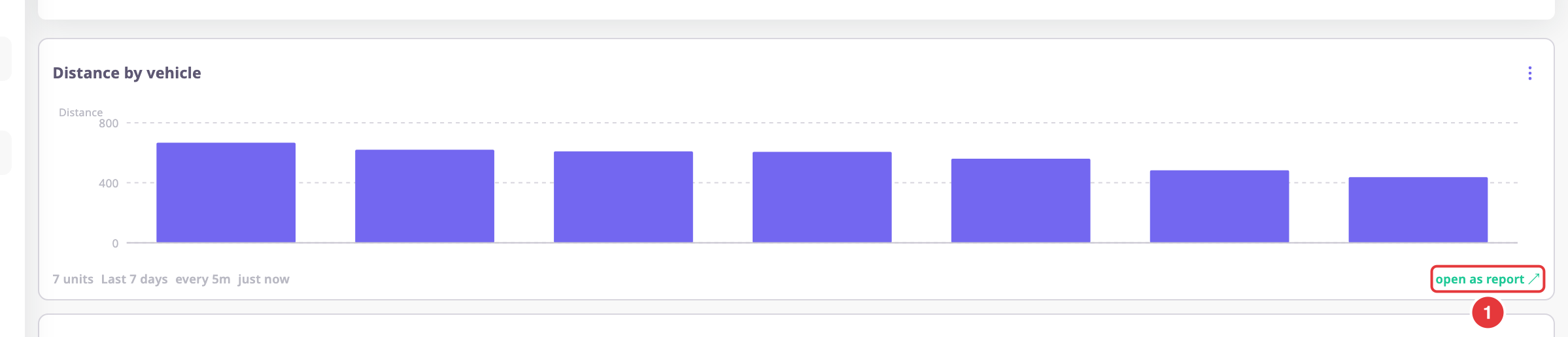
- In the footer of the widget, select open as report ↗, marked 1.
The report screen opens on the same template, with the widget's period as the date range. - Choose the units.
The link does not carry the widget's units or SIM cards, so the unit list starts empty. - Select Generate Report.
¶ Limits
- The widget does not take the report's period. A widget asks a rolling question such as Today, and a report shows a fixed window.
- A widget keeps the units you chose when you pinned. It does not follow later changes to your selection in the report.
- The widget's units and SIM cards do not carry back to the report.