The Conditional tab decides which value a sensor field takes. It holds the field's expression and a condition builder that writes if / else-if / else chains for you. It shares a dialog with the Calibration tab, which converts whatever the Conditional tab produces. For what conditions are and the order the app applies them in, see Sensor conditions.
¶ Open the tab
- In the side menu, select Devices.
- Open the device and select the Sensors tab.
- Select Edit on the sensor's row.
The sensor dialog opens. - In the Telemetry mapping group, select Calibration table under the field you want.
The dialog opens on the Calibration tab. - Select the Conditional tab.
Calibration table shows only under fields that hold numbers. A field that holds a list, such as a Wi-Fi scan, has neither tab.
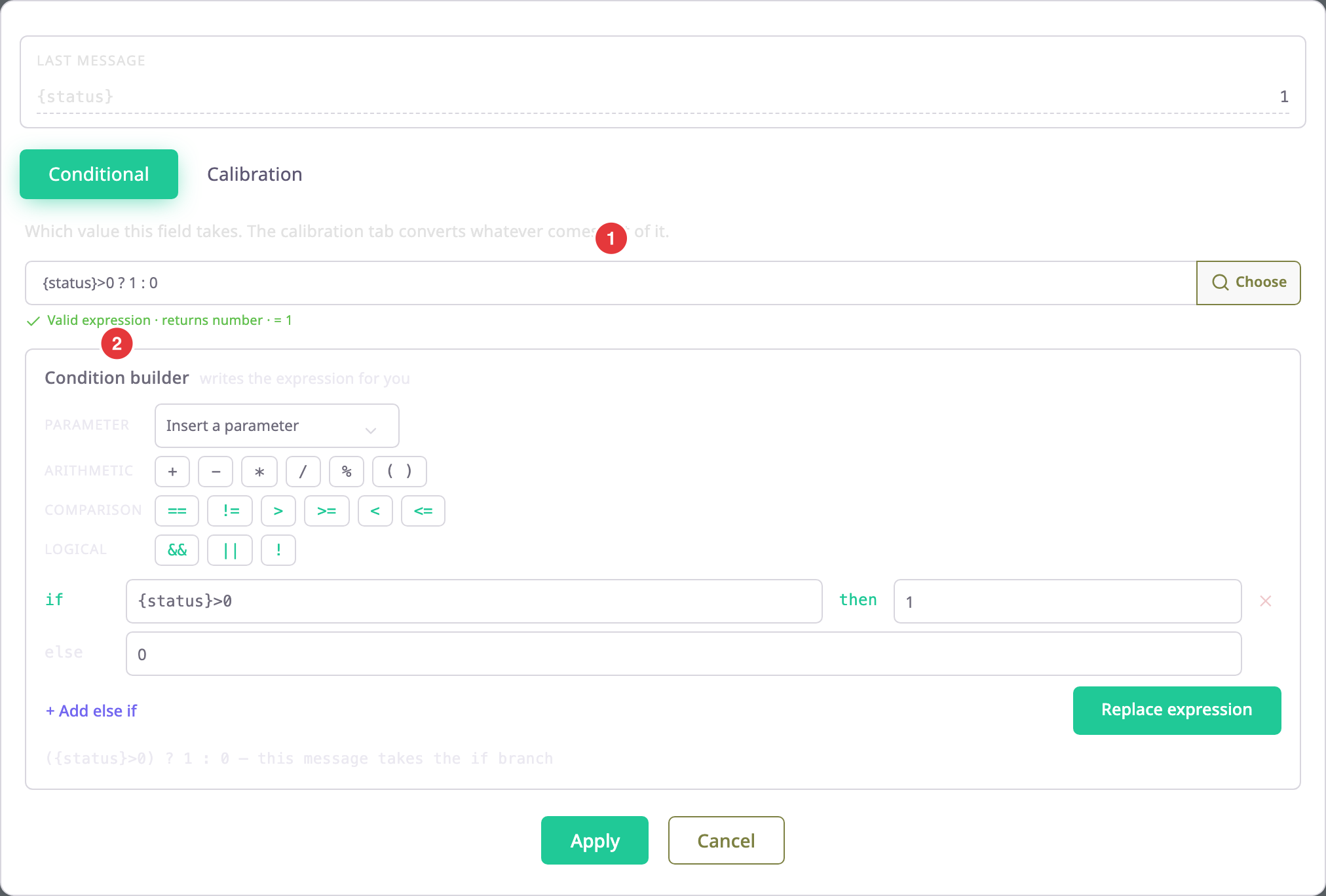
¶ The last message panel
The panel at the top of the dialog lists the parameters the field's expression reads. It shows their values in the device's most recent message and when the app received it. A parameter the message lacks shows "not in this message". A device that never reported shows "this device has not reported yet". Use the values to check a test before you apply it.
¶ Expression box
The box under "Which value this field takes. The calibration tab converts whatever comes out of it." holds the field's expression. It works like the field in the sensor dialog: you can type in it, insert a parameter with Choose, and read the hint underneath. The builder below writes into this box. For the syntax, see Expression reference.
¶ Condition builder
The builder shows one row per test and writes them into the expression box as a chain: (test 1) ? value 1 : ((test 2) ? value 2 : else value).
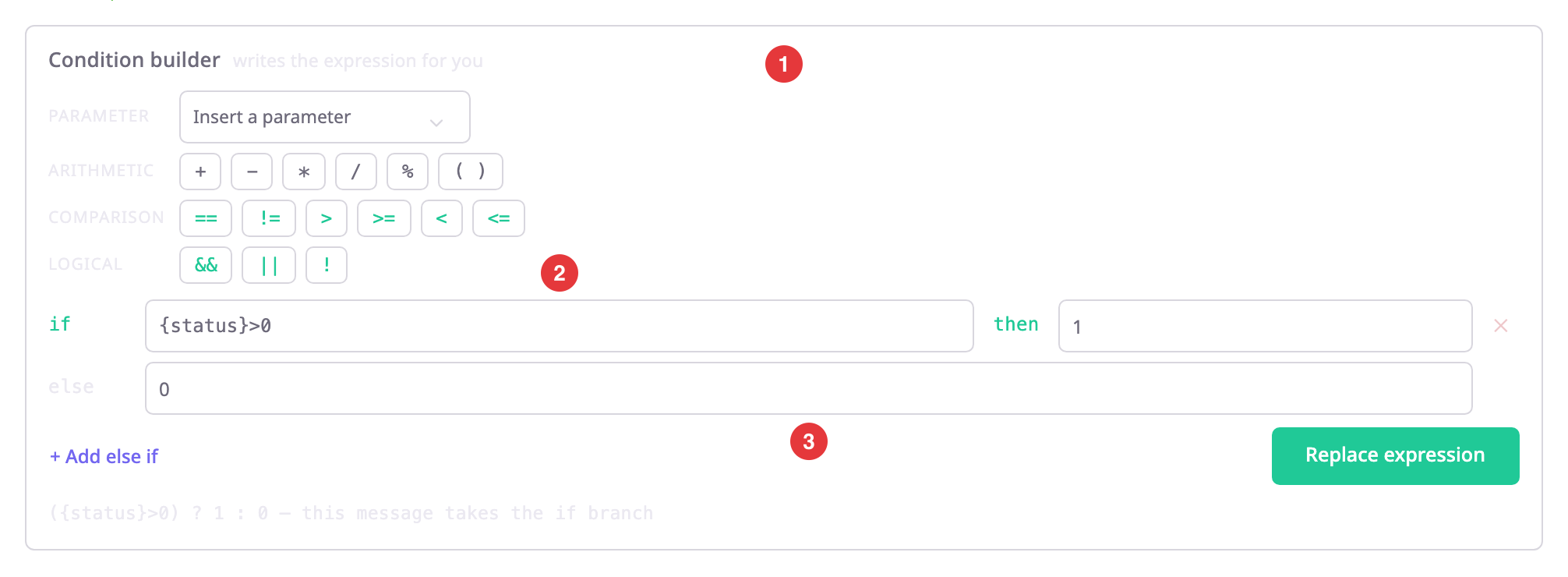
| Control | What it does | Allowed values / example | Notes |
|---|---|---|---|
| Parameter list, "Insert a parameter" | Inserts a parameter or another sensor's field at the cursor of the builder box you last used. | Parameters of the device's last message and of this expression, and the fields of the other sensors. Example: Ignition#v | The current sensor is not offered: a field cannot read itself. |
| Operator chips | Insert an operator at the cursor: arithmetic + - * / % ( ), comparison == != > >= < <=, logic && \|\| !. |
— | Comparison and logic chips use the accent colour because they make the expression conditional. |
| Test box after "if" or "else if" | The test of the row. The first row whose test holds decides the value. | A comparison or logic expression. Example: {speed} < 4 && {in4} == 1 | Typing a letter, { or [ opens up to eight matching suggestions. Use the arrow keys and Enter to insert one, Esc to close the list. |
| Box after "then" | The value when the row's test holds. | A number, parameter, sensor field or expression. Example: 1 | Empty counts as 0. |
| Box after "else" | The value when no test holds. | Same as "then". Example: 0 | Starts at 0. |
| + Add else if | Adds a row under the last one, copied from it. | — | — |
| Cross at the end of a row | Removes the row. | — | Off while only one row is left. |
| Replace expression | Writes the rows into the expression box, replacing what was there. | — | Off while any row has an empty test. |
When the dialog opens, the builder reads the field's expression back into rows. If the expression is not an if / else chain, the rows start with a suggestion. The builder then says "This field's expression is not a simple if/else chain, so the rows below start empty. Replace expression will overwrite what is in the field."
¶ Branch preview
The line under the builder shows the expression the rows will write. Suppose the device's last message carries every parameter the tests read. The line then adds which branch that message takes, for example "— this message takes the else branch". The app also highlights the row of that branch. Tests that read another sensor's field show no branch, because the panel holds only raw parameters.
¶ When the tab locks conditions
Take a field that has a calibration table and no condition in its saved expression. In place of the builder, the tab shows "This field is calibrated, so conditions are locked". Someone measured the table's points against the value the expression gives now, and a condition would change that value.
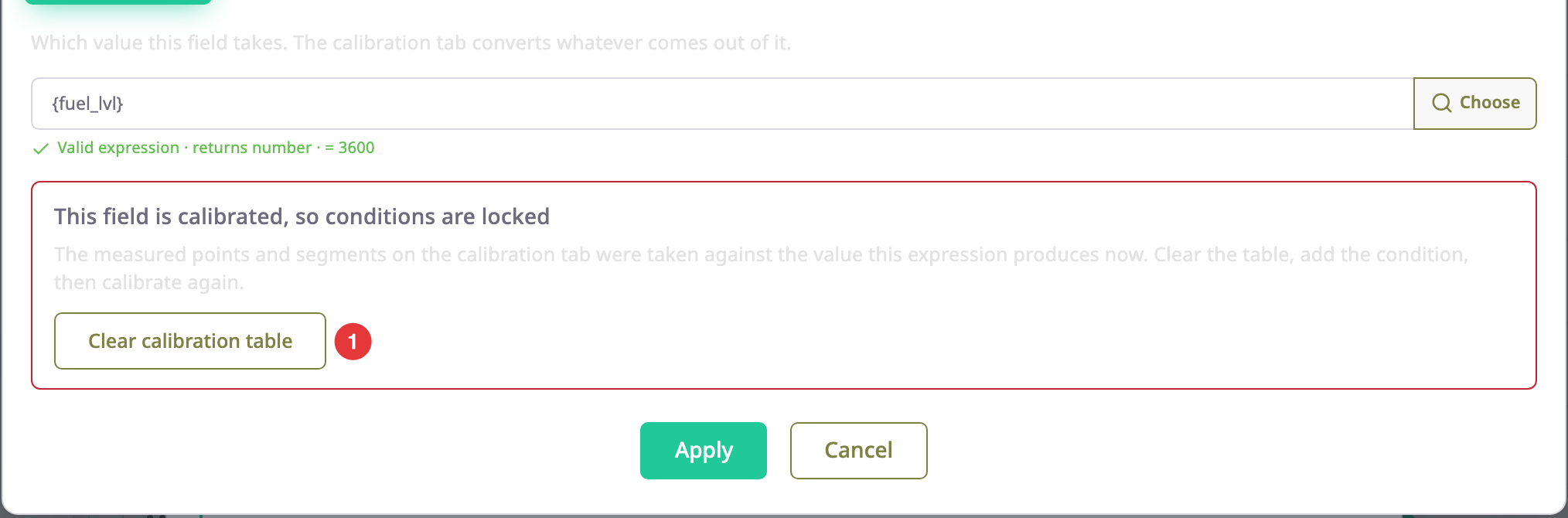
Clear calibration table removes the segments and measured points from the Calibration tab and shows the builder. The lower and upper bounds stay. After you add the condition, calibrate the field again on the Calibration tab.
The server applies the same rule on Save. It compares with the saved expression, so on a new sensor or a new field it refuses a condition and a table that arrive together. Save the sensor with the condition first, then add the table.
¶ Add a condition to a field
Before you start, you need a dealer account and the Edit permission of the Devices module. The Owner role has it.
- Open the Conditional tab of the field, as described in "Open the tab".
- If the tab shows the lock message, select Clear calibration table.
- In the first test box, enter the test, for example {status} > 0.
- In the box after "then", enter the value for that case, for example 1.
- Optional: For another case, select + Add else if and fill in its test and value as in steps 3 and 4.
- In the box after "else", enter the value when no test holds, for example 0.
- Select Replace expression.
The expression box shows the chain, and the hint under it checks it. - Select Apply.
The dialog closes and the field row shows the fx mark, "This field uses a condition". - In the sensor dialog, select Save.
The app saves the sensor.
¶ Buttons and messages
| Action or message | What happens |
|---|---|
| Apply | Closes the dialog and hands both the expression and the calibration table to the sensor dialog, whichever tab you are on. Off while the expression box shows an error. |
| Cancel | Closes the dialog. The sensor dialog keeps its previous expression and table. |
| "This returns true or false, so the sensor reports nothing. Wrap it as: ? 1 : 0" | The chain returns a test instead of a number. Add ? 1 : 0. |
| "A condition over constants never evaluates. Reference a protocol parameter or another sensor." | The tests use only numbers. |
| "Calibration table already set" (on Save) | The server refused a condition on a field that has a calibration table. Clear the table first. |
| "Condition references nothing" (on Save) | The server refused a condition over constants. |
¶ Permissions
- The dialog opens from a device you can edit, which needs the Edit permission of the Devices module. Only dealer accounts manage devices.
- On a device that opens view-only, the tab shows the expression without the builder, Apply or Clear calibration table.