Two dialogs move a device to another account. They do the same job with slightly different controls:
- From the devices list: select Allocation on the device's row. The dialog's title is Reallocate To, or Allocate To for a device that is not allocated yet.
- From the device page: select Device Allocation under the General tab. The dialog's title is Device Allocation.
Both dialogs act on the device only. For a device on a unit, they take the device off the unit; the unit stays.
¶ The dialog from the devices list
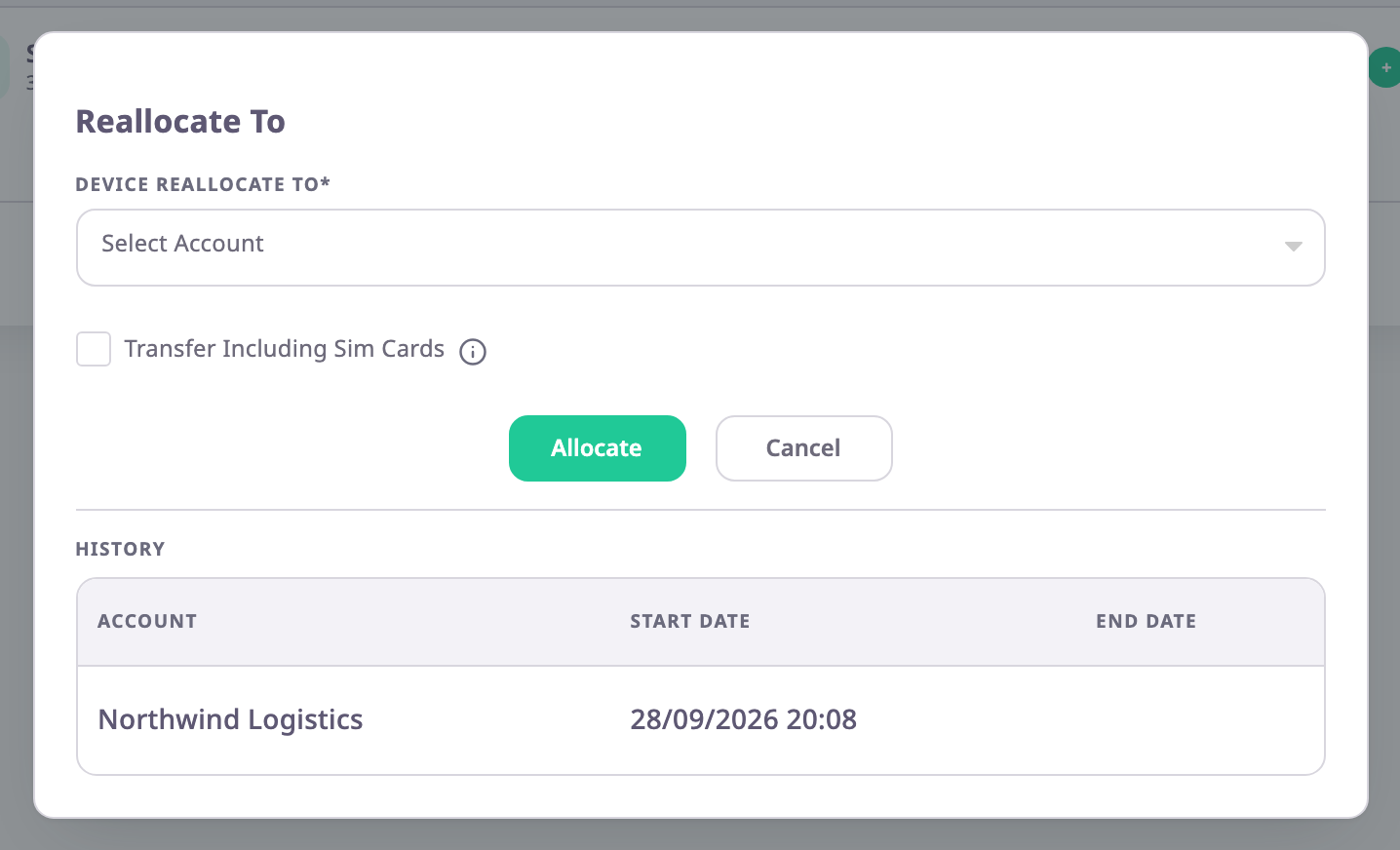
| Field | Required | What it does | Allowed values / example | Notes |
|---|---|---|---|---|
| Device Reallocate To | Yes | The account the device moves to. | A dealer account below yours. Example: Delta Fleet Partners | Reads Device Allocate To for a device that is not allocated. The app greys out customer accounts. Type to search the tree. |
| Transfer Including Sim Cards | No | Moves the device's SIM cards to the same account. | On or off | Off by default. Off, the app takes the SIM cards off the device and keeps them in your account. The info icon reads "Enabling this flag will transfer SIM data to the selected account." |
Below the buttons, History shows the device's current allocation.
Opened from the bar for many devices, the dialog has no History. It reads "These settings are applied to all {n} selected items." with the number of devices. See Act on many devices at once.
¶ The dialog from the device page
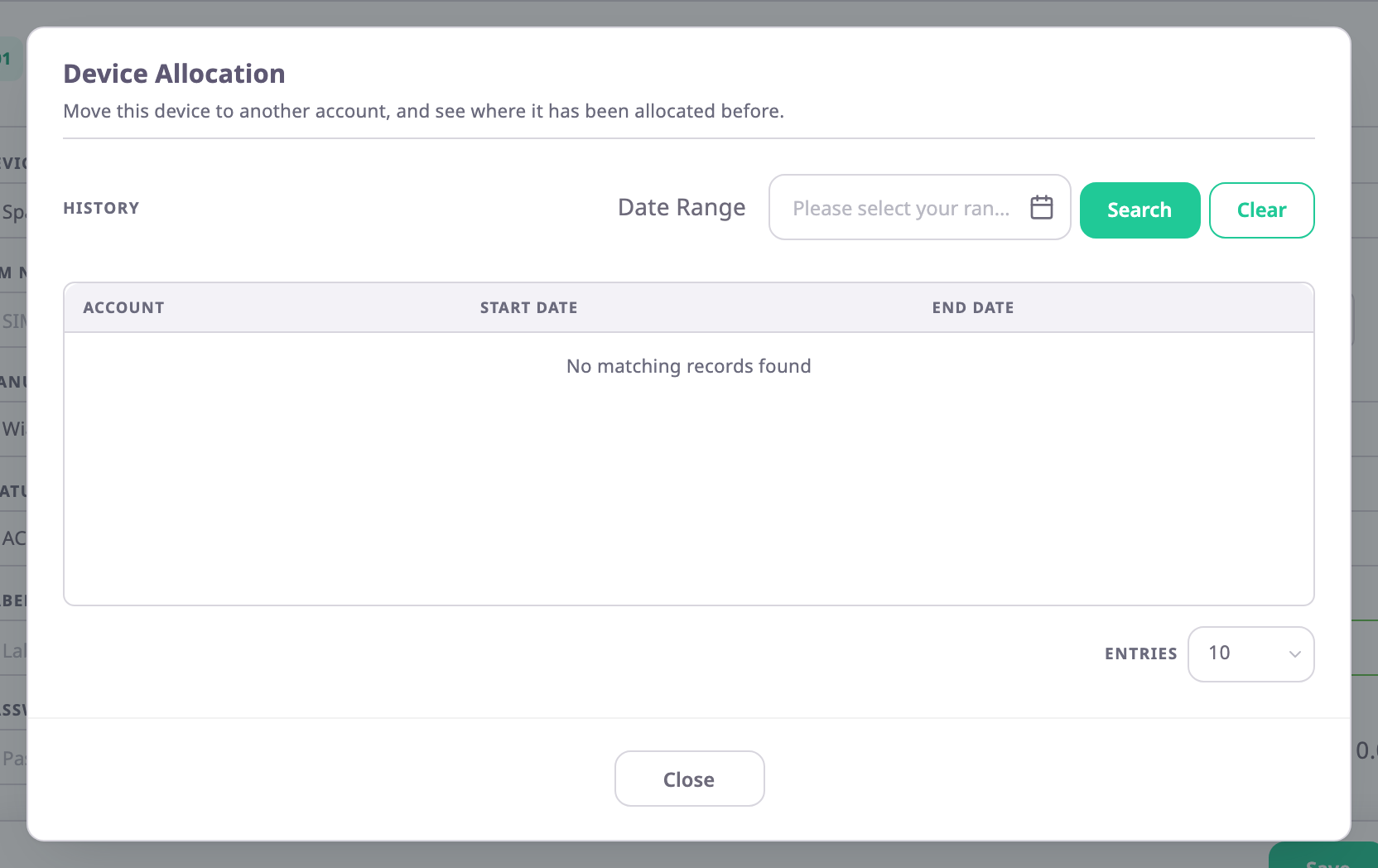
| Field | Required | What it does | Allowed values / example | Notes |
|---|---|---|---|---|
| Reallocate To | Yes | The account the device moves to. | A dealer account below yours. Example: Delta Fleet Partners | Starts on the current account. Reads Allocate To for a device that is not allocated. The app greys out customer accounts. |
| SIM card checkbox | No | Moves the device's SIM cards to the same account. | On or off | Same as Transfer Including Sim Cards. Its label is missing from the catalogue, so the app shows the text device.TransferIncludingSimCards. |
The fields show only if you may change the device. On a device opened with View, they are unavailable. On a device you may not change, the dialog shows only the history. See Device ownership and allocation.
¶ Buttons and actions
| Action | Dialog | What happens |
|---|---|---|
| Allocate | Both | Checks the choice, then moves the device. The app shows "Device allocated successfully" and closes the dialog. From the list, the list reloads. |
| Cancel | Devices list | Closes the dialog without changes. |
| Cancel | Device page | Puts the account back to the current one. The dialog stays open. |
| Close | Device page | Closes the dialog. |
| Yes | Question about the unit | Moves the device and takes it off its unit. |
| No | Question about the unit | Closes the question. Nothing changes. |
¶ History table
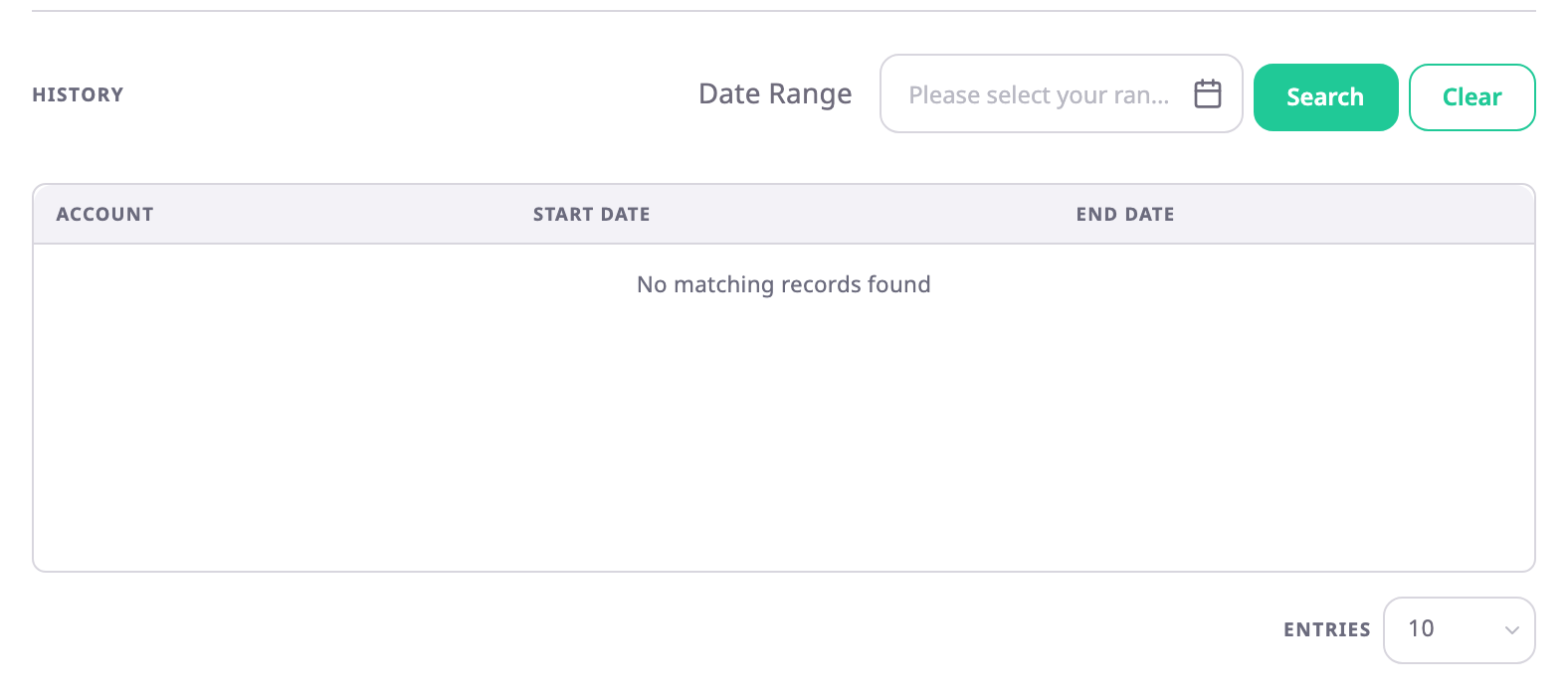
| Column | What it shows |
|---|---|
| account | The account that held the device. |
| Start Date | When that allocation began. |
| End Date | When it ended. Empty for the current allocation. |
The newest allocation is first. You see the allocations to your account and to the accounts below it, not those above you.
On the device page, Date Range limits the table to allocations in a period: choose the dates, then select Search. Clear removes the range. The footer shows the number of rows, Entries and the pages. If nothing matches, the table reads "No matching records found".
¶ Messages
| Message | When |
|---|---|
| "Please select account for allocation" | You selected Allocate without choosing an account. |
| "Already allocated to the same account" | You chose the account the device is already allocated to. |
| "This device is already allocated to {unit} unit, do you really want to reallocate it?" | The device is on a unit. The app names the unit and asks before it goes on. |
| "Device allocated successfully" | The move worked. |
| "Not child account." | The chosen account is not below yours. |
¶ Permissions
- Allocation in the list and Device Allocation on the device page need Devices > Edit. The server also needs Devices > Read.
- Allocation does not show on devices that are not in ACTIVE status, nor when your account has Restrict Sub Accounts on.
- The built-in Owner role of a dealer account has these permissions.