Devices or units? This page is about devices, the tracking hardware installed in a vehicle or on an asset. For the vehicles and assets on the map, see Units. For the difference, see Devices and units.
Allocate a device when a sub-dealer takes over trackers from your stock. The device moves to the sub-dealer's devices list, and you still see it in yours.
¶ Before you start
- You need Devices > Edit. The built-in Owner role of a dealer account has it.
- The target must be a dealer account below yours, such as a sub-dealer. To give devices to a customer, allocate the unit they are on instead. See Allocate a unit to an account or operator.
- The device must be in ACTIVE status to show Allocation in the list.
- Decide whether the SIM cards go with the device. If they do not, the app takes them off the device. See Device ownership and allocation.
¶ Allocate from the devices list
-
In the side menu, select Devices.
The Devices list opens. -
On the device's row, select Allocation, marked 1.

The Reallocate To dialog opens.
-
In Device Reallocate To, choose the account, for example Delta Fleet Partners.
-
Optional: tick Transfer Including Sim Cards to move the SIM cards too.
-
Select Allocate, marked 1.
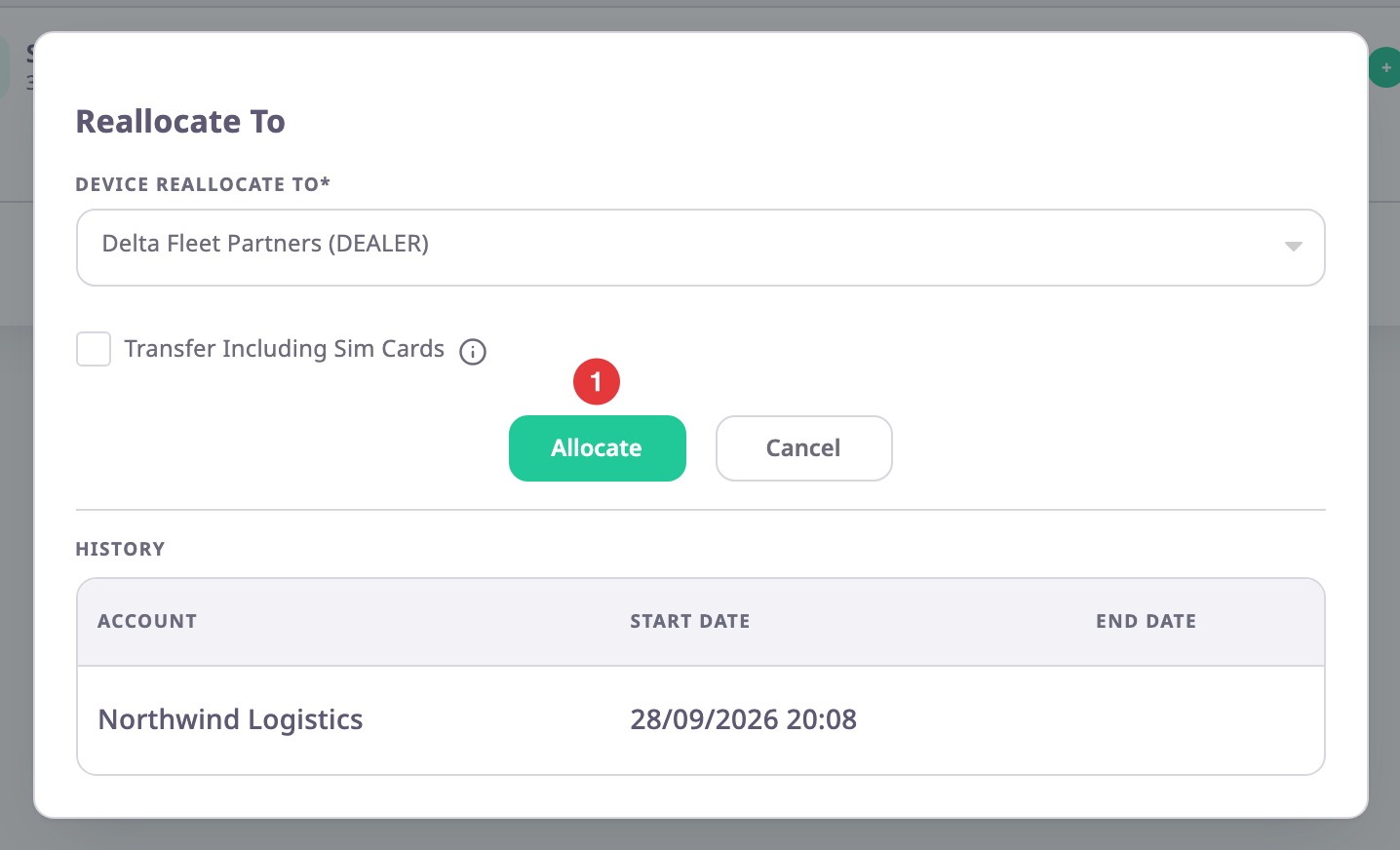
The app shows "Device allocated successfully" and the list reloads.
To move many devices at once, tick them in the list and use Allocation in the bar above it. That route does not ask about units. See Act on many devices at once.
¶ Allocate from the device page
- On the device's row in the Devices list, select Edit.
- Under the General tab, select Device Allocation.
The Device Allocation dialog opens. - In Reallocate To, choose the account.
- Optional: tick the SIM card checkbox below it.
- Select Allocate.
The app shows "Device allocated successfully" and closes the dialog.
¶ Confirm when the device is on a unit
If the device reports for a unit, the app asks before it moves it. The question names the unit: "This device is already allocated to {unit} unit, do you really want to reallocate it?"
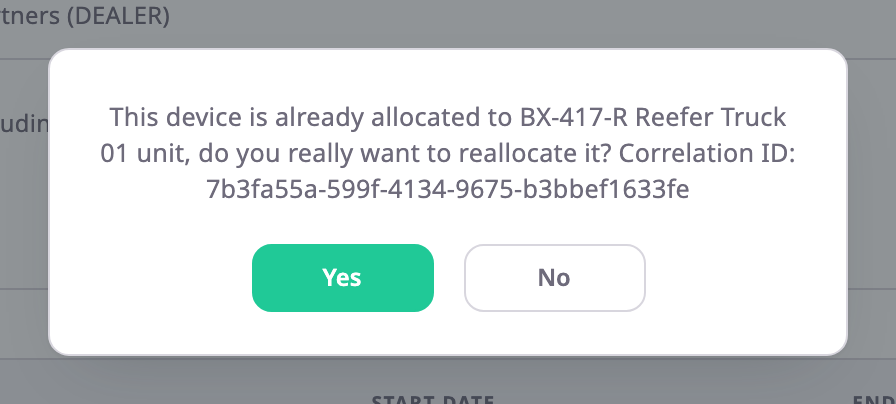
- Select Yes to move the device. It leaves the unit. The unit stays, with its history.
- Select No to stop. Nothing changes.
¶ Check the allocation history
-
Open the device with Edit or View.
-
Select Device Allocation.
The dialog lists the device's allocations, newest first.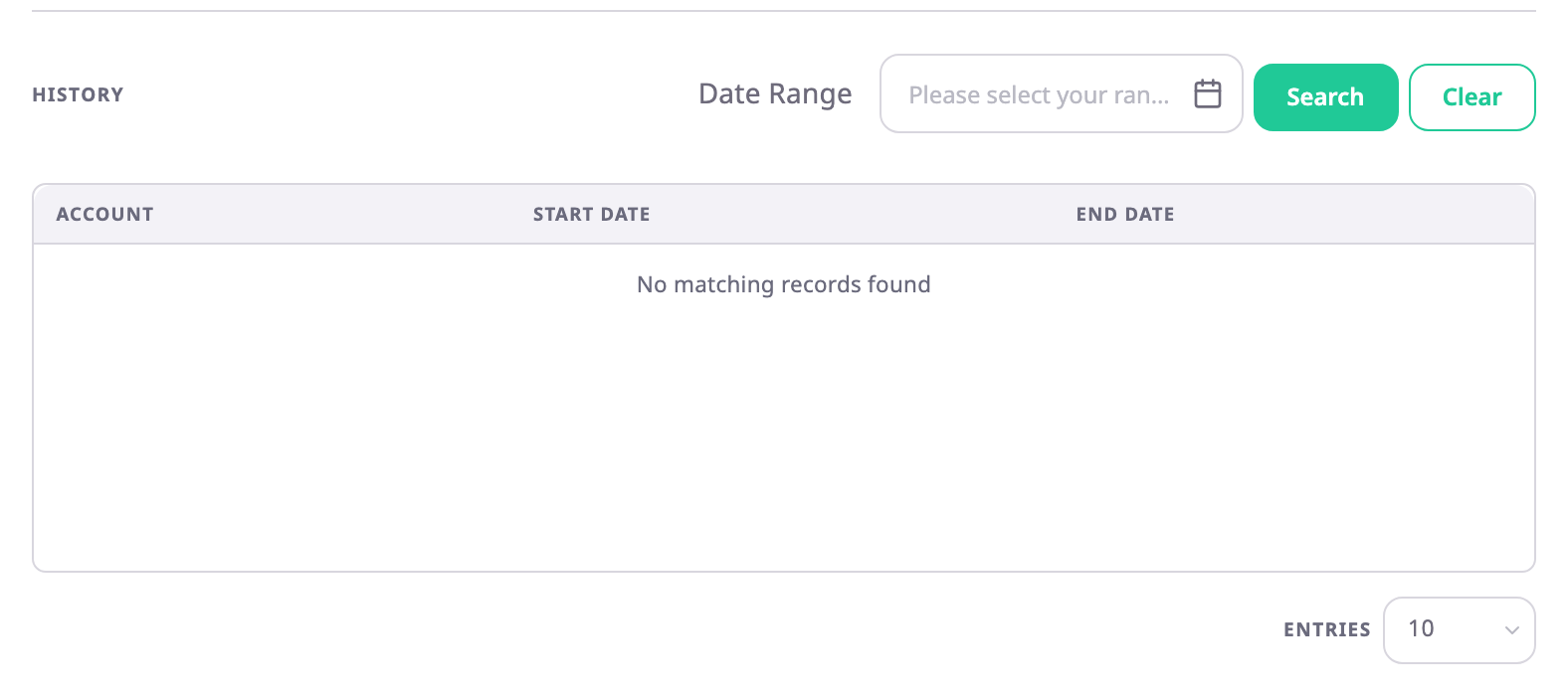
-
Optional: in Date Range, choose a period.
-
Optional: select Search.
The table shows the allocations in that period. -
Select Close.
The allocation without an End Date is the current one.
¶ What happens next
- The device shows in the new account's devices list. It stays in yours, because the new account is below you.
- The new account can put the device on its units and allocate it further down.
- If the device was on a unit, the app recalculates that unit's report data.