The route form creates, shows and edits a route. To open it, select New route on the Routes tab, or View, Edit or Clone in a route's row menu.
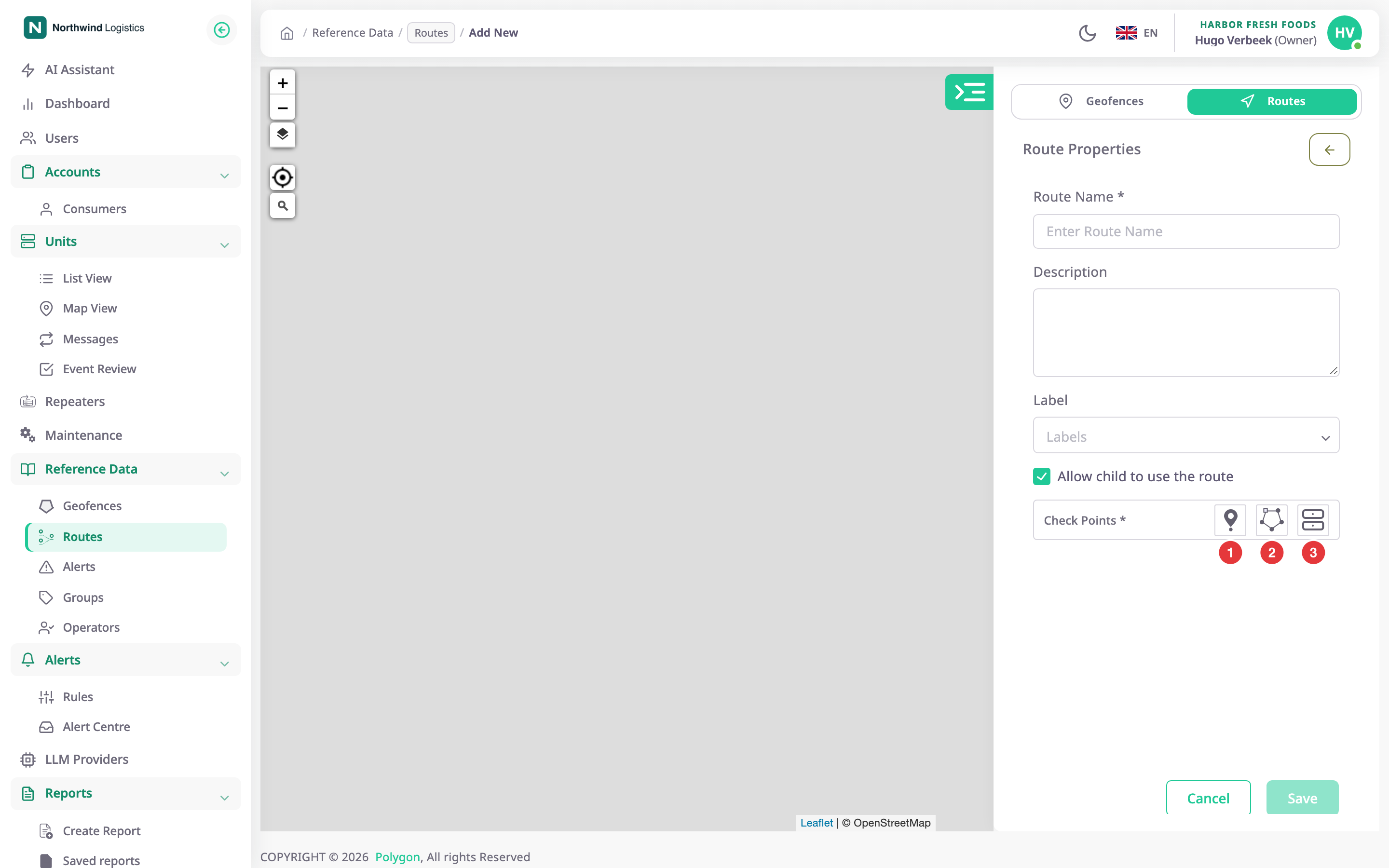
¶ The screen
The form sits in the panel beside the map. Its title reads New route, Edit route with the route's name, or the name alone in view mode. The back arrow returns to the list.
¶ Fields
| Field | Required | What it does | Allowed values / example | Notes |
|---|---|---|---|---|
| Route Name | Yes | Names the route in lists, schedules, reports and alerts. | 3 to 30 characters. Example: Morning City Run | Unique in your account, ignoring capitals. |
| Add checkpoints | Yes | The places a unit visits, in order. | 1 to 1000 checkpoints. | The list shows under the buttons. |
| Arrival radius | No | How close a unit must come to a checkpoint. | A positive number of metres, or feet if your account uses miles. Default 100 m. | Set per checkpoint in the list. See About routes and checkpoints. |
| Description | No | Adds a note to the route. | Up to 400 characters. | — |
| Label | No | Puts the route in one or more groups. | Existing groups, or a new one typed in the field. | See Groups. |
| Share with child accounts | No | Lets accounts below yours see and use the route. | On or off. Default: on. | — |
¶ Adding checkpoints
Under Add checkpoints there are four buttons:
| Button | What it adds |
|---|---|
| Point on map | Turns on point mode. Each map click adds a checkpoint at the end, named after the address Polygon finds for the spot. Select Done in the hint bar, or press Esc, to stop. |
| Geofences | Opens the Add geofences panel over the map. |
| Units | Opens the Add units panel over the map. |
| Import | Adds points from a file: CSV with latitude, longitude and an optional name, GPX, KML or GeoJSON. Each point becomes a map-point checkpoint. |
Until an address is found, a map point shows its coordinates, and the route saves even if an address never arrives. An import reports how many checkpoints it added, and how many points were over the limit.
¶ The panels for geofences and units
The panel has a search box, a count, Select all and Clear. Tick a row to add it to the end of the route; untick it to remove it. The panel stays open, so you can tick several. A row already on the route shows its place, such as "On route · #3". In Add geofences, Add every geofence with a label adds all geofences that carry the label you pick. In Add units, a unit with no position yet cannot be added. Select Done or the cross to close the panel.
A route can mix all kinds. A checkpoint is added once.
¶ Checkpoint list
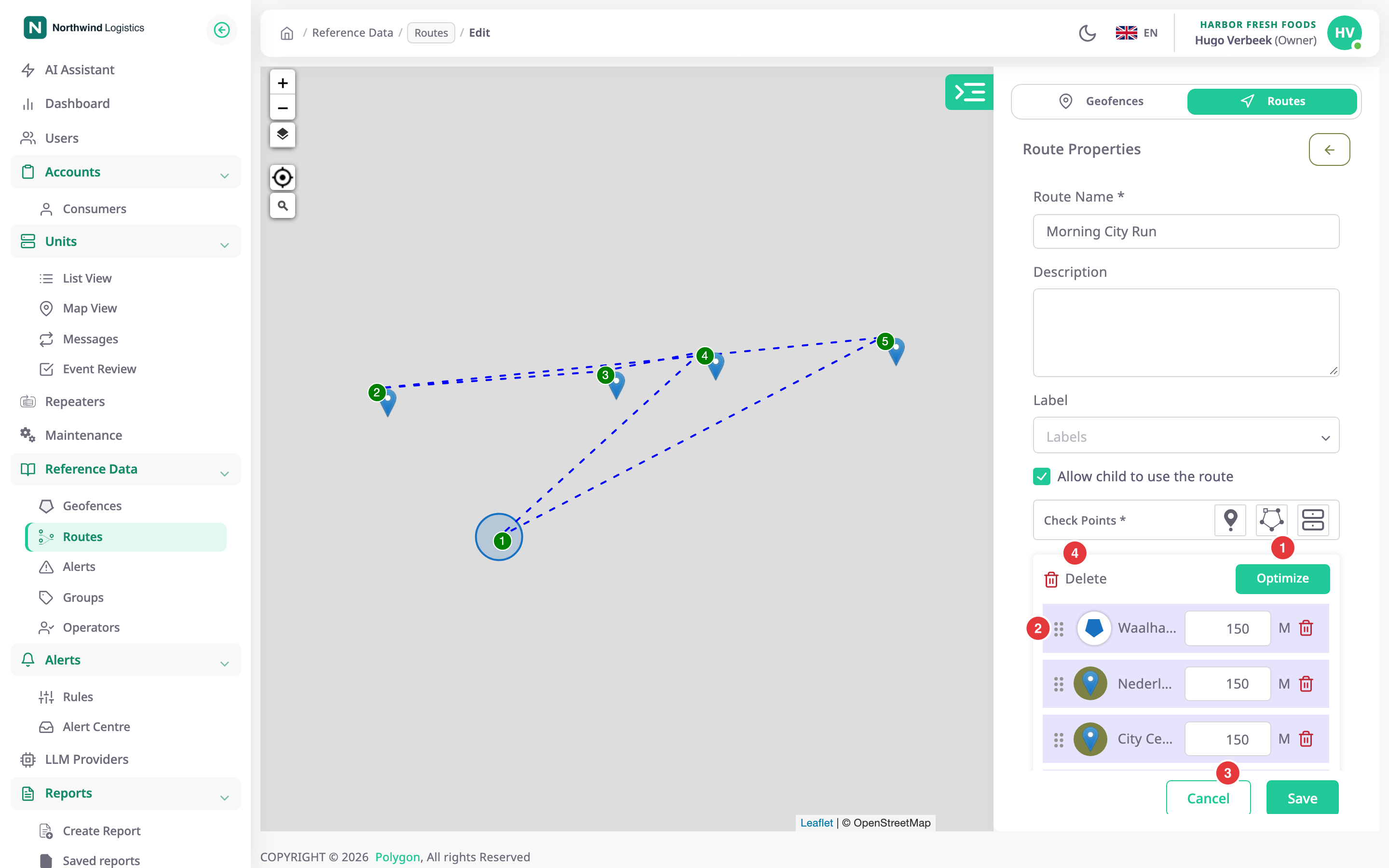
The Check Points header shows the count and the total straight-line length. Each row shows:
| Part | What it does |
|---|---|
| Drag handle | Drag a checkpoint up or down to change the order. The map line follows the list order. |
| Number | The position. The first row is tagged Start and the last End. |
| Name and kind | The geofence or unit name, or the address of a point, with the straight-line distance from the previous checkpoint. |
| Radius button | Reads r and the arrival radius. Select it, enter a value and press Enter. |
| Cross | Removes that checkpoint. |
| Row menu | Move up, Move down, Move to position…, Insert after this on the map and Delete. |
Insert after this on the map turns on point mode; your next clicks go in after that checkpoint.
Header tools:
| Tool | What it does |
|---|---|
| Select | Adds tick boxes to the rows, with Remove selected. |
| Frame icon | Fit route zooms the map to the whole route. |
| Optimize order | Previews the shortest order by straight-line distance. The first and last checkpoints stay where they are. Needs at least three checkpoints. |
| Three dots | Reverse order and Remove all. |
The Optimize order preview draws the new order on the map and shows the length before and after. Return to start treats the route as a round trip. Select Apply to take the new order, or Cancel to keep yours. If no shorter order exists, it reads "This order is already the shortest found."
With more than 20 checkpoints, a Search checkpoints box appears. Over 500, a note warns that schedules and visit checks get heavier.
¶ Buttons and messages
| Action | What happens |
|---|---|
| Back arrow | Returns to the list. |
| Reset | Puts the route back as it was when the form opened. It does not leave the page. |
| Save route | Creates or updates the route and returns to the list. |
Save route stays unavailable until the name is valid and there is a checkpoint, and while the list has more than 1000. The footer says what is missing: "Enter a name to save" or "Add at least one checkpoint to save". If you leave with unsaved changes, the dialog Discard changes? offers Discard and Keep editing.
Messages:
- "Route created successfully" and "Route updated successfully" confirm the save.
- Over the limit, the footer says a route can have at most 1000 checkpoints.
- If the name is already taken, the app says a route with that name exists in your account.
- When you remove or replace checkpoints that schedules use, a warning titled "Schedules may need review" names the schedules. They show Needs review in the list. The route still saves.
¶ View mode
In view mode every field and the checkpoint list are locked, and Reset and Save route are unavailable. A route shared from an account above yours always opens this way.
¶ Permissions
- View needs Routes > Read. New route and Clone need Add. Edit needs Edit and a route of your own.
- The Owner role has all of these.