A group is a named label that you put on units and other items so you can handle them together. A unit can be in several groups, and a group can hold many units. The app also calls a group a label: the field where you choose groups reads Labels.
¶ What you can put in a group
You put an item into a group from the item itself. These item types can carry a group:
- Units
- Devices
- Operators
- Maintenance reminders
- Geofences
- Routes
- SIM cards
A group's own page counts the items of each type. See Group details.
¶ Groups and accounts
A group belongs to one account. Its name is unique in that account, so two accounts can each have a group with the same name. The Groups list shows one account at a time. The group you create goes into the account you are working in.
¶ When to use a group
- You run depots or shifts and want one tick to show every unit of a depot on the map.
- You run reports for a customer's refrigerated trucks and do not want to tick each one.
- You write one alert rule for all heavy goods vehicles and pick them as a group, not one by one.
¶ Where you use groups
| Where | What a group does there |
|---|---|
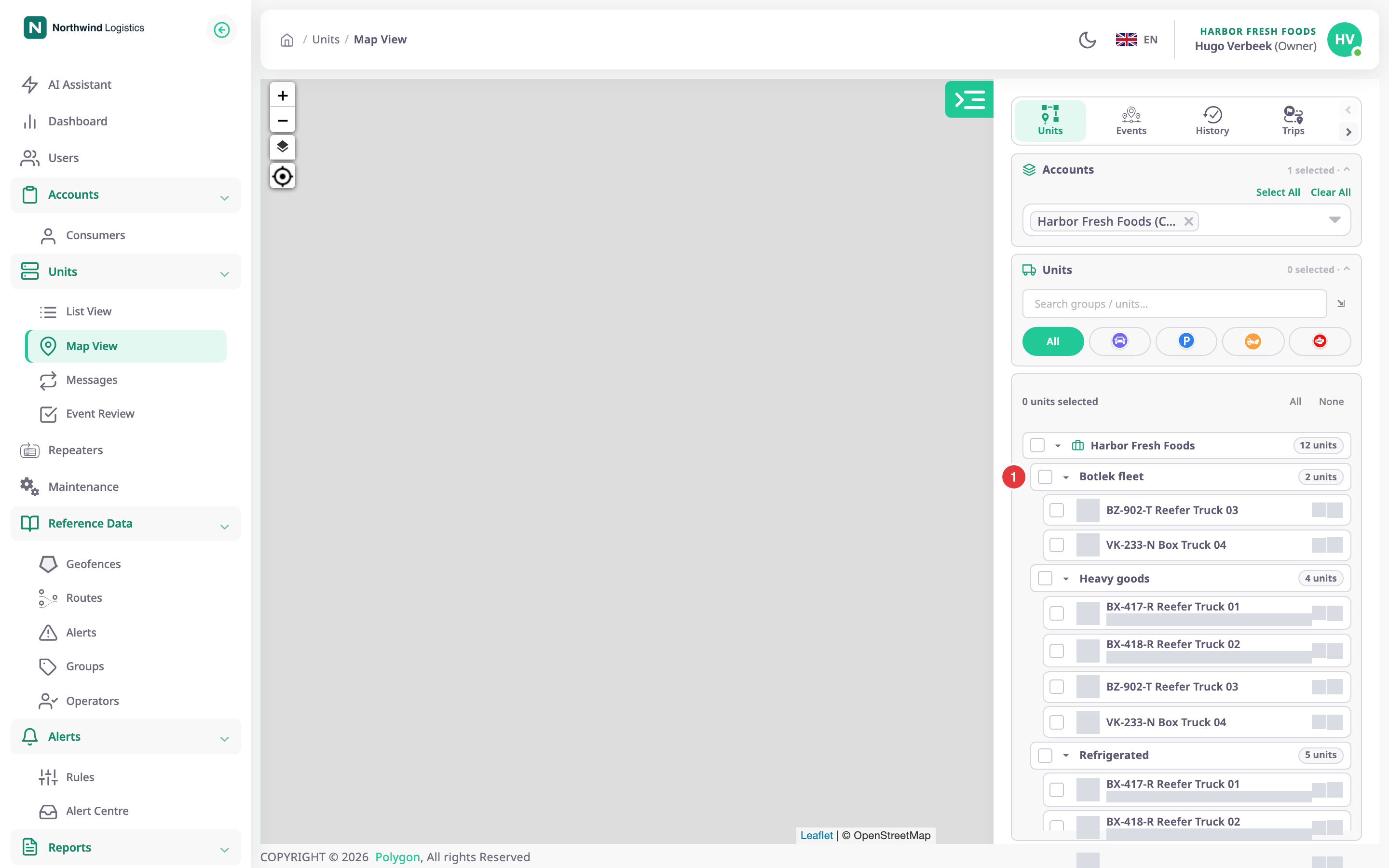
| The unit list on the Tracking screen (Units > Tracking) | Grouped by Label, the list shows one row per group, with a count. The row's checkbox shows or hides every unit of the group on the map. Units with no group sit under No label. |
| The unit filter of a report | Works the same way as on the map. |
| An alert rule | The rule's targets can be groups. The app asks you to "Choose the units or groups it applies to". |
| A route schedule | You can pick a group instead of single units. The app saves the units the group holds at that moment, so units you add to the group later are not included. |
A unit in two groups appears under both headings in the tree.
¶ What you can do
- Create a group
- Add units and other items to a group
- Rename or delete a group
- Read the Groups list
- Read a group's page