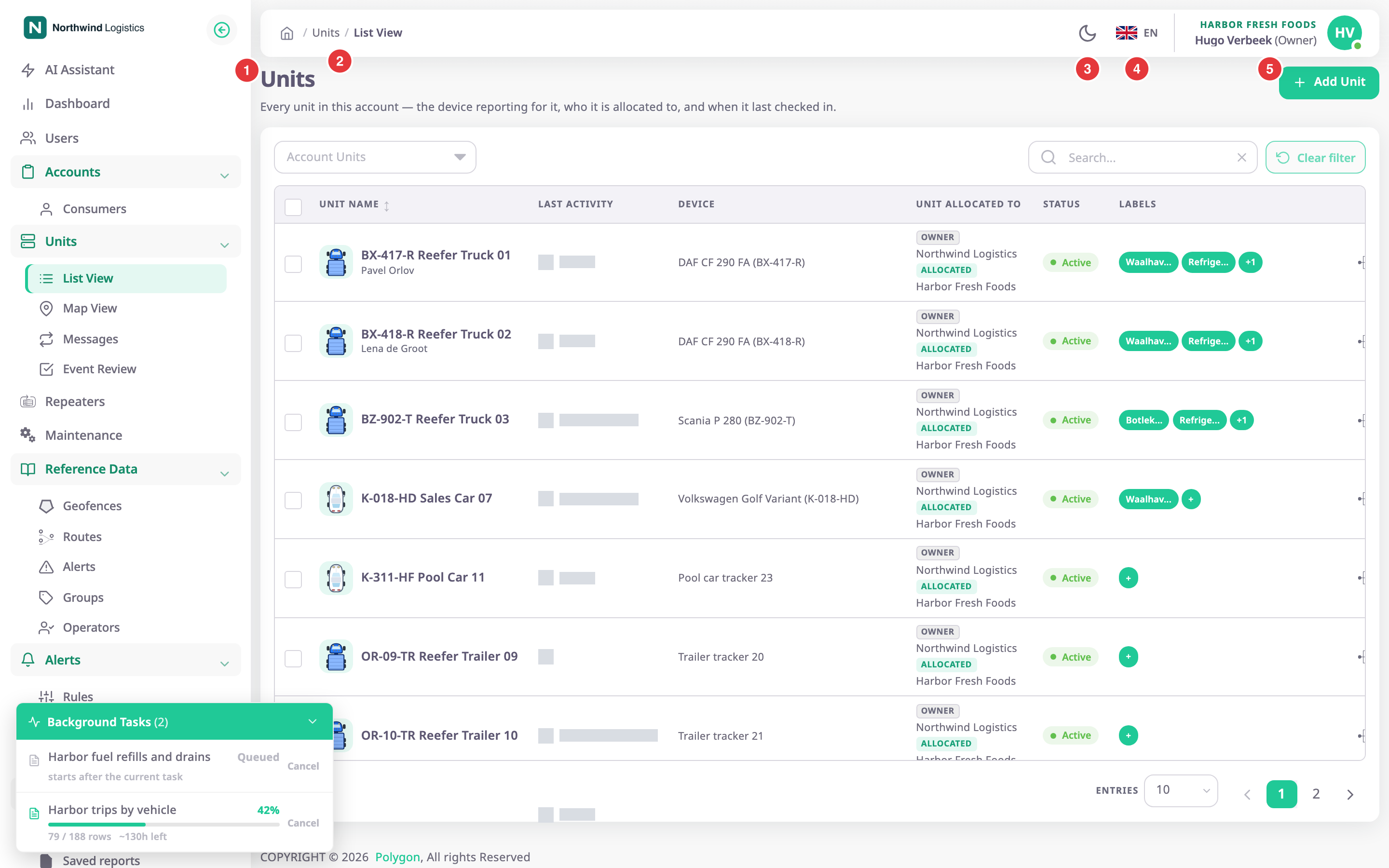
Every screen in the app has the same frame. The side menu sits on the left, the top bar above the work area, and the notification bell and user menu at the top right. Once you know these three, you can reach any task in this manual.
¶ The side menu
The side menu, marked 1, lists the screens your role can open. Sections with an arrow, such as Units or Reference Data, open to show their screens. In this manual a menu path looks like Units > List View.
- The arrow icon at the top of the menu collapses it to icons and expands it again. Point at a collapsed menu to see it in full.
- On a narrow screen the app hides the menu. Select the menu icon at the top left of the top bar to open it.
- The logo at the top of the menu takes you to your start screen.
¶ The top bar
The top bar shows where you are and holds the settings you change most often.
- The breadcrumb, marked 2, shows the path to the current screen. The house icon at its start takes you to your start screen.
- The mode icon, marked 3, switches between light mode, dark mode and your system setting.
- The language list, marked 4, shows the current language as a flag and a two-letter code.
- The bell icon, next to the language list, opens your notifications and background tasks. Its badge counts what is unread or still running. See Notifications and background tasks.
- The user menu, marked 5, shows the account you are working in, your name and your role in brackets.
See Change the language and light or dark mode.
¶ The user menu
Select your name or picture at the top right to open the user menu.
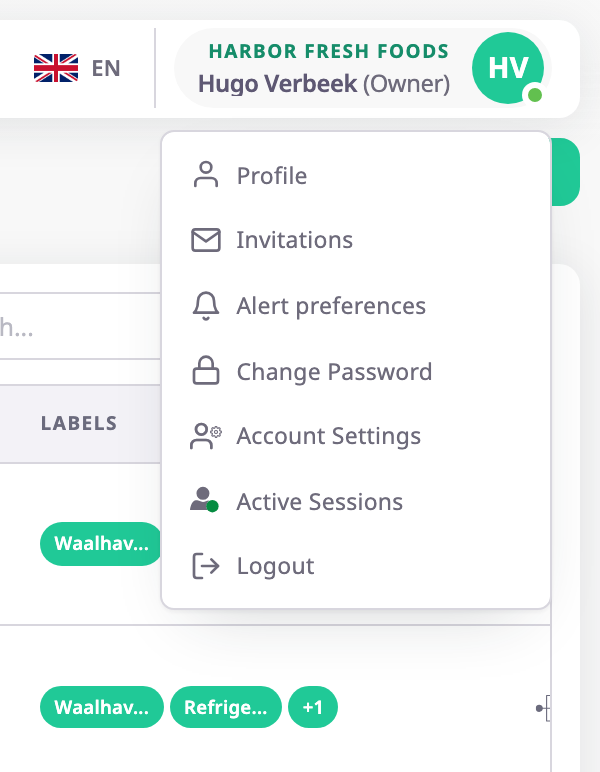
| Item | What it opens |
|---|---|
| Profile | Your name, photo, contact details and email preferences. See Your profile. |
| Invitations | Invitations to join other accounts with the user you already have. See Accept or decline an invitation to another account. |
| "Alert preferences" | How you receive alerts. Shown if your role can see the Alert Centre. |
| Switch Account | The list of accounts you belong to. Shown only if you belong to two or more. See Switch accounts. |
| Change Password | The form to replace your password. See Change your password. |
| Account Settings | The settings of the account you are working in. Shown only if your role can edit the account. |
| Active Sessions | Every browser and device signed in as you, with a way to end them. See Sign out and manage active sessions. |
| Logout | Signs you out of this browser at once and opens the sign-in screen. |
¶ Where you land after signing in
The first screen depends on your account and role:
- In a consumer account, users who can see units start on Tracking.
- In a dealer account, users start on Dashboard.
- Everyone else starts on the first menu item their role can open.
- If your user has no active account yet, the app opens Invitations.
¶ Messages across the top and links at the bottom
- A banner across the top of the screen means the installation's licence needs attention. See A licence message appears.
- The footer at the bottom of the screen can carry support and legal links, such as Support, Terms of use and Privacy policy. Which links show depends on your installation.
¶ Why some items are missing
Two people in the same account can see different menus. The app hides every screen your role cannot open, instead of showing it and refusing.
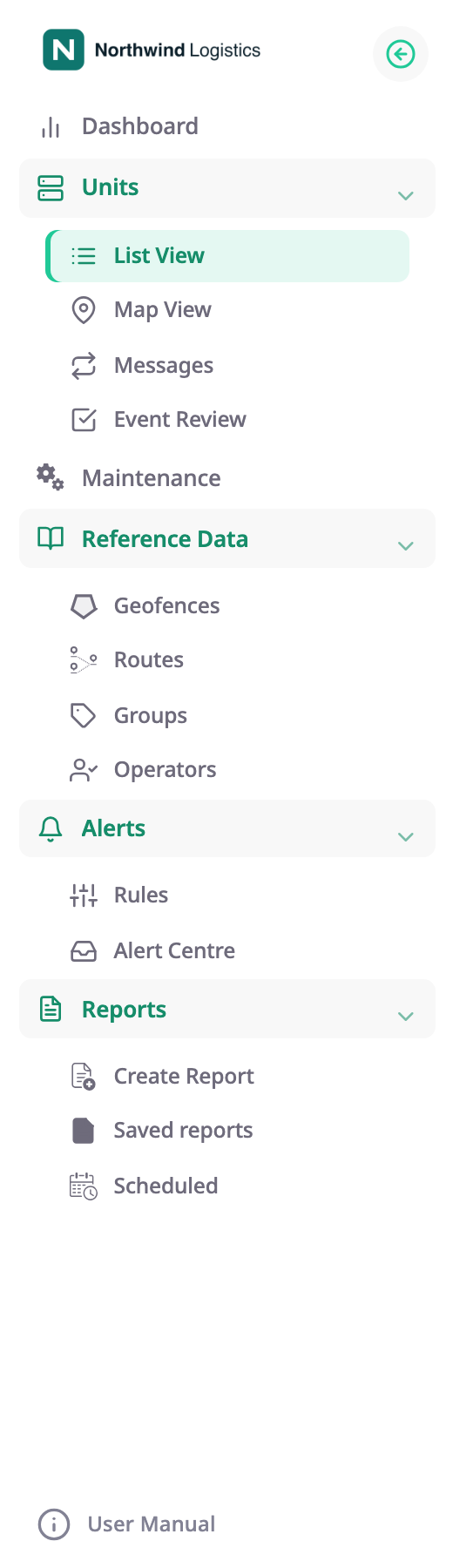
An item is missing for one of these reasons:
- Your role. Each role grants menu access screen by screen. The Owner role has every screen; a custom role, such as a dispatcher's, has only the screens the account owner chose.
- Your account type. A dealer account has screens that a consumer account does not, such as Dealers, Devices and SIM Management.
- Account settings. An account that hides its sub-accounts from you also hides the Accounts section.
- Your installation's licence. Features the licence does not include, such as video, are hidden.
- Optional features. AI Assistant appears only when your account has it set up. A section for installed apps appears only when your account has installed one.
If you need a screen you cannot see, ask the Owner of your account to change your role.
How roles decide what you see is in Roles and permissions.
¶ Open this manual from the app
User Manual at the bottom of the side menu opens this manual in a new browser tab, in the language you use in the app.