Use the map to see where your units are now. You choose the accounts, narrow the list to the units you care about and, for one unit, let the map follow it.
¶ Before you start
- You need Read on Units. The Owner role has it. A dealer account also needs consumer accounts with units. See Create a consumer account.
- When you open the map, the list shows every unit in your scope, but none is plotted. You choose which units go on the map.
- A unit that has never reported a position has no marker.
¶ Choose accounts
A dealer account opens on its own account, which owns no units. A consumer account with sub-accounts can add their units too.
-
In the side menu, select Units > Tracking.
The map opens with the unit list in the dock. -
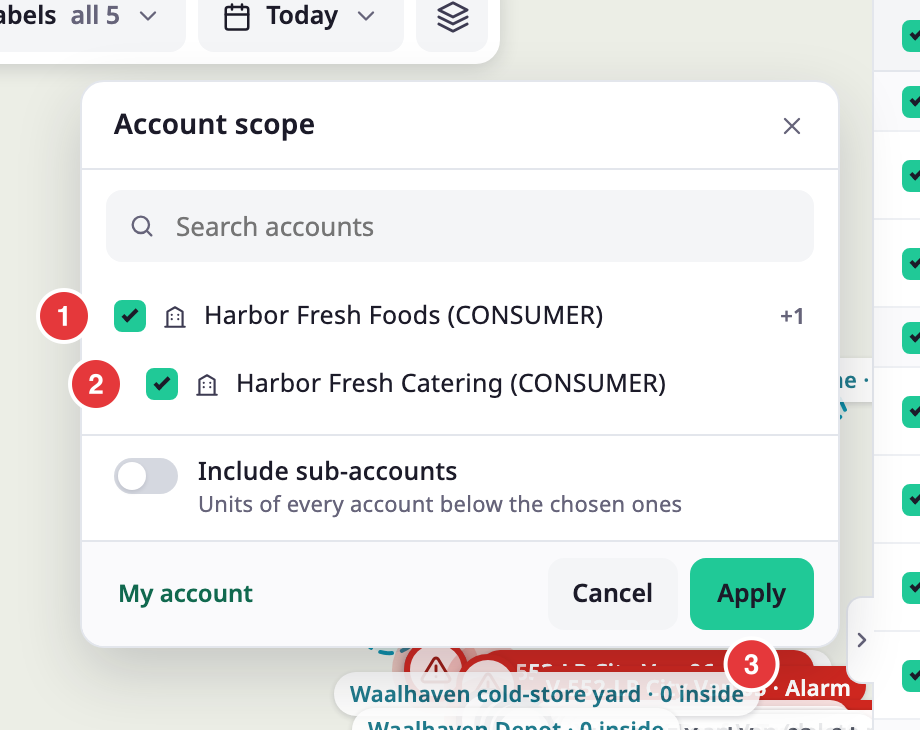
On the scope bar, select the account button.
The Account scope dialog opens. -
Select the account whose units you want to see. Select more accounts to see several at once.
-
Optional: turn on Include sub-accounts to add every account below the chosen ones.
-
Select Apply.
The list, the status counts and the map show the units of those accounts. The account button shows +N for the extra accounts.
To go back to your own account, select the account button, then My account, then Apply.
¶ Narrow the list
Use any of the three ways, alone or together.
-
In the search box, enter part of a unit name, a driver name, an account name or a label name.
The list and the map shrink as you type. A results panel also lists matching places, units, drivers and geofences. See Tracking screen. -
Select a status button, for example Offline.
The list shows only units in that state. The number on each button is how many units of your scope are in that state.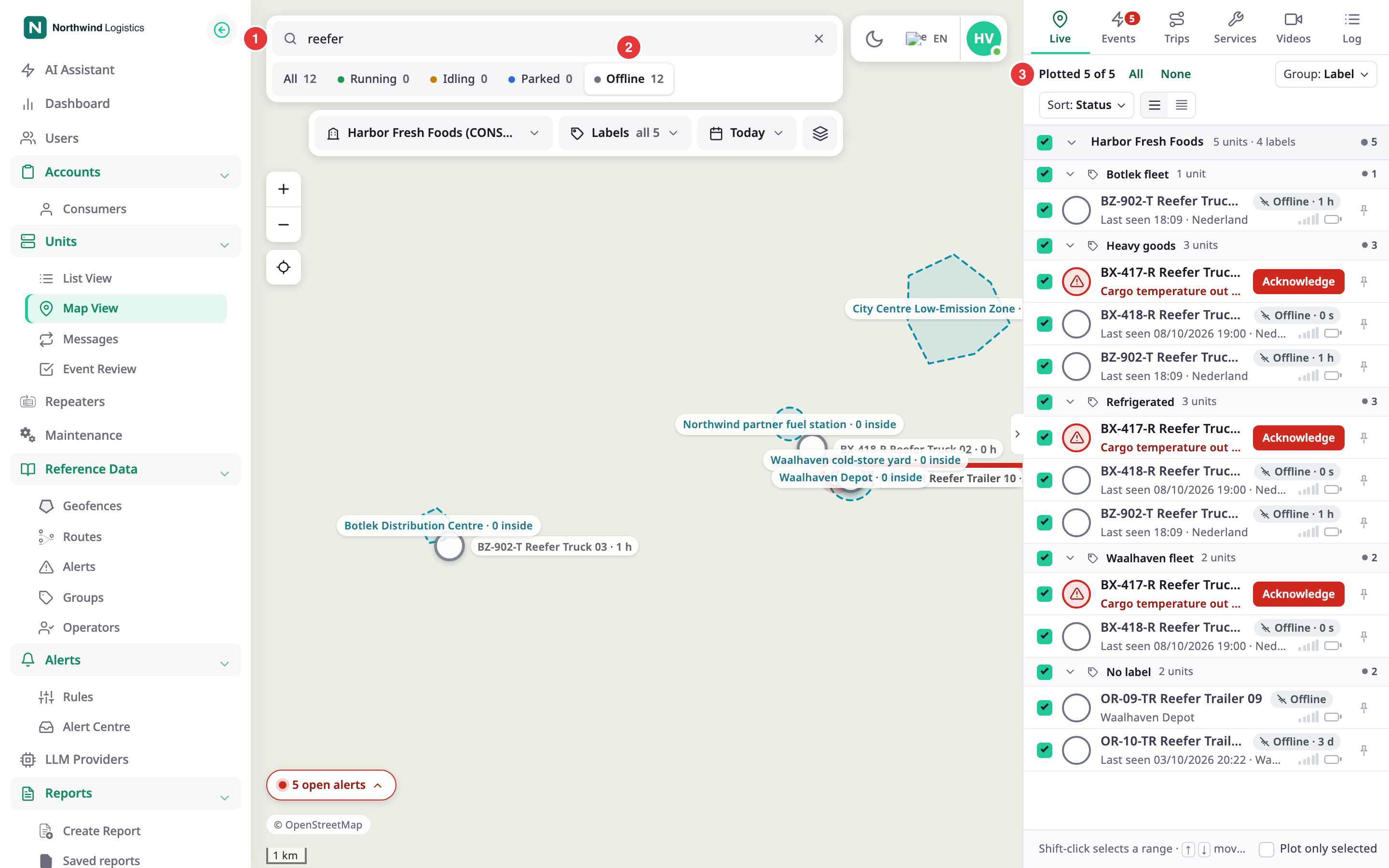
-
Select Labels, then select one or more labels.
Only units with any of those labels stay. Show all clears the choice.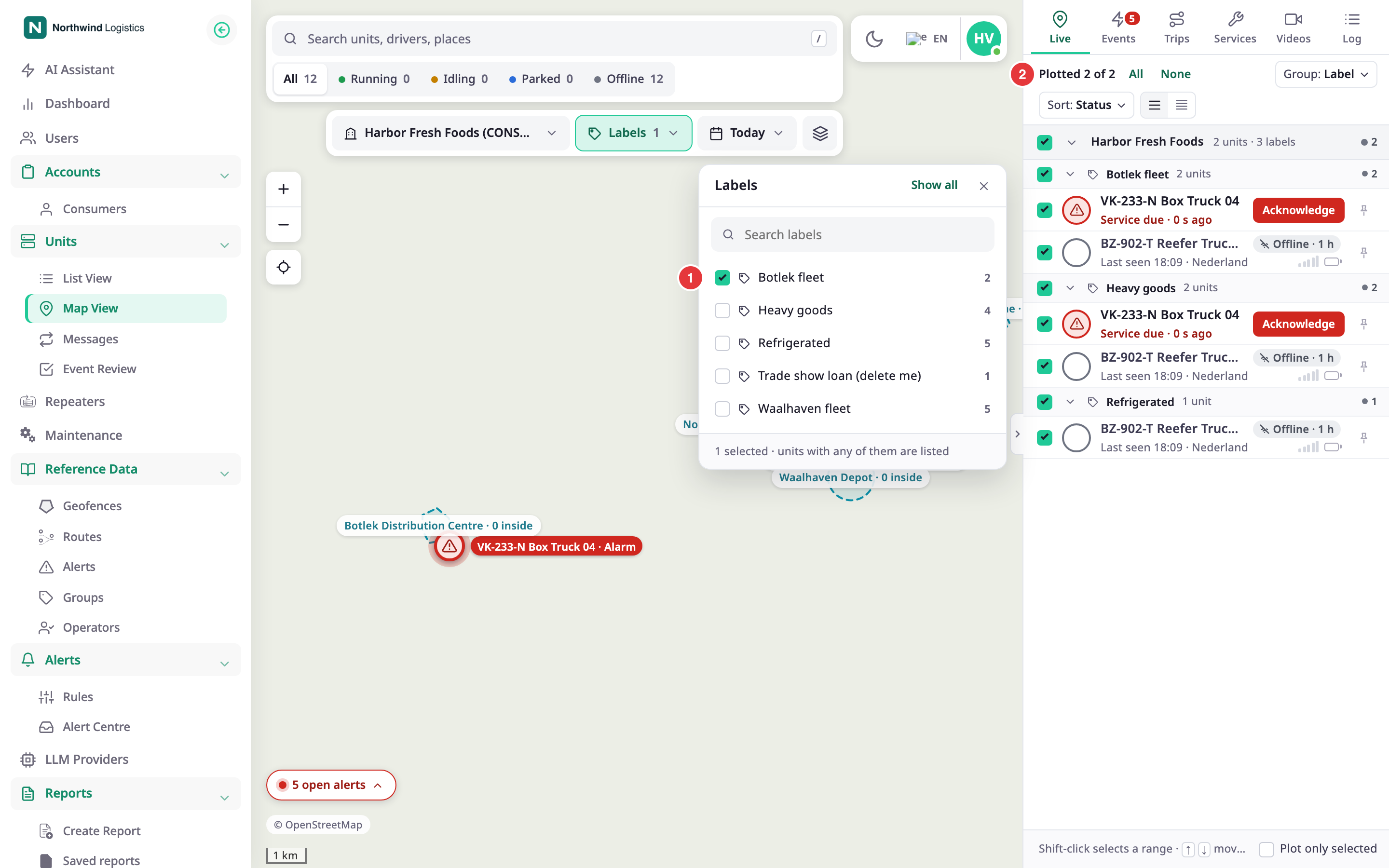
If nothing matches, the list reads "No units match these filters". Select Clear filters.
¶ Choose which units are plotted
-
In the unit list, select the checkbox of a unit.
The unit appears on the map. The count at the top of the list goes up by one. -
Optional: select All to put every listed unit on the map.
-
Optional: clear the checkbox of a unit to take it off the map. It stays in the list. Select None to clear the map.
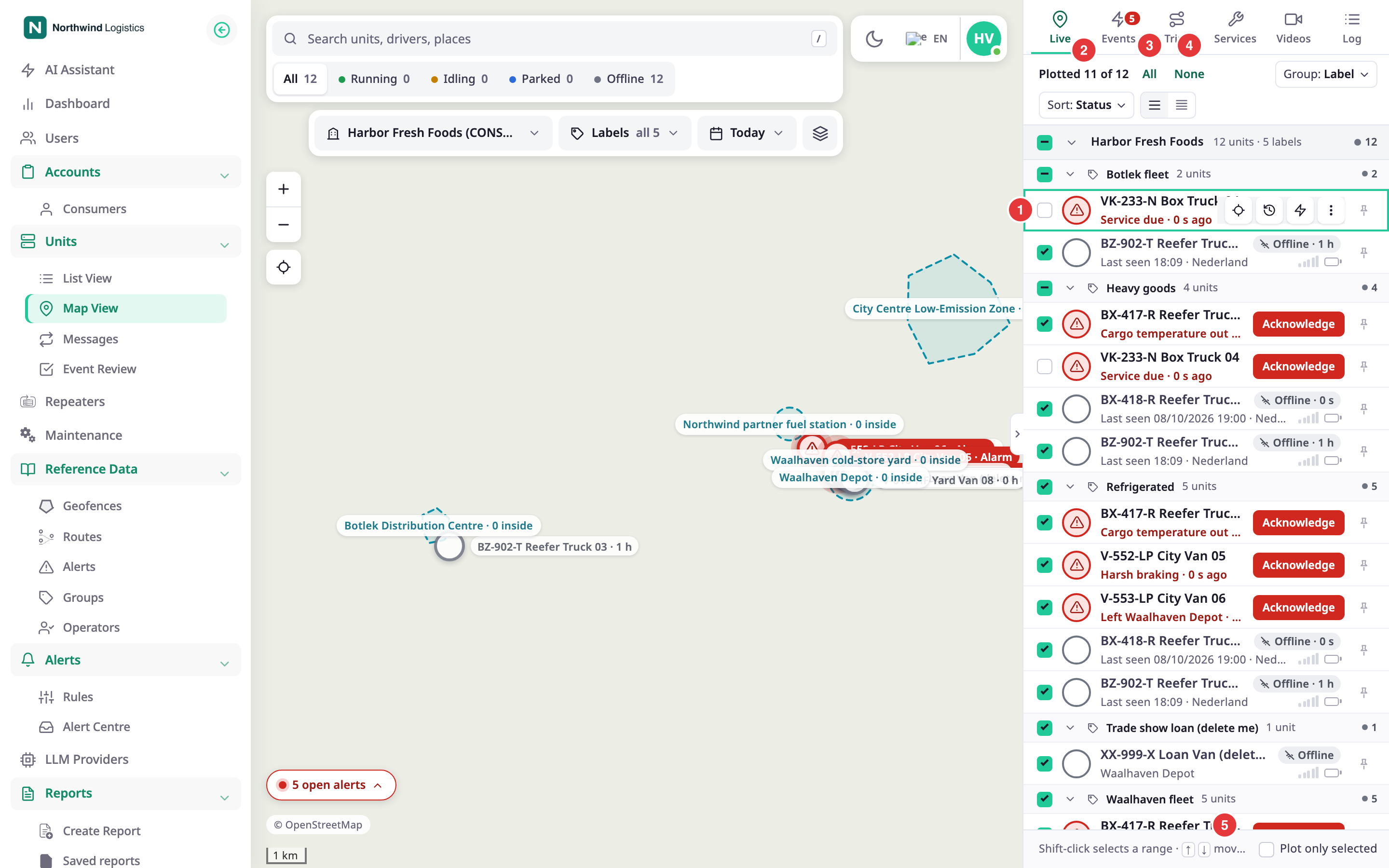
To plot a few units out of many, select them first. Ctrl-click or Cmd-click adds a unit to the selection, and Shift-click selects a range. Then select Plot only selected at the bottom of the dock. The map shows only those units. See Unit list.
¶ Follow one unit
-
In the unit list, point at the unit's row and select Follow.
The map moves to the unit and a note at the top reads "Following" and the unit name.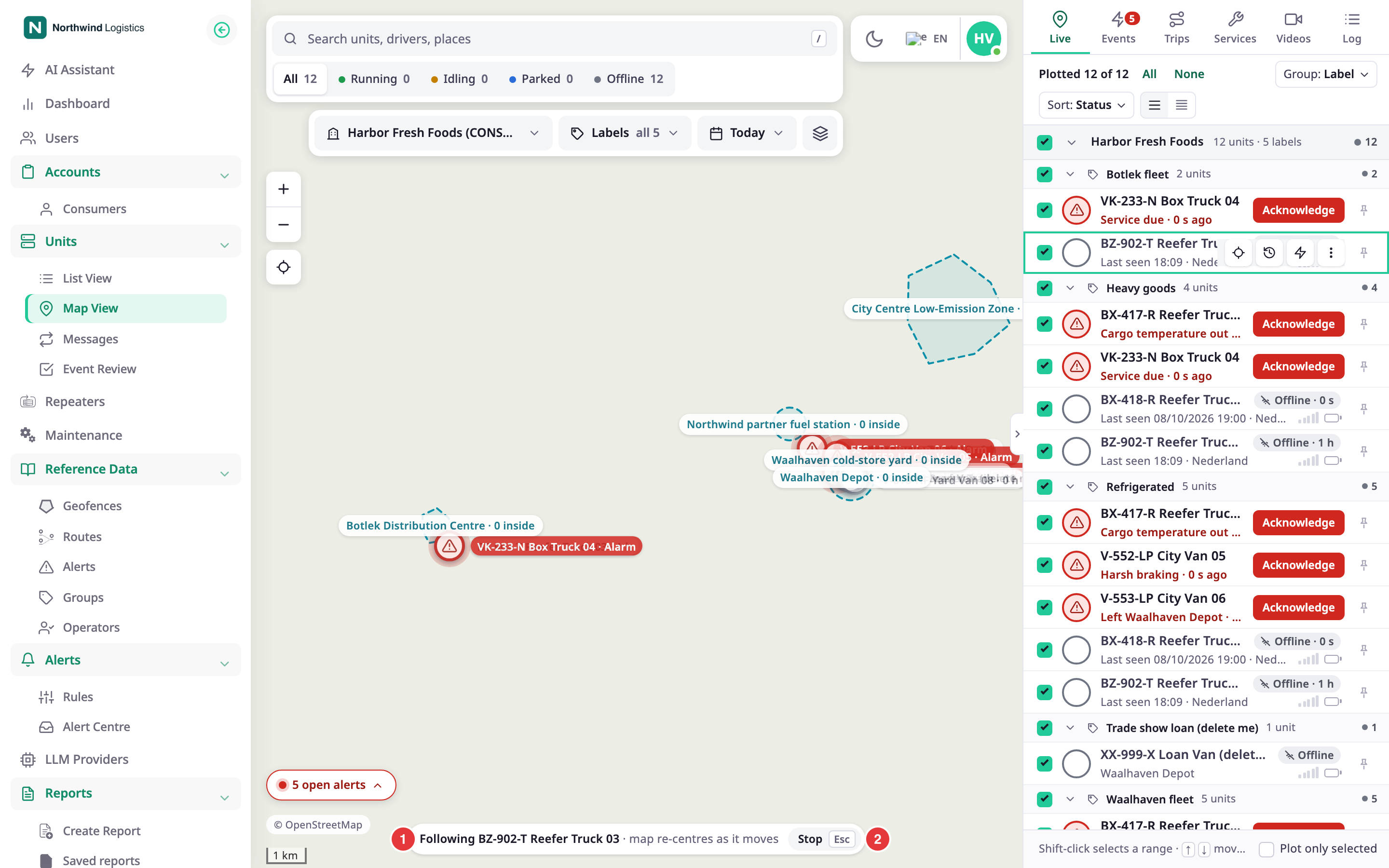
-
To stop, select Stop in the note, or press
Esc.
The map stays where it is. Dragging the map also stops it.
You can also follow from the unit card, with Follow. See Unit card on the map. Follow is unavailable for a unit that has no position.
¶ Fit the map to your units
Select Fit to plotted units, the crosshair button at the left of the map. The map zooms to show every plotted unit. Selecting a label name in the list fits the map to the units of that label.
¶ If the map is empty
- Check the scope. A dealer account starts on its own account with no units. Choose a consumer account in Account scope.
- Check the filters. A status button, a label or a search can hide every unit. Select Clear filters.
- Check the checkboxes. The map starts with no unit plotted. Select the units' checkboxes, or select All.
- Check the unit. A unit that has never sent a position has no marker.
For more causes, see A unit is missing from the map, in the wrong place, or has no address.
¶ What happens next
The markers move when the units report. You do not need to refresh. The address in your browser keeps your accounts, labels, search and status, so you can bookmark the view or send it to a colleague.