Devices or units? The migration creates both: a unit and a device for each Wialon unit you choose. The page says which.
Migrate when you move a fleet from Wialon. The app reads your Wialon units with your Wialon login and creates a unit and a device for each one, with its sensors. Wialon is the only source.
¶ Before you start
- You need Migrations > Menu and Edit. The built-in Owner role of a dealer account has both.
- Have a Wialon login that can read the units you want, on Wialon Hosting or on your own Wialon server.
- For your own server, have its address, for example https://your-wialon-server.com.
- Read What a Wialon migration brings across. Trip and fuel settings are not migrated, and a Wialon unit whose identifier matches an existing device updates that device.
¶ Connect your Wialon account
-
In the side menu, select Migrate.
The Migrate data screen opens. Wialon shows "Not connected".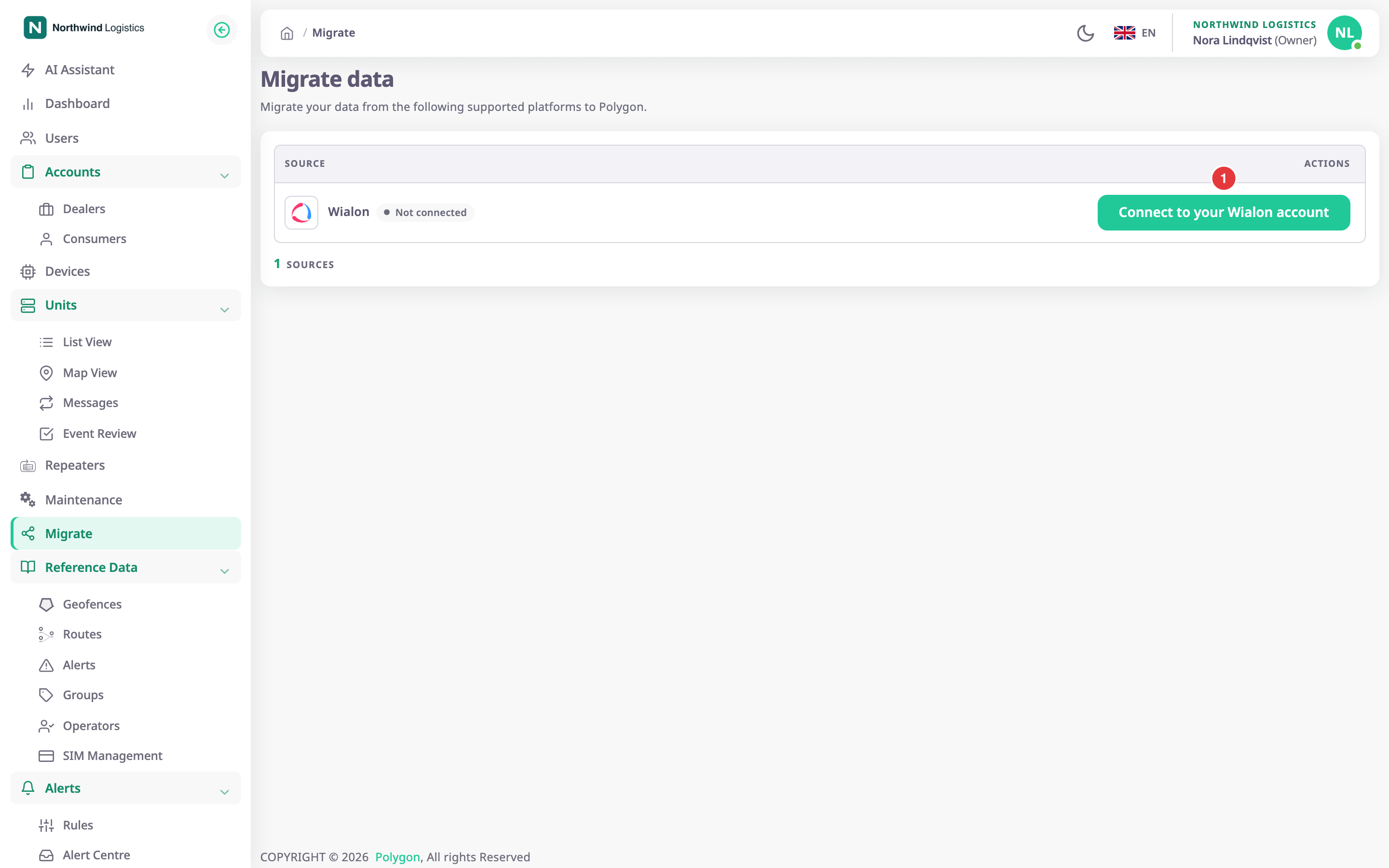
-
Select Connect to your Wialon account, marked 1.
The Select Wialon host dialog opens. -
Choose Hosting for Wialon Hosting, or Local version for your own server.
-
If you chose Local version, in Wialon base URL, enter the address of your server.
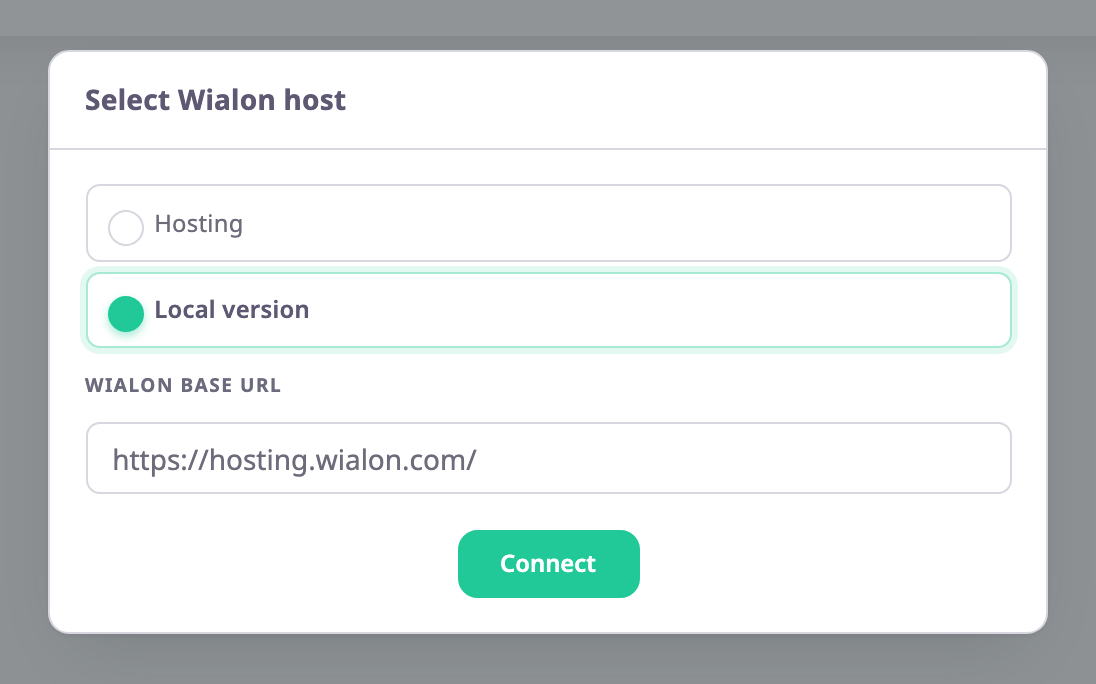
The field starts with https://hosting.wialon.com/. If the address is not a full http or https address, the app shows "Enter a valid URL, e.g. https://your-wialon-server.com" and Connect stays unavailable.
-
Select Connect.
The app saves the host and sends your browser to the Wialon sign-in page. -
Sign in to Wialon and allow access.
Wialon returns you to the Migrate data screen. Wialon shows "Connected".
A few seconds later, the app starts to read your Wialon units in the background. A large fleet takes longer.
¶ Choose the units to import
- On the Wialon row, select Import Data.
The Migration of units from Wialon screen opens with the lead "Pick the units to bring across. Anything already imported is marked, and importing again will not duplicate it." - Optional: in Search Unit, enter part of a unit name.
- Tick each unit to import. The box in the header ticks every unit that Wialon returned, on all pages.
The app saves each tick at once.
The columns are Unit Name, Migration Status and Check Logs. Migration Status shows "Imported" or "Not imported". Entries at the bottom sets the page size.
¶ Import and check the result
- Select Import Selected Items.
The app creates the units and devices. It imports at most 100 ticked units each time you select it. If you ticked more, select it again. - Read the message that opens.
It starts with "Migration Completed". Do not rely on its counts; check Migration Status for each unit. - Select Details on a unit.
A dialog shows the log of that unit: the steps the app took and any error. It says "No Logs" for a unit that was never imported.
A unit that failed shows "Not imported" and a log with the reason. Fix the cause the log names and import again.
¶ Disconnect the Wialon account
- On the Migrate data screen, select Disconnect Account.
The row shows "Not connected". The units the app already read stay in the list. The app forgets your Wialon access.
¶ What happens next
- Each imported unit appears in Units and each device in Devices, in your account. Their names are the Wialon unit names.
- A unit marked "Imported" is skipped when you import again, so nothing is duplicated.
- Allocate the units and devices to your customers and check the sensors on a few of them. See Allocate a device to another account.