A device is the tracking hardware installed in a vehicle or on an asset. In the Devices section you register devices and set up their SIM cards and sensors. You also tune how they detect trips and fuel events, and hand them to customer accounts.
¶ Devices and units
A device sends data; a unit is the vehicle or asset that data belongs to on the map. Customers work with units. Dealers set up the devices behind them. See Devices and units.
¶ Who can manage devices
Devices are a dealer task. The Devices menu and the device screens open only in dealer accounts. A user there needs these permissions of the Devices module:
| To | Permission |
|---|---|
| See the menu and the list | Menu and Read |
| Register devices | Add |
| Change settings, sensors and allocation | Edit |
| Delete devices | Del |
The built-in Owner role has all of them. Customer accounts see their devices only through their units. See Permissions reference.
¶ The device settings tabs
Open a device to see its settings as tabs:
| Tab | What you set there |
|---|---|
| General | Name, model, identifier (IMEI), SIM cards and status. See Device general settings. |
| Sensors | The sensors that turn raw parameters into values. See Sensors tab. |
| Trip Detector | How the app decides that the vehicle moves, stops and parks. Shown when the device has a GPS sensor. See Trip Detector tab. |
| Position filter | Checks that drop implausible positions. See Position filter tab. |
| Fuel Config | How the app detects fillings and drains. Shown when the device has a Fuel sensor. See Fuel Config tab. |
| Commands | Commands the device accepts, and the Log of commands sent with their status and the device's reply. See Command log of a device. |
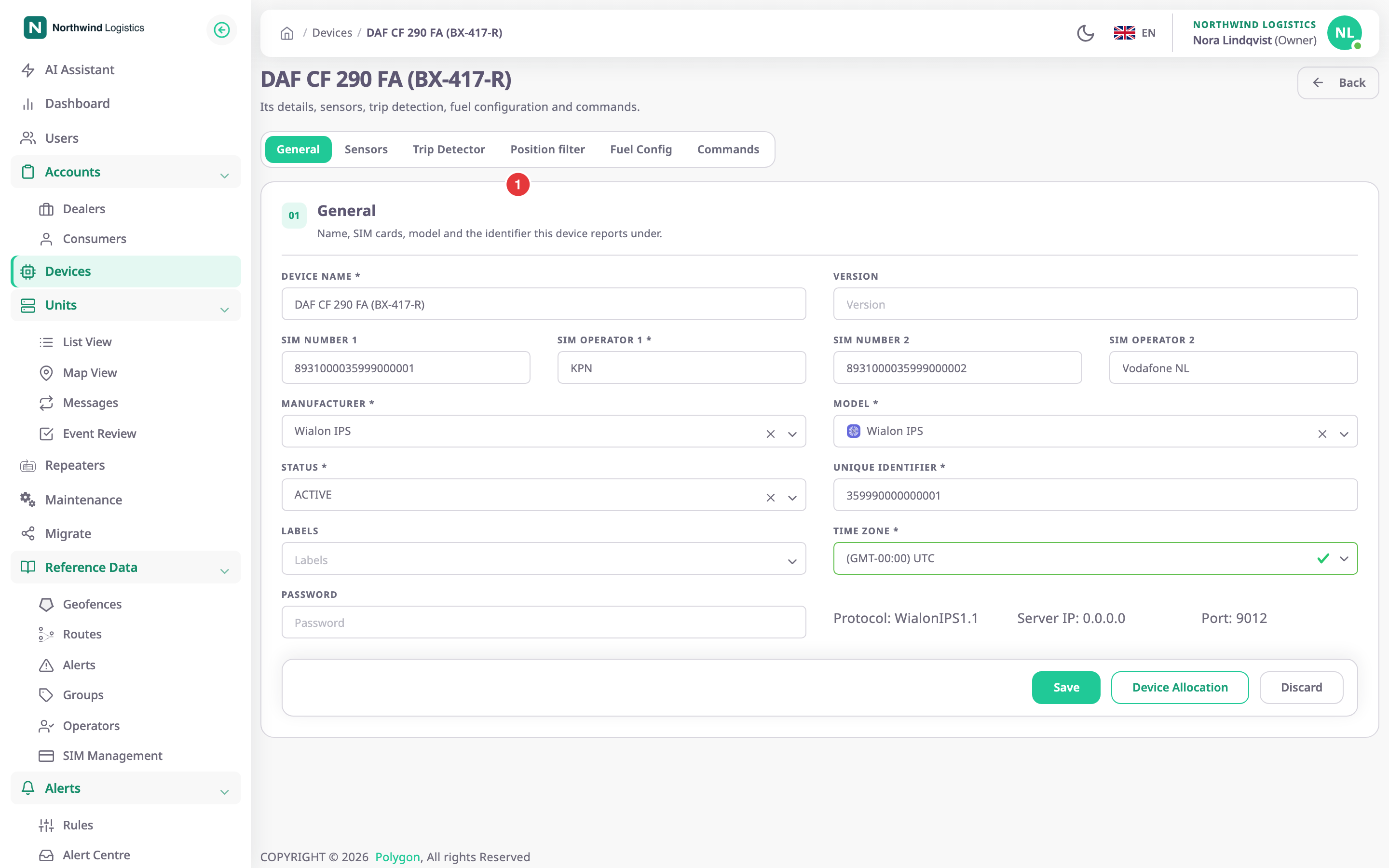
When you add a device, the same tabs run as steps of a wizard. The last step, Ready, waits for the device's first message.
¶ Device statuses
Each device has a status: ACTIVE, INACTIVE, DAMAGED or BLOCKED. Use them to keep stock in order, for example to mark returned or broken hardware. The devices list shows the status of each device, and only ACTIVE devices offer allocation to another account.
¶ Next steps
- Add a device
- Clone a device
- How sensors work
- Sensor expressions
- Calibration tables
- Sensor conditions
- Allocate a device to another account
- Repeaters: forward unit data to another server.