The Add bill form records a finished service: the meter readings and date, the work done and what it cost, and the receipts. To open it, in the side menu, select Maintenance, then select Completed on a reminder's row.
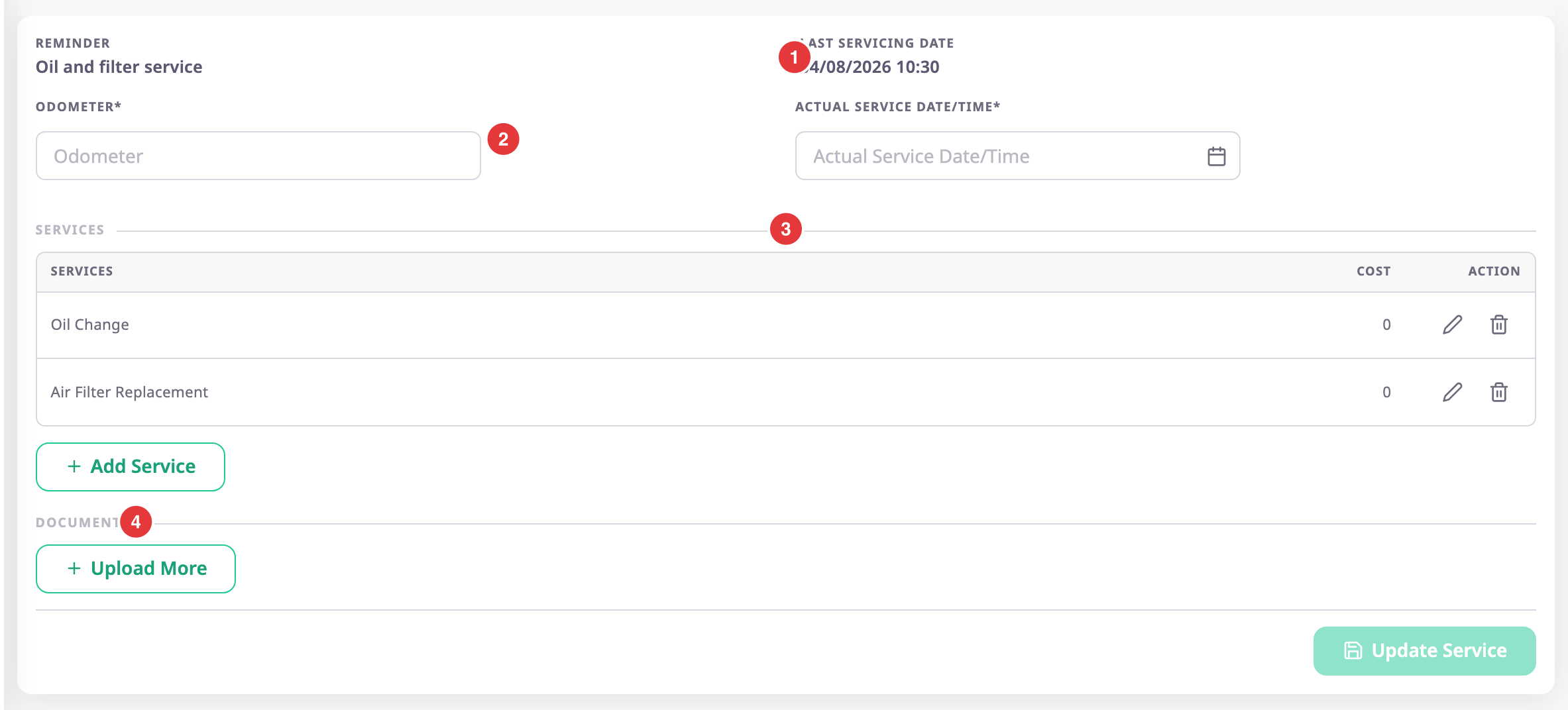
For the steps, see Record a completed service.
¶ Summary
At the top, the form shows the reminder's name and Last service date, the date of the previous service. The date is empty until the first service is recorded.
¶ Readings and service date
The form asks only for the thresholds the reminder uses.
| Field | Required | What it does | Allowed values / example | Notes |
|---|---|---|---|---|
| Odometer | Conditional | Records the odometer reading at the service. It becomes Odometer at last service, km on the reminder. | 0 or more, in km. Example: 112000 | Shown and required when the reminder uses By odometer. |
| Engine hours | Conditional | Records the engine-hours reading at the service. It becomes Engine hours at last service on the reminder. | 0 or more, in hours. | Shown and required when the reminder uses By engine hours. |
| Actual service date and time | Yes | Records when the service was done. | A date and time you choose in the calendar, for example 04/10/2026 05:00. | Typing in the field has no effect. Cannot be earlier than Last service date. Becomes the reminder's Last service date and the date the history lists the service under. With Repeat, it is also where the next due date counts from. |
Update service stays unavailable until every field shown here has a value.
¶ Services and cost
Services is a table with Services, Cost and Action columns. It starts with the service types the reminder covers, each at cost 0. See Service types.
- Select the pencil icon of a line to set its cost. The Services and cost dialog opens.
- Select the trash icon of a line to remove it. A dialog asks you to confirm.
- Select Add service to add another type.
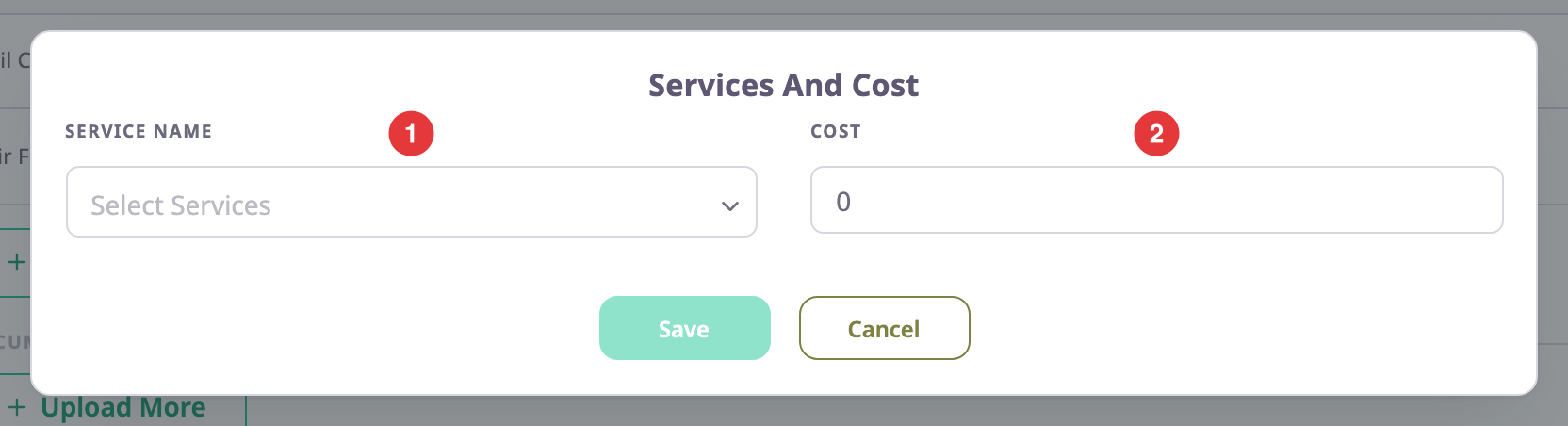
| Field | Required | What it does | Allowed values / example | Notes |
|---|---|---|---|---|
| Service name | Yes | Chooses the service type of the line. | One of the fixed service types. | Locked when you edit a line. Each type can appear once. |
| Cost | Yes | Records what the line cost. | 0 or more. Example: 410 | The app shows no currency. |
Select Save to put the line in the table, or Cancel to close the dialog. If you add a type that is already in the table, the app shows "This service is already on the list".
¶ Category-specific fields
Some types ask for more details, which the platform defines per type. In this version, only Tyre Change does. Its fields are named as follows.
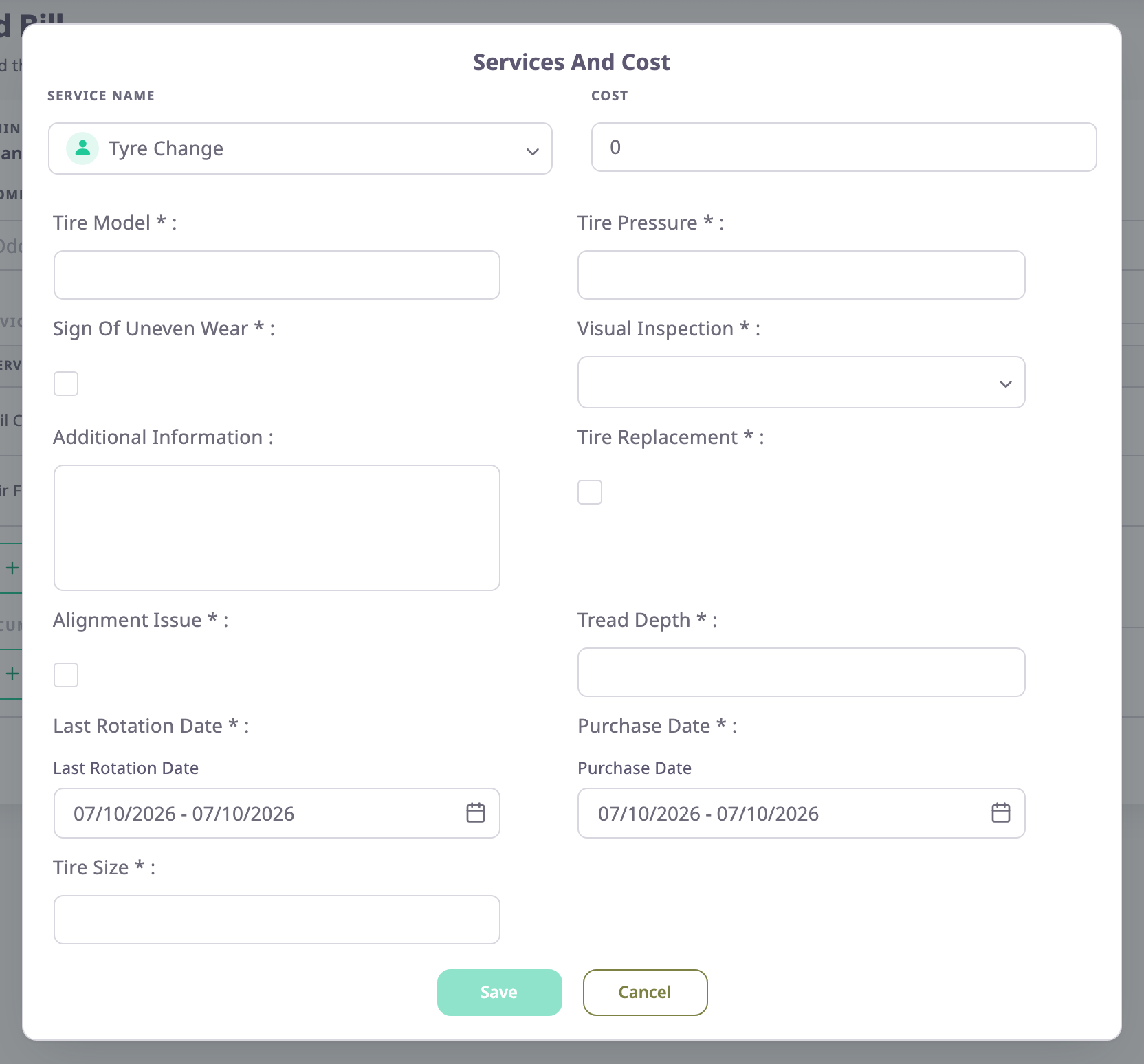
| Field | Required | Allowed values |
|---|---|---|
| Tire Model | Yes | Text |
| Tire Size | Yes | Text |
| Tire Pressure | Yes | A number |
| Tread Depth | Yes | A number |
| Purchase Date | Yes | A date |
| Last Rotation Date | Yes | A date |
| Visual Inspection | Yes | Fair, Good or Excellent |
| Sign Of Uneven Wear | Yes | Yes or no |
| Tire Replacement | Yes | Yes or no |
| Alignment Issue | Yes | Yes or no |
| Additional Information | No | Text |
¶ Documents
Upload more opens a file chooser. Choose a JPG, JPEG or PNG file. The app has no size limit for the file. The file appears in the list under Documents. Select the trash icon to remove it before you save.
Other file types, such as PDF, are not offered in the chooser.
¶ Buttons and actions
| Action | What happens |
|---|---|
| Add service | Opens the Services and cost dialog for a new line. |
| Upload more | Opens the file chooser for a document. |
| Update service | Saves the service. The message "Service reminder updated" appears and the reminders list opens. |
| Back | Returns to the previous page without saving. |
¶ Permissions
- The form opens with Read on Maintainance. The Completed icon in the list appears only with Edit, and the app refuses to save without Edit.
- A reminder created through the API with a date threshold only, without the odometer entry, can make this form fail to render. Reminders created in the form always work.