The Reminders list shows every service reminder of your account and how far each unit is from its next service. To open it, in the side menu, select Maintenance.
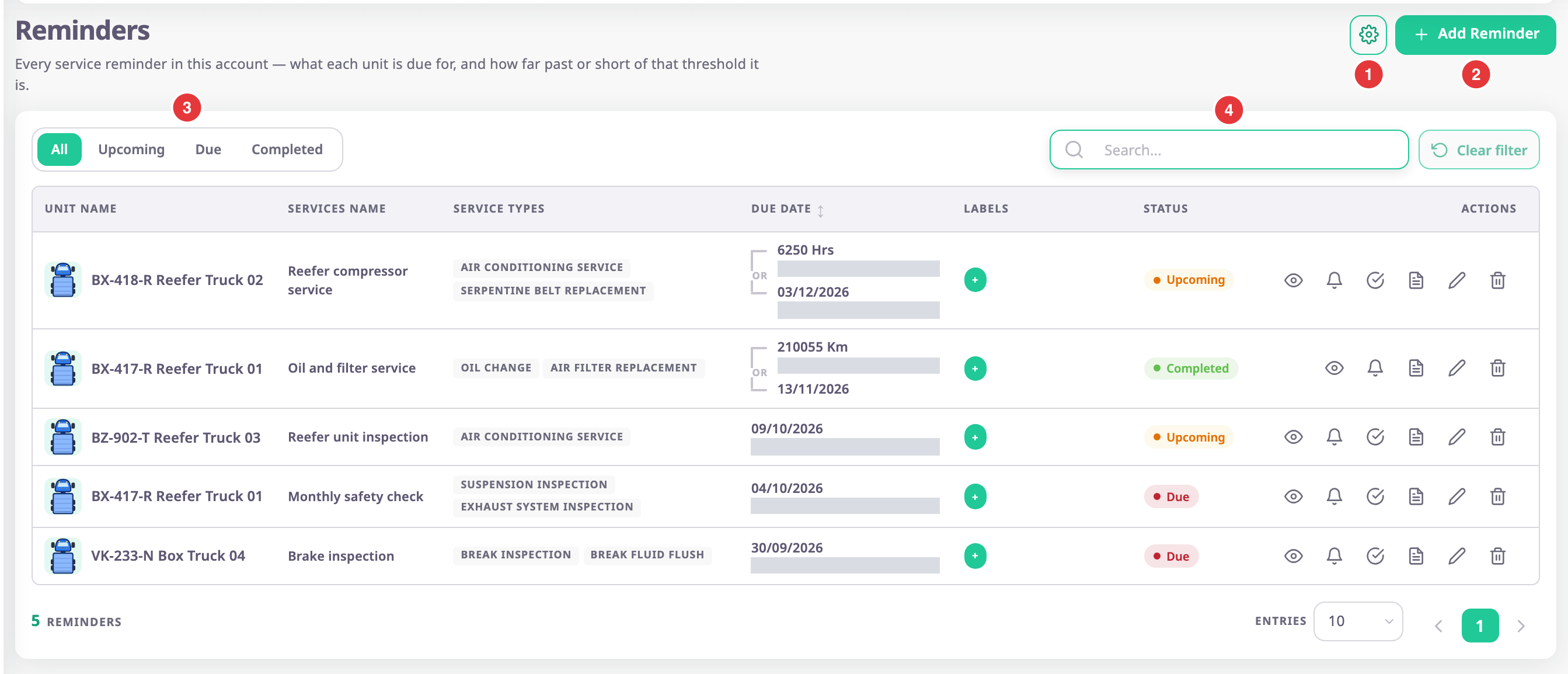
The list shows the reminders of the account you work in. It does not include reminders of its sub-accounts.
¶ Page header
The two page actions sit at the right of the heading:
- The gear button, marked 1, opens Default notification preferences. See Default notification preferences.
- Add reminder, marked 2, opens the reminder form. See Create a maintenance reminder.
¶ Status filter and search
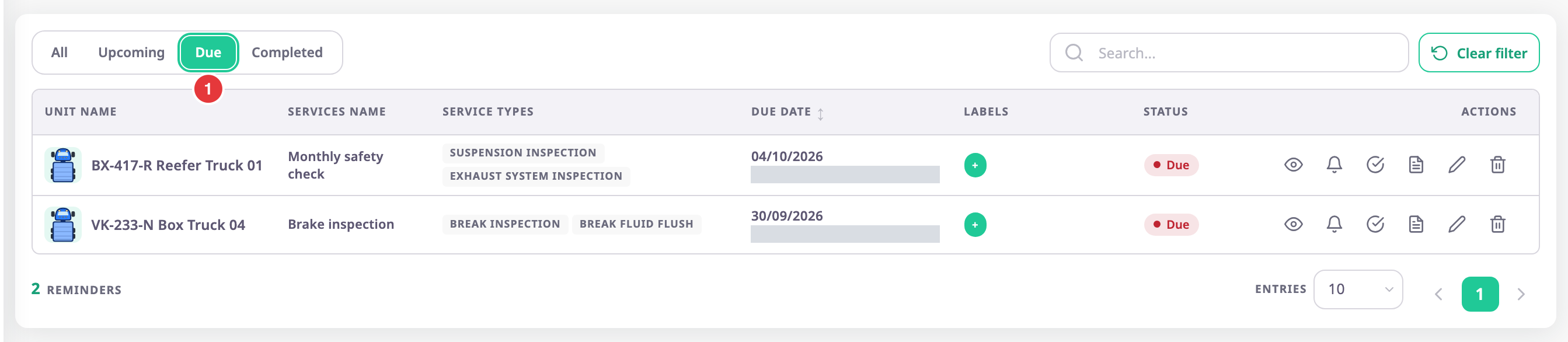
The status filter, marked 3, is a row of five buttons. Select one to narrow the list. Your choice goes into the address of the page, so a refresh keeps it.
| Button | Shows |
|---|---|
| All | Every reminder. This is the default. |
| Overdue | Due reminders whose due time has already passed. |
| Due | Reminders whose due date has passed or whose reading is reached. |
| Upcoming | Reminders whose due date or reading is still ahead. |
| Completed | Reminders with a recorded service that have not come due again. |
The search box, marked 4, finds reminders by name or by unit.
- Enter some text.
A small list offers "Search in name" and "Search in unit". - Choose one of them.
The list shows reminders whose name, or whose unit name, contains your text.
Select the cross in the search box to clear it. The reset button next to it clears the search and the sort in one step. The Services item in a unit's action menu opens this list filtered to that unit.
¶ Columns and the due text
| Column | What it shows |
|---|---|
| Checkbox | Selects the reminder for a batch action. See Act on many reminders at once. |
| Unit Name | The unit's icon and name. |
| Services Name | The name you gave the reminder. |
| Service Types | The service types the reminder covers. See Service types. |
| Due Date | One block for each threshold: the reading or date the service is due at, and below it how far away that is. Select the heading to sort by next due time. The default shows the latest first. |
| Labels | The groups the reminder belongs to. Select the plus sign to add one. |
| Status | The status with a coloured dot and a word: Upcoming, Due or Completed. |
| Actions | The row actions below. |
A reminder with two or three thresholds has one block for each, with "or" between them. The service is due when any of them is reached.
The text under each value reads, for example, "Due in 59 Days", "Due in 4800 KM", "Due by today" or "Overdue by 4 Days". A completed reminder reads "Completed".
For a distance or engine-hours threshold, the app compares the latest reading with the reading at the last service plus the interval. It recalculates every reminder once an hour, and when you save a reminder or record a service. A reminder can still read Upcoming for up to an hour after its due time.
¶ Row actions
Each row has up to six icons. Hover over an icon to read its name.

| Marker | Action | What it does | Needs |
|---|---|---|---|
| 1 | View | Opens the reminder read-only. See Maintenance reminder form. | Read |
| 2 | Notification | Shows only on reminders created before alert rules replaced reminder notifications. It opens the Rules list of alerts. | Read |
| 3 | Completed | Opens the Add bill form to record a finished service. Hidden on rows that are already Completed. See Record a completed service. | Edit |
| 4 | History | Opens the completed services of the reminder. See Service history. | Edit |
| 5 | Edit | Opens the reminder for changes. | Edit |
| 6 | Delete | Asks "Are you sure?" and "Do you really want to remove the record of" followed by the reminder's name. Select Remove. | Del |
After you remove a reminder, the message "Maintenance reminder deleted successfully" appears and the row leaves the list. The completed services recorded on it leave with it.
Below the table, the count shows how many reminders match. Entries sets how many rows a page holds: 10, 20 or 30.
¶ Act on many reminders at once
Tick the checkboxes in the first column, then pick an action in the bar that appears above the table. The checkbox in the header ticks every row on the page. If more reminders match than the page shows, the bar offers Select all {n} matching.
| Action | What it does | Who sees it |
|---|---|---|
| Add labels | Adds the groups you pick to every selected reminder and keeps their other groups. | Roles with Edit on Maintainance and Add on Labels |
| Remove labels | Removes the groups you pick and keeps the other groups. | Roles with Edit on Maintainance and Del on Labels |
| Delete | Deletes the selected reminders and the services recorded on them. You cannot undo it. | Roles with Del on Maintainance |
| Clear selection | Clears every checkbox. | Everyone who sees the checkboxes |
Things to know:
- A confirmation states how many reminders the action covers. The Result dialog then lists how many succeeded and failed, and names each failure with its reason. Select failed keeps only the failed reminders selected, so you can try again.
- One action handles at most 100 reminders.
- Changing the status filter or the search clears the selection.
- The checkbox column shows only to roles that can run at least one of these actions.
¶ Export the list
Export, at the right of the search, saves the reminders you ticked as a file:
- Excel (.xlsx): a spreadsheet with one row per reminder.
- PDF: opens the browser's print dialog. Choose to save as PDF there.
Until you tick at least one reminder, both formats are unavailable and the menu reads "Select rows to export". After Select all {n} matching, the file holds every matching reminder except the ones you unticked.
The file has the columns Unit Name, Services Name, Service Types, Due Date, Labels and Status. Due Date joins the thresholds with "or". An Excel file holds at most 10,000 rows and a PDF at most 2,000. Above that, the app says "Too many records to export".
¶ Default notification preferences
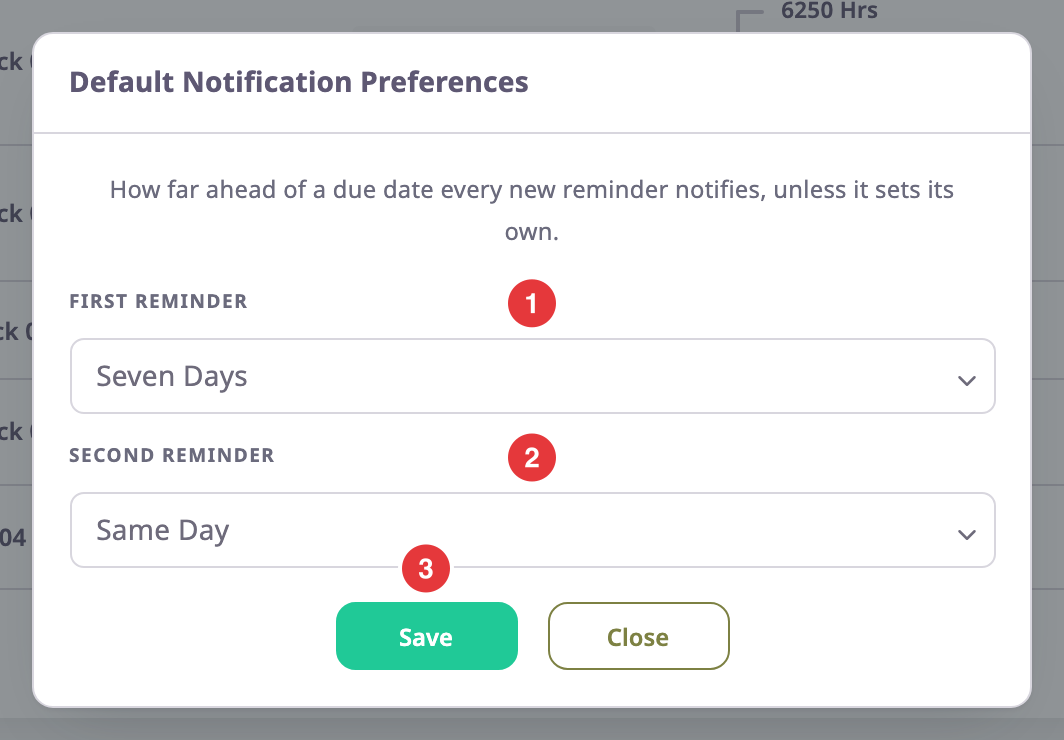
The gear button, marked 1 in the first picture, opens Default notification preferences. It sets how long before a due date a reminder notifies, for every reminder that does not set its own.
| Field | Required | What it does | Allowed values / example | Notes |
|---|---|---|---|---|
| First reminder | No | Sets the account default for the first notice. | None, Seven Days, Fifteen Days or Thirty Days | Stored on the account. |
| Second reminder | No | Sets the account default for the second notice. | None, Same Day or OneDay Before | Stored on the account. |
Select Save. The message "Default notification preferences saved" appears and the dialog closes. Close leaves the values as they were.
If your account has no default yet, the dialog opens with the raw numbers 7 and 1 instead of option names. Choose a value in each list before you save.
A reminder whose own First reminder and Second reminder are both empty uses this default. The first notice time also decides when a Completed reminder turns Upcoming again.
Who gets a message when a notice goes out depends on your alert rules. See Get an alert when a service is due.
¶ Permissions
The module is called Maintainance in the role form.
- To see the Maintenance menu item, you need Menu. To open the list, you need Read.
- The list also reads the default notification preferences when it opens. A role without Notification Settings gets the "Un-authorized action" screen instead of the list, even with Read.
- Add reminder needs Add. Completed, History and Edit need Edit. Delete needs Del.
- The gear button opens for everyone who can see the list. Save in it shows only with Notification Settings.
- The Owner role has all of them.