When a workshop has serviced a unit, record it. The reminder becomes Completed, the readings you enter become its new starting point, and the service joins the history with its costs and receipts.
¶ Before you start
- You need Edit on Maintainance. The Completed icon does not appear without it. The Owner role has it.
- The reminder must not show Completed yet. A completed reminder has no Completed icon.
- Have the odometer or engine-hours reading and the date of the service ready.
- Have what each line cost. If you have photos of the receipts, keep them as JPG or PNG files.
¶ Open the bill for a reminder
-
In the side menu, select Maintenance.
The Reminders list opens. -
In the reminder's row, select the Completed icon, marked 1.

The Add bill form opens. It lists the service types the reminder covers, each at cost 0.
¶ Enter readings and the service date
-
In Odometer, marked 1, enter the reading at the service, for example 112000.
-
Select Actual service date and time, marked 2.
A calendar opens. -
Choose the day, set the hour and minute, and select Apply.
The field shows the date and time, for example 04/10/2026 05:00. Typing in the field has no effect.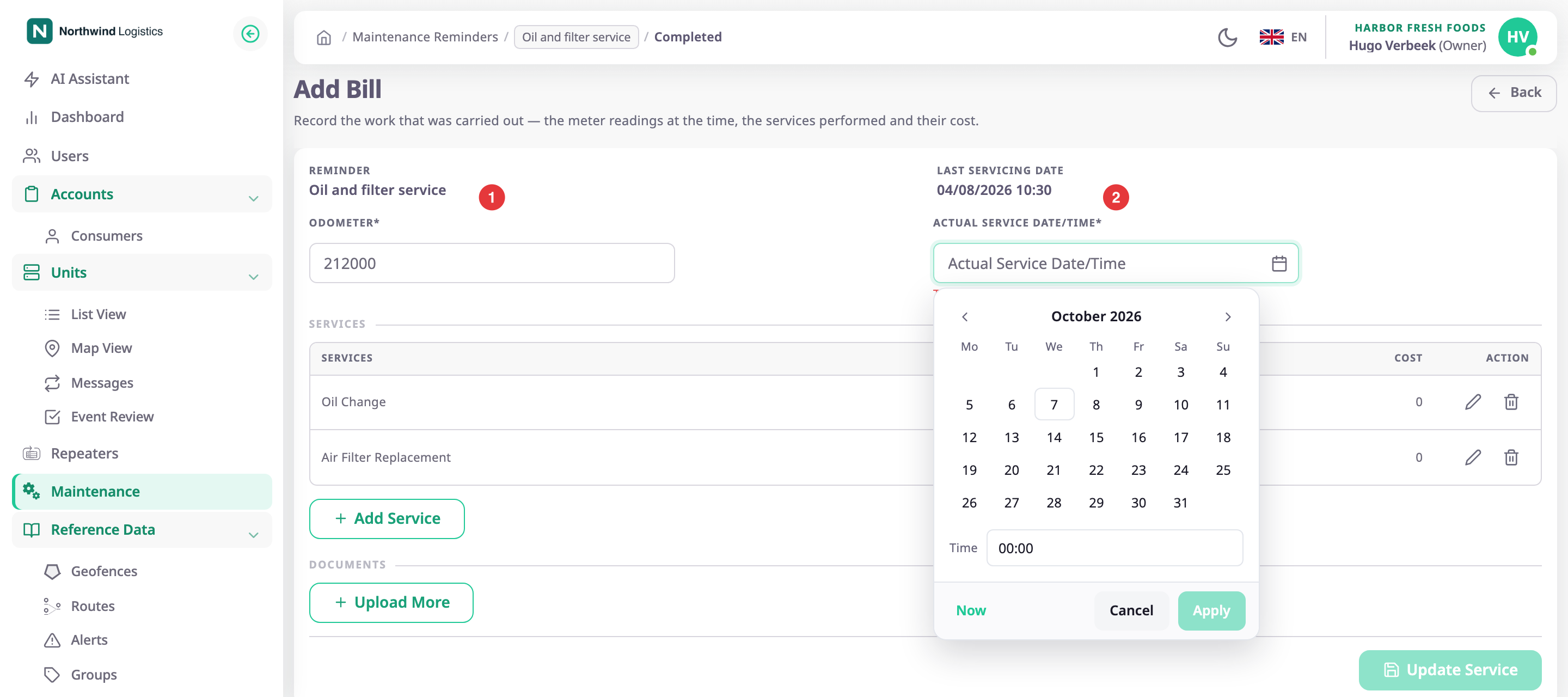
If the reminder also uses engine hours, the form shows Engine hours. Fill it the same way. The date cannot be earlier than the previous service.
¶ Add services and costs
-
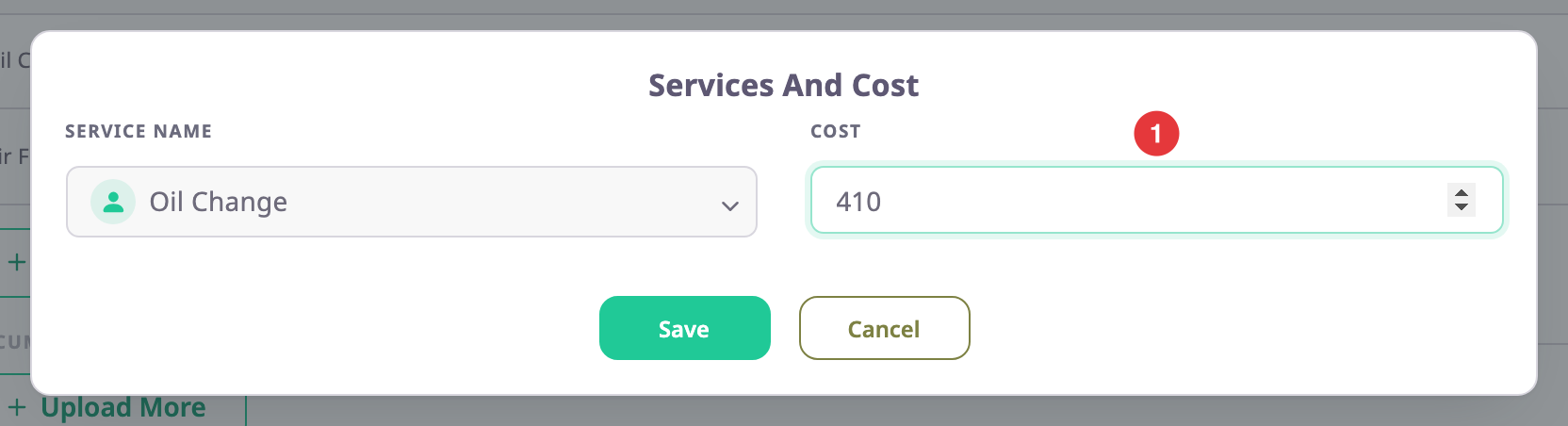
In the Services table, select the pencil icon of a line.
The Services and cost dialog opens. -
In Cost, enter what the line cost, for example 410.
-
Select Save.
The line shows its cost. -
Repeat for each line.
-
Optional: to add work the reminder does not list, select Add service, choose the type, enter its cost and select Save.
-
Optional: to drop a line you did not do, select its trash icon and confirm.
¶ Attach receipts or photos
- Select Upload more.
- Choose a JPG or PNG file.
The file appears under Documents. - Optional: repeat for more files.
¶ Save and check the history
- Select Update service.
The message "Service reminder updated" appears and the list opens. The reminder now shows Completed. - In the reminder's row, select the History icon.
The history of the reminder opens on today's date.
If your service date was earlier than today, change the date range to see the row. See Service history.
¶ What happens next
- The reminder's Odometer at last service, km, Engine hours at last service and Last service date take the values you entered.
- If the reminder has Repeat on, its Due date moves on by the repeat pattern, counted from the service date. Without Repeat, the date threshold is finished; edit the reminder to set the next date. See Maintenance reminder form.
- The reminder stays Completed until the unit is half-way to the next service, or until the first notice time arrives. Then it returns to Upcoming.
- You can download the reminder's service history as a PDF from the record's details page. See Service record details.