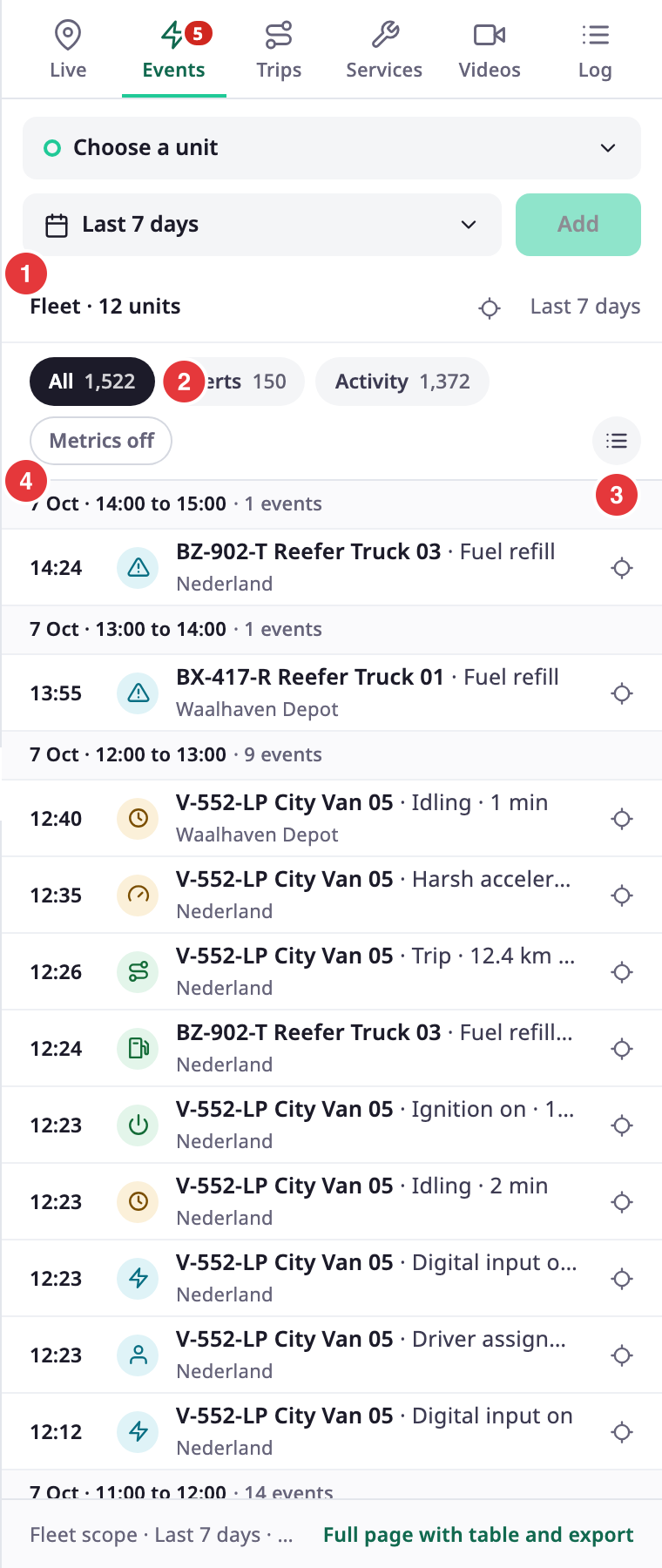
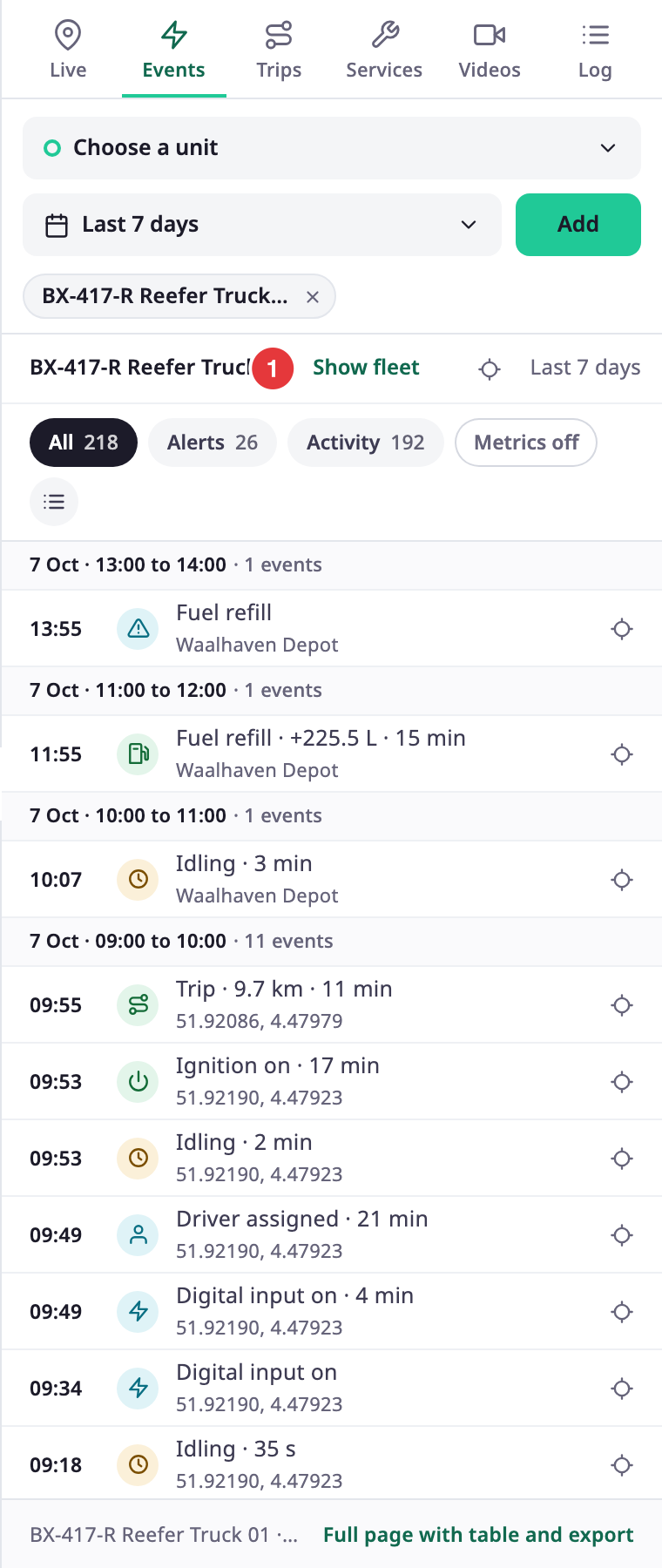
The Events tab lists what happened to your units in the time range, newest first, and marks each event on the map. It mixes alert incidents with activity such as trips, stops and geofence visits. To open it, in the side menu, select Units > Tracking, then select Events in the dock.
¶ Open the tab
- Select Events in the dock to see the events of every plotted unit.
- Select Events on a unit row, on the unit card or in the unit menu to see one unit.
The tab uses the shared range. See Time range. The longest range is 92 days. A badge on the tab counts new alerts. You need Show Events on Units.
¶ Fleet and unit scope
The line under the controls tells you what the list covers.
- "Fleet" and a unit count: events of the plotted units, merged. Some servers list events one unit at a time. Then the tab shows the first units only and says "Showing events of the first N of M units".
- A unit name with Show fleet: events of that unit only. Select Show fleet to go back to every plotted unit.
If you plot no unit, the tab reads "No units on the map" and asks you to plot units in Live.
¶ Tiers and kinds
The buttons under the scope line filter by tier. Each shows a count.
| Button | What it lists |
|---|---|
| All | Every kind that is on. |
| Alerts | Alert incidents and events that need attention, such as SOS, power unplugged, driver behaviour, fuel drain, over temperature and low battery. |
| Activity | Normal activity: trips, parking, idling, ignition and engine sessions, geofence visits, route rides and checkpoints, fuel refills and driver assignments. |
| Metrics off | A third tier, Metrics, holds readings such as fuel level and mileage. It is off. |
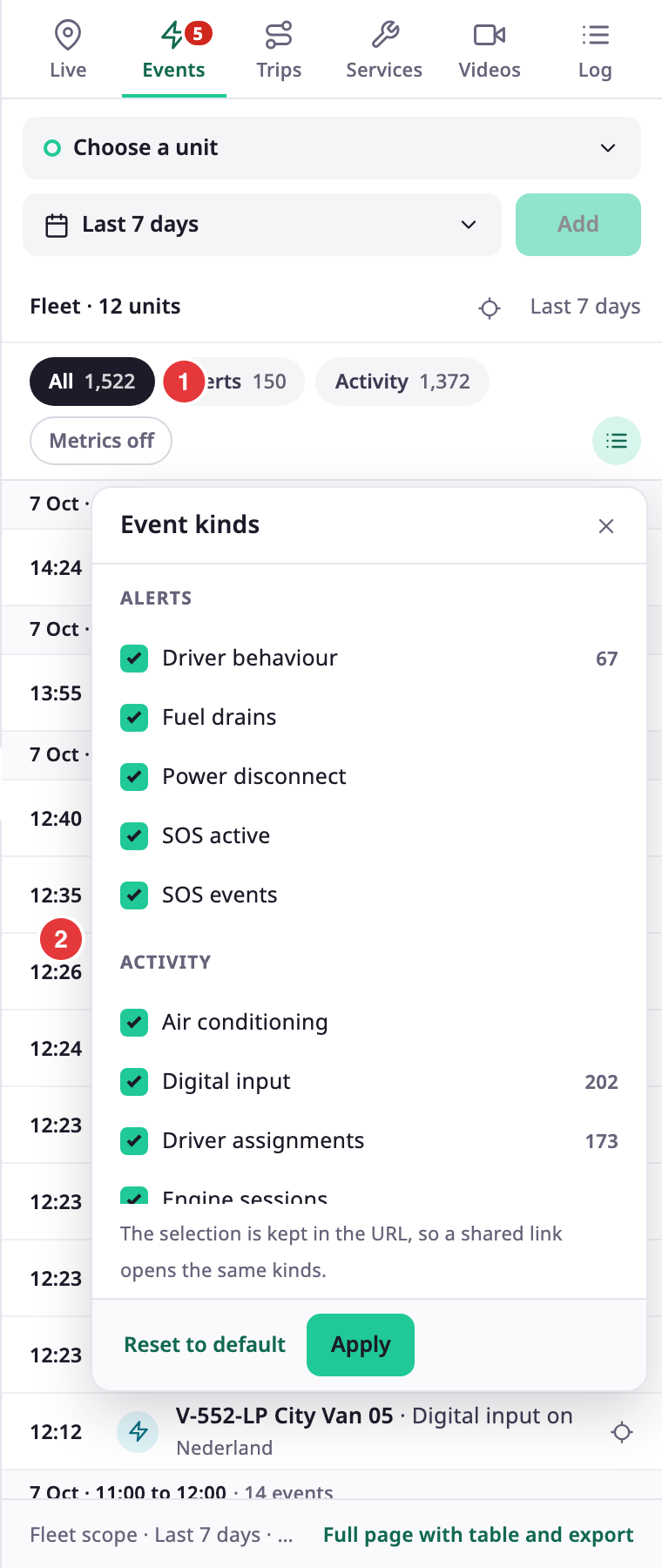
The round button at the right of the tier buttons, Choose kinds, opens Event kinds. It groups the kinds by tier and shows a count for each. Tick the kinds you want, then select Apply. Select Reset to default to go back. The address of the page holds the choice, so a shared link opens the same kinds.
¶ Event rows and hours
The tab groups events by hour. A heading shows the hour and how many events it holds, for example "4 Oct · 05:00 to 06:00 · 10 events". Each row shows:
- The time, an icon for the kind and the unit name with the kind.
- The value, for example "Idling · 2 min".
- The place or address.
- Open for an alert incident that is still open, or Acknowledged once someone acknowledged it.
Select a row, or a marker on the map, to open its event card. The row and its marker on the map highlight each other. Events cluster on the map when they are close.
¶ Event card
The card opens on the map, next to the event's marker. On a phone it sits above the sheet, and the sheet drops to its lowest height while the card is open. Select the cross, Close card, or press Esc to close it.
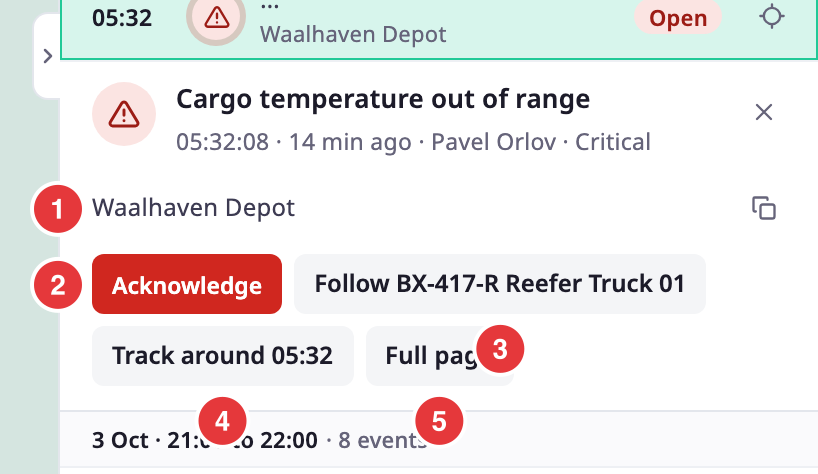
The header shows the kind of event, its value, the time and how long ago it happened. For an alert incident, a pill shows its state (Open, Acknowledged, Resolved or Cleared) and its severity. Under the address, the card lists what is known about the event:
- The unit and the driver.
- When it started and ended, or "ongoing", and how long it lasted. For an incident the rows read Opened and Closed.
- The geofence or sensor it is about, when there is one.
- The measurements the event carries, such as distance, speeds, fuel at start and end, or temperatures against their limits, in your account's units.
- The position.
| Control | What it does | Needs |
|---|---|---|
| Address with a copy button, marked 1 | Shows where it happened. The copy button copies it. | — |
| Acknowledge, marked 2 | Acknowledges an open incident. A message reads "Could not acknowledge the alarm" if it fails. | Edit on Alert Incidents |
| Trips, marked 3 | Opens the Trips tab for the unit on the day of the event, with the trip of that moment selected. | Show Trips |
| Track around and the time, marked 4 | Opens History, or Trips, for 30 minutes either side of the event. | Show History or Show Trips |
| Follow with the unit name, marked 5 | For an incident: opens the unit card and keeps the map on the unit. For other events the button is Open with the unit name. | — |
| Full page, marked 6 | Opens Event Review prefilled for the unit and the event, or the incident page for an alert. See Event Review. | — |
¶ Event sets
A set compares events of several units for a range, without changing the shared range.
- In the unit list at the top, choose a unit.
The unit appears as a chip below the controls. - Optional: choose more units, up to 25 for one set. + N selected in Live adds the units you selected in the list.
- Select the range button.
The time picker opens. - Choose a range.
- Select Add.
A set appears with its own colour.
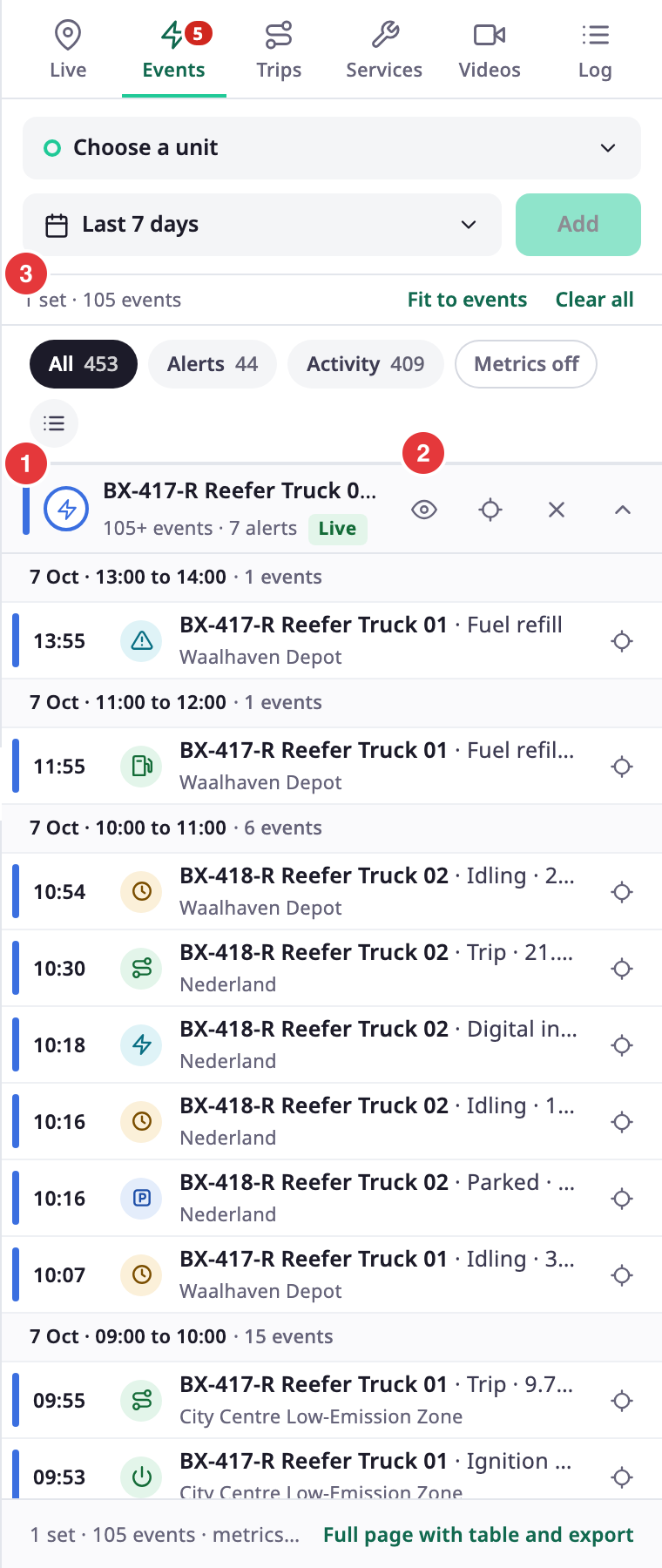
You can have up to 8 sets. A set header shows the units, the range, the event count, the alerts and how many are open. The buttons on it:
- Show this set on the map hides or shows its markers.
- Fit the map to this set zooms to its events.
- The cross removes the set, and the arrow collapses it.
Fit to events zooms to every marker. Clear all removes every set. Markers carry a ring in the colour of their set.
¶ Events of one unit
If the unit has no events in the range and last reported before it, the tab adds "Last data:" with the date and time, and Show that day. Select it to set the shared range to that day.
¶ Phone
On a phone, the controls that add a set fold away. Select Add set to show them.
¶ Live updates
New events stream in while the range reaches now. A button reads "N new · show". Select it to add them at the top. The tab also checks again every 60 seconds.
¶ Limits
- 92 days for a range; 8 sets; 25 units for each set.
- 100 events load at a time. Load more loads the next page.
¶ Permissions
- You need Show Events on Units to open the tab.
- Alert incidents appear in the list only with Read on Alert Incidents.
- Acknowledge needs Edit on Alert Incidents.