Event Review lists the events the app computed for one unit and period: trips, refuels, fuel drains, harsh braking, engine hours and more. Excluding a wrong event removes it from every report, chart, export and dashboard, not only from this table. To open it, in the side menu, select Units > Event Review.
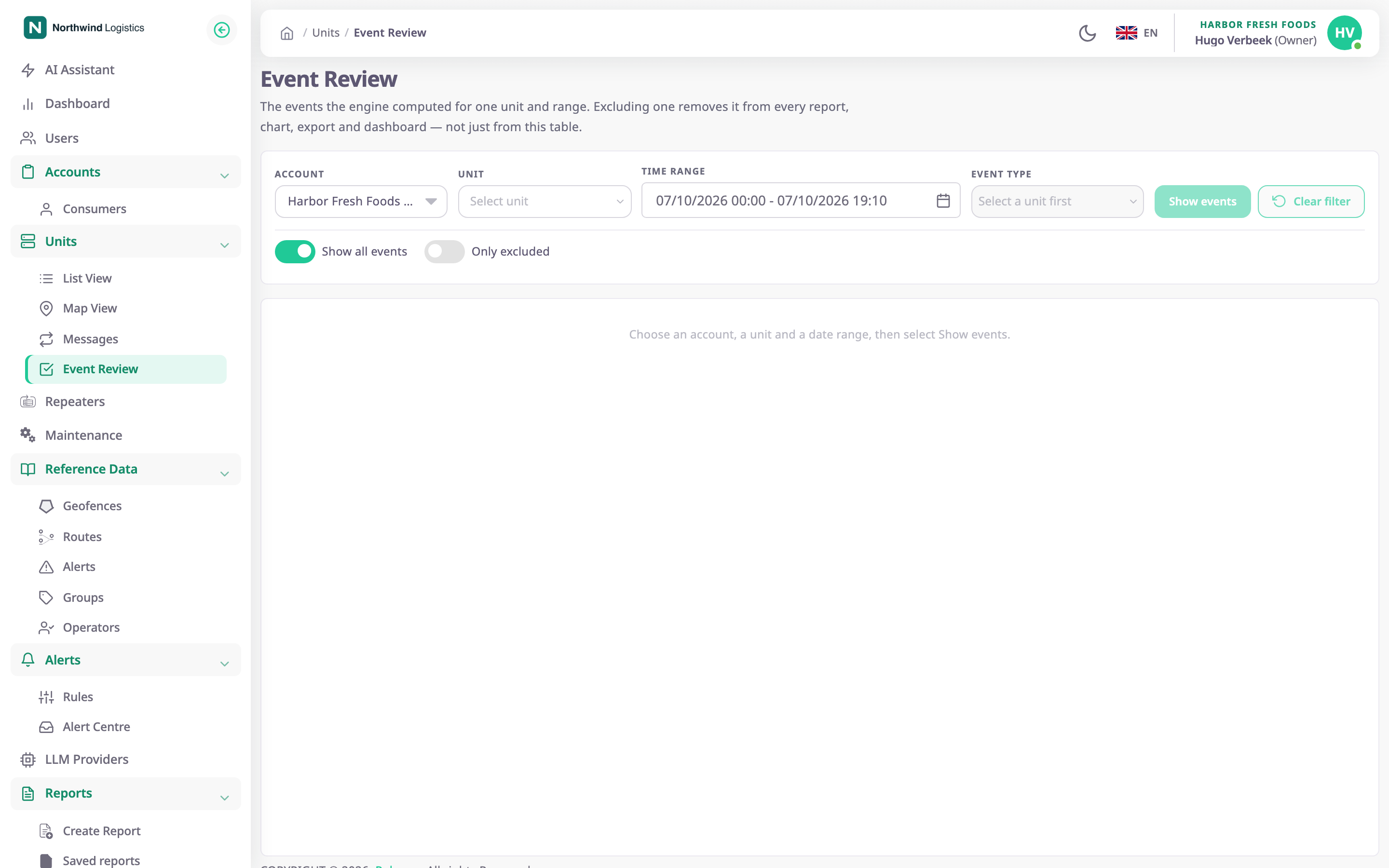
¶ Filters
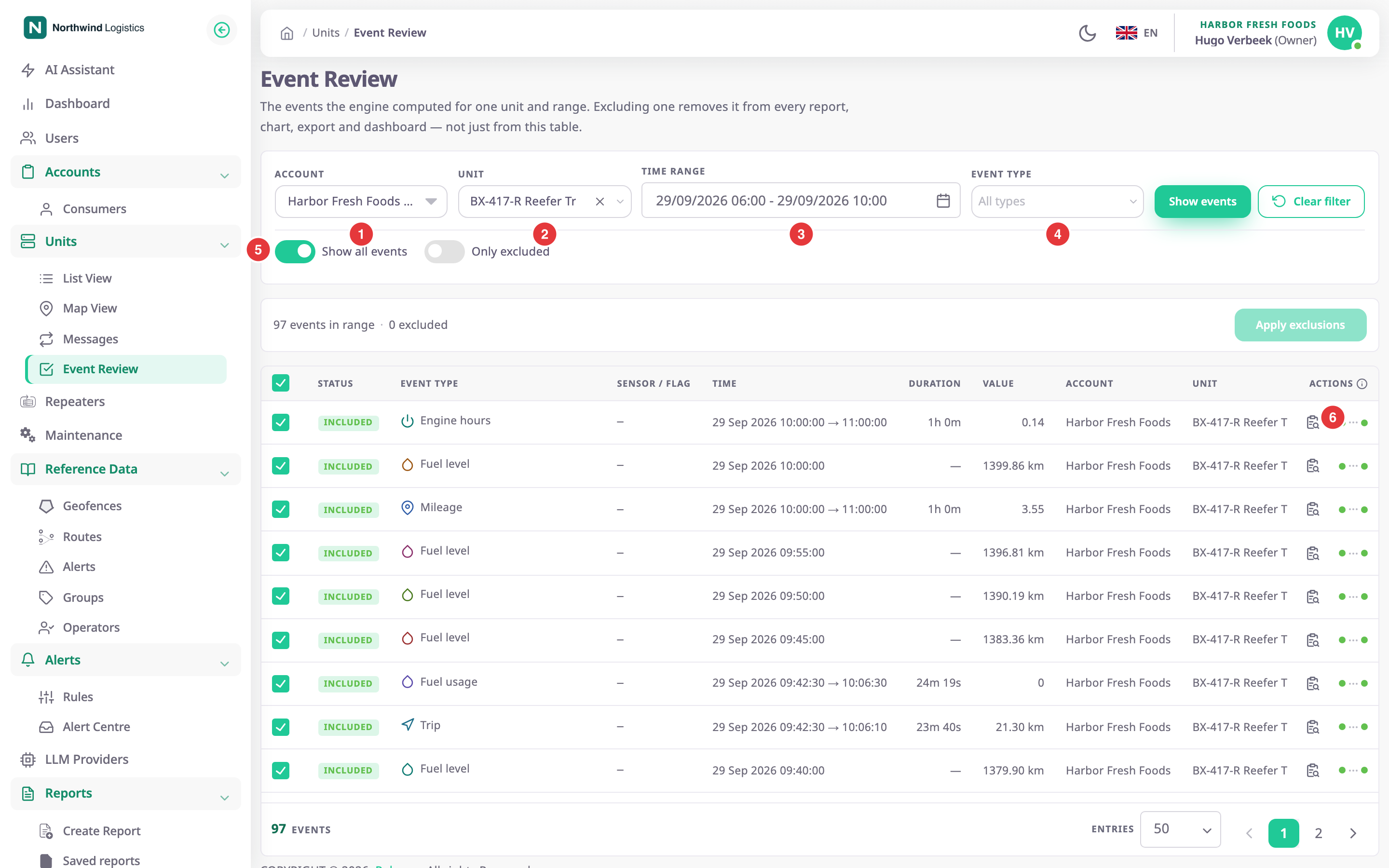
| Field | Required | What it does | Allowed values / example | Notes |
|---|---|---|---|---|
| Account, marked 1 | Yes | Chooses the account whose units you review. | One account: yours or one below it. | Default: your own account. |
| Unit, marked 2 | Yes | Chooses the unit. | Units of the account. Search by name; Load more shows the next 20. Example: BX-417-R Reefer Truck 01 | — |
| Time range, marked 3 | Yes | Sets the period. | At most 92 days, not in the future. Presets Today, Yesterday, Last 7 days, This week, Last week, This month, Last month, or Custom. Example: 29/09/2026 06:00 - 29/09/2026 10:00 | Default: today from 00:00 to now. Pick it in the picker or type it. A longer range starts later; see below. |
| Event type, marked 4 | No | Limits the table to these event types. | Types the app computes. Each shows how many events the unit had in the period; a check marks the types you picked. | Empty means all types. Unavailable until you choose a unit. Select a checked type again to remove it. |
| Action | What happens |
|---|---|
| Show events | Loads the events. |
| Clear filter | Resets the unit, the types and the period to today, and empties the table. The account stays. Unavailable until you choose a unit or load events. |
¶ Time range
Select the field to open the picker. Choose a preset, or pick a start day and an end day in the calendar and select Apply. The picker works as on the map; see Time range. You can also type a range in the form the field shows, then press Enter. For example, enter 29/09/2026 06:00 - 29/09/2026 10:00.
Event Review shows at most 92 days. If you pick or type a longer range, the app moves the start so the range is 92 days long. The picker says from which date it starts. A range cannot start in the future. If the app cannot read what you typed, the field turns red and explains the expected form.
¶ Event type
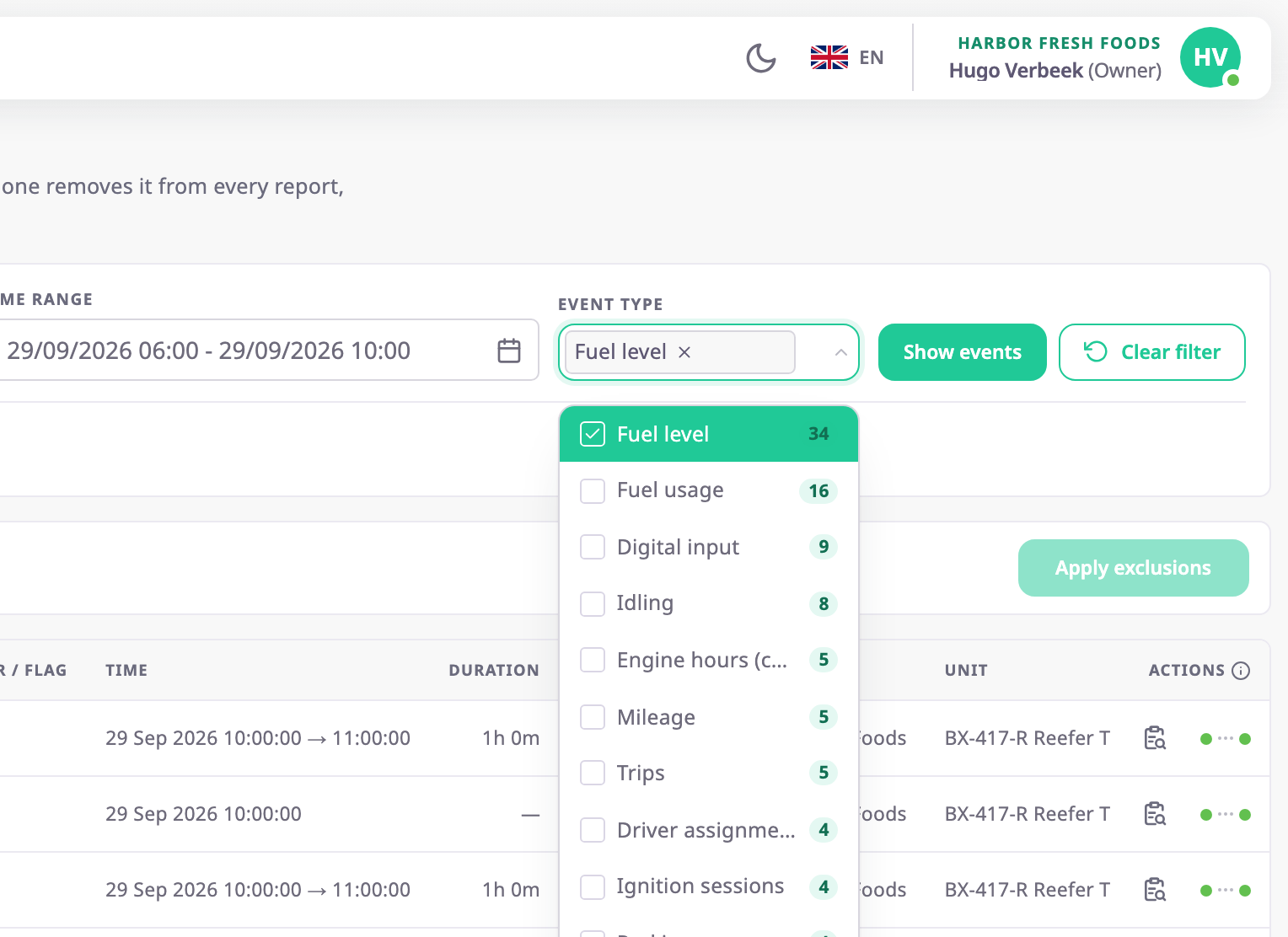
After you choose a unit, the list shows each type the app computes, with the number of events the unit had in the period. Types without events in the period are dimmed. A check marks each type you picked. Select a checked type again to remove it. Hover a type to read its name and count in full.
¶ Kept in the address
The address bar keeps the last search you ran: the account, unit, period, types, switches and page. Reload the page, or come back to Event Review from the side menu, and the app runs that search again.
¶ Show all events and Only excluded
The two switches, marked 5, change which events the table lists:
| Switch | What it does |
|---|---|
| Show all events | On by default. Lists included and excluded events. Turned off, the table stays empty. |
| Only excluded | Lists only excluded events. Available only while Show all events is on. |
Each switch reloads the table at once.
¶ Table columns
| Column | What it shows |
|---|---|
| Checkbox | Ticked means the event counts in reports. Clear it to mark the event for exclusion. The header checkbox ticks or clears every row on the page. |
| Status | Included or Excluded, plus Unsaved on rows you changed. |
| Event type | The type, with its icon, for example "Fuel level" or "Harsh braking (Driver behaviour)". |
| Sensor / flag | The sensor or input the event comes from, or a dash. |
| Time | Start and end, in the account's time zone. One time for an instant event. |
| Duration | How long the event lasted. |
| Value | The main figure, such as litres drained, distance or speed over the limit. |
| Account, Unit, Driver | Who the event belongs to. |
| Location | Latitude and longitude of the start. |
| Excluded by | Who excluded the event, and when. |
| Actions, marked 6 | Analyse, the clipboard-and-magnifier icon, opens the event on the Messages screen. See Analyse an event against raw messages. The two dots next to it show whether the app found messages right before and after the event. Hover the dots, or the information icon in the header, to read what they mean. |
The table lists events newest first.

The footer under the table shows how many events match, marked 1. Next to it are Entries, the rows per page, marked 2, and the pager, marked 3. The table starts with 50 rows per page. Changing Entries returns to page 1.
¶ Event statuses
| Status | Meaning |
|---|---|
| Included | The event counts in every report. |
| Excluded | Someone excluded it. No report, chart, export or dashboard counts it, and recalculating the data does not bring it back. |
| Unsaved | You changed the checkbox, but have not applied the change yet. |
¶ Summary bar

After a search, the bar shows how many events are in the period, how many are excluded and, if you changed rows, how many changes are unsaved. The counts cover the whole period and type filter, not only the page.
| Action | What happens |
|---|---|
| Discard changes | Puts every changed row back. |
| Apply exclusions | Opens the confirmation dialog. The button reads Apply exclusions while every change excludes an event, Apply restorations while every change restores one, and Apply changes for a mix. |
Apply your changes before you move to another page of the table. Changes on a page you leave are lost when you apply.
¶ Confirmation dialog
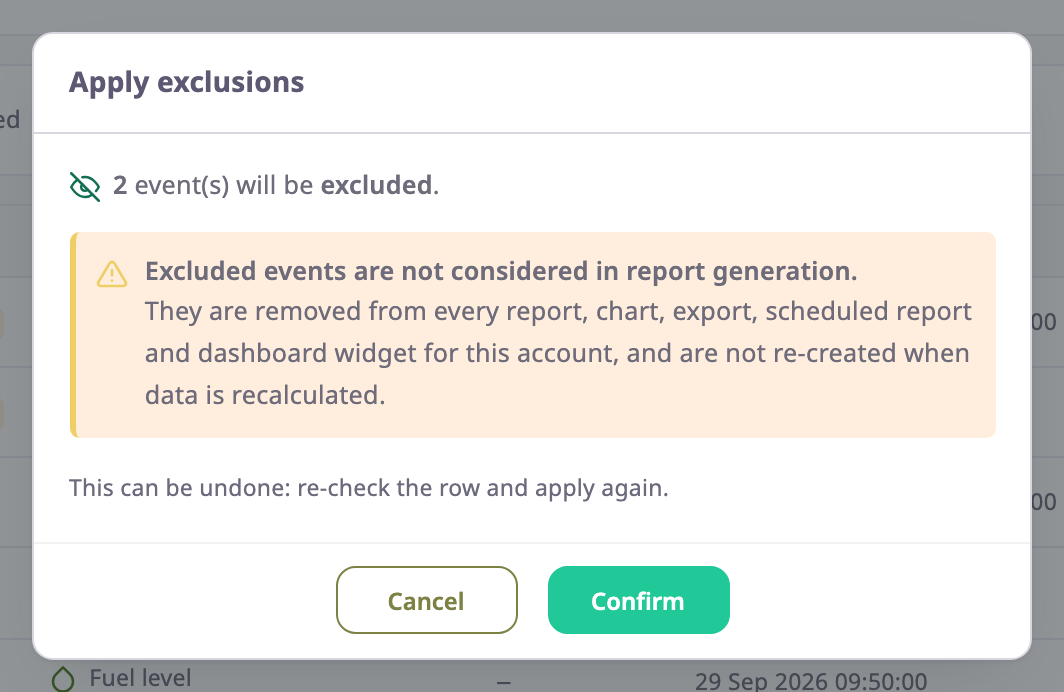
The dialog, Apply exclusions, says how many events it will exclude and how many it will restore. When it excludes events, a caution box explains that they disappear from every report, chart, export, scheduled report and dashboard widget of the account. Confirm saves; Cancel returns to the table.
On success, the message reads "Events updated. Reports are already correct; daily totals catch up within a minute or two." If the events changed since you loaded them, the message asks you to reload and review them again, and nothing is saved.
¶ Permissions
- The menu item and the screen need Units > Read.
- Loading events also needs Units > Show Events and Show Messages, and Devices > Read. Without them the filters show no units or no events.
- Excluding and restoring needs Units > Edit. Without it, the checkboxes and Apply exclusions are unavailable.
- The Owner role has all of these.