Review trips to check where a unit drove, how far and for how long. You add a set, which is one unit for one period, then draw the trips you want to see on the map.
¶ Before you start
- You need Show Trips on Units. The Owner role has it.
- The unit must have driven in the period. A unit with no trips shows "no trips in this range".
¶ Review a unit's trips
-
In the side menu, select Units > Tracking.
The map opens. -
In the dock, select Trips.
The tab opens with the line "No trips yet". -
Select Choose a unit, then choose the unit in the list.
The button shows the unit name. Enter part of a name in Search units to find it. -
Select the range button.
The time picker opens. -
Choose a period, for example Yesterday.
The button shows the period. It starts from the shared range, and changing it here does not change the shared range.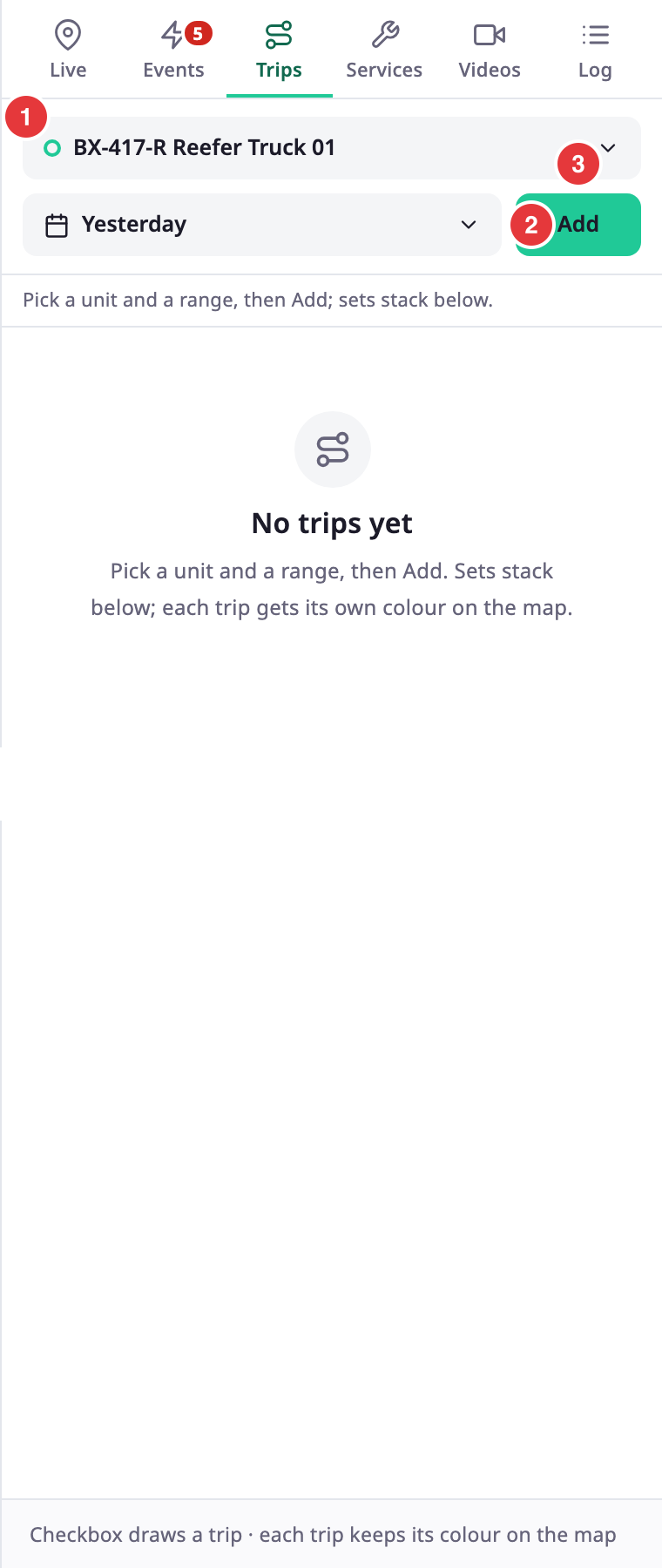
-
Select Add.
A set appears with the unit, the period and the totals.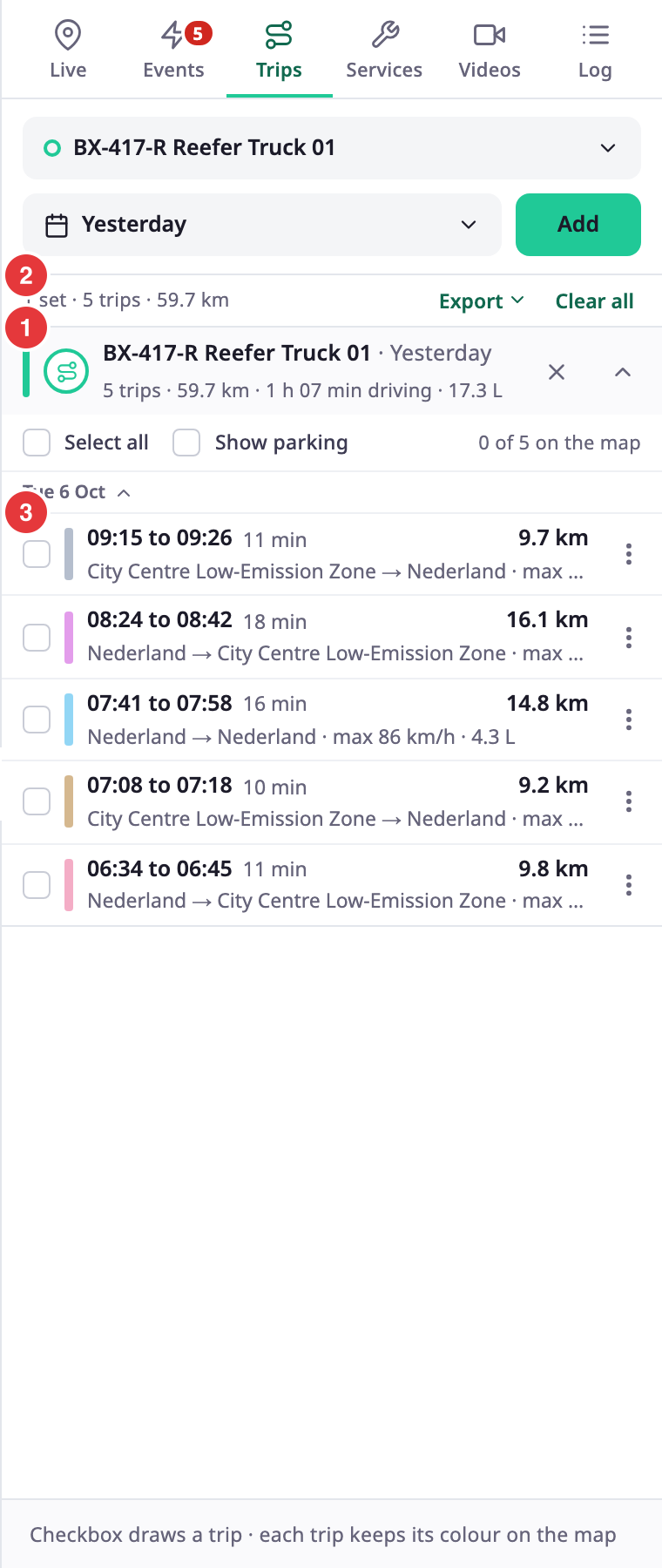
-
Read the rows. Each row shows the start and end time, the duration, the distance, the places, the top speed and the fuel.
The summary line sums up all sets, for example the number of trips and the distance. The tab groups trips by day.
¶ Draw trips on the map
- In the row of a trip, select its checkbox.
The app draws the trip on the map in the colour of the row, and Display appears. - Optional: select Select all to draw every trip of the set. Show parking marks each place the unit stood between two trips.
- Optional: in Display, choose Track, Points or Stops.
To see one trip alone, select its row. The map zooms to it and the playback strip opens. See Play back a track.
If a set has many trips, select Load more at the end of the list. Select a day heading to collapse a day.
¶ Add another set
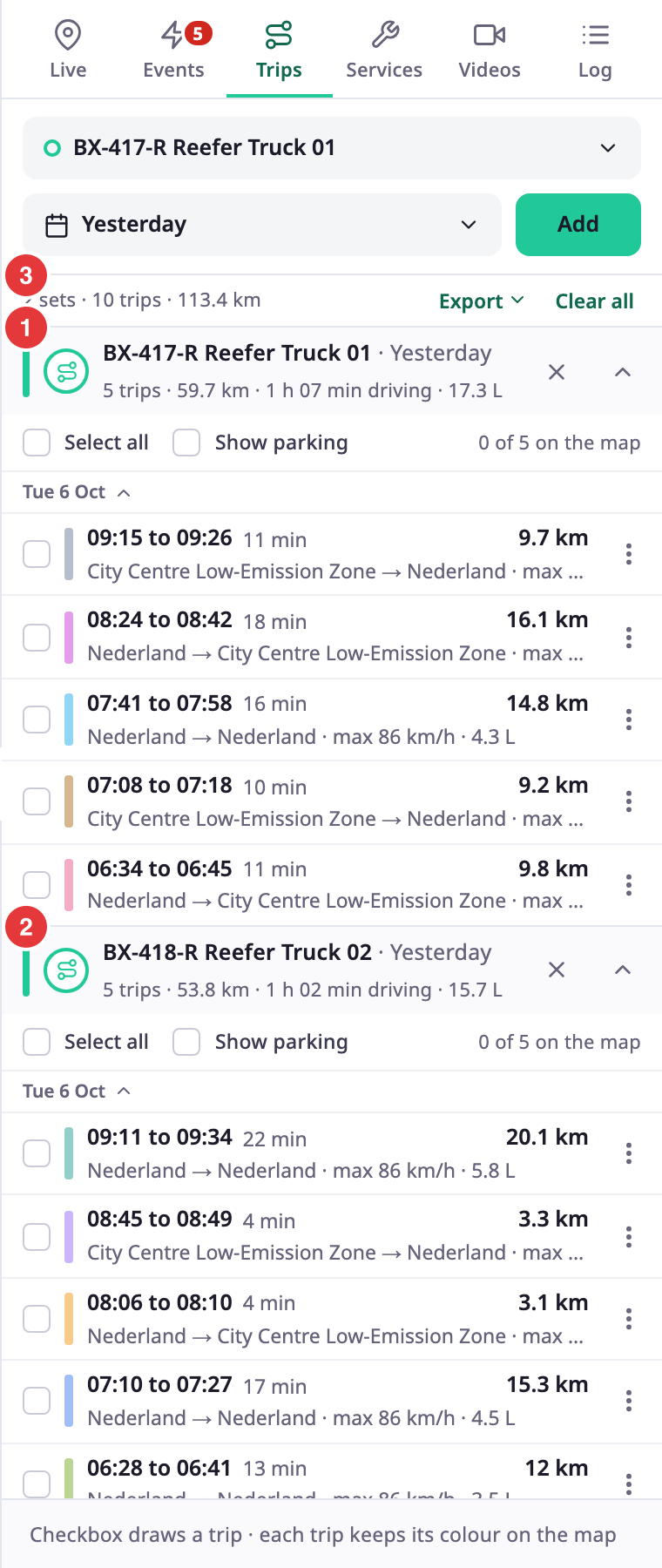
Add more sets to compare units or days. A set keeps its colour.
- Select Choose a unit and choose another unit, or keep the same unit.
- Select the range button and choose another period.
- Select Add.
The new set appears under the first. You can have up to 8 sets.
¶ Remove a set
- In the set header, select the cross.
The set disappears and its trips leave the map. - Optional: select Clear all to remove every set.
To take one trip off the map, clear its checkbox, or open its three-dot menu and select Remove track.
¶ What you see
The tab shows what the units recorded. A trip in progress has a Live badge, and its set refreshes every 2 minutes. Places show the country until the app finds a street address. For every control of the tab, see Trips tab. To get the trips as a PDF, a report or a CSV file, use Export.