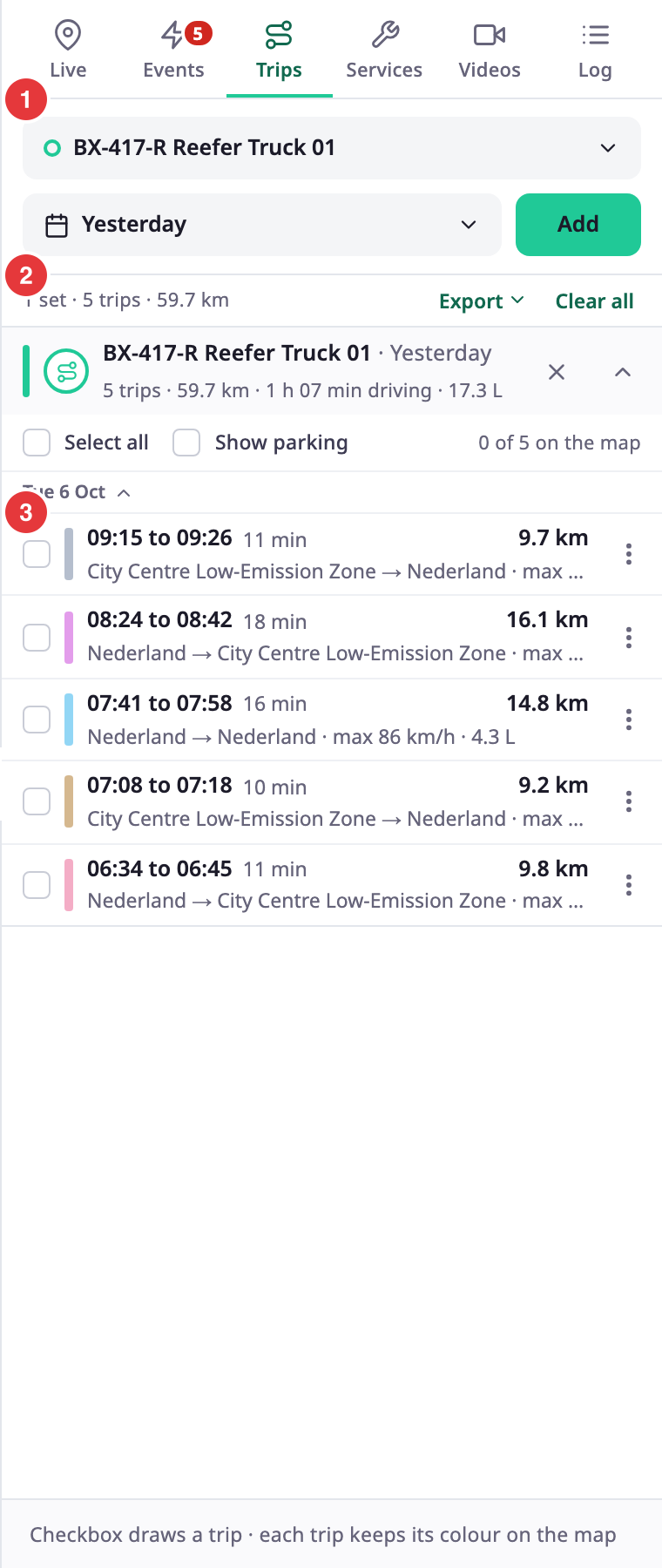
The Trips tab lists the trips a unit drove in a period and draws the ones you choose on the map. To open it, in the side menu, select Units > Tracking. Then select Trips in the dock.
¶ Open the tab
Select Trips in the dock, or choose Trips in a unit's menu. From the unit menu, the tab opens with that unit and the range already chosen in the controls at the top. Nothing loads until you select Add. For the steps to read trips, see Review a unit's trips.
The Trips button on an event card or a message card also opens the tab. It shows that unit's trips for the day of the event or message, with the trip of that moment selected.
¶ Add a set
A set is one unit for one range. The top of the tab has the controls that make it.
| Control | What it does |
|---|---|
| Choose a unit | Opens a list of units with a search box. Choose the unit for the set. |
| Range button | Shows the range of the next set, for example Today. It opens the time picker. The shared range stays as it is. |
| Add | Adds the set to the list. It is off until a unit is chosen. |
The range button starts from the shared range. Once you pick a range, the tab keeps it while you switch tabs. The longest range is 92 days. See Time range. You can have up to 8 sets. Each set has its own colour.
¶ Set header and summary
Above the sets, a line sums them up, for example "1 set · 24 trips · 393.6 km". Clear all removes every set.
Each set has a header with the unit, the range, and the totals: trips, distance, driving time and fuel. At the right of the header, the cross removes the set and the arrow collapses it. A set that finds nothing says "no trips in this range". If the unit last reported before the range, the header adds "Last data:" with the date and Show that day, which moves the set to that day.
Under the header:
- Select all draws every trip of the set on the map.
- Show parking marks each place the unit stood between two trips with a P badge. Point at a badge to see how long the unit stood there and when. The checkbox is off, with the hint "No parking between the loaded trips", when there is none.
- "N of M on the map" counts the trips drawn.
¶ Trip rows
The tab groups trips by day. An older day can show as one line, such as "3 more trips". Select it to open the day. Each row shows:
- A checkbox that draws the trip on the map in the colour of the row.
- The start and end time, the duration and the distance.
- The places where the trip started and ended, the top speed and the fuel used.
- A Live badge when the trip is still going, with "on the way" in place of the end place.
A unit may have reported after its last trip ended, in the last 30 minutes. A row at the end then reads "In progress since" and a time. That part of the drive is still being computed. Select Open in History to see it. The link appears when you have Show History.
Select a row to select the trip. The map zooms to it, the app draws it if you had not, and the playback strip opens. See Play back a track. The tab loads trips in pages of 200. If a set has more, Load more shows the next page. A trip with no usable points shows "no track points".
The places are found for you, and they show the name of the country until a street address is found.
¶ Display modes
When at least one trip is drawn, a Display control appears with three modes.
| Mode | What the map shows |
|---|---|
| Track | The line of each trip. |
| Points | A dot for each message of each trip. |
| Stops | The places where the unit halted during each trip, each labelled "Stopped" with how long the halt lasted. Places where the unit stood between two trips are not part of this mode; use Show parking for them. |
A legend on the map, "Trips on the map", lists the sets and how many trips each one draws. A dot marks where a trip starts and a ring where it ends. Only the selected trip carries the unit name and the times next to its line. Point at another line to see its times and distance.
¶ Trip card
Select a drawn line to select that trip and open its card where you clicked.
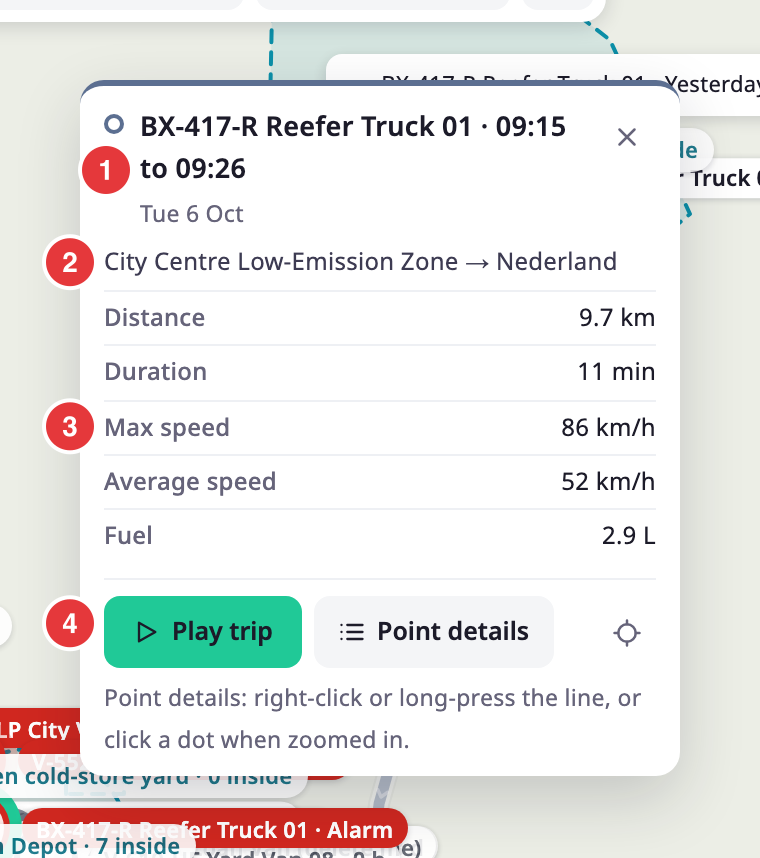
The card shows the unit and the start and end times, the day, and the route from the start place to the end place. Under them it lists Distance, Duration, Max speed, Average speed and, for a unit with a fuel sensor, Fuel.
| Button | What it does |
|---|---|
| Play trip | Starts playback from the start of the trip. See Play back a track. |
| Point details | Opens the message card for the point you clicked. |
| Zoom to trip | Zooms the map to the whole trip. |
The message card shows the time, speed, heading, position and sensor values of one message, with buttons for the previous and next message and Play from here. To open it straight away, right-click the line, or touch and hold it on a touch screen. When you zoom in close, or choose Points, a dot marks each message; select a dot to open its card.
¶ Trip menu
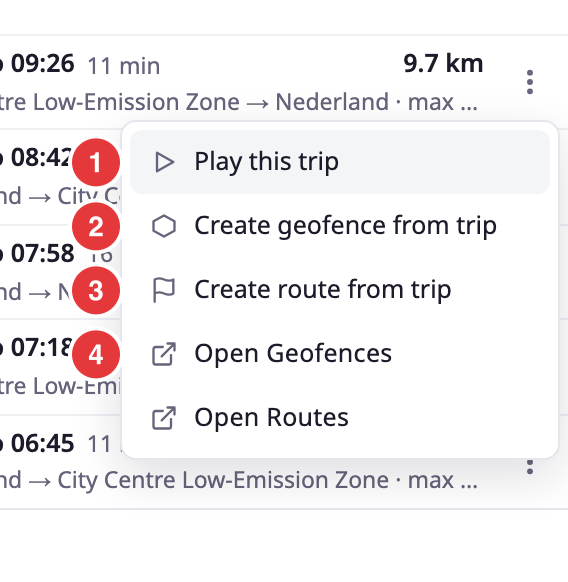
The three-dot button at the right of a row opens the trip menu.
| Item | What it does | Needs |
|---|---|---|
| Play this trip | Selects the trip and opens the playback strip. | — |
| Create geofence from trip | Opens a dialog that makes a geofence from the track. See Create a geofence or route from a trip. | Add on Geofences |
| Create route from trip | Opens a dialog that makes a route from the track. | Add on Routes |
| Open Geofences | Opens the geofences screen. | Read on Geofences |
| Open Routes | Opens the routes screen. | Read on Routes |
| Remove track | Takes the trip off the map. It shows only for a drawn trip. | — |
¶ Export
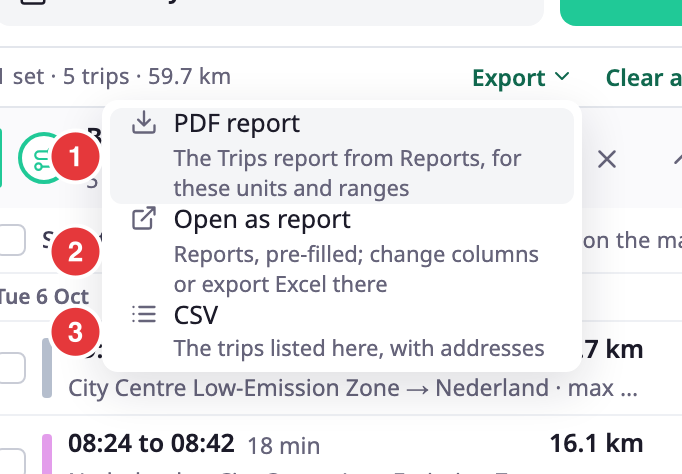
When a set has trips, Export appears in the summary line.
| Item | What it does |
|---|---|
| PDF report | Queues the Trips report from Reports for the units and ranges of your sets, one report for each distinct range. The button reads "Preparing PDF…". The file downloads when it is ready, and the run stays in Saved reports. If it fails, a message reads "The PDF could not be made." |
| Open as report | Opens Reports with the report filled in: the units, the range and the accounts. You can change the columns or export to Excel there. When your sets have different ranges, only the first opens, and a message says so. |
| CSV | Saves the trips listed on this tab, with their addresses. The browser builds the file; it needs no report. |
The menu has no permission check. To use PDF report and Open as report you need access to Reports. See Generate a report and Saved reports.
¶ Live trips
A set whose range reaches now shows a trip in progress with a Live badge. The tab refreshes that set every 2 minutes.
¶ Phone
On a phone, Trips is one of the chips at the top of the sheet. Once a set exists, the controls that add a set fold away to leave room for the list. Select Add set to show them again. Cards open docked above the sheet instead of at the line.
¶ Limits
- 8 sets, 92 days for a range, 200 trips for each page.
- A role without Show Trips opens the map on Live.
¶ Permissions
- You need Show Trips on Units to open the tab.
- The trip menu and the export menu follow the permissions in the tables above.