Allocate a SIM when a sub-dealer takes over a batch of cards. The sub-dealer then sees those SIMs in its own SIM list. Allocation goes down your account tree, to a dealer account below yours. Consumer accounts cannot hold SIMs.
¶ Before you start
- You need SIMS > Edit. The built-in Owner role of a dealer account has it.
- You need a sub-dealer account. To create one, see Create a dealer account.
- The SIM must be Active and not fitted to a device. To free a fitted SIM, see Fit a SIM to a device.
¶ Allocate one SIM
-
In the side menu, select Reference Data > SIM Management.
The SIM list opens. -
Select the Allocation icon on the SIM's row.
The Reallocate To dialog opens. The icon shows only for Active SIMs.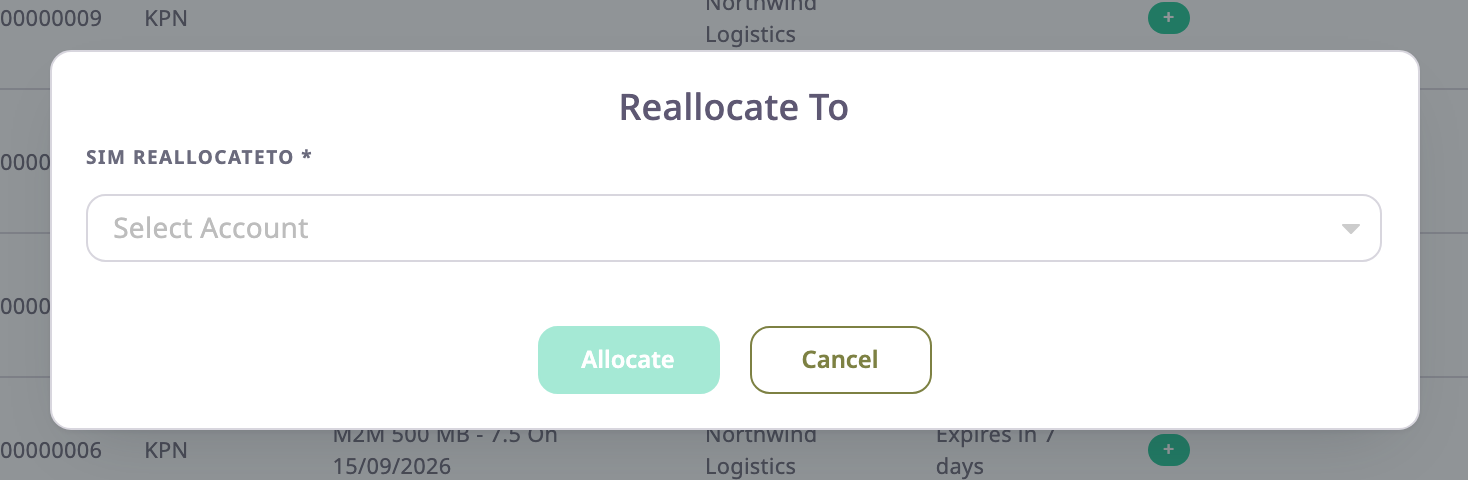
-
In Sim ReallocateTo, choose the sub-dealer.
Allocate becomes available. -
Select Allocate.
The app shows "SIM allocated successfully".
The SIM now belongs to that account. To see it, choose that account in the account list above the SIM list.
Under the buttons, Device history lists the devices the SIM has been fitted to. Each entry shows the device, the unit, the slot (primary or secondary) and the period. The current one is marked "Current". This history is about devices, not about the accounts that held the SIM.
¶ Allocate several SIMs
-
In the SIM list, tick the SIMs.
The batch bar appears above the table. -
Select Allocation.
The Allocate To dialog opens and says "These settings are applied to all 3 selected items."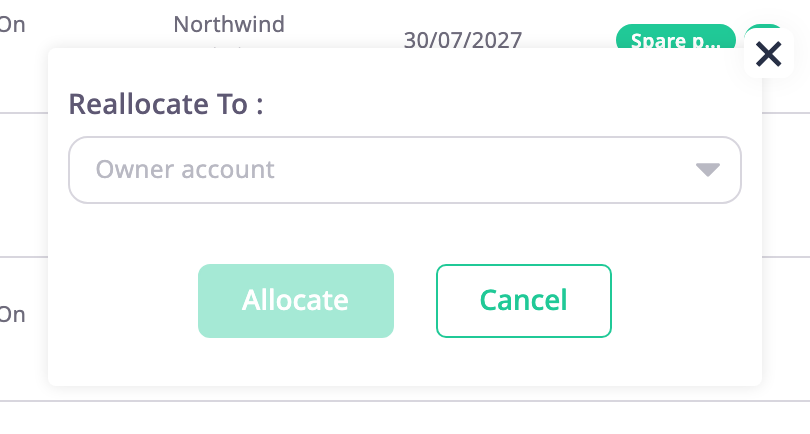
-
In Device Allocate To, choose the sub-dealer.
-
Select Allocate.
The app asks "Allocate 3 selected items to the chosen account?" -
Select Yes.
The Result dialog says how many SIMs moved and lists any that failed, with the reason. -
Select Ok.
The list reloads.
To allocate every SIM the filter matches, use Select all {n} matching in the batch bar. See SIM list.
¶ SIMs that cannot move
A SIM fitted to a device cannot be allocated. For one SIM, the app shows "The SIM cannot be reallocated as it is currently allocated to a device." In a batch, the app moves the others and lists each fitted SIM in the Result dialog. Select failed keeps only those SIMs ticked.
You also cannot allocate a SIM to the account that holds it. The app shows "Already allocated to the same account". If you choose an account that is not below yours, the app shows "Allocate account is not your child account".
¶ What happens next
- The sub-dealer sees the SIMs in its SIM list, with its own name in Allocated.
- Labels you put on the SIMs belong to your account. The sub-dealer does not see them.