Use the batch bar of the SIM list to change the status or the labels of many SIMs in one go, or to delete them. To change one SIM, edit it or use its row icons.
¶ Before you start
- Changing the status or the labels needs SIMS > Edit. Adding labels also needs the right to add labels, and removing them the right to delete labels. Deleting SIMs needs SIMS > Del. The built-in Owner role of a dealer account has all of them.
- The batch bar appears as soon as you tick one row.
¶ Change the status
For one SIM, select Edit on its row, choose another value in Status and select Save.
For several:
-
In the side menu, select Reference Data > SIM Management.
The SIM list opens. -
Tick the SIMs.
The batch bar shows the count, for example "2 selected".
-
Select Activate or Deactivate.
The app asks, for example, "Set 2 selected items to Active?" -
Select Yes.
The Result dialog says how many SIMs changed and lists any that failed. -
Select Ok.
The list reloads.
Batch actions set Active or Inactive only. To set Suspended, edit the SIM. The Activate and Deactivate buttons and their questions show in English in every language.
¶ Add or remove labels
- Tick the SIMs.
The batch bar appears. - Select Add labels or Remove labels.
A dialog opens with a label list. - Choose the labels. In Add labels you can also type a new label.
- Select Save.
The app asks, for example, "Add these labels to 2 selected items?" - Select Yes.
The Result dialog shows the outcome.
Only the labels you pick change. Every other label on the SIMs stays as it is. To replace all labels of one SIM, edit it and change Labels.
¶ Delete SIMs
To delete one SIM:
-
Select the Delete icon on its row.
A question opens: "Do you really want to remove the record of" and the MSISDN.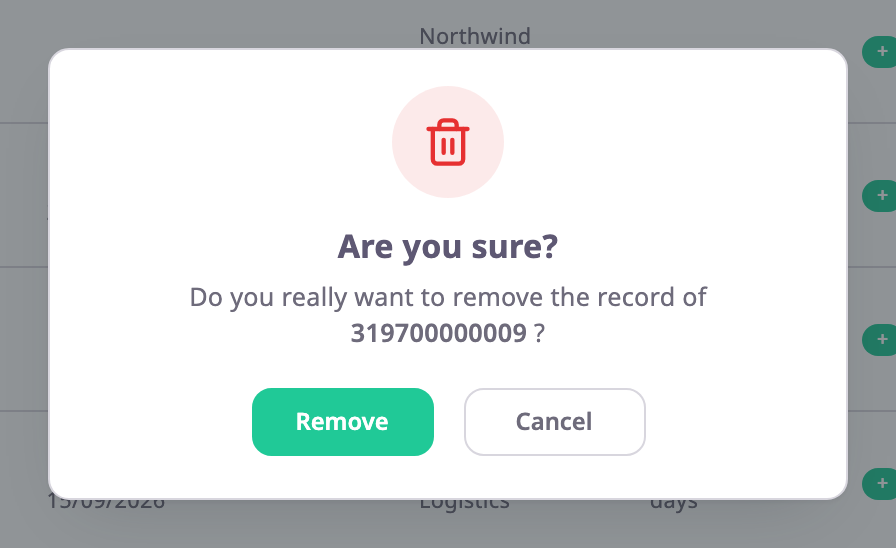
-
Select Remove.
The app shows "SIM deleted successfully".
To delete several:
- Tick the SIMs.
The batch bar appears. - Select Delete.
The app asks, for example, "Delete 3 selected items? This cannot be undone." - Select Delete.
The Result dialog says how many SIMs the app deleted and which failed.
¶ SIMs that are skipped
A SIM fitted to a device cannot be deleted. On a single SIM the app shows "The SIM cannot be deleted as it is currently allocated to a device." In a batch, the app deletes the others and lists each fitted SIM in the Result dialog with its reason. Select Select failed to keep only those SIMs ticked.
To free a fitted SIM, take it out of its device. See Fit a SIM to a device.
¶ What happens next
- A deleted SIM leaves the list. Its numbers can be registered again.
- For more on the batch bar, including selecting every matching SIM, see SIM list.