Before you exclude an event, look at the messages around it. Analyse opens the event on the Messages screen with the event and a little time either side, so you can see whether the fuel really dropped or the vehicle really braked hard.
¶ Before you start
- You need Units with Read, Show Events and Show Messages, and Devices with Read.
- To exclude or restore from the banner you also need Units with Edit. The Owner role has all of these.
- List the events first. See Event Review screen.
¶ Start the analysis
-
In the side menu, select Units > Event Review.
-
Choose the Unit and Time range.
-
Select Show events.
-
In the Actions column of the event's row, select Analyse, the clipboard-and-magnifier icon marked 4.
The Messages screen opens with the unit, a period around the event and Sensor chosen, and runs the query.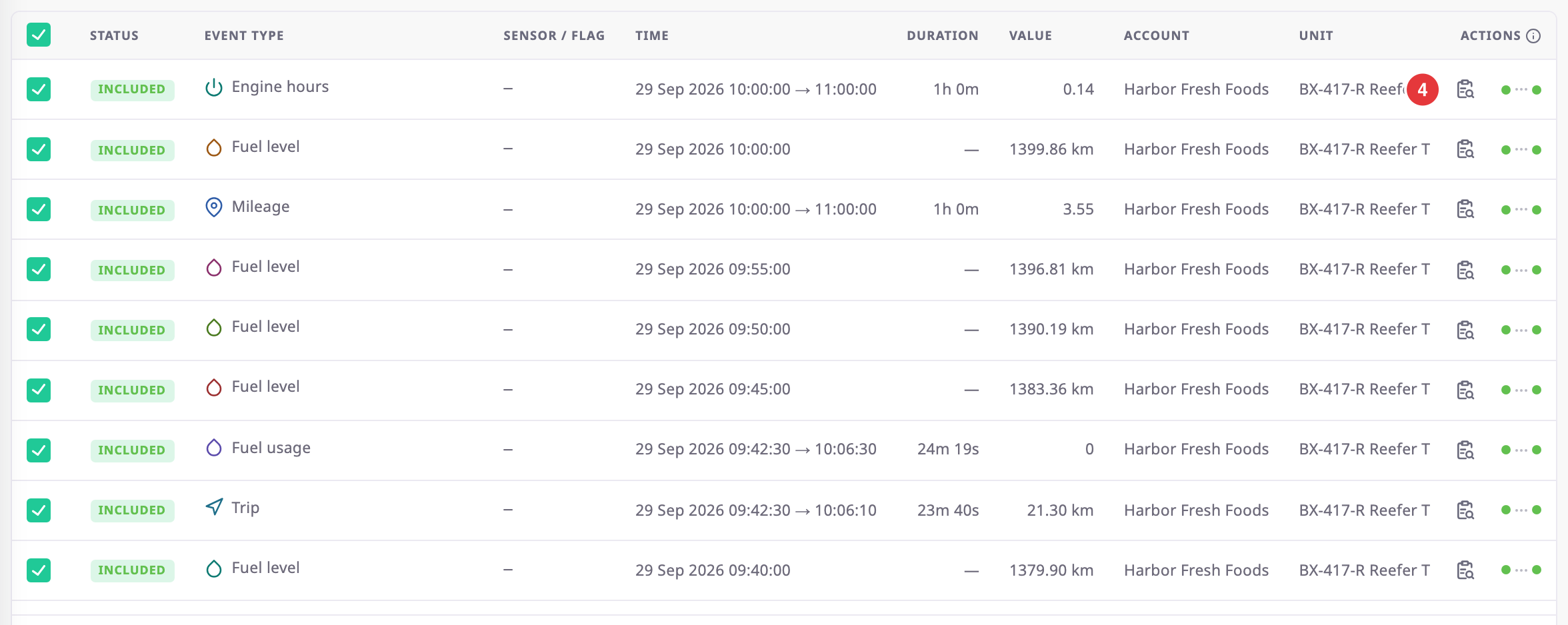
¶ Read the event banner
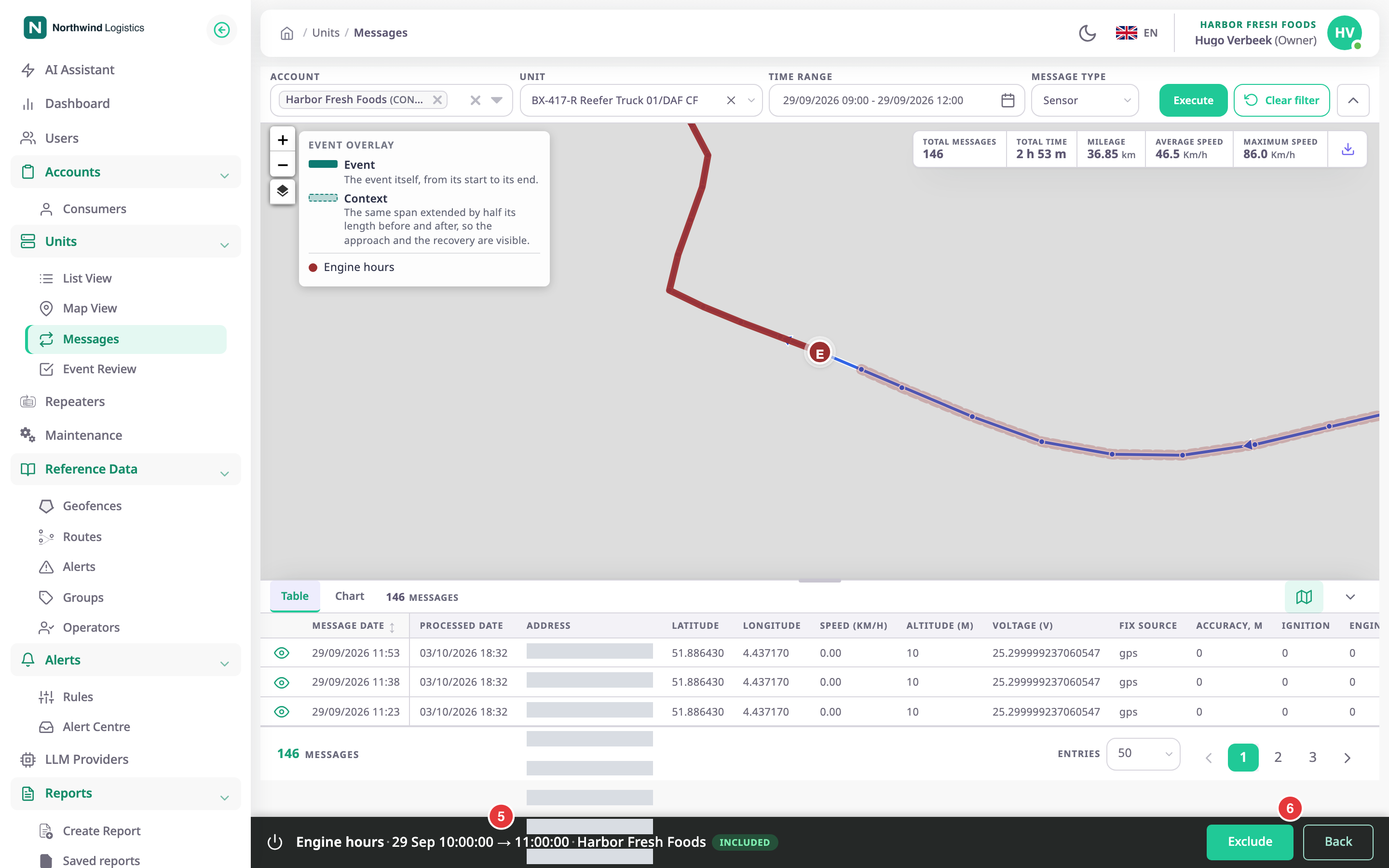
- Read the banner at the bottom, marked 5. It shows the event type, its time, the account and its status, Included or Excluded. For a fuel event, it also says when the event happened, for example "event at 14:32:05".
On the map, a thick line marks the event and dashed lines the time before and after it. The legend, "Event overlay", explains each style. A ring means the unit stood still around the event.
On the Chart tab, a shaded band marks the event and a lighter band the time around it. For a fuel event, the band covers the whole refuel or drain. A labelled line inside the band marks the moment the app reports it at. That is the biggest step in the level, which is rarely the start.

¶ Exclude or restore from the banner
- Select Exclude in the banner, marked 6.
The app excludes the event at once, without a confirmation dialog. The message "Event excluded. It is removed from every report, chart and dashboard for this account." appears.
If the event is already excluded, the button reads Restore. If the event was recalculated since the page loaded, the banner asks you to reload instead.
¶ Return to Event Review
- Select Back in the banner.
Event Review opens with your filters, page and rows as you left them.
If you choose another unit on the Messages screen and select Execute, the banner closes.