The Messages screen shows exactly what a unit's devices sent in a period: every position, parameter and sensor value, on a map, in a table and on a chart. Use it when a trip, a report or an alert looks wrong. To open it, in the side menu, select Units > Messages. From the map, select More on a unit's row or card, then Messages. See Unit card on the map.
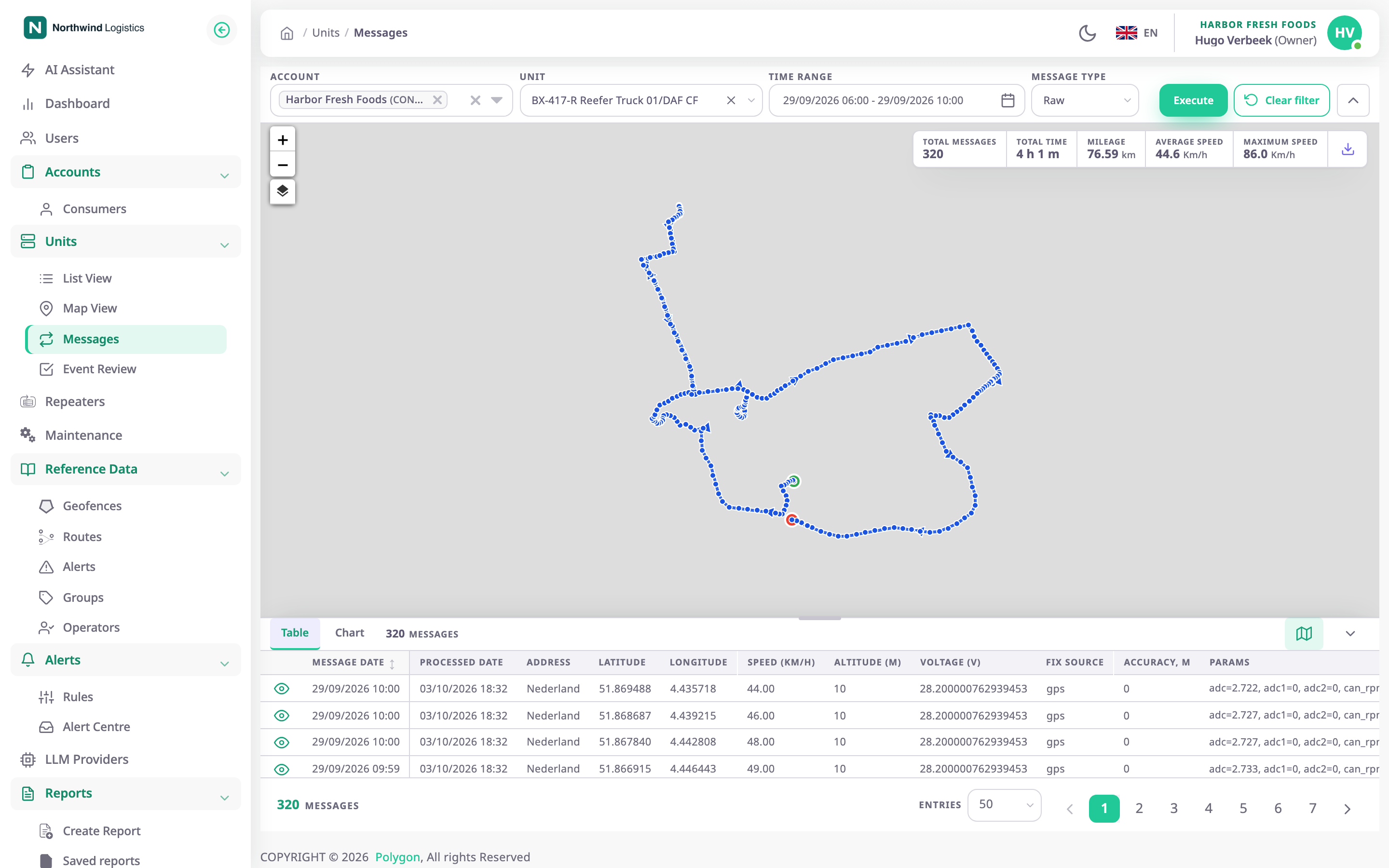
¶ Filters

| Field | Required | What it does | Allowed values / example | Notes |
|---|---|---|---|---|
| Account, marked 1 | Yes | Limits the unit list to these accounts. | Your account and accounts below it; several at once. | Default: your own account. Changing it clears Unit. |
| Unit, marked 2 | Yes | Chooses the unit. | Units of the chosen accounts. Search by name; Load more shows the next 20. Example: BX-417-R Reefer Truck 01 | When you come from the unit menu on the map, the app fills in the account, the unit and the time range. |
| Time Range, marked 3 | Yes | Sets the period, to the minute. | At most 31 days; the start not in the future. Presets Today to Last month, or Custom. Example: 29/09/2026 06:00 - 29/09/2026 10:00 | Default: today from 00:00 to 23:59, in the account's time zone. A long period on a busy unit takes long to load. |
| Message Type, marked 4 | Yes | Shows the device's raw parameters, or the values of the unit's sensors. | Raw or Sensor. Default: Raw | Sensor replaces the Params column with one column per sensor. |
| Action | What happens |
|---|---|
| Execute, marked 5 | Loads the messages. It is unavailable until you choose a unit. |
| Clear filter, marked 5 | Resets the unit, the period to today, the type to Raw, the chart lines and the results. The account stays. Unavailable until you choose a unit or load messages. |
| Arrow, marked 6 | Hide filters or Show filters. |
Select Time Range to open the picker, then choose a preset, or pick the first and last day and select Apply. You can also type a range, then press Enter. For example, enter 29/09/2026 06:00 - 29/09/2026 10:00. The picker works as on the map; see Time range.
The Messages screen shows at most 31 days. If you pick or type a longer range, the app moves the start so the range is 31 days long. The picker says from which date it starts.
The address bar keeps the last query you ran and the open tab, Table or Chart. Reload the page, or come back to Messages from the side menu, and the app runs that query again.
¶ Summary strip
After Execute, a strip over the map gives figures for the whole period, not only the current page:
| Figure | What it shows |
|---|---|
| Total messages | Messages with a position. Messages without one are left out, so this can be lower than the count under the table. |
| Total time | Time between the first and the last message. |
| Mileage | Distance along the positions. A jump of 100 km or more between two positions is ignored. |
| Average speed | The average speed over the period. |
| Maximum speed | The highest speed in the period. |
Download, in the same strip, saves the messages as a CSV file. See Download device messages.
¶ Map
The map draws the track the way the Tracking screen does. Hover a point to see its time and speed. A gap of more than 3 km between two positions breaks the line.
Select a point to find its row: the Table tab opens on the page that holds it, with the row highlighted. On the Chart tab, a red line marks its time instead.
The tools at the top left of the map change how it draws the track. The map remembers your choices in this browser.
| Tool | What it does |
|---|---|
| The layers button | Opens Layers, where you choose the base map. The map opens on the base you last used on the Tracking screen. |
| Colour by speed | Colours the track by speed. |
| Points | Shows a dot at every position. |
| LBS lines | Highlights the stretches placed by cell towers or Wi-Fi rather than GPS. The button shows only when the track has such positions, with their count, for example "12 LBS · 3 Wi-Fi". On by default. |
While LBS lines is on, a legend explains the colours: GPS, Cell towers (LBS), Wi-Fi and Rejected fix. Cell-tower and Wi-Fi stretches are drawn as dashed lines in their own colours. Hovering a cell-tower or Wi-Fi point adds its source and accuracy to the time and speed.
A position that the position filter rejected is a grey dot off the line. Its tooltip reads "Rejected by the position filter".
The map draws at most 15,000 positions. On a longer period, it thins the track out. The legend, when it shows, says how many it drew, for example "15000 of 48210 messages drawn". The table still lists every message.
¶ Table columns

| Column | What it shows |
|---|---|
| View icon, marked 1 | Opens Message Details for the row. |
| Message Date | When the device recorded the message. Select the header to sort; newest first by default. |
| Processed Date | When the server received it. |
| Address | The address of the position. Hover a cut-off address to read it in full. |
| Latitude, Longitude | The position, to six decimals. |
| Speed (km/h) | The reported speed. |
| Altitude (m) | The reported altitude. |
| Voltage (V) | The external power voltage. |
| Fix source | Where the position came from, for example gps, lbs or wifi, as a coloured tag in the map's colours. A rejected position is struck through, with the tooltip "Rejected by the position filter". For lbs and wifi, the tooltip names the provider that placed the position, if the message records one. |
| Accuracy, m | How precise the position is, if the device reports it. |
| Params | Every parameter of the message, as name=value pairs. Raw type only. |
With Sensor, one column per sensor replaces Params, headed with the sensor's name.
Under the table, Entries sets the rows per page: 50, 100, 500 or 1000. The map toggle, marked 2, shows or hides the map; the arrow, marked 3, folds the table. You can also drag the edge between map and table.
¶ Chart
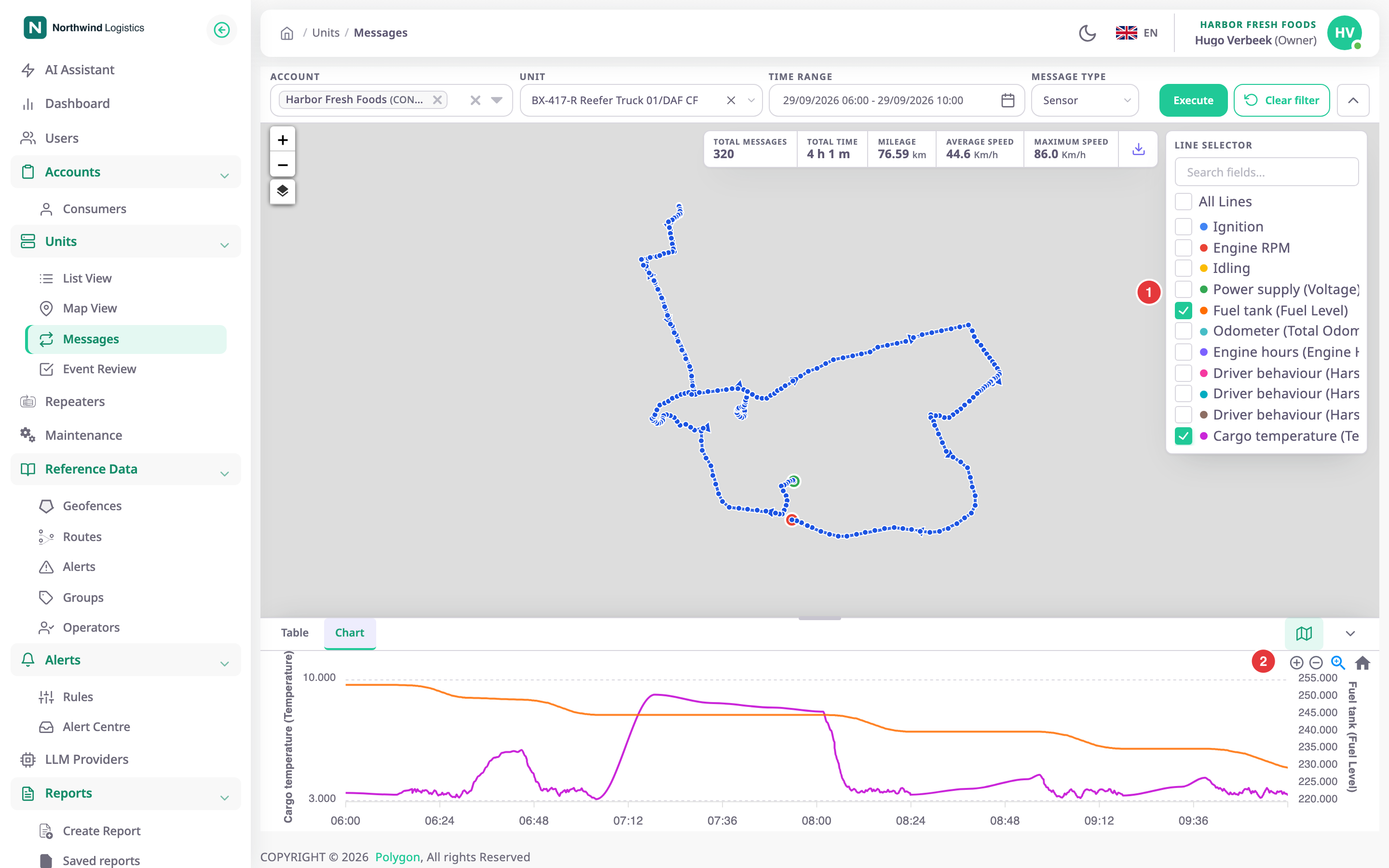
The Chart tab draws the values over time.
- Line selector, marked 1, chooses which values to draw. Search with Search fields..., or select All Lines. The chart starts with the external voltage, or the first value if there is none.
- The tools, marked 2, zoom to a selection, zoom in and out, and reset. The smallest window is 10 minutes. Zooming into a window of 12 hours or more loads more detail.
- Double-click the chart to find that moment: the map drops a red pin on the nearest position, and the table highlights the row if it is on the current page.
If the period has no numeric values, the chart reads "No chart data is available".
¶ Message Details dialog
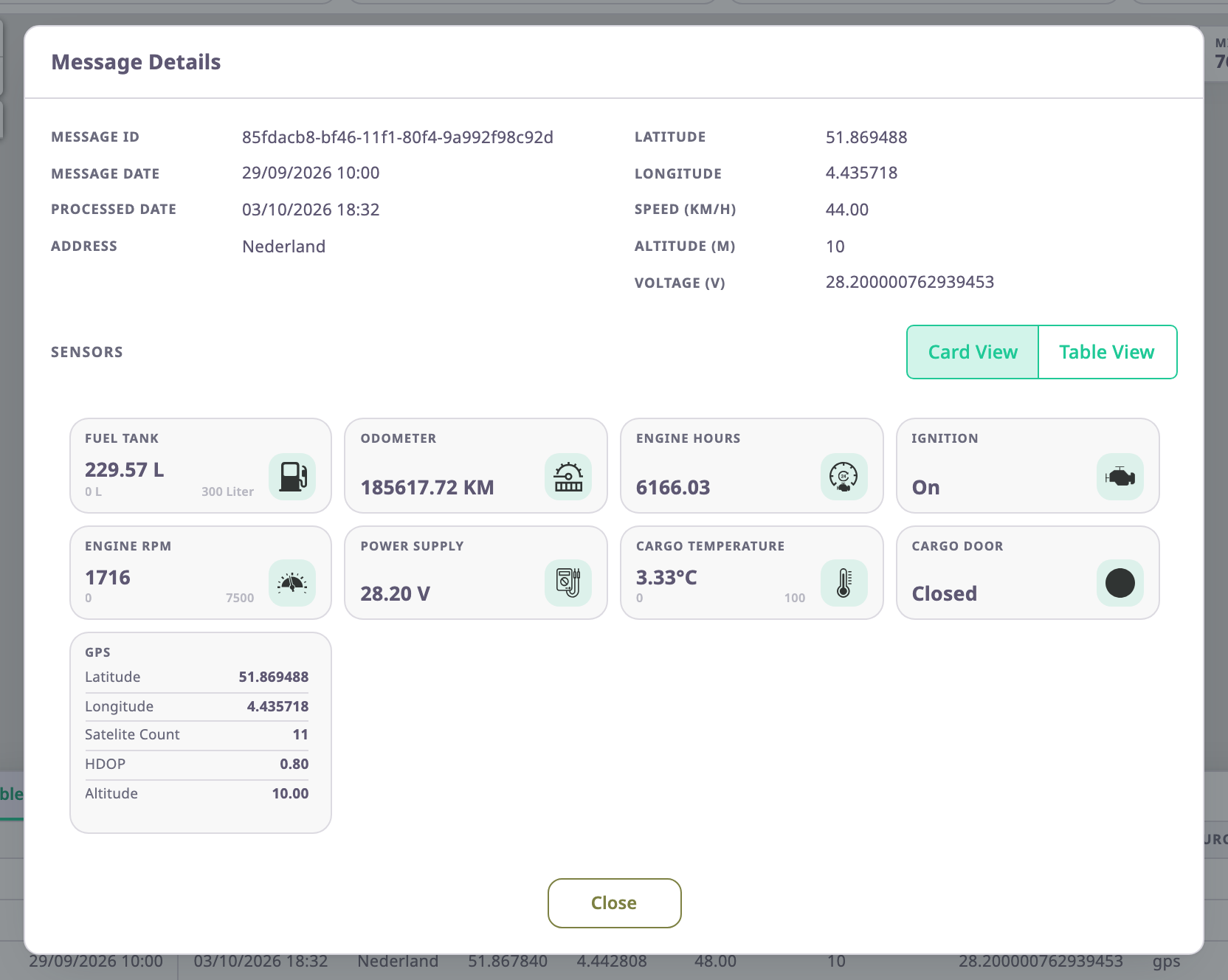
Message Details shows one message: its ID, dates, address, position, speed, altitude and voltage, then its parameters or sensors.
With Sensor, choose Card View to see one card per sensor, or Table View for a list of names and values. The app remembers your choice.
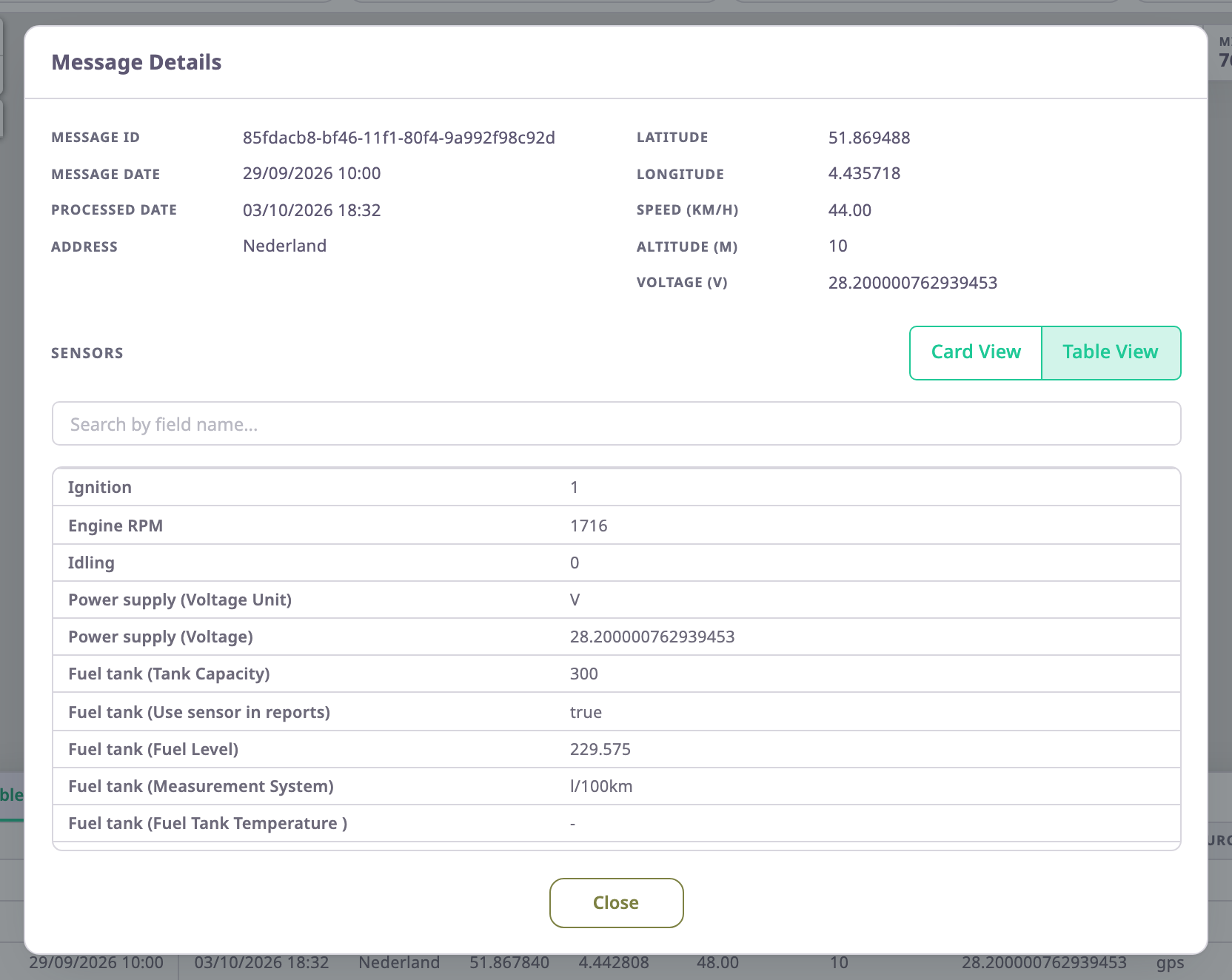
In the table, Search by field name... filters the rows. Select Close to return.
¶ Permissions
- The menu item and the screen need Units > Read.
- Loading messages also needs Units > Show Messages and Devices > Read. Without them the screen opens, but Execute shows "Action Prohibited".
- Download needs nothing more.
- The Owner role has all of these.
An older address, /device-messages, opens the same screen for roles that can read report templates. Nothing in the app links to it.