When a trip, a fuel figure or an alert does not match what you expect, look at the messages behind it. The Messages screen shows every message the unit's devices sent, with all their values.
¶ Before you start
- You need Units with Read and Show Messages, and Devices with Read. The Owner role has them.
- Know roughly when the problem happened. A short period loads faster.
¶ Choose the unit and time range
-
In the side menu, select Units > Messages.
The Messages screen opens with your account chosen. -
In Unit, choose the unit.

-
In Time Range, enter the period, for example 29/09/2026 06:00 - 29/09/2026 10:00, and press Enter.
You can also select the field and choose a preset, such as Yesterday. The screen shows at most 31 days. See Messages screen.
¶ Raw or sensor messages
- In Message Type, choose Raw to see every parameter the device sent, or Sensor to see the unit's sensor values.
¶ Run the query
- Select Execute.
The track appears on the map, the summary figures above it and the messages in the table.
Use the map to spot gaps and jumps, and the table to read the values. Total messages counts only messages with a position; the count under the table includes all of them.
¶ Open one message
-
In the table, select the eye icon of the row.
Message Details opens.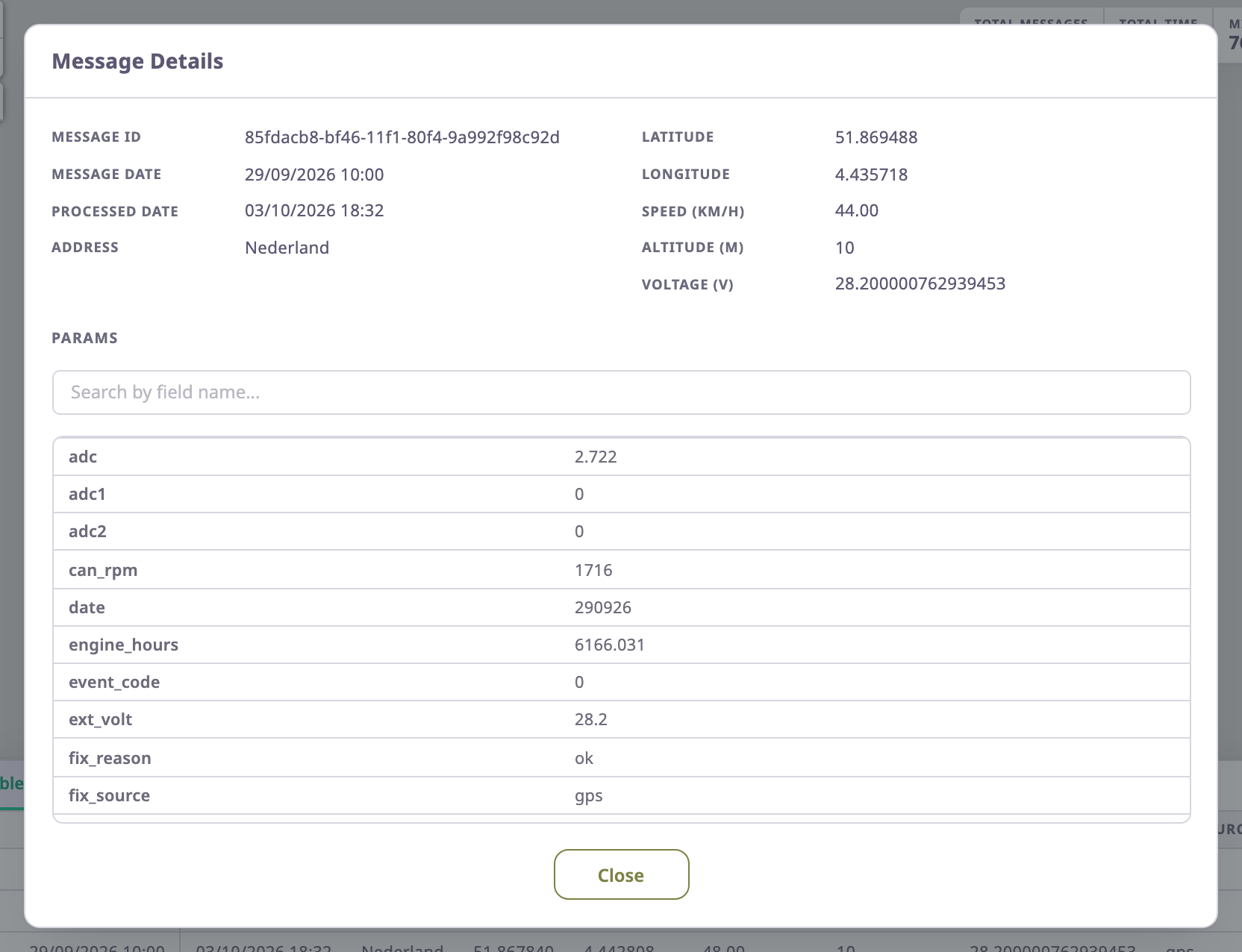
-
In Search by field name..., enter part of a parameter name, for example fuel.
-
Select Close.
¶ Find a point on the map
Select a point of the track. The table opens on the page with that message and highlights it.
To see which positions came from cell towers or Wi-Fi rather than GPS, turn on LBS lines at the top left of the map. See Messages screen.
¶ What happens next
If the messages show the device sent wrong values, check the device's sensor settings. If a computed event, such as a refuel, is wrong although the messages are right, exclude it. See Exclude a wrong event from reports.