One form creates, shows and edits a service reminder. A reminder watches one unit against a distance, an engine-hours count and a date, and tells you when the first of them is reached. To open it, in the side menu, select Maintenance, then select Add reminder, or select View or Edit on a row.
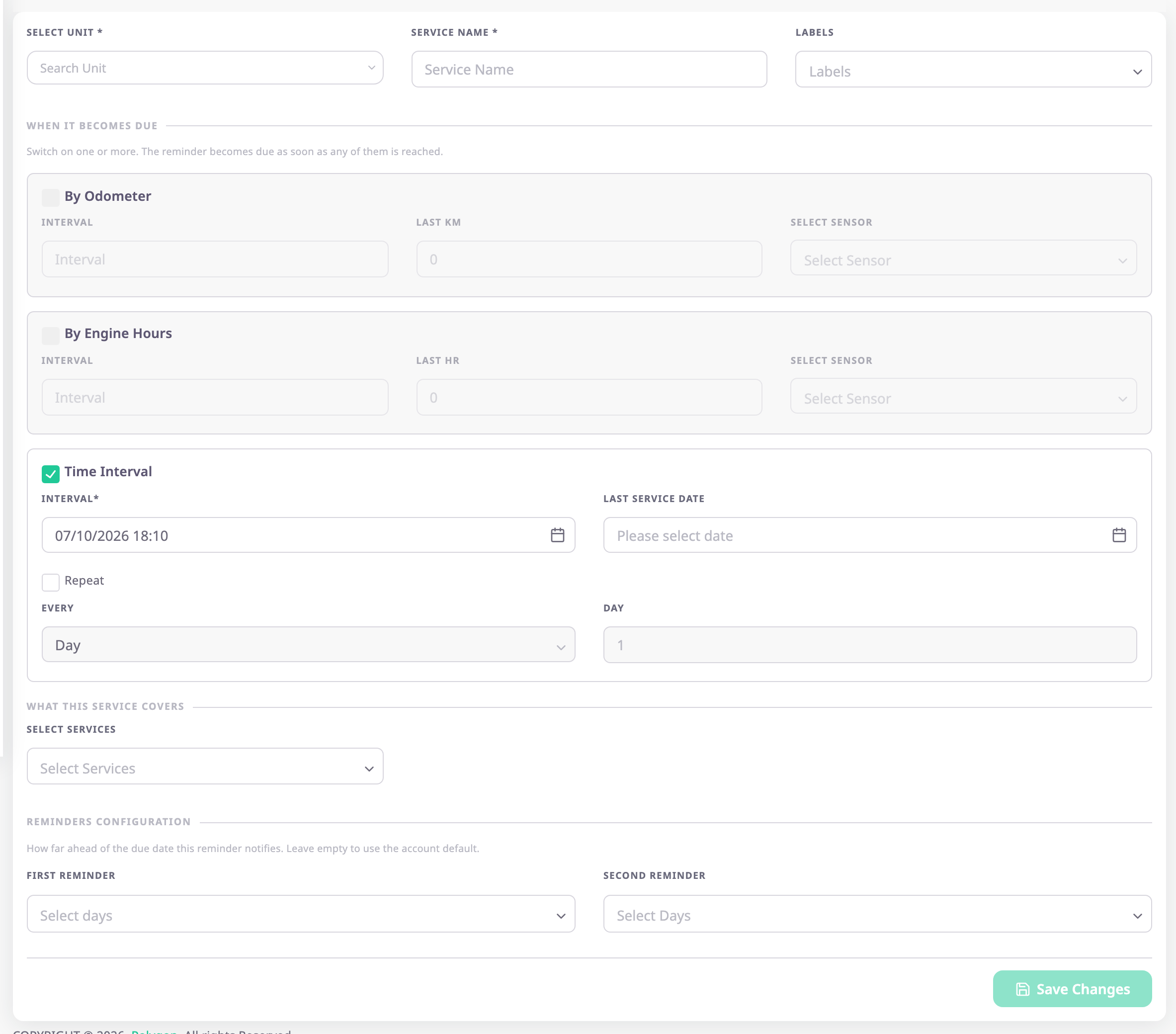
¶ Screen and modes
The heading and the buttons depend on the route:
| Mode | Heading | Button | What you can change |
|---|---|---|---|
| Create | Create service reminder | Save Changes | Everything. |
| Edit | Edit service reminder | Update reminder | Everything except Unit and Service name, which are locked. |
| View | Service reminder | None | Nothing. |
Back returns to the page you came from. The save button stays unavailable until the form is valid. In create mode with several units, it also needs at least one unit or group.
¶ One unit or several
In create mode, Create for offers two buttons:
- One unit: the form creates one reminder for the unit you choose. This is the default.
- Several units or groups: the form creates one reminder for each unit you pick, with the same settings.
| Field | Required | What it does | Allowed values / example | Notes |
|---|---|---|---|---|
| Units | Conditional | Chooses the units that each get a reminder. | Up to 200 units. Example: BX-418-R Reefer Truck 02 | Shown with Several units or groups. You need at least one unit or one group. |
| Groups | Conditional | Gives every unit in each group its own reminder. | Groups of your account. | Units from groups count towards the 200. |
With several units, the app picks each unit's odometer and engine-hours sensor itself, so the form has no Sensor field. Units it cannot give the reminder are skipped. For more than 200 units, the app says "Too many units".
¶ Unit, service name and labels
| Field | Required | What it does | Allowed values / example | Notes |
|---|---|---|---|---|
| Unit | Yes | Chooses the unit the reminder watches. | A unit allocated to your account. Example: BX-418-R Reefer Truck 02 | Shown with One unit. The list loads ten units at a time. Type to search. Locked after you save. |
| Service name | Yes | Names the reminder in the list, the history and the alerts. | 3 to 50 characters. Example: Reefer compressor service | Must be unique on the unit, ignoring capitals. Other units can use the same name. Locked after you save. |
| Labels | No | Puts the reminder in one or more groups. | Existing groups, or a new one typed in the field. | See Groups. |
If the unit already has a reminder with that name, the app shows "Duplicate service name not allowed".
¶ When it becomes due
Switch on one or more thresholds. The reminder becomes due as soon as any of them is reached.
¶ By odometer and by engine hours
With One unit, By odometer and By engine hours work only for a unit with that sensor. Until you choose a unit, and for a unit without the sensor, the checkbox and its fields stay disabled.
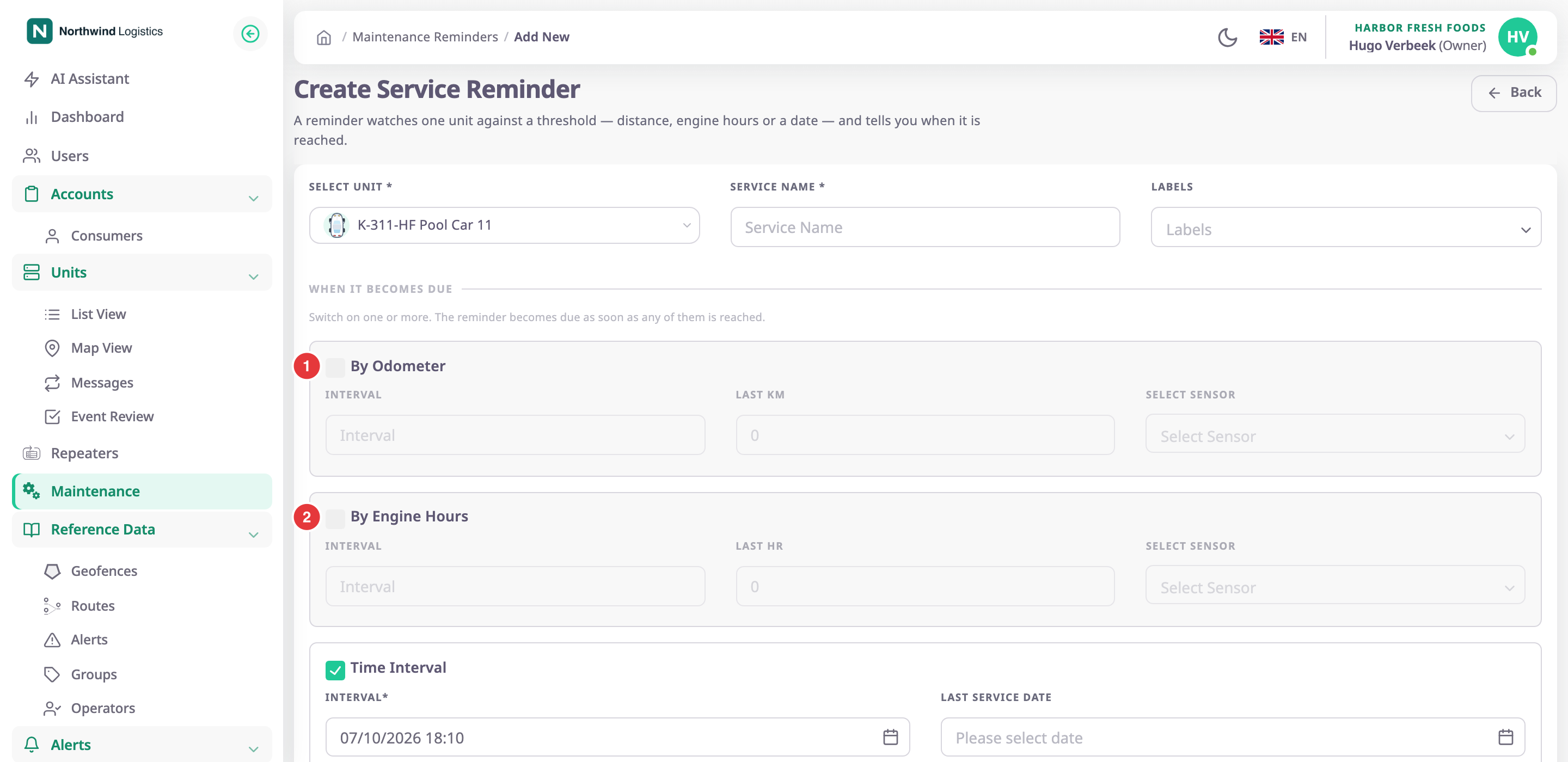
Choose a unit that has the sensors, switch the section on and fill it in.
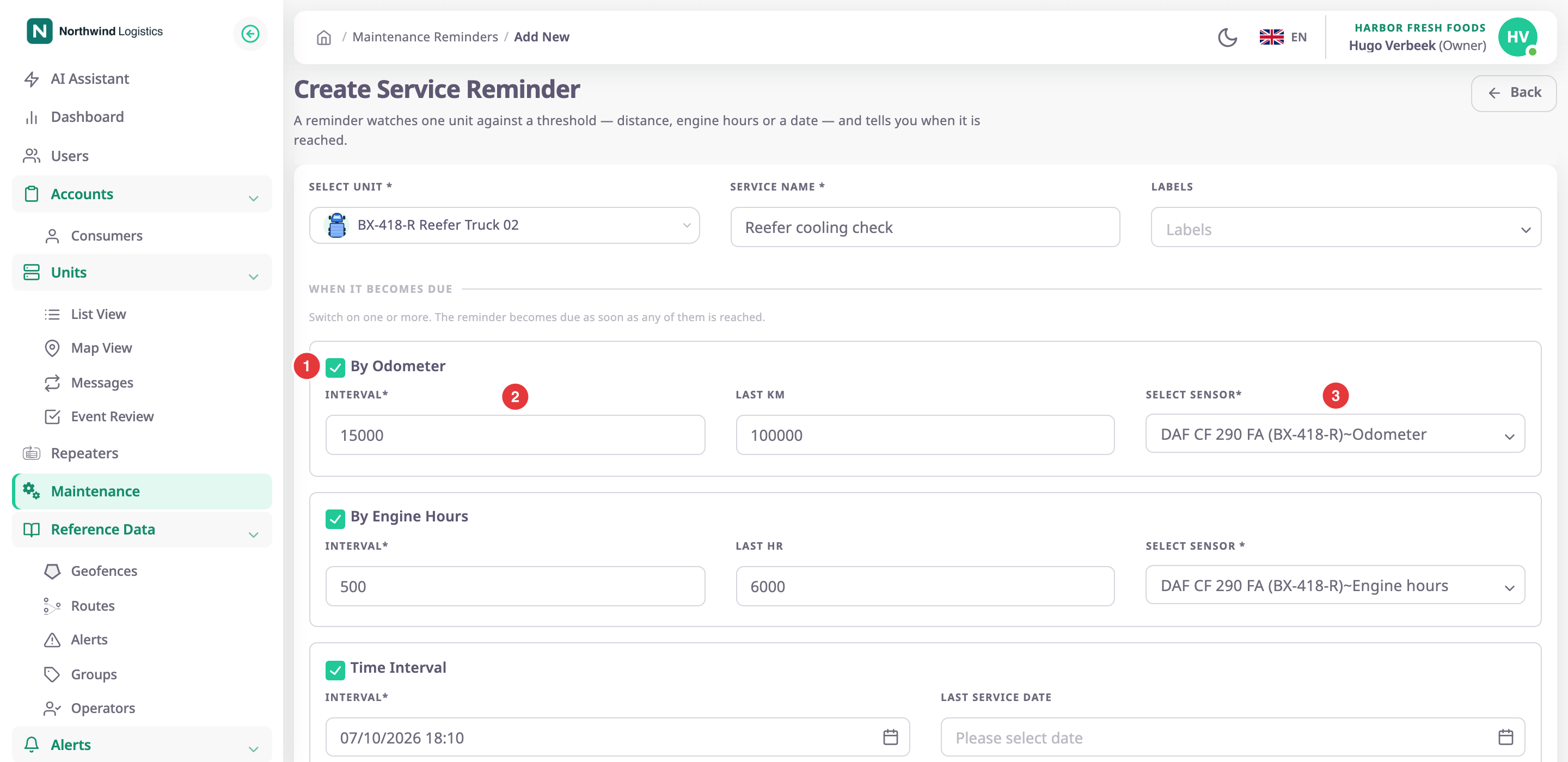
| Field | Required | What it does | Allowed values / example | Notes |
|---|---|---|---|---|
| Interval, km | Conditional | Sets the distance between services. | 0 or more, in km. Example: 15000 | Required when By odometer is on. |
| Odometer at last service, km | Conditional | Sets the odometer reading at the last service. | 0 or more, in km. Example: 100000. Default: 0 | The next service is due at this reading plus the interval. With several units, 0 starts from each unit's current reading. |
| Sensor (odometer) | Conditional | Chooses the odometer sensor that supplies the reading. | An odometer sensor of the unit, shown as device name and sensor name. | One unit only. An information icon reads "Device or sensor is not available in the unit" when the saved sensor no longer belongs to the unit. |
| Interval, engine hours | Conditional | Sets the engine hours between services. | 0 or more, in hours. Example: 500 | Required when By engine hours is on. |
| Engine hours at last service | Conditional | Sets the engine-hours reading at the last service. | 0 or more, in hours. Example: 6000. Default: 0 | Works like Odometer at last service, km. |
| Sensor (engine hours) | Conditional | Chooses the engine-hours sensor that supplies the reading. | An engine-hours sensor of the unit. | One unit only. Required when By engine hours is on. |
The app estimates the due date of a distance or engine-hours threshold from the unit's average daily use since the last service.
¶ By date
By date is always on. You cannot switch it off, so every reminder has a due date.
| Field | Required | What it does | Allowed values / example | Notes |
|---|---|---|---|---|
| Due date | Yes | Sets the date and time the service is due. | A date and time you choose in the calendar, shown as day, month, year and time, for example 16/11/2026 08:00. Default: now. | Typing in the field has no effect. Must be later than Last service date, or the app says "The due date must be after the last service date". |
| Last service date | No | Records when the unit was last serviced. | A date and time you choose in the calendar, not later than now or than Due date. | Empty by default. |
¶ Repeat
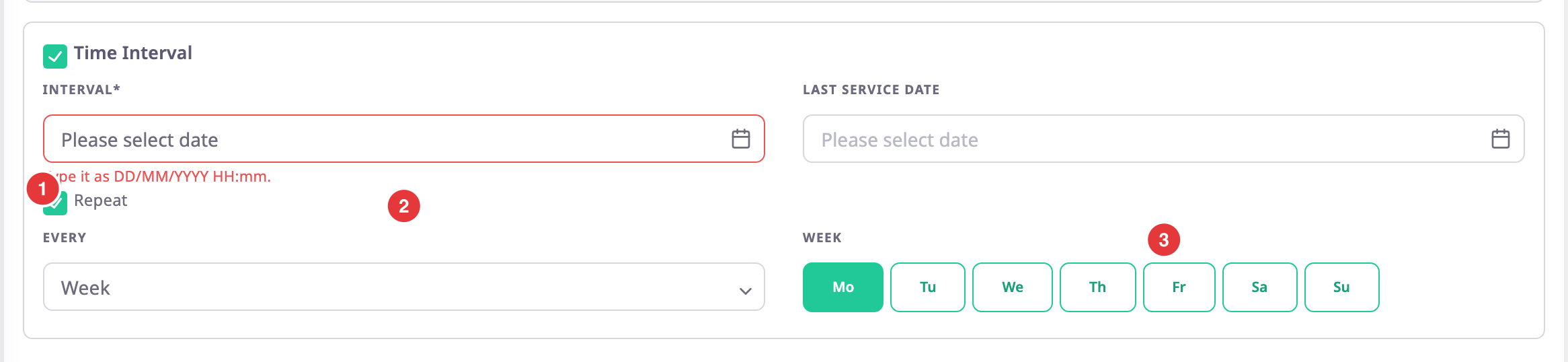
Repeat moves the due date on by itself each time you record a service. The new due date counts from the service date and keeps the time of day of the old one.
| Field | Required | What it does | Allowed values / example | Notes |
|---|---|---|---|---|
| Repeat | No | Turns the repeat on. | Selected or cleared. Default: cleared. | — |
| Every | Conditional | Chooses the unit of the pattern. | Day, Week, Month or Year. Default: Day. | Required when Repeat is on. |
| Number of days | Conditional | Sets how far the due date moves on. | A whole number, 1 or more. Default: 1. | The label follows Every: Number of days, Number of months or Number of years. With Week, the label is On and seven weekday buttons, Mo to Su, replace the number. |
A line below the fields describes the rule and the date the reminder would next be due if you serviced it today.
¶ What this service covers
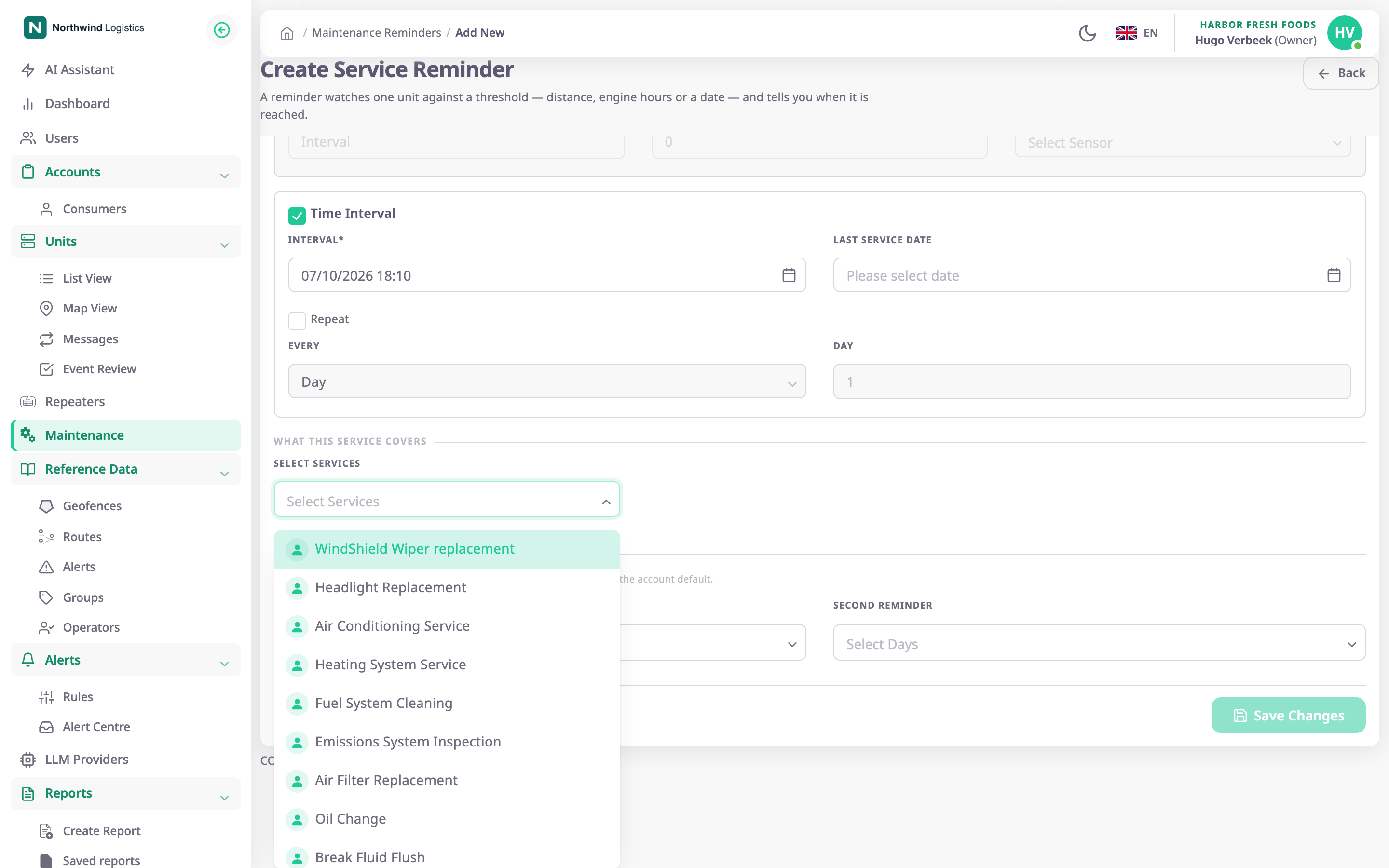
| Field | Required | What it does | Allowed values / example | Notes |
|---|---|---|---|---|
| Select services | No | Chooses the service types the reminder covers. They start as the lines when you complete it. | One or more of the fixed service types. | No minimum. See Service types. |
¶ Reminders
These two lists set how far ahead of the due date the reminder notifies. Leave both empty to use the account default. See Default notification preferences.
| Field | Required | What it does | Allowed values / example | Notes |
|---|---|---|---|---|
| First reminder | No | Sets how long before the due date the first notice stage begins. | None, Seven Days, Fifteen Days or Thirty Days | When it arrives, a Completed reminder turns Upcoming again. |
| Second reminder | No | Sets how long before the due date the second notice stage begins. | None, Same Day or OneDay Before | — |
The notices reach people only through an alert rule on the Service reminder template. See Get an alert when a service is due.
¶ After you save
After you create or update a reminder for one unit, the message "Service reminder created" or "Service reminder updated" appears. If your role can add alert rules, the app then checks them:
- If an enabled Service reminder rule covers the unit, the dialog "Notifications are on for this unit" names the rule. Select its name to open it, or Go to reminders.
- Otherwise, the dialog "Get notified about this service?" opens. Set up notification opens a new alert rule on the Service reminder template, with the unit and you as recipient filled in. Not now opens the reminders list.
- If the check fails, the dialog also says "Existing alert rules could not be checked, so one may already cover this unit."
Without that permission, the reminders list opens directly.
With several units, the Result panel shows how many reminders the app created and how many units it skipped. "These units did not get the reminder:" lists each skipped unit with the reason. Examples are "No matching odometer or engine-hours sensor on this unit" or "This unit already has a reminder with this name". Back to the form returns to the form. Set up notification opens a new rule for the created units. Go to reminders opens the list.
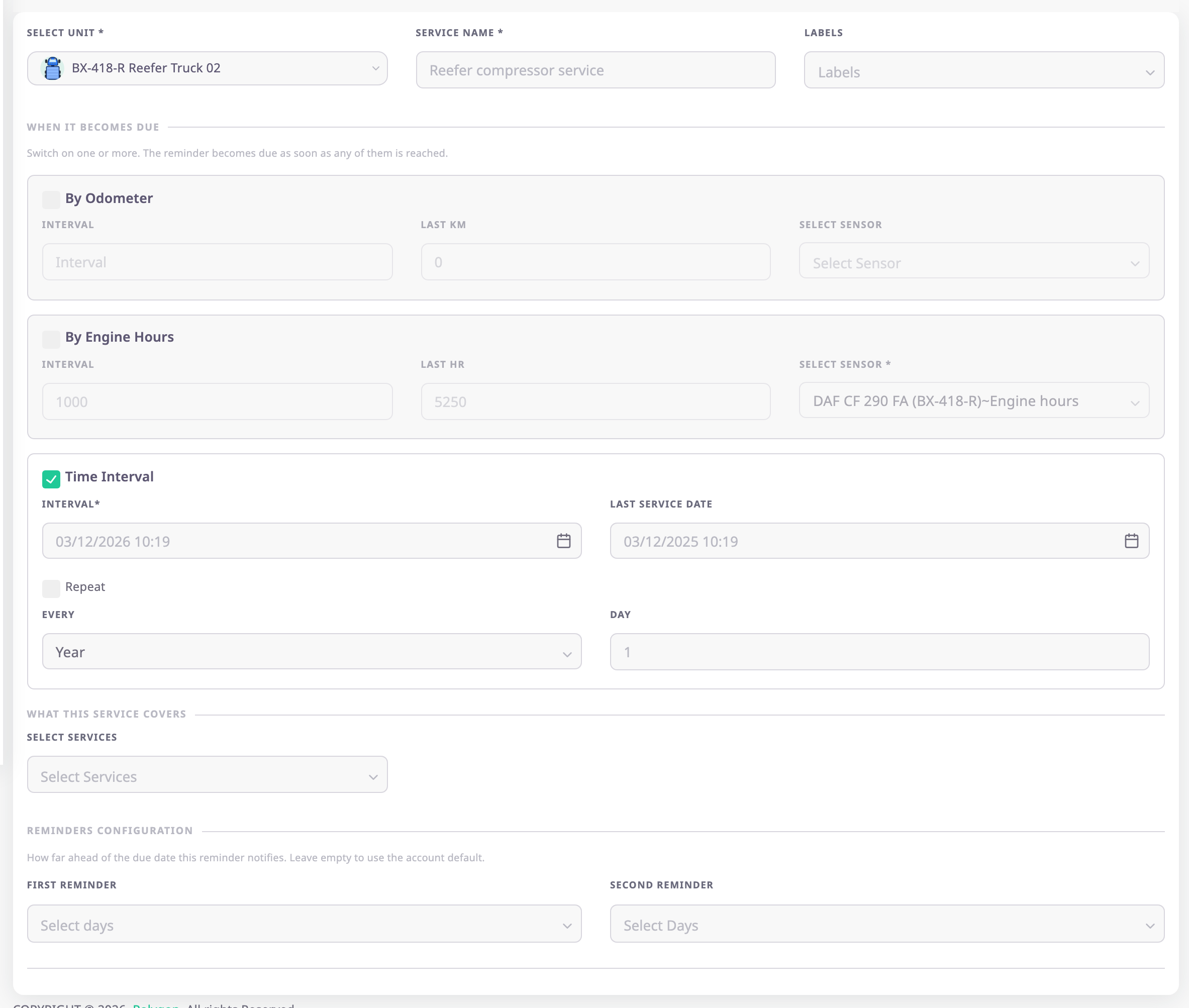
¶ View mode
¶ Buttons and actions
| Action | What happens |
|---|---|
| Save Changes | Creates the reminder, or one reminder per unit. Available in create mode when the form is valid. |
| Update reminder | Saves changes to an existing reminder. Available in edit mode. |
| Back | Returns to the previous page without saving. |
¶ Permissions
- Add reminder and the create form need Maintainance > Add. The edit form needs Edit. View mode needs Read.
- The unit must be allocated to your account. Otherwise the app refuses the reminder with "Unit not related".
- The alert-rule dialog after saving needs Add on alert rules.
- The Owner role has all of these.