The unit list is the first thing in the dock, on the Live tab. Each row is a unit on the map. To open it, in the side menu, select Units > Tracking.
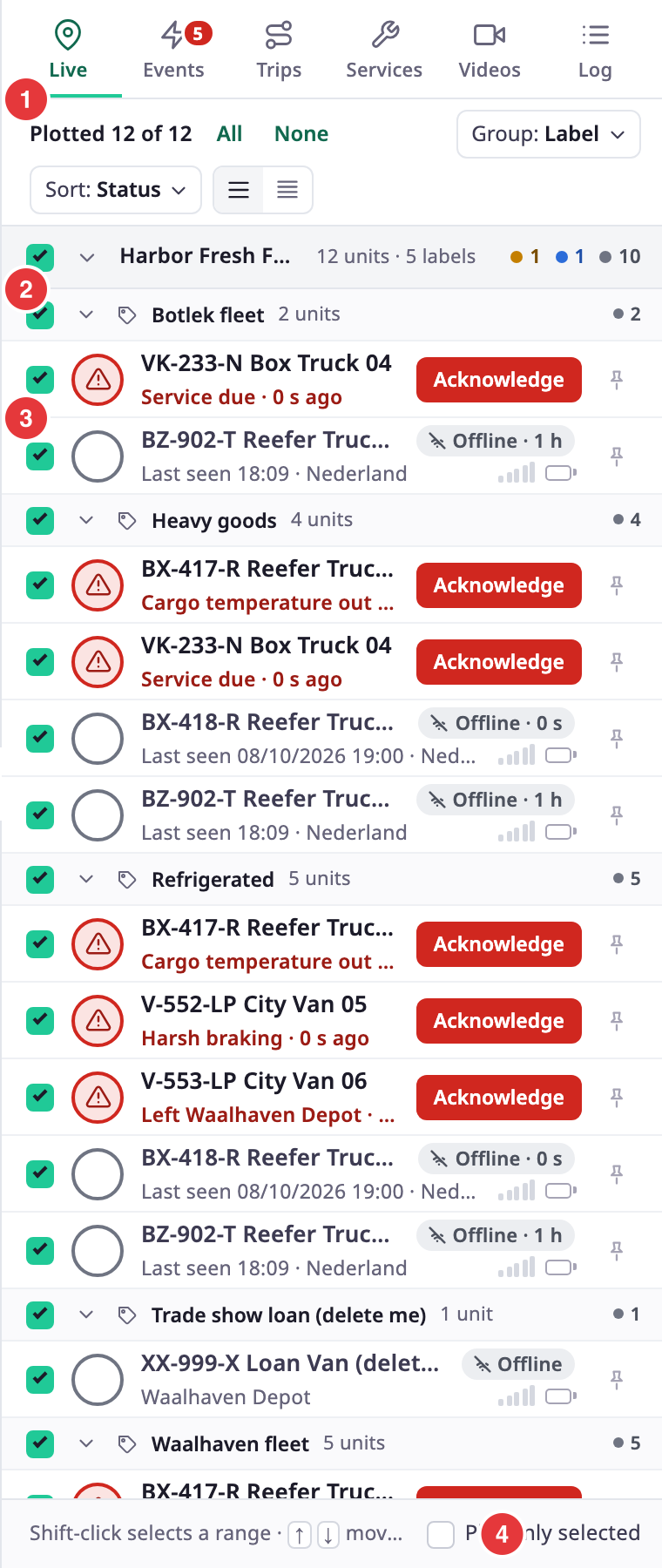
¶ Toolbar
The toolbar sits above the list.
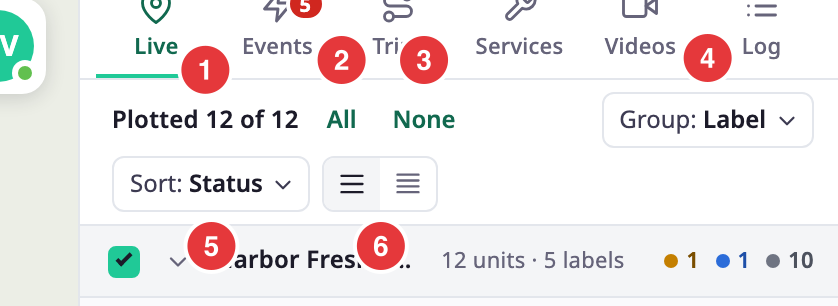
| Control | What it does |
|---|---|
| Plotted count, marked 1 | Shows how many of the listed units are on the map, for example "Plotted 12 of 12". |
| All, marked 2 | Puts every listed unit on the map. |
| None, marked 3 | Takes every unit off the map. |
| Group, marked 4 | Groups the rows by Label, by Account, or not at all (None). The list starts on None. |
| Sort, marked 5 | Orders the rows by Status, Name or Last message. The list starts on Name. |
| Row density, marked 6 | Switches between Comfortable rows and Compact rows. The list starts with compact rows. |
Sorted by Status, units with an open alarm come first, then running, idling, parked and offline units. Pinned units always come first.
¶ Group rows
When you group by Label, each account has a heading row with its name, its number of units and labels, and a dot for each status. Under it, each label has a heading row with the label name, the number of units, the status dots and a checkbox. Units that carry several labels appear under each of them. Units without a label sit under No label.
- Select the arrow at the left of a group row to collapse or expand the group.
- Select the label name to fit the map to the units of the group.
- Use the checkbox to plot or unplot every unit of the group. A dash in the box means only some of them are plotted.
Group by Account to get the account headings with their units and no label headings.
¶ Unit rows and their states
Each row shows one unit.
| Part | What it shows |
|---|---|
| Checkbox | Whether the unit is plotted on the map. |
| Status ring | The unit's icon in a ring coloured by state. An alarm shows a warning sign instead of the icon. |
| Name and pill | The unit name and a pill with its state. |
| Second line | The driver's full name and the address once it is found. An offline unit shows "Last seen" and the time. A unit allocated to another account shows "Allocated to" and the account name. In compact rows, the line shows the driver and, for a unit that is offline or has no position, how long ago it last reported. It skips the address. |
| Signal and battery | Five signal bars and a battery symbol with three segments for the device's charge. The battery turns amber when the charge is under 20 percent or the supply voltage is low. While the unit is offline, the icons dim but keep the last reading. An empty battery outline means the unit reports no charge. |
The pill says one of these:
- Running with the speed, Idling, Parked or Offline with the time since its last message.
- Alarm with the time since the incident opened. An open alarm replaces the other states. Rows with an alarm also show an Acknowledge button.
When chat is on for your account, a message icon with a number next to the name counts the unit's unread chat messages. Select it to open the chat. See Chat with a unit's driver.
The list leaves out units whose allocation to your account has ended.
For what each state means and how the app decides it, see Unit statuses.
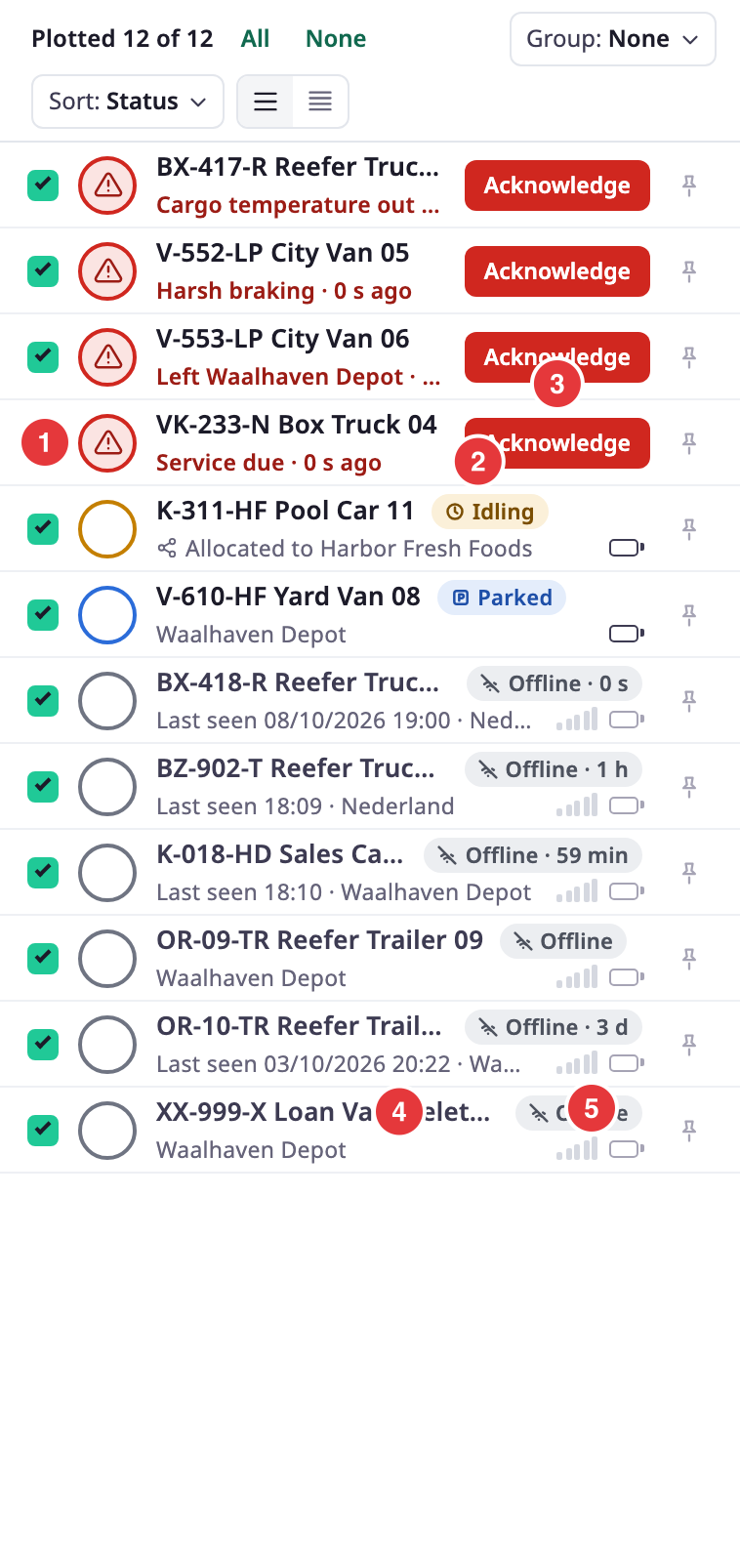
In the picture, the status ring is marked 1, the alarm pill 2 and the Acknowledge button 3. Under the offline row, the second line is marked 4, and the signal and battery are marked 5.
In a narrow dock, under 420 pixels, the rows drop the signal and battery and shorten the pill to the speed.
¶ Quick actions
Point at a row to show its quick actions at the right.
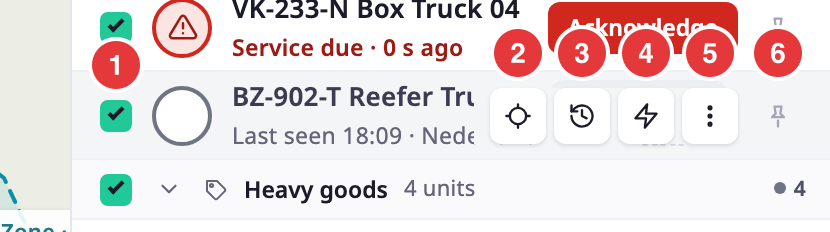
| Action | What it does | Needs |
|---|---|---|
| Checkbox, marked 1 | Plots or unplots the unit. | — |
| Follow, marked 2 | Centres the map on the unit and keeps it centred as it moves. It is off when the unit has no position. | — |
| History, marked 3 | Opens the History tab for the unit. | Show History |
| Events, marked 4 | Opens the Events tab for the unit. | Show Events |
| More, marked 5 | Opens the unit menu. See Unit card on the map. | — |
| Pin, marked 6 | Pins the unit to the top of the list. | — |
Your browser stores pins for your user. Colleagues do not see them, and they do not follow you to another browser.
¶ Plot and select units
When you open the map, no unit is plotted. The list shows every unit of the scope, and the map stays empty until you choose what to plot. A unit you open or follow shows on the map even when it is not plotted.
- Select a row's checkbox to plot that unit. Clear it to take the unit off the map. The unit stays in the list.
- Select All to plot every listed unit, or None to clear the map.
- Select a row to open its unit card.
- To build a selection,
Ctrl-click orCmd-click rows, orShift-click to select a range. You can select up to 200 units. - Select Plot only selected, at the bottom of the dock, to show only the selected units on the map.
The Events, Trips and Messages tabs use the units you plot. See Track units on the map for the steps.
¶ Search results from the server
When you search for a name, the app also asks the server. Units that match but are not loaded yet appear at the bottom of the list under "More matches on the server". Select one to open its card.
¶ Large fleets
The app loads units in pages of 100, up to 5,000 units. Above that, the end of the list reads "Showing the first N of M units. Narrow the scope to see the rest." Choose fewer accounts or a label to see the rest. The app asks for live positions of at most 1,500 units at a time, starting with the ones in view.
¶ Empty and error states
| Message | What to do |
|---|---|
| "No units in this scope" | Select Account scope and choose other accounts, or include sub-accounts. |
| "No units match these filters" | Select Clear filters. |
| "Units could not be loaded" | Select Retry. |
¶ Phone list
On a phone, the toolbar becomes one line with the scope and the counts, and the list is not grouped. Rows have no checkbox and no quick actions. Select a row to open the card, and use its buttons.
¶ Permissions
You need Read on Units to see the list. Acknowledge needs Edit on Alert Incidents. Quick actions appear only when you have their permission.