The map fills the whole window, with a bar of search and filters on top and a dock on the right. The dock holds the unit list and the tabs for events, trips and more. To open it, in the side menu, select Units > Tracking.
When you select Tracking again later, the map comes back as you left it: the same tab, unit, filters and range. The app remembers this for each account you work in. The Geofences and Messages maps also start from the base map, the selected units and the geofences you chose here.
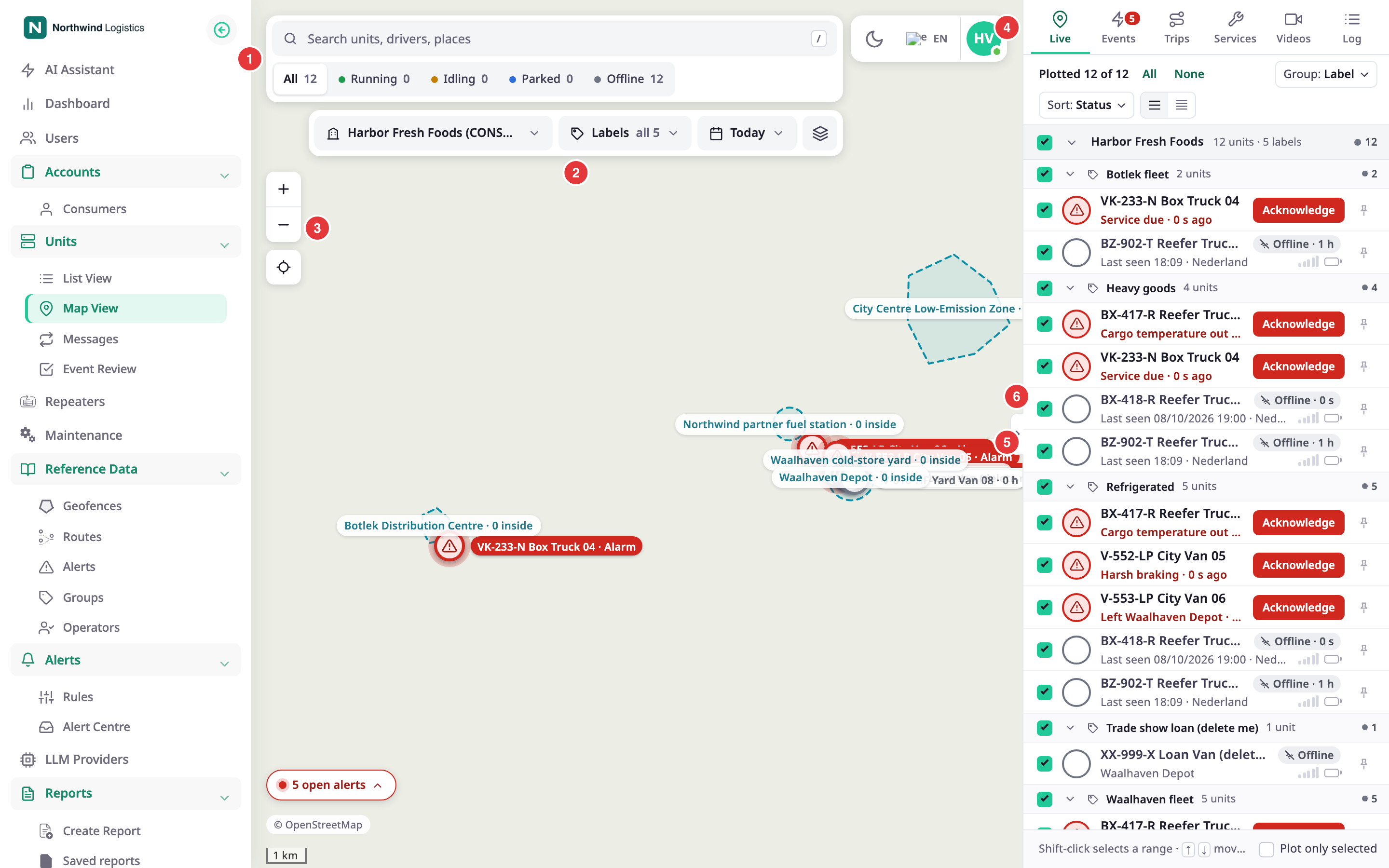
¶ Command bar
The command bar sits at the top left of the map. It holds the search box and the status buttons.
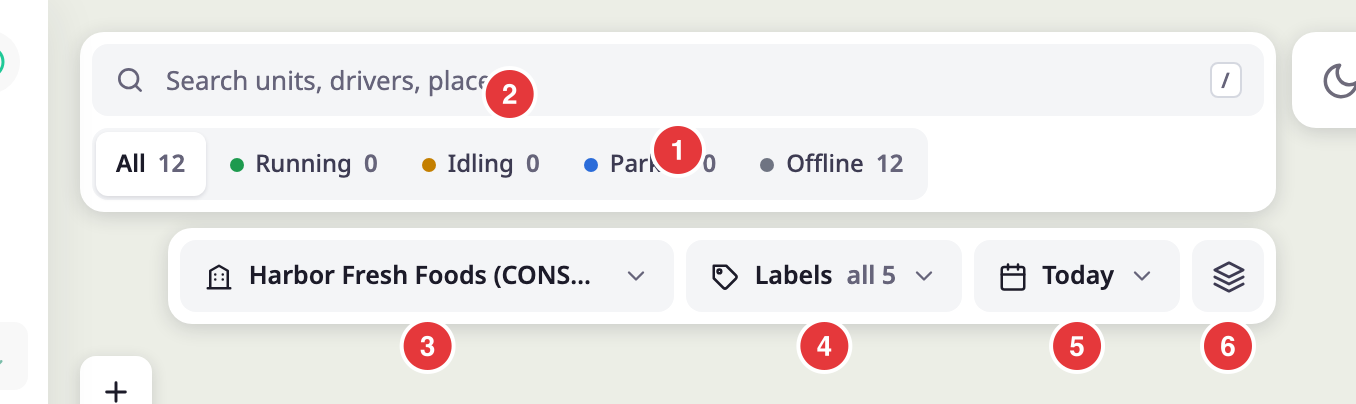
| Control | What it does |
|---|---|
| Search box, marked 1 | Filters the list and the map as you type. It matches unit names, driver names, account names and label names. From two characters, it also opens a results panel; see below. Select the cross to clear it. |
| All, Running, Idling, Parked, Offline, marked 2 | Shows only the units in that state. Each button shows how many units of the account scope are in that state. |
- After two characters, the app also asks the server for units with that name. Matches that are not loaded yet appear at the end of the list under "More matches on the server".
- A status button counts the units the app has loaded for your scope. For the meaning of each state, see Unit statuses.
¶ Search results
When you enter two characters or more, a results panel opens under the search box. Tabs at its top sort the matches: Places, Units, Drivers and Geofences. Each tab shows how many matches it has. The panel opens on the first tab with matches.
- Places looks up addresses and place names on the map, from three characters. Choose one to move the map there and mark it with a pin.
- Units lists matching units. Choose one to open its card.
- Drivers lists each matching driver once. Choose one to open the unit they drive.
- Geofences lists matching geofences. Choose one to zoom the map to it. The tab shows only when you have Read on Geofences.
Use the arrow keys to move through the results and Enter to choose. Select the search box again to reopen the panel. Esc closes it.
¶ Scope bar
The scope bar sits under the command bar. It decides which units and which period the screen works on.
| Control | What it does |
|---|---|
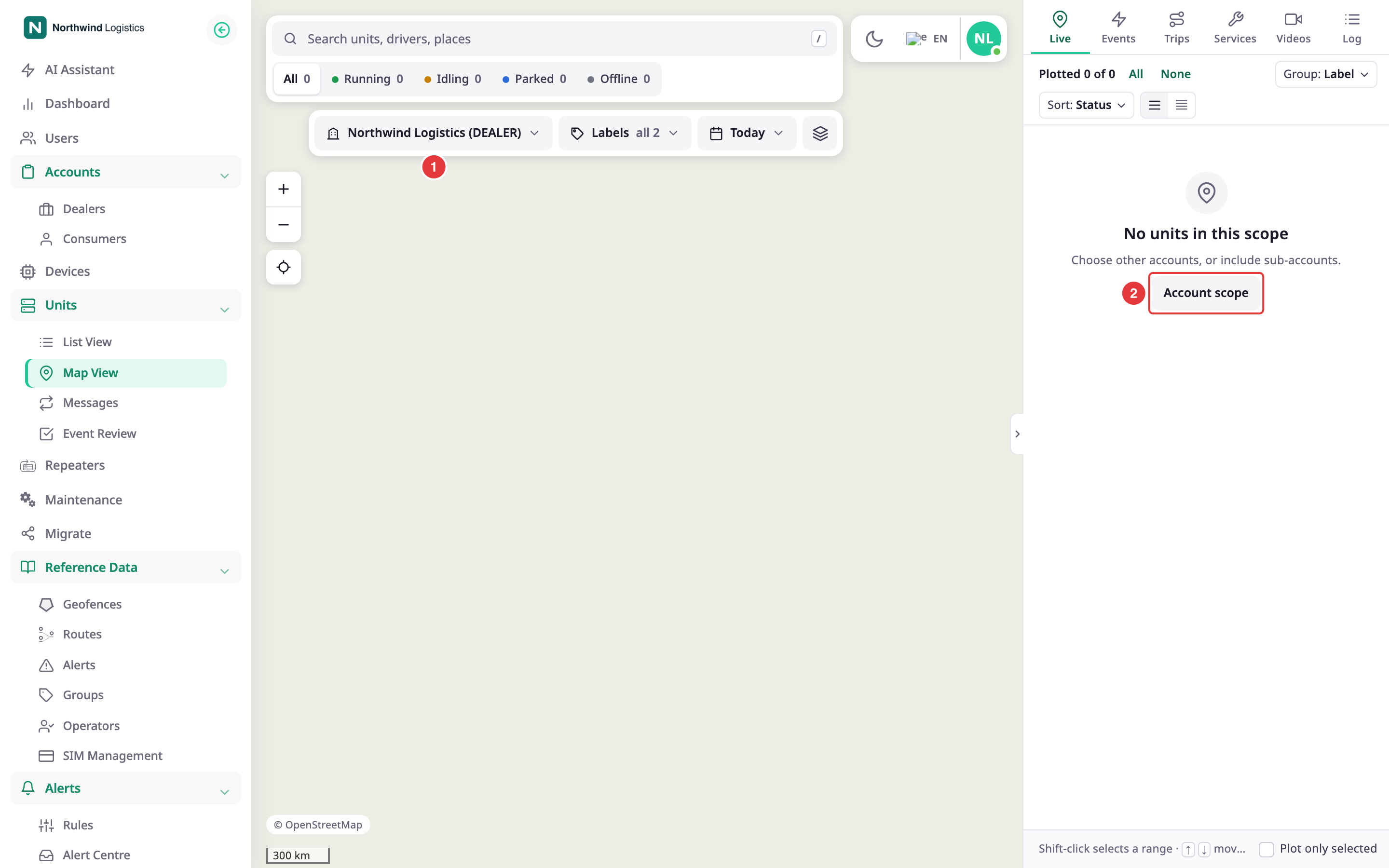
| Account button, marked 3 | Opens Account scope, where you choose the accounts whose units you see. It shows the first account and +N for more. |
| Labels, marked 4 | Opens a list of labels. Units with any chosen label stay on the screen. It shows a count, or "all" and the number of labels when you chose none. |
| Time range, marked 5 | Shows the period, for example Today. It opens the time range picker for Events, Trips, History, Messages, Services, Videos and Log. |
| Layers, marked 6 | Opens the base maps, the overlays and Map style. |
| Chat, the message icon | Opens the chat inbox in the dock. A number counts the units with unread messages. It shows only when you can read unit chat. See Chat with a unit's driver. |
See Account scope, labels and layers and Time range.
¶ App bar
On the map, the app's top bar shrinks to a small card at the top right of the map, next to the dock. It holds the light and dark mode switch, the language list and your user menu, where the account name also shows. On a narrower screen it also holds the button that opens the side menu. The card moves with the dock when you resize or collapse it.
¶ Map controls
The map controls sit at the left edge of the map.
- Zoom in and zoom out, the plus and minus buttons.
- Fit to plotted units, the crosshair button. It zooms the map to the units you plot.
- Follow, the pin button. It appears when a unit card is open and the unit has a position. It keeps the map centred on that unit.
While you follow a unit, a note at the top of the map reads "Following" and the unit name. Select Stop, or press Esc, to stop. Dragging the map also stops it.
¶ Live counter and the connection
At the bottom left of the map, a counter reads "Live · updated N s ago". N counts the seconds since the last update reached your browser. The counter disappears while you follow a unit or while a playback strip shows.
There is no banner when the connection drops. If N keeps growing, updates have stopped. The app reconnects by itself, and the list recovers when it does. A unit that sends nothing for longer than its own Offline after time shows as Offline. Without that setting, the limit is 15 minutes. See Unit form.
¶ The dock and its tabs
The dock is the panel on the right of the map. Drag its left edge to make it wider or narrower, between 360 and 560 pixels wide. Double-click the edge to return to the default width. The round button on the edge collapses or expands the dock, marked 1 below. Your browser remembers the width.
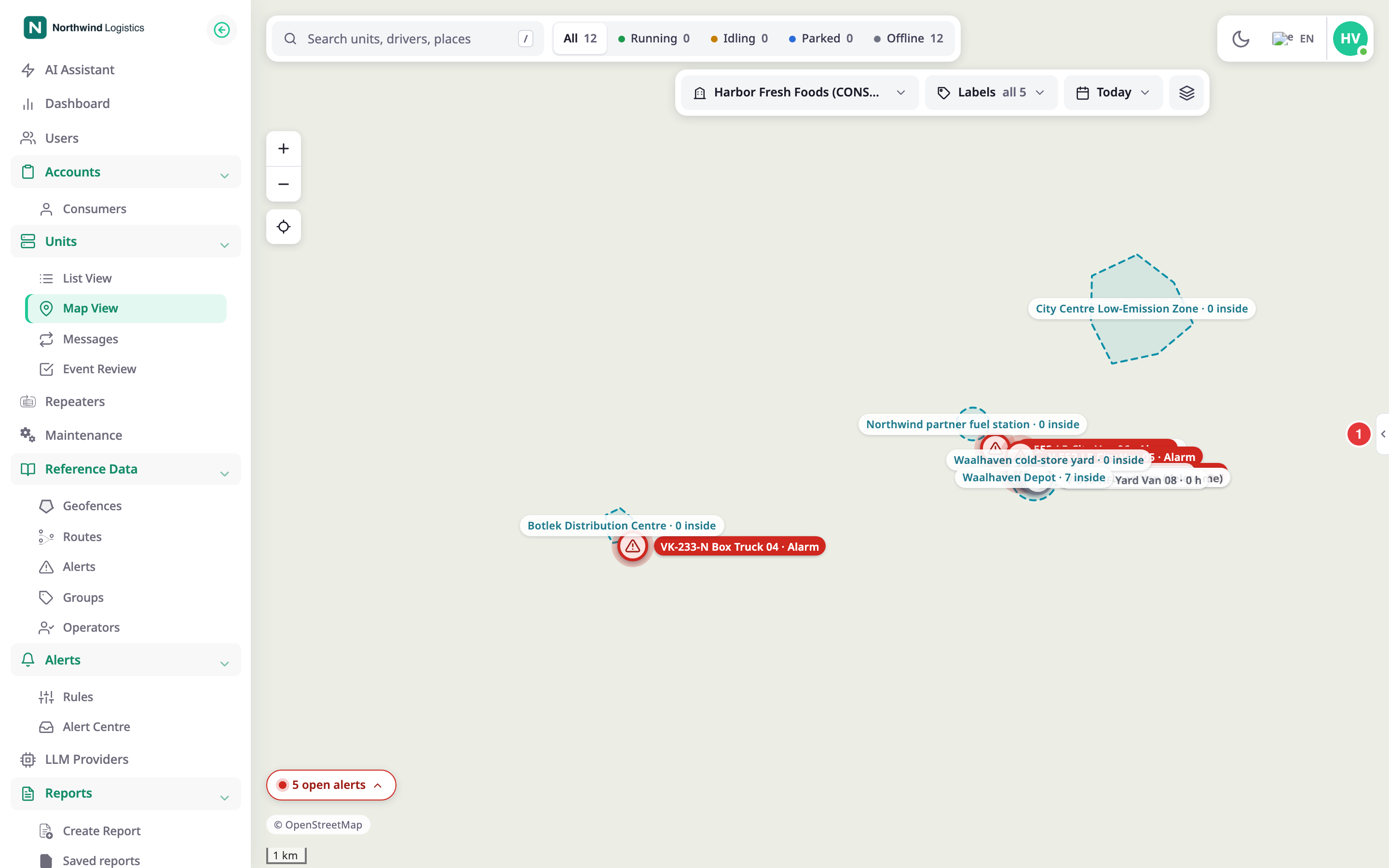
The dock has six tabs, marked 1 to 6 in the picture below.

| Tab | What it shows | Permission |
|---|---|---|
| Live | The unit list and the unit card. See Unit list. | Read on Units and on Devices |
| Events | Alerts and activity for the plotted units. See Events tab. | Show Events, and Read on Devices |
| Trips | Trips of units for a period. See Trips tab. | Show Trips, and Read on Devices |
| Services | Overdue and upcoming service reminders. See Services and Log tabs. | Show Services, and Read on Maintainance |
| Videos | Recorded video clips of a unit. It shows only when your installation has the video feature. | Show Videos, and Read on Devices |
| Log | What people changed on a unit. See Services and Log tabs. | Show Activities, and Read on Devices |
You see only the tabs your role allows. If a link asks for a tab you cannot use, the dock opens on Live. In a consumer account, the Devices screen is hidden, but the tabs still open: the app counts the role's Read on Devices for them.
Three more views open in the dock from a unit's menu or card, without a tab of their own. Share live location lists and creates the unit's shared links. Device commands sends commands to the unit's device. Chat holds the conversation with the unit's driver. Select Back in any of them to return to the view you came from. See Share a unit's live location, Send a command to a unit's device and Chat with a unit's driver.
History has no tab of its own. It opens from the History button on a unit row, from the History button on the unit card, and from Track around on an event. While it is open, a History tab appears in the strip. See History tab.
A badge on Events counts new alerts you have not seen. See Respond to a live alert on the map.
¶ Phone layout
On a phone, the map fills the screen and the dock becomes a sheet at the bottom. The phone layout applies to screens up to 767 pixels wide, and to wide phones held sideways.
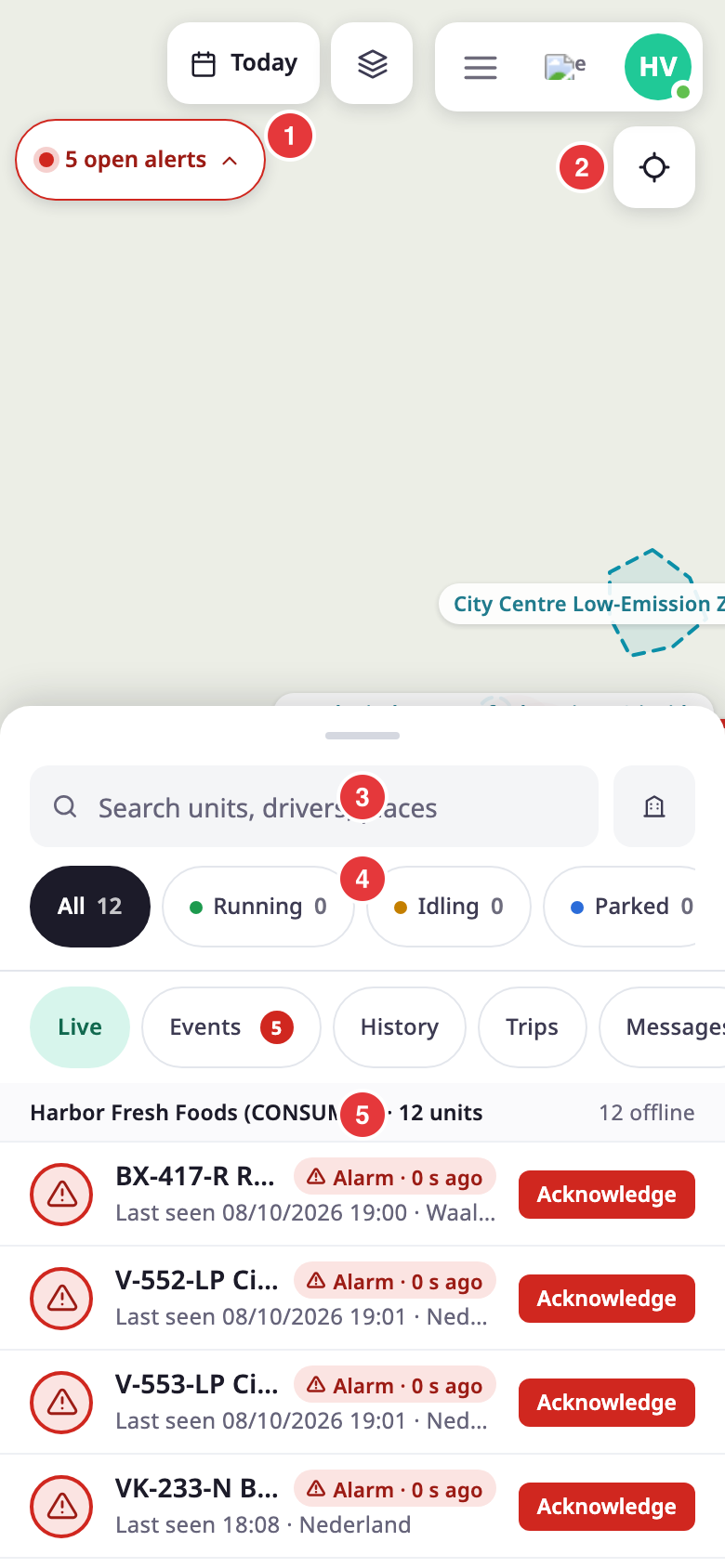
- Drag the handle, or tap it, to move the sheet between three heights: lowest, half and full. Opening a unit, Share live location or Device commands raises the sheet to full height.
- The sheet header holds the search box, the status buttons and the account button. The account button shows +N when more accounts are in scope.
- The time range and Layers stay on the map. The fit button sits at the right.
- On Live, the chips under the header are Live, Events, History and Trips, and a Messages link that opens the Messages screen. On the other views, the chips are the sheet header itself.
- The time range, Layers and the account list open as a panel from the bottom. Close it with the cross, a tap outside it, or the back gesture of the phone.
- Event, trip and message cards sit above the sheet.
- Labels, Services, Videos and Log are not available on a phone.
¶ Keyboard shortcuts
| Key | What it does |
|---|---|
/ |
Moves focus to the search box. |
Esc |
Closes the results panel, or clears the search, or stops following a unit, or closes the open list or dialog. |
↑ and ↓ |
Move through the unit list. |
Shift-click |
Selects a range of units in the list. |
Ctrl-click or Cmd-click |
Adds one unit to the selection, or removes it. |
¶ Share or bookmark a view
The address in your browser holds the view. It includes the tab, the open unit, the accounts, the labels, the status, the search, the time range, the map position and the base map. Copy it to send a colleague the same view, or bookmark it. The Back button of your browser steps back through the tabs and units you opened.
¶ Empty states
- A dealer account starts on its own account, which owns no units. The list reads "No units in this scope". Select Account scope and choose a consumer account.
- If the list reads "No units match these filters", select Clear filters.
- If it reads "Units could not load", select Retry.
¶ Permissions
- To open the map you need Read on Units. The Live tab also needs Read on Devices. To see the menu entry, you also need Menu on Units. The Owner role has all three.
- Each tab needs its own permission, listed in the table above. A dispatcher role without Show Videos sees every tab except Videos.

See Permissions reference for every permission of the Units module.