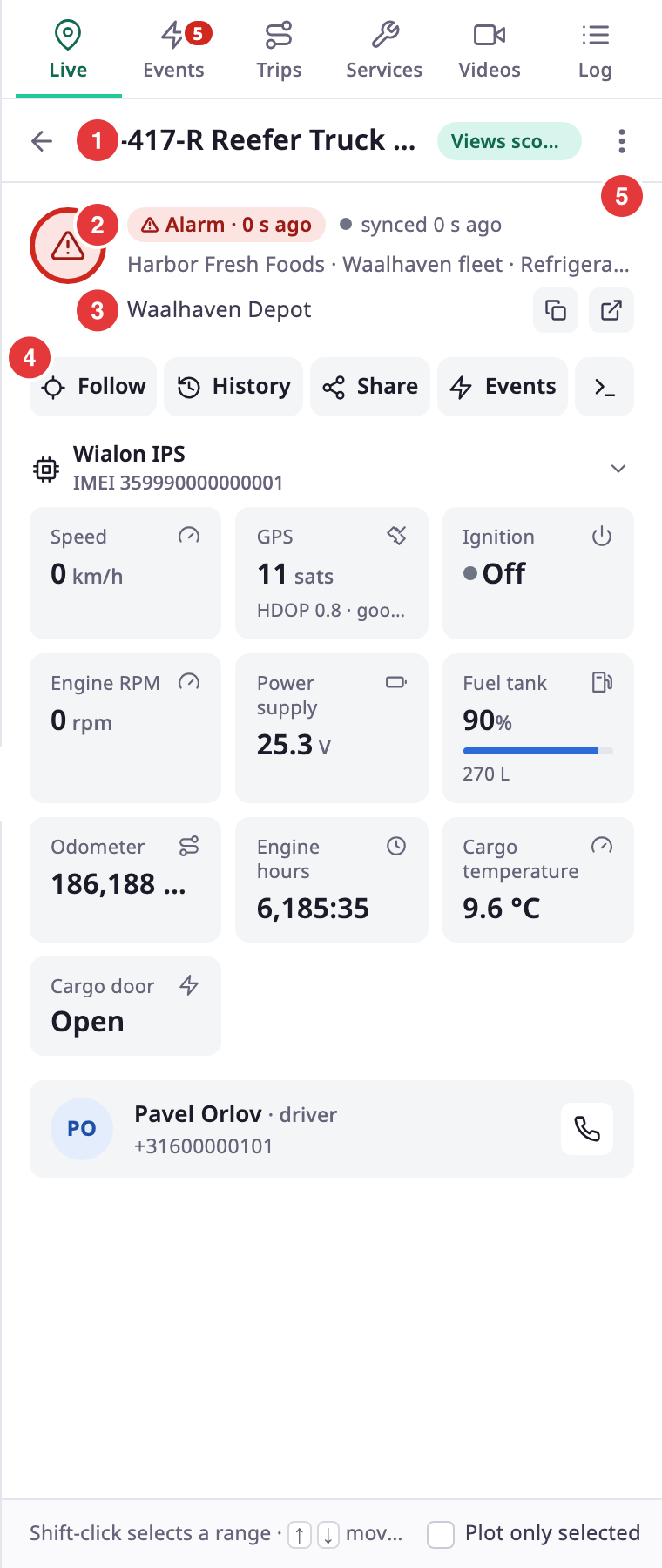
The unit card shows what one unit is doing now. It replaces the unit list in the dock when you select a unit. To open it, in the side menu, select Units > Tracking, then select a unit in the list or a marker on the map.
¶ Open the card
- Select a unit row, or its marker on the map, to open the card.
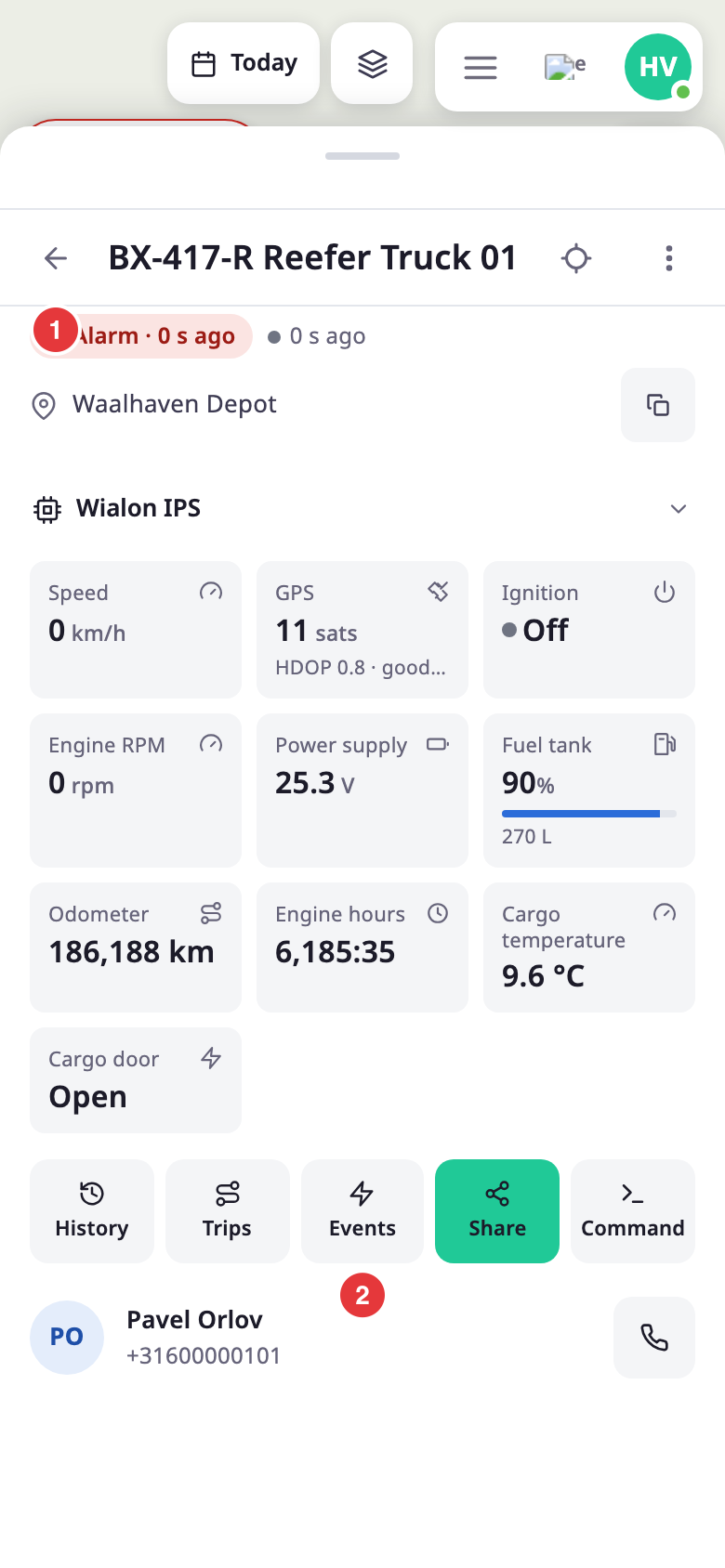
- Select the arrow at the top left of the card, marked 1, to go back to the unit list. The label of the arrow is Back to unit list.
- A chip in the header reads "Views scoped to this unit". It reminds you that the Events, Trips, History, Services and Log tabs now show this unit only.
If the unit is not in your account scope, the card reads "This unit is not in the current scope". Change the scope, or select Back to unit list.
¶ Status and freshness
The pill, marked 2 in the picture above, shows the unit's state and for how long it has held it, for example "Parked · for 2 h". An open alarm shows Alarm and its age instead. Next to the pill, "synced" and an age tell you when the last message arrived.
After 15 minutes without a message, a note reads "Last sync" and the age, and says the values are the last known ones. The pill then adds "last known". For the meaning of each state, see Unit statuses.
Under the pill, a line lists the account, up to two labels and, for a unit allocated to another account, "Allocated to" and the account name.
¶ Address
The address, marked 3, is found a moment after the card opens. Until then the card shows the coordinates. Two buttons sit next to it:
- Copy address copies the address, or the coordinates while the address is not found yet. A message reads "Address copied".
- Open in maps opens the position in a new browser tab. It does not show on a phone.
A unit that has never reported a position shows "No position yet" instead of an address.
¶ Card actions
The buttons, marked 4, depend on your permissions and on the screen size.
| Button | What it does | Needs |
|---|---|---|
| Follow | Keeps the map centred on the unit. The label changes to Following. Select it again to stop. It shows only when the unit has a position. | — |
| History | Opens the History tab for this unit. | Show History |
| Share | Opens Share live location in the dock, with this unit's links. See Share a unit's live location. | — |
| Events | Opens the Events tab for this unit. | Show Events |
| Chat | Opens the unit's chat in the dock. A number on the button counts unread messages. See Chat with a unit's driver. | The chat feature on your installation, and the read right on unit chat |
| Command | Opens Device commands in the dock for this unit. See Send a command to a unit's device. | Execute Command or Execute Command Log History on Devices |
On a computer, the buttons are History, Share, Events, Chat and Command. On a phone, they are History, Trips, Events, Chat, Share and Command, and a Follow button sits in the header. Point at a button to see its full name.
¶ Sensor tiles per device
Under the actions, the card has one section for each device of the unit. A section header shows the device model, its IMEI and, when the unit has several devices, the word "primary" on the main one. Select the header to collapse or expand the section.
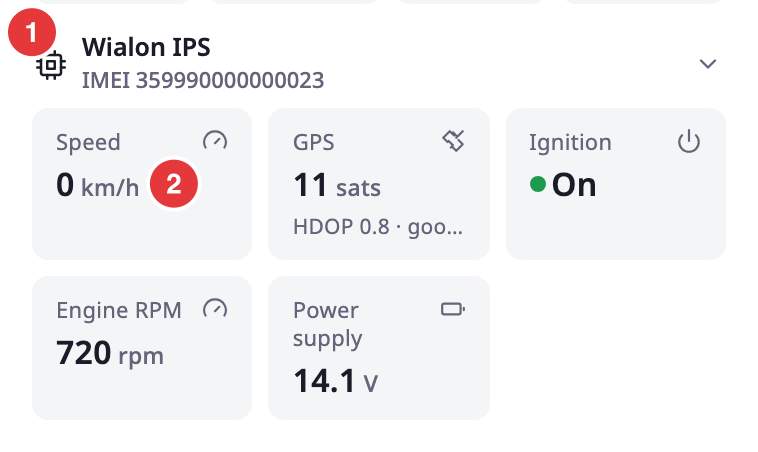
Each tile shows one sensor:
- Speed with the number of satellites and the quality of the position fix.
- Ignition, fuel level, battery, voltage and GSM signal bars. The battery tile shows three segments for the device's own charge. They turn amber under 20 percent.
- On/off readings such as ignition, digital inputs, SOS, lock seal and idle. These show as a state tile whenever the device reports a value, even without a card set up for them.
- Odometer, engine hours and temperature, in your account's units.
- Custom sensors with several rows, and cards with your own formatting.
The sensors, their order and their visibility come from the sensor preview of the device. See Manage a unit's devices. A tile shows a dash until the unit reports a value. If a device has nothing to show, the section reads "No parameters reported yet." If the values cannot be loaded, the card says "Sensor values could not be loaded." and shows Retry.
A sensor that reports photos shows up to three pictures; select one to view it larger. A sensor that reports files shows a Download file link.
A device with a video sensor shows a tile with "Live" or "Not streaming" and an Open videos link.
¶ Driver
When an operator is assigned to the unit, a driver panel at the bottom of the card shows their initials, name, role and phone number.
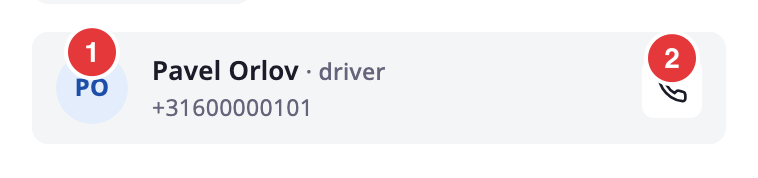
Select the phone button, marked 2, to call the number from a device that can make calls.
¶ The unit menu
The More button, marked 5 in the first picture, opens the unit menu. The same menu opens from the More button on a row in the unit list. It has three groups.
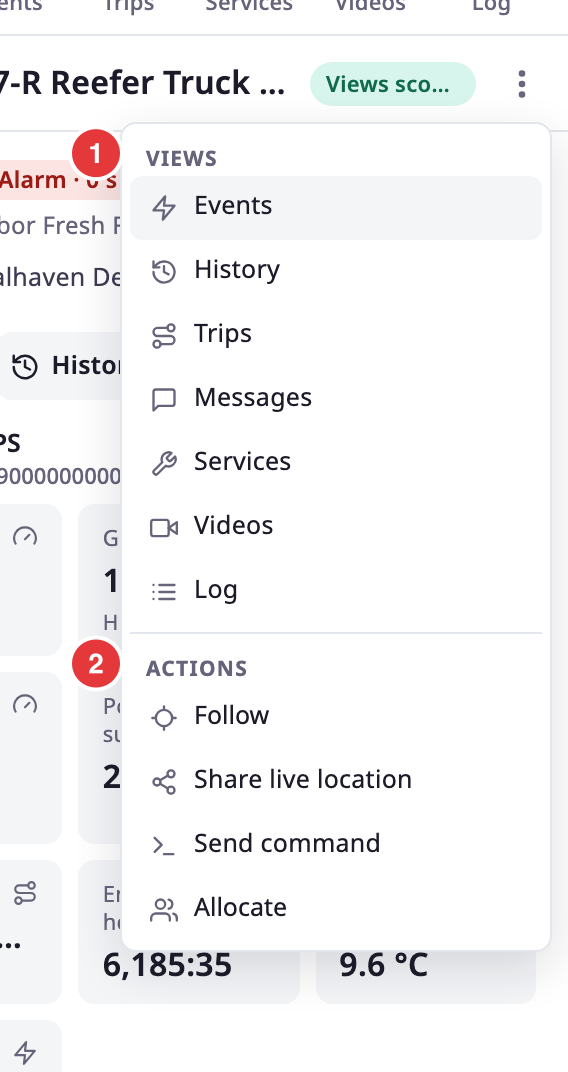
| Group | Item | What it does | Needs |
|---|---|---|---|
| Views | Events, History, Trips | Open that tab for the unit. | Show Events, Show History, Show Trips |
| Views | Messages | Opens the Messages screen with the unit, its account and the time range filled in, and runs it. See Messages. | Show Messages |
| Views | Services | Opens the Services tab for the unit. | Show Services, and Read on Maintainance |
| Views | Videos, Log | Open that tab for the unit. Videos shows only when your installation has the video feature. | Show Videos, Show Activities |
| Actions | Follow | Keeps the map centred on the unit. It shows only when the unit has a position. | — |
| Actions | Share live location | Opens Share live location in the dock. | — |
| Actions | Chat with driver | Opens the unit's chat in the dock. It adds the number of unread messages. See Chat with a unit's driver. | The chat feature, and the read right on unit chat |
| Actions | Chat links | Opens the messenger links of the unit's driver. | The chat feature, and the read right on unit chat |
| Actions | Send command | Opens Device commands in the dock. | Execute Command or Execute Command Log History on Devices |
| Actions | Allocate | Opens the allocation dialog. See Allocate a unit. | Edit on Units; not for an archived unit or when your user is limited to sub-accounts |
| Manage | Edit | Opens the unit form. See Edit a unit. | Edit on Units, and a unit your account can edit |
| Manage | Delete | Asks for confirmation, then removes the unit. See Delete a unit. | Del on Units, and a unit your account can edit |
A group with no items for you does not show. The picture shows a unit your account does not own, so it has no Manage group. If deleting fails, a message reads "Could not delete the unit".
¶ Device commands
Command on the card and Send command in the unit menu open Device commands in the dock. It replaces the card until you select Back, which returns to the view you came from. On a phone it opens the sheet to full height.
There you choose a device of the unit, write or pick a command, and send it after a confirmation. Under the form, the command log lists what was sent to the device, by whom, and its status. With Execute Command you can send. With Execute Command Log History you can read the log. Each part says so when your role lacks its permission.
For the steps, see Send a command to a unit's device.
¶ Phone card
On a phone, the card fills the sheet. The header has the back arrow, the unit name, a follow button and the More button.
¶ Permissions
- You need Read on Units to open the card.
- Each action needs the permission in the tables above. Share and Share live location need nothing beyond Read on Units.