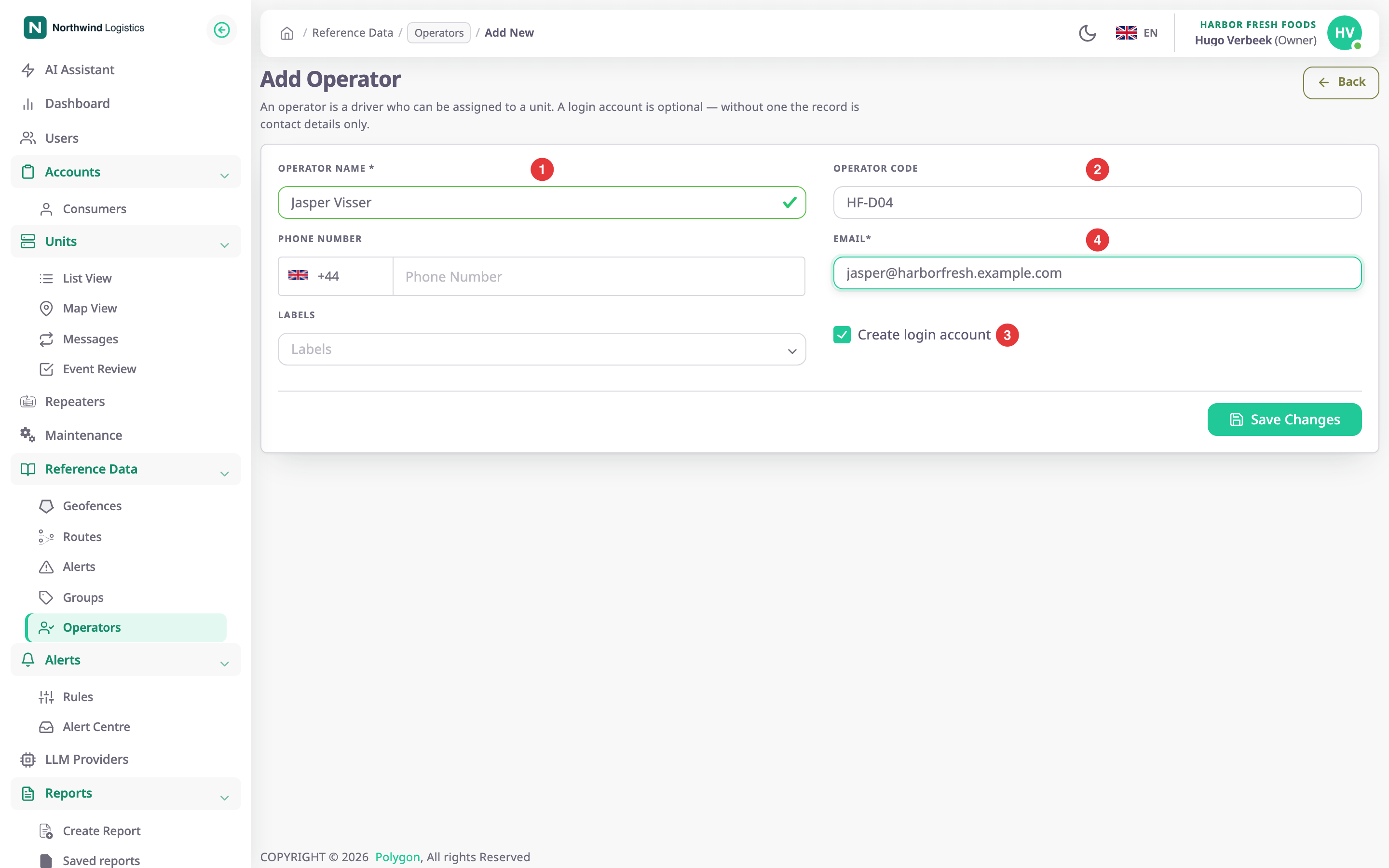
One screen creates, shows and edits an operator. To open it, select Add Operator on the operators list, or the eye or pencil icon on a row. A line under the title says an operator is a driver who can be assigned to a unit, and that a login account is optional.
¶ Modes
| Mode | Title | Button | What you can change |
|---|---|---|---|
| Create | Add Operator | Save Changes | Every field. |
| Edit | Update Operators | Update Operators | Every field, and the Allocated Units section appears. |
| View | View Operators | None | Nothing. |
Back returns to the previous page.
¶ Operator details
| Field | Required | What it does | Allowed values / example | Notes |
|---|---|---|---|---|
| Operator Name | Yes | Names the driver in lists, the unit card, reports and alerts. | 3 to 50 characters. Example: Jasper Visser | — |
| Operator Code | No | The code a driver card or tag reports. The unit's Operator Assignment sensor matches it to pick the driver. | 3 to 20 characters. Example: HF-D04 | Unique: the app answers "This code already exists" if any operator has it. |
| Phone Number | No | Holds the driver's phone number for your records. | A valid number for the country in the list beside it. Example: +31 600000101 | A number the app cannot validate shows a message under the field and keeps Save Changes unavailable. |
| Conditional | The address the login invitation goes to. | A valid email address. The app writes it in lowercase. | The box is locked until Create login account is on. Then the label gains a star and the box is required. | |
| Labels | No | Puts the operator in one or more groups. | Existing groups, or a new one typed in the field. | Shown only if you can read groups. See Groups. |
¶ Create login account
The checkbox Create login account, marked 3, invites the Email address to the app with the built-in Operator role. On save, Polygon sends the invitation. See Give a driver a login.
Once an operator has an email, the checkbox is replaced by a status:
| You see | Meaning | What you can do |
|---|---|---|
| INVITED and Resend Invitation | The invitation is open. | Select Resend Invitation to send it again. The message "Invitation resent successfully" appears. |
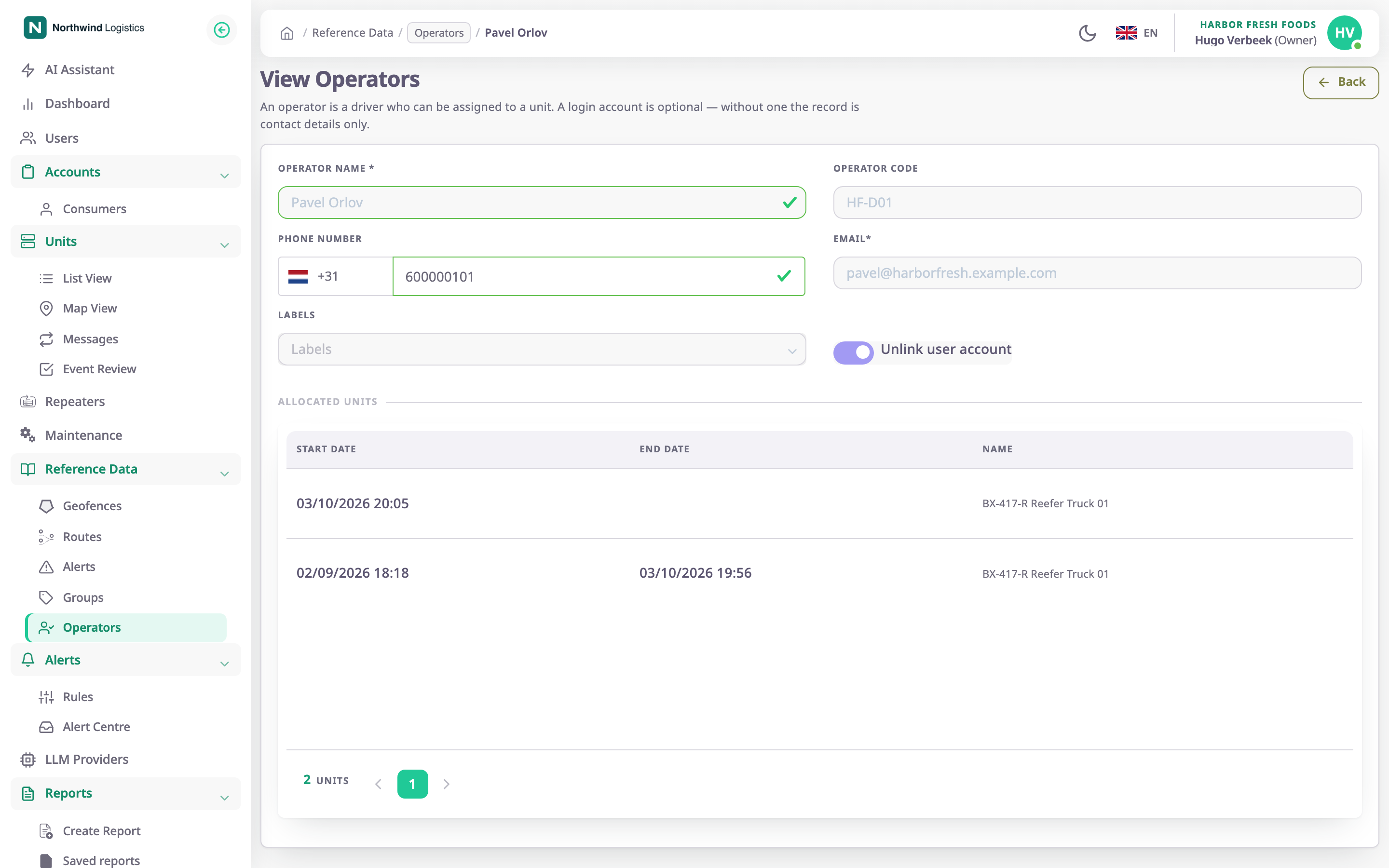
| Switch Unlink user account | The operator is linked to a user. | Turn the switch off and save to unlink them. |
| Switch Link user account | The operator has an email but no link. | Turn it on and save to link or invite. |
¶ Allocated units section
In edit and view mode, an Allocated units section lists the units the operator has driven. In edit mode, a row of fields on top adds one.
| Field | Required | What it does | Allowed values / example | Notes |
|---|---|---|---|---|
| Start Date | Yes | When the operator takes the unit. | A date and time, not in the past. Default: now. | — |
| End Date | No | When the operator hands the unit back. | A date and time after the start. | Leave empty for no end. |
| Unit | Yes | The unit the operator drives. | Units of your account. Type to search; Load More shows more. | — |
Select Add to save the row. The table has the columns Start Date, End Date, Name (the unit) and Actions. An assignment that has not ended has a pencil and a trash icon. See Assign a driver to a unit.
¶ Validation and limits
- Operator Name is required. Operator Code is optional, but must be 3 to 20 characters if present and unique.
- Save Changes stays unavailable while any field is invalid, or while Create login account is on with no email.
- An operator with no email cannot be linked: "Email require to link operator account".
¶ Buttons and messages
| Action | What happens |
|---|---|
| Save Changes | Creates the operator. The message "Operator created successfully" appears and the list opens. |
| Update Operators | Saves changes. The message "Operator updated successfully" appears and the list opens. |
| Back | Returns without saving. |
¶ Permissions
- Add Operator needs Operators > Add. The edit form needs Edit. View mode needs Read.
- The Owner role has all of these.