Assign a driver so that trips, reports and alerts name them. You can do it from the operator or, in the unit's form, from the unit.
¶ Before you start
- You need the Operators > Edit permission. The Owner role has it.
- The operator and the unit must be in your account. See Add an operator.
¶ Assign from the operator
- In the side menu, select Reference Data > Operators.
- In the operator's row, select the pencil icon.
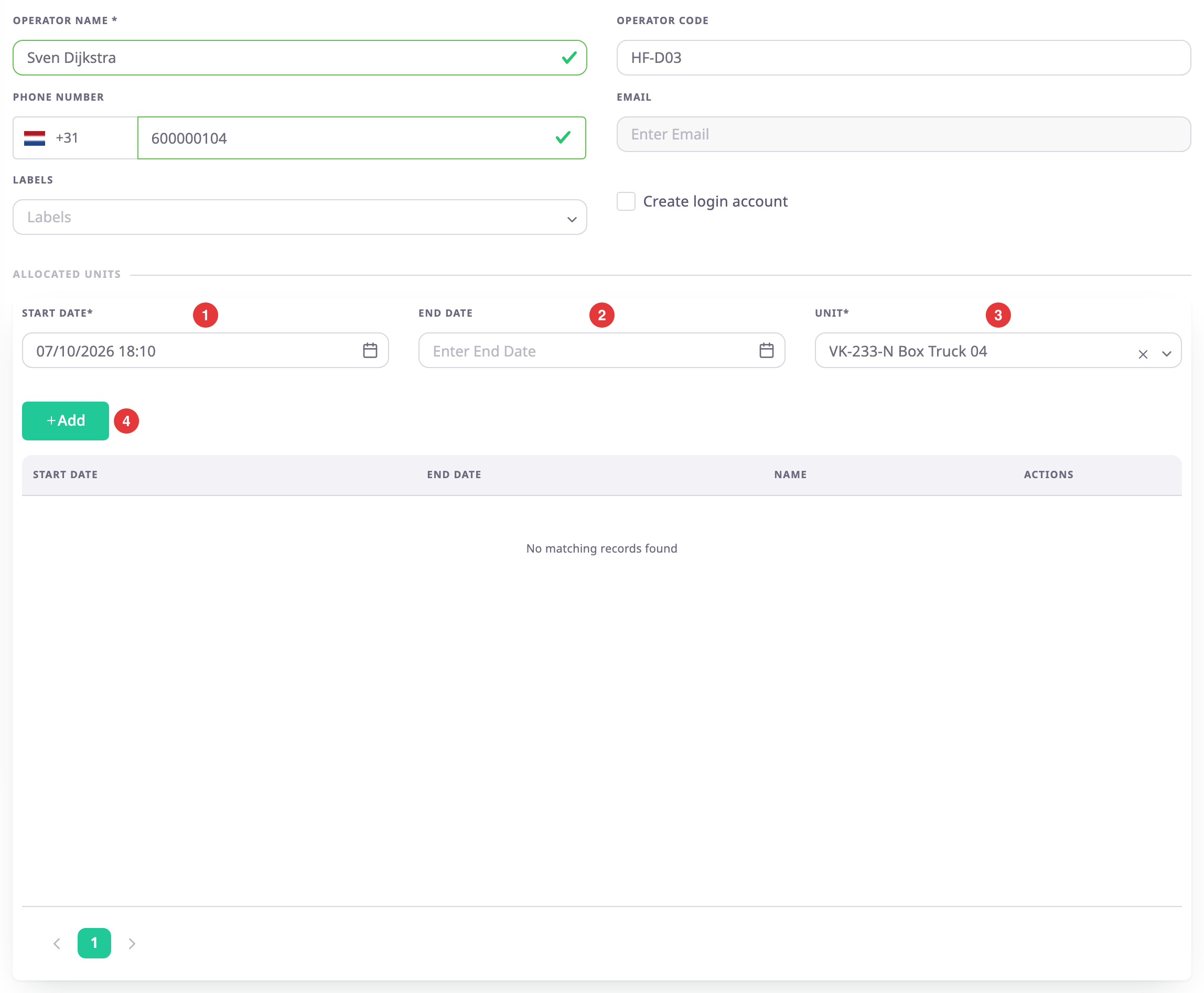
The Update Operators form opens with the Allocated units section below the fields. - In Start Date, marked 1, keep the date and time or choose a later one.
- Optional: in End Date, marked 2, choose when the driver hands the unit back.
- In Unit, marked 3, choose the unit. Type to search.
- Select Add, marked 4.
The message "Unit allocated successfully" appears and the table lists the assignment.
¶ Assign from the unit
In the unit's form, choose the operator in Unit Operator. See Unit form and Allocate a unit to an account or operator.
¶ Change or end an assignment
- In the table, find the assignment. Only an assignment that has not ended has icons.
- To change the dates or the unit, select the pencil icon and select Save.
The message "Unit allocation updated successfully" appears. - To delete the assignment, select the trash icon and select Remove.
The message "Unit allocation removed successfully" appears.
¶ One driver per unit at a time
- An operator drives one unit at a time. Assigning an operator to a new unit ends their earlier assignment at that moment.
- A unit has one driver. Assigning a driver to a unit that has an open-ended driver replaces that driver, who is moved off the unit.
- If the unit already has a driver for a fixed period that overlaps yours, the app refuses: "This unit is already allocated to" the driver and the period, "You cannot reallocate it."
¶ Where the assignment shows
The Linked Unit column of the operators list, the unit's line in the units list, the driver panel on the unit card, and reports such as Driver assignments.