A unit shows the data of the devices on it. Add a device when you fit a second device, such as a sensor box, and move a device when you replace the hardware in another vehicle.
¶ Before you start
- You need Units with Edit, and your account must own the unit or be above the owner. See Edit a unit.
- The device must be linked to your account. Customer accounts get their devices from their dealer.
- Visibility Control also needs Devices > Modify Card Order.
¶ Add a device
-
In the side menu, select Units > List View.
-
On the unit's row, select Edit.
The unit opens in edit mode with one card per device.
-
Select the card "Click here to add more devices", marked 1.
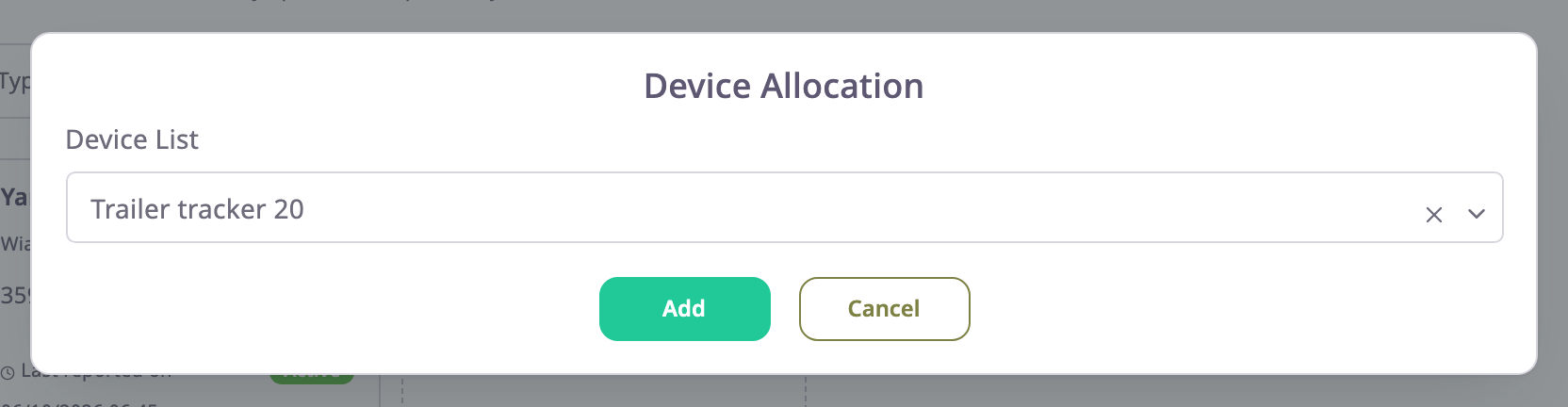
The Device Allocation dialog opens. -
In Device List, choose the device. You can search by name, identifier, model or SIM number.
-
Select Add.
A card for the device appears. -
Select Save.
The units list opens with the message "Unit updated sucessfully".
¶ Move a device from another unit
If the device you chose in step 4 already reports for another unit, step 5 asks first.
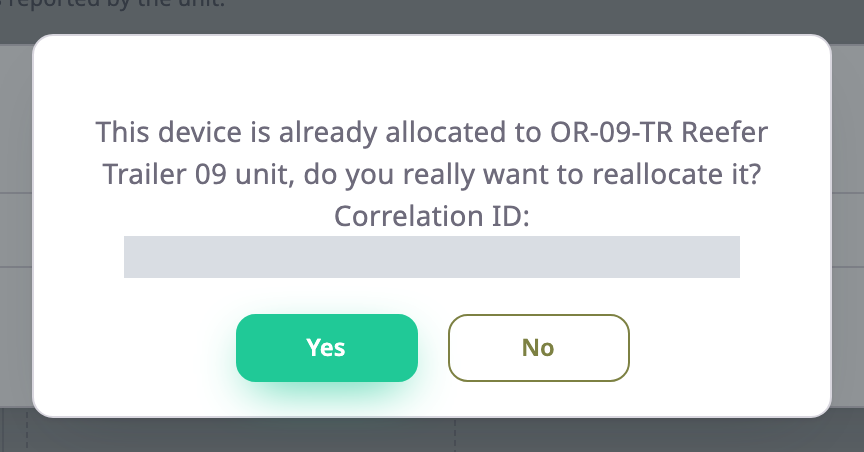
- Select Yes to move it. The app takes the device off the other unit at once, before you save this one. If you then leave without saving, the device is on neither unit.
- Select No to leave it where it is.
The question ends with a correlation ID. Quote it if you contact support@getgps.eu.
¶ Reorder devices
In edit mode, drag a device card to a new position, then select Save. The app keeps the order.
¶ Remove a device
- On the device's card, select the menu button, marked 2 in the first image.
- Select Remove from Unit.
The card disappears. - Select Save.
The device stays in your account and can go on another unit. Its earlier messages stay in the unit's history.
¶ Choose which sensors show
- On the device's card, select the menu button.
- Select Visibility Control.
The Sensors dialog opens. - Drag sensors into the order you want, or turn a sensor's visibility off.
Each change saves at once with the message "Sensor ordering updated successfully". - Select Close.
Select Preview at the top of the screen to check the sensor names and order for the unit you are editing. The unit card on the map shows the sensors in the same order. See Unit card on the map.
¶ What happens next
The unit's Log tab on the map records each device added or removed. See Services and Log tabs. Trips and reports for past days are recalculated for the new set of devices.