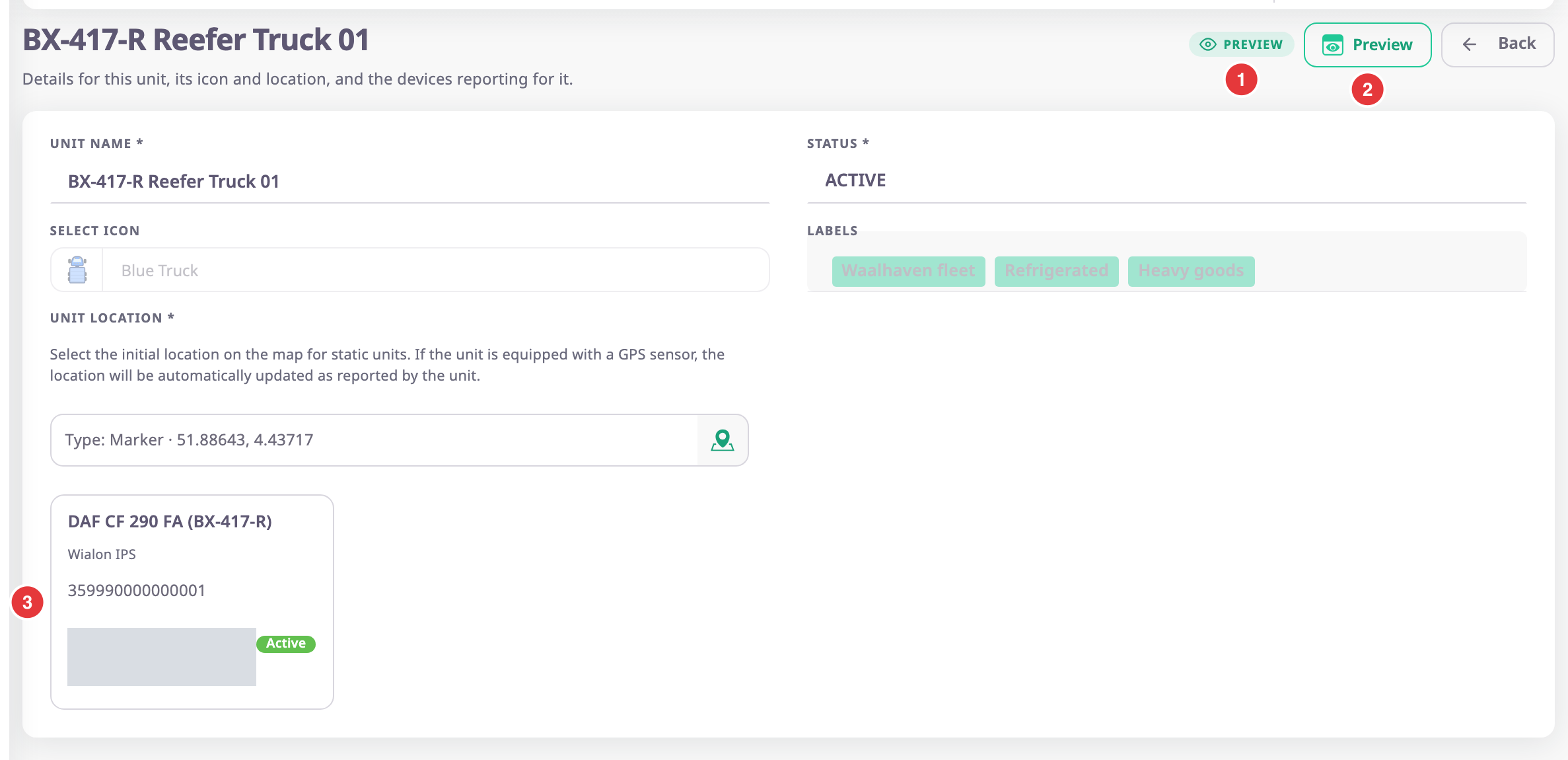
The unit details screen shows one unit: its name, status, icon, groups, starting location and the devices that report for it. To open it, in the side menu, select Units > List View, then select View or Edit on the unit's row.
¶ View and edit modes
The screen opens in one of two modes, depending on the row action you used. The chip at the top right, marked 1, says which.
| Mode | Opened from | What you can do |
|---|---|---|
| Preview | View | Read everything. Fields are locked, device cards have no menu and there is no Save. |
| Editing | Edit | Change the name, status, icon and groups, and add, reorder or remove devices. |
The screen has no switch between the modes. To change mode, go back to the list and select the other action.
¶ Details card
| Field | What it shows |
|---|---|
| Unit Name | The unit's name. |
| Status | The record status: ACTIVE, INACTIVE, DAMAGED or BLOCKED. |
| Select Icon | The icon that represents the unit on the map and in lists. |
| Labels | The groups the unit belongs to. It appears only if your role can read groups. |
| Unit Location | The starting location set when the unit was created, as a marker and coordinates. |
Unit Location stays read-only in both modes. Once the unit's device reports a GPS position, the map uses that position instead. For the limits of each field, see Unit form fields.
¶ Device cards
Each device that reports for the unit has a card, marked 3. It shows the device name, its model, its identifier, when it last reported and the device status, for example ACTIVE.
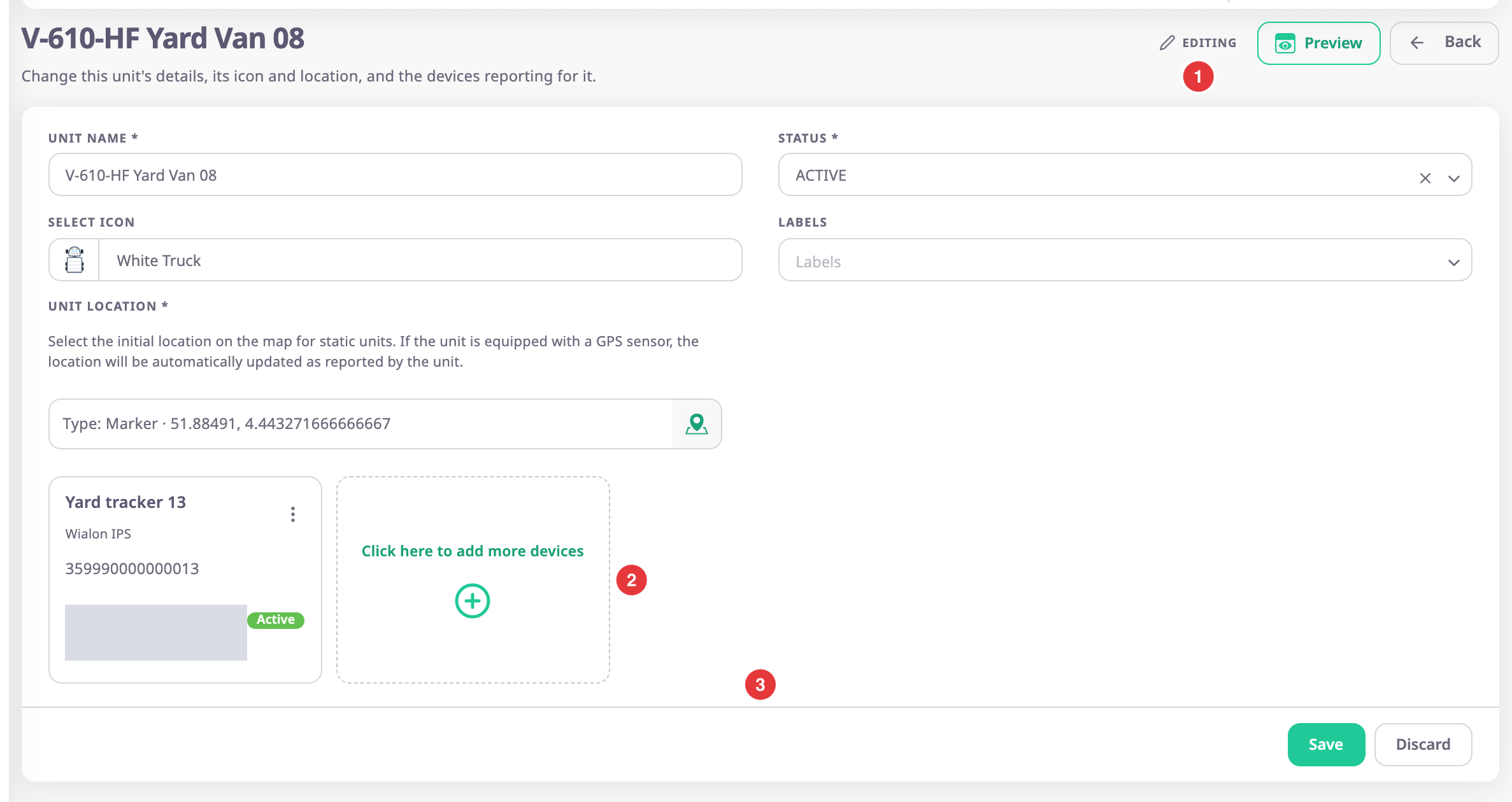
In edit mode, each card has a menu, and an extra card, marked 2, reads "Click here to add more devices". You can drag cards to change their order. The app saves the order with the unit.

| Menu item | What it does | Who sees it |
|---|---|---|
| Edit | Opens the device's settings. | Roles that can edit devices, on devices your account owns |
| Remove from Unit | Takes the device off the unit when you select Save. | Everyone in edit mode |
| Visibility Control | Opens Sensors, where you choose the order and visibility of the device's sensors on the unit card on the map. | Roles with Modify Card Order on devices |
See Add or remove a unit's devices.
¶ Preview
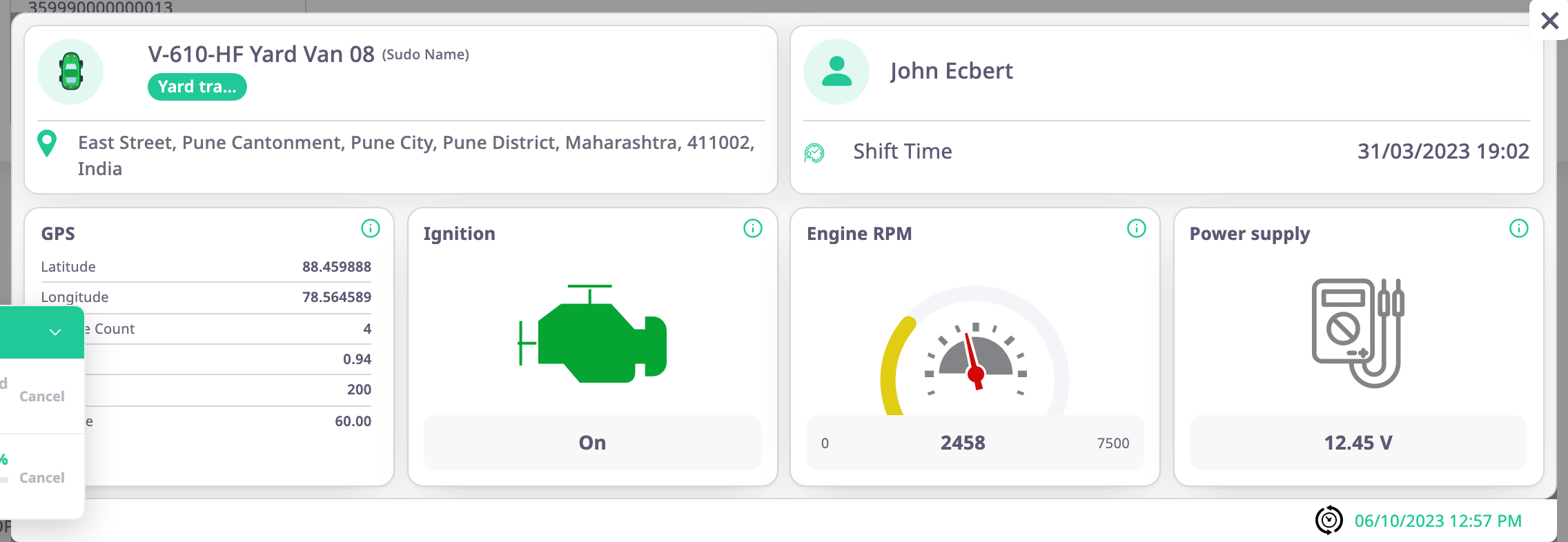
Preview, marked 2 in the first image, opens a sensor panel for the unit you are viewing or editing. It shows the unit name and the latest values of its devices' sensors. Use it to check sensor names and order after you change them.
¶ Edit actions
These buttons appear at the bottom of the screen in edit mode only.
| Action | What happens |
|---|---|
| Unit Allocation | Opens the Unit Allocation dialog. It appears only in dealer accounts, for roles that can edit units. See Unit Allocation dialog. |
| Save | Saves your changes and returns to the units list with the message "Unit updated sucessfully". If you changed nothing, nothing happens. |
| Discard | Puts back the values the screen opened with. |
| Back | Returns to the units list without saving. |
¶ Who can edit a unit
- You need Units with Edit.
- Your account must own the unit, or be above the owner in the account tree. A unit allocated to you by your dealer opens read-only; Edit does not appear on its row.
- If you open the edit address of a unit you cannot edit, the screen shows that you are not authorised.