The Dealers list shows the dealer accounts directly below yours, your sub-dealers. Only dealer accounts have it. To open it, in the side menu, select Accounts > Dealers.
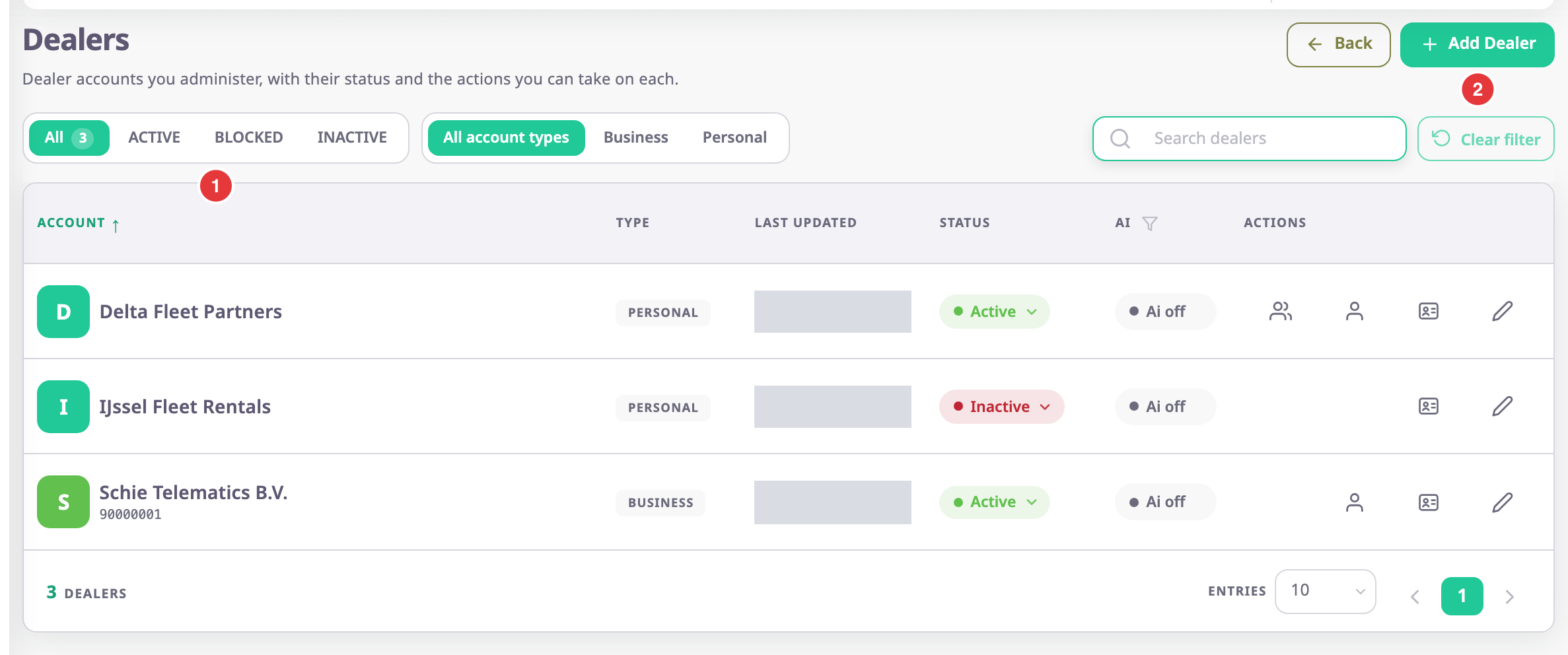
¶ Filters and search
| Control | What it does |
|---|---|
| All, ACTIVE, BLOCKED, INACTIVE (marked 1) | Shows all accounts, or only those with one status. All shows the total. |
| All account types, Business, Personal | Shows all accounts, or only business or personal ones. |
| Search dealers | Shows only accounts whose name contains what you enter. |
| Add Dealer (marked 2) | Opens Add New Dealer Account. See Create a dealer account. |
The status filters work on the page of rows you are looking at. To find an account among many, search for it instead.
¶ Export the list
Export above the list saves the accounts to a file. It takes every account that matches your search and filters, not only the page you see.
- Select Export.
The menu shows how many records go into the file. - Choose Excel (.xlsx) for a spreadsheet, or PDF to open the browser's print dialog, where you choose Save as PDF.
The file has the columns Account, Registration Number, Type, Last updated, Status and AI. An empty value shows as a dash. A file holds at most 10,000 accounts, and a PDF at most 2,000; narrow the filters if you have more.
¶ Columns
| Column | What it shows |
|---|---|
| Account | The account name. Select the header to sort. |
| Type | Business for an account marked Is Legal Entity, otherwise Personal. |
| Last updated | When someone last changed the account. |
| Status | The account's status, as a menu if you may change it. |
| Actions | The row actions below. |
Under the table you choose how many rows a page shows in Entries and move between pages.
¶ Change status from the list
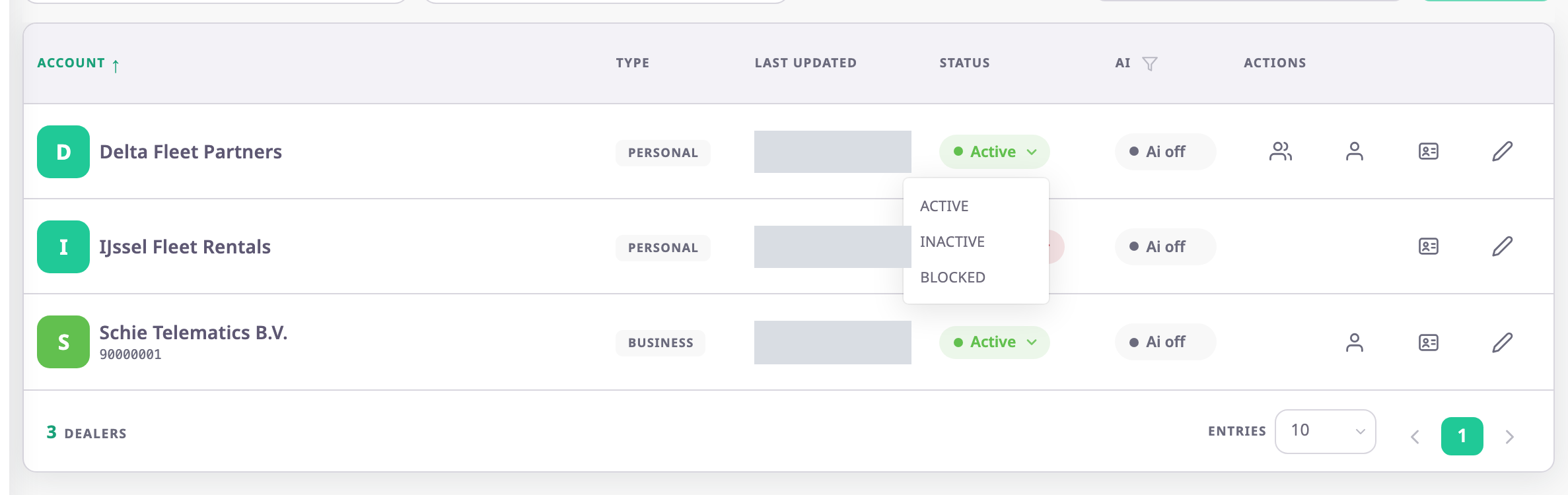
Select the status of a row and choose ACTIVE, INACTIVE or BLOCKED. The app saves it at once, without asking, and shows "Account status updated successfully". What each status does is in The account hierarchy.
¶ Row actions
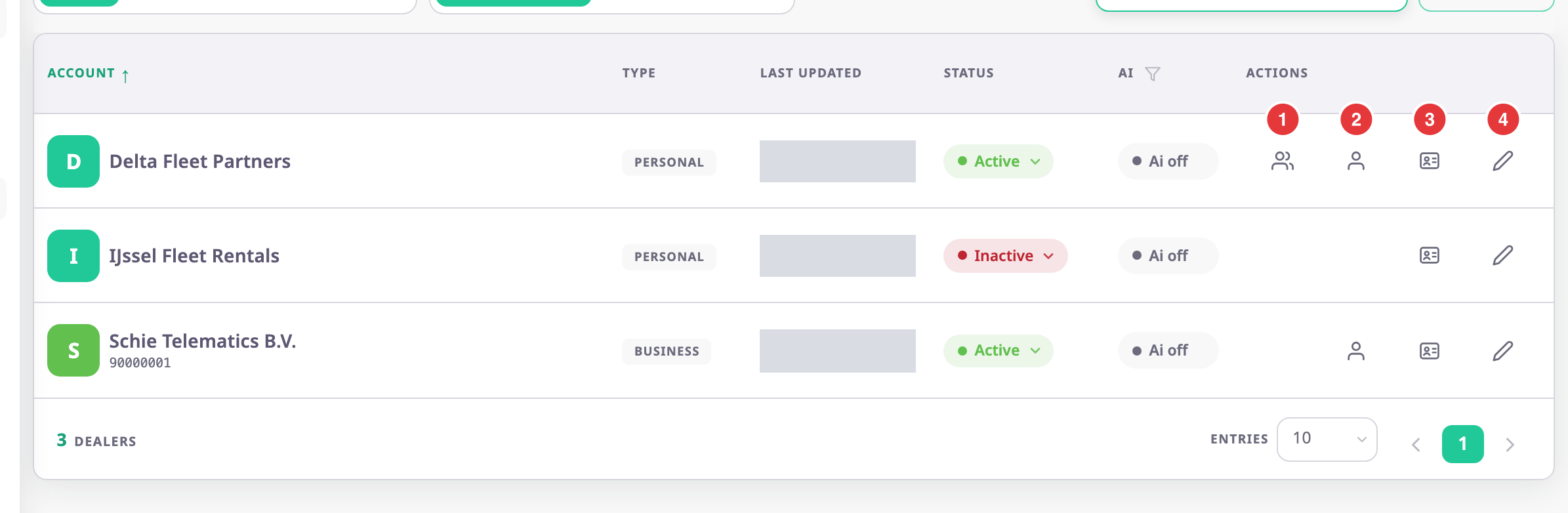
| Action | What happens |
|---|---|
| Manage Sub Accounts (marked 1) | Opens the accounts below that dealer. See Sub-accounts of an account. Shown only for active accounts that are not restricted. |
| Manage Users (marked 2) | Opens the users and invitations of that account. Shown only for active accounts. |
| Login as User (marked 3) | Signs you in as one of the account's users. See Sign in as a user of another account. |
| Edit (marked 4) | Opens the account's edit form. See Dealer account form. |
¶ Permissions
| To | You need |
|---|---|
| See Dealers in the side menu | Show Dealer Menu |
| Add a dealer | Add Dealer Accounts |
| Change status or edit | Update Dealer Accounts |
| Use Manage Sub Accounts | Read Dealer Sub Accounts |
| Use Manage Users | Dealer Account User > Read |
| Use Login as User | Log in as user |
All are in the Accounts and People & access groups of a dealer account's roles. The built-in Owner role has them. See the Permissions reference.