The dealer account form creates a sub-dealer or changes one. Only dealer accounts have it.
- To create a sub-dealer, in the side menu, select Accounts > Dealers. Select Add Dealer. The Add New Dealer Account form opens.
- To change one, select Edit on its row in Dealers or in the Account Tree View. The form's title reads "Update Dealer Accounts".
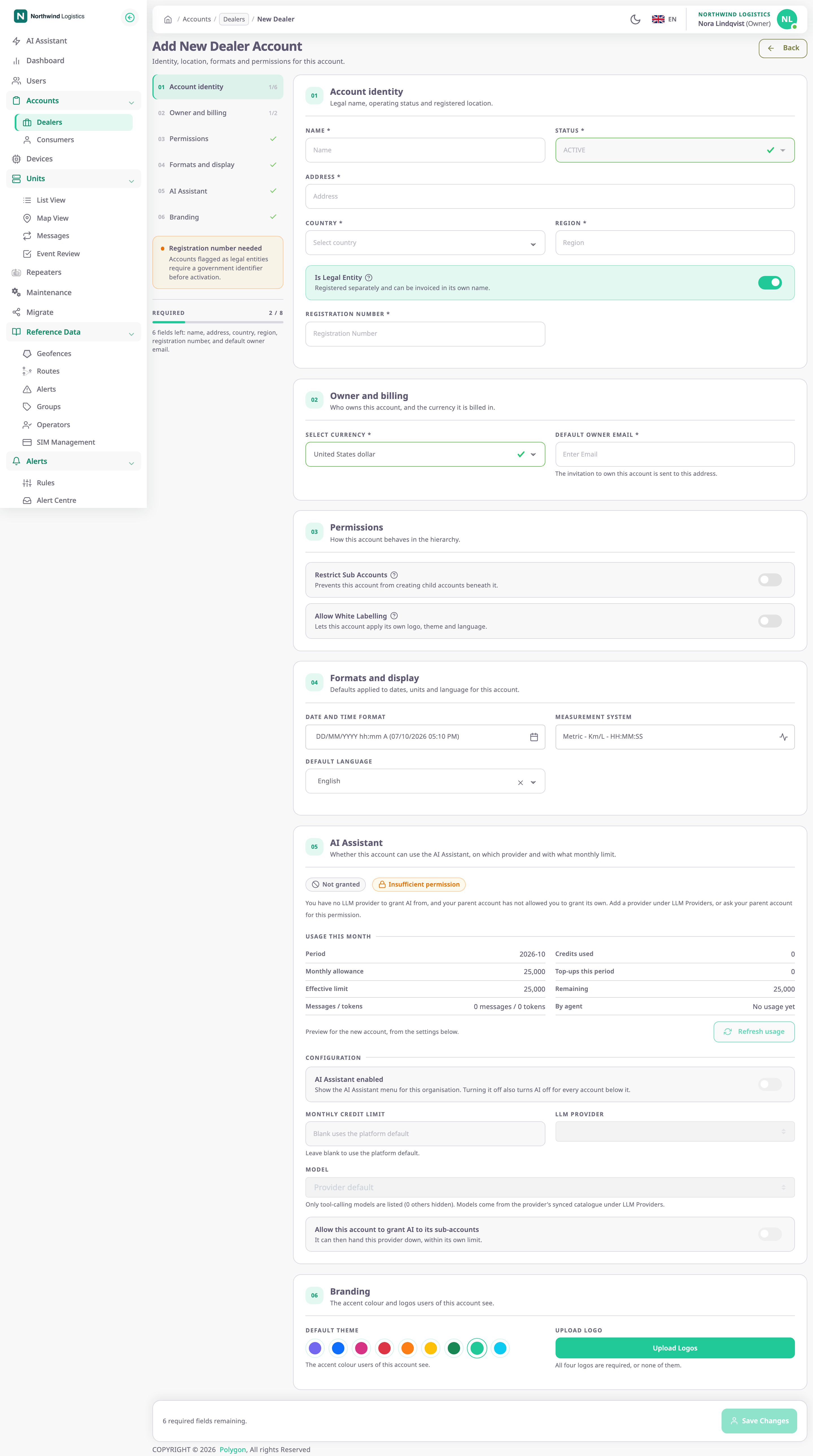
The rail on the left lists the sections and counts the required fields in each. Under it, Required shows how many required fields you have filled and names the ones still missing. A note appears while Is Legal Entity is on and Registration Number is empty.
¶ Fields
| Field | Required | What it does | Allowed values / example | Notes |
|---|---|---|---|---|
| Name | Yes | The account's name in every list, the account tree and the account picker at sign-in. | Up to 50 characters; a new account needs at least 3. Example: Waalhaven Haulage | A new account needs a name no other dealer account has, ignoring capitals. |
| Status | Yes | Whether the account's users can work. | ACTIVE, INACTIVE, BLOCKED | A new account is always ACTIVE, and you cannot change the field. You can change it on the edit form. |
| Address | Yes | The account's postal address. | Up to 80 characters; a new account needs at least 5. Example: Waalhaven Zuidzijde 12, Rotterdam | — |
| Country | Yes | The country of the account's registered address. | A country from the list. Example: Netherlands | — |
| Region | Yes | The state, province or region. | Up to 30 characters; a new account needs at least 3. Example: Zuid-Holland | — |
| Registration Number | Conditional | The company registration number. | Up to 30 characters, no spaces. Example: NL24681357 | Required and editable only while Is Legal Entity is on. No other account may have the same number. |
| Select Currency | Yes | The currency of the account's bills. | A currency from the list | Create only. Starts as United States dollar. |
| Default Owner Email | Yes | Receives the invitation to become the new account's Owner. | A valid email address of 5 to 30 characters. Example: owner@waalhaven.example.com | Create only. The app saves it in lower case. The form accepts longer addresses, but saving fails above 30 characters. |
| Restrict Sub Accounts | No | Stops the account from creating accounts below it, and hides Dealers and Consumers from its users. | On or off | Off by default. |
| Is Legal Entity | No | Marks the account as a registered business. Lists then show it as Business. | On or off | On by default for a new account. While it is on, you must fill in Registration Number. |
| Allow White Labelling | No | Lets the account set its own theme, logos and default language, and pass that on to its own accounts. | On or off | Shown only when your own account may white-label. Off by default. |
| Date and Time Format | No | How dates and times show for the account's users, and its time zone. | A date and time format from the list, or a custom one, and a time zone. Example: DD/MM/YYYY hh:mm A | Opens the Date/Time Format dialog. See Set the date, time and unit formats. |
| Measurement System | No | The units for distance, fuel, fuel economy and engine hours. | Metric, Imperial or US Customary, with a mileage unit and an engine hours format. Example: Metric - Km/L - HH:MM:SS | Opens the Measurement System Configuration dialog. |
| Default Language | Yes | The language the app uses for the account's users until they choose one. | A language the app offers. Example: English | Shown only when your own account may white-label. |
| Default Theme | No | The accent colour the account's users see. | Purple, Blue, Pink, Red, Orange, Yellow, Green, Teal or Cyan | Branding section, shown only when your own account may white-label. |
| Upload Logo | No | The four logos in the side menu: light and dark mode, menu open and menu closed. | Four PNG or JPG files under 2 MB each, or none | Four slots show what is uploaded and a count, such as "2 of 4 uploaded". A slot or Upload Logos opens the upload dialog; Remove all clears them. You cannot save with only some of the four. |
¶ Logos
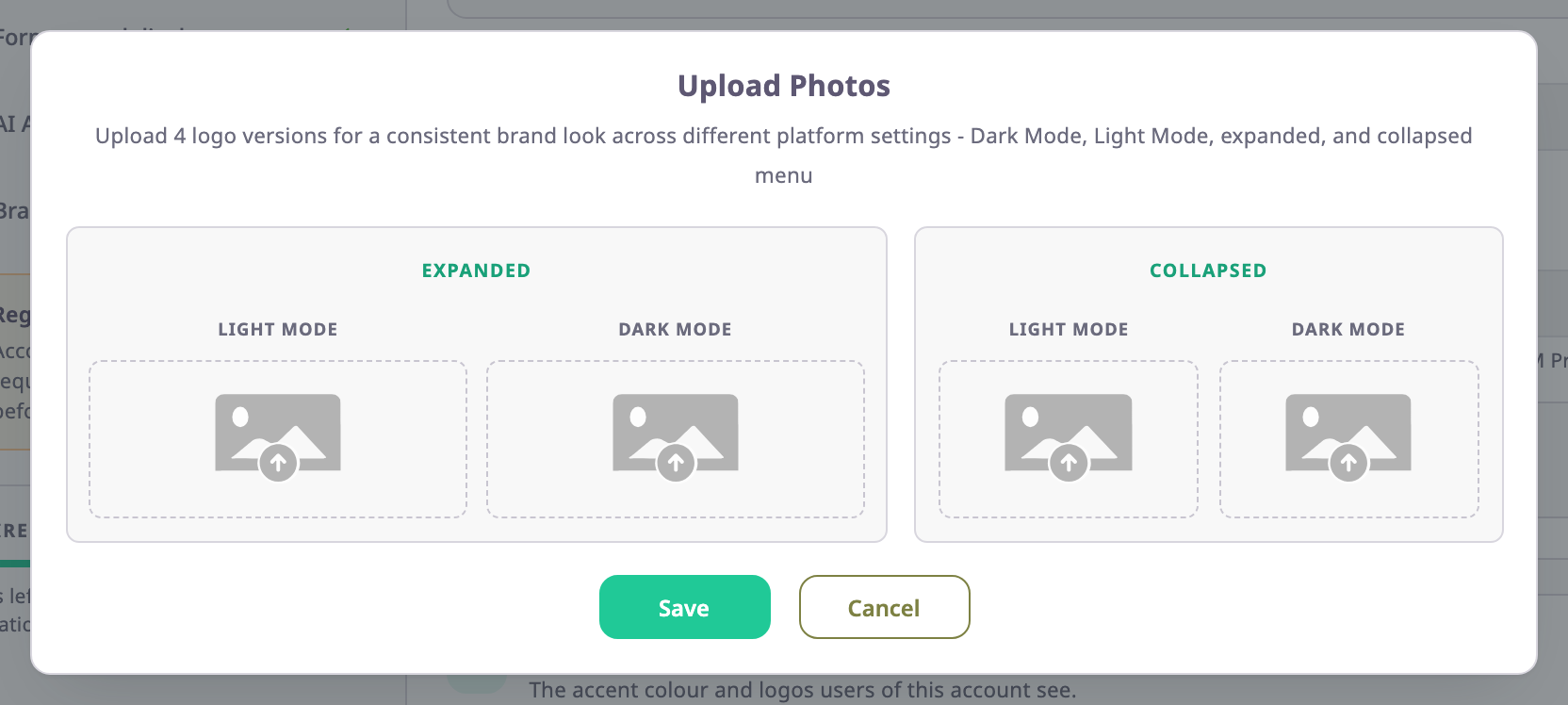
The Upload Photos dialog has four slots, each in light and dark mode. The expanded logo shows in the open menu, the collapsed logo in the closed menu. After you choose a file, you crop it. Expanded logos get a wide 135 by 35 shape; collapsed logos get a square. Select Save to keep the four logos, or Cancel.
¶ Create versus edit
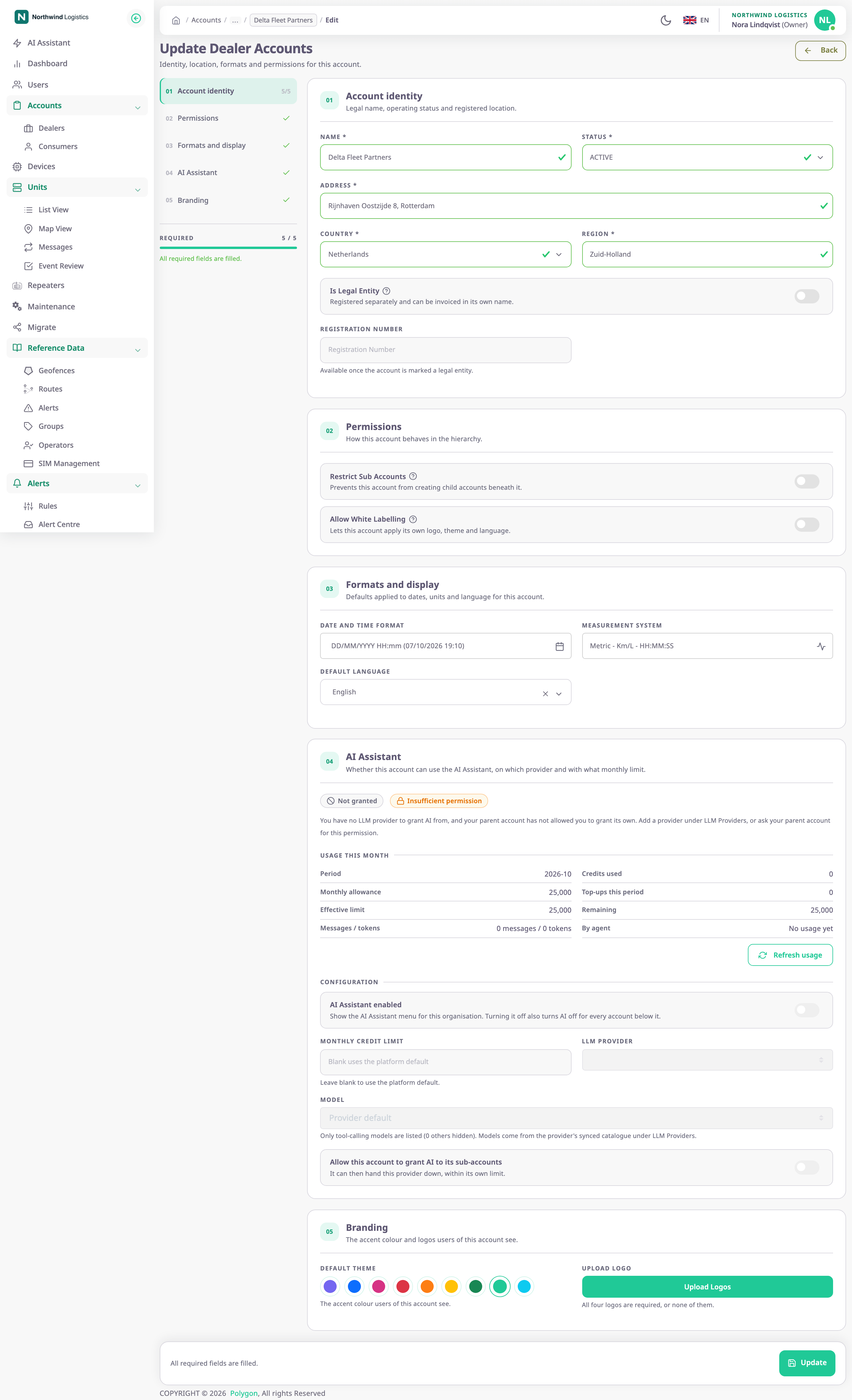
| Item | Add New Dealer Account | Update Dealer Accounts |
|---|---|---|
| Status | Locked to ACTIVE | Editable |
| Owner and billing section | Shown | Not shown |
| Map section | Shown: choose base maps and enter map provider keys | Shown as the Map tab |
| Unit Custom Fields | Not shown | Shown as a tab |
| Driver chat | Not shown | Shown as a tab, for dealers whose licence includes messaging |
| Layout | One long form with a rail of sections on the left | One section at a time, with a tab strip at the top |
| Save button | Save Changes | Update |
| After saving | The app shows "Dealer created successfully", opens the Dealers list and emails the owner invitation. | The app shows "Account Update Successfully" and returns to where you came from. |
The Map, Unit Custom Fields and Driver chat sections work as on Account Settings. See Account Settings and Set up driver chat for an account.
The same form, on the route /child/sub-account/update, edits an account two levels down: a sub-dealer of one of your sub-dealers.
¶ Buttons and actions
| Action | What happens |
|---|---|
| Save Changes | Creates the account. Unavailable until every required field is valid, the registration number is there when needed and the logos are all or none. |
| Update | Saves the changes to an existing account. Same conditions. |
| Back | Leaves the form without saving. |
If the server refuses the account, a message names the reason, for example "This account already exists." or "Registration Number must be unique.".
¶ Permissions
- Add Dealer and this form need Add Dealer Accounts; for an account below a sub-dealer, Add Dealer Sub Accounts.
- Edit needs Update Dealer Accounts, or Update Dealer Sub Accounts one level further down.
- Allow White Labelling, Default Language and the Branding section show only if your own account may white-label.
- The built-in Owner role has these permissions.