Update a customer's address or formats, or stop anyone from using an account, for example when a customer stops paying. You do both from the account lists.
¶ Before you start
- You work with accounts below yours. Your own account's details are in Account Settings; you cannot change your own status.
- For a consumer you need Update Consumer Accounts; for a sub-dealer, Update Dealer Accounts. The built-in Owner role has both.
- A status change takes effect at once and the app does not ask you to confirm it. Check the row before you choose.
¶ Edit an account's details
-
In the side menu, select Accounts > Consumers, or Accounts > Dealers for a sub-dealer.
-
On the account's row, select Edit, marked 1.
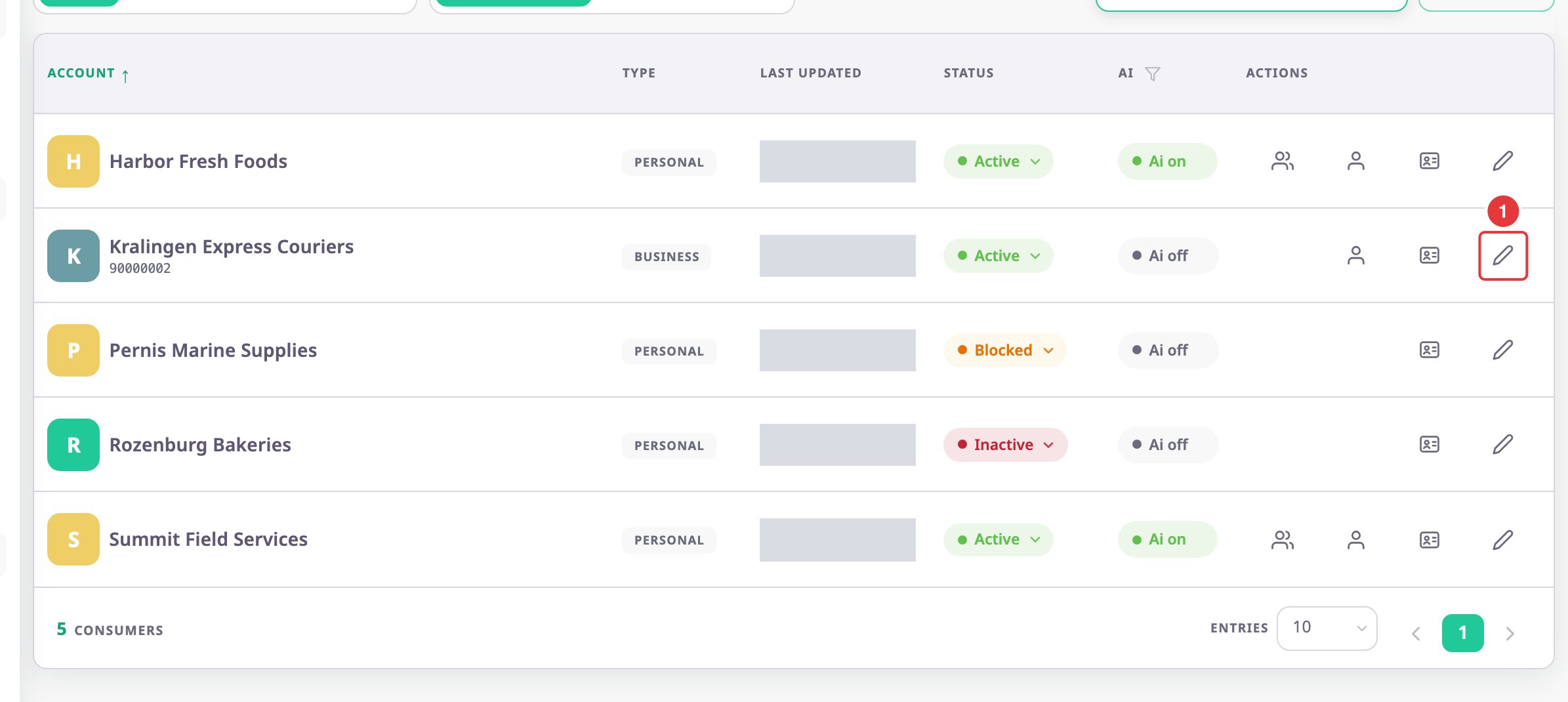
The account's edit form opens. It shows one section at a time.
-
Select the tab of the section you want to change, such as Account identity or Formats and display.
-
Change the fields you need.
-
Select Update.
The app shows "Account Update Successfully" and returns to the list.
Every field is in the Consumer account form or Dealer account form reference. You cannot change the owner email or the billing currency after creation.
¶ Change an account's status
-
In the side menu, select Accounts > Consumers, or Accounts > Dealers.
-
On the account's row, select its status.
A menu opens.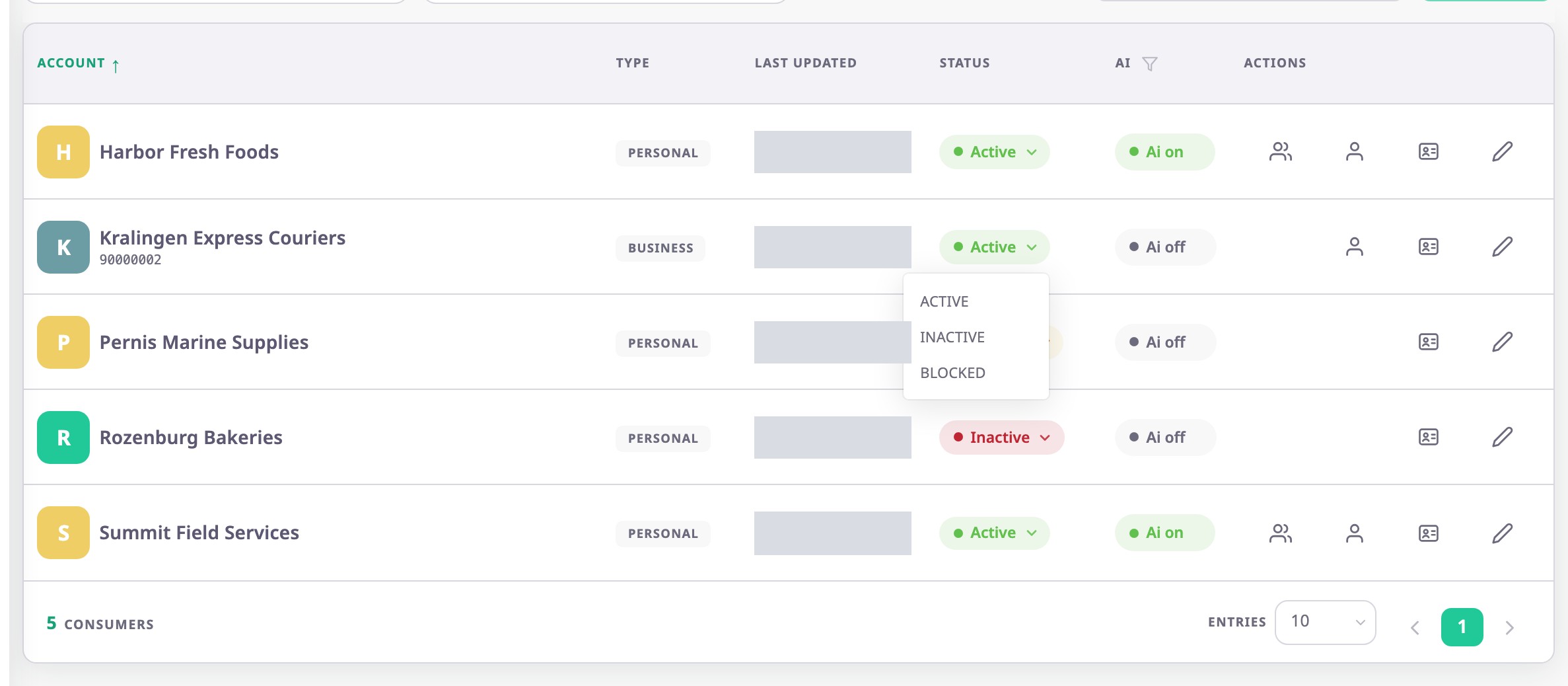
-
Choose INACTIVE or BLOCKED.
The app shows "Account status updated successfully". The row shows the new status.
You can also change the status in the Account Tree View or on the account's edit form, in Status.
¶ What the stopped statuses do
| INACTIVE | BLOCKED | |
|---|---|---|
| Users of the account | Cannot work in it. The account leaves their account picker at sign-in. | The same. |
| Users of its sub-accounts | Cannot work either. The app refuses them with an "Account Inactive" message. | The same. |
| Data, units and settings | Stay as they are. | The same. |
| Row in your lists | Stays, with the new status. Manage Users and Manage Sub Accounts disappear until you reactivate it. | The same. |
The app treats the two the same way today. Use whichever matches your reason, so your colleagues can tell why.
¶ Reactivate an account
- Find the account in Consumers or Dealers. To see only stopped accounts, select INACTIVE or BLOCKED at the top.
- Select its status.
- Choose ACTIVE.
The app shows "Account status updated successfully". The account's users can sign in again.