Devices or units? This page is about units, the vehicles and assets on the map. To move the tracking hardware on its own, see Allocate a device to another account. For the difference, see Devices and units.
Allocate a unit when a vehicle moves to a customer, a depot or a sub-account, or when another operator takes it over. The account you choose then sees the unit, its trips and its reports.
¶ Before you start
- You need Units with Edit. The Owner role has it.
- The target account must be your account or one below it. See Sub-accounts.
- To assign an operator, the operator must exist in the target account.
- Decide whether the new account should see the unit's history. See Transfer options.
¶ Open the allocation dialog
-
In the side menu, select Units > List View.
-
On the unit's row, select Allocation.
The Unit Allocation dialog opens with the current account and operator.
¶ Choose the account and operator
-
In Unit Reallocate To, choose the account.
To reach an account below another one, select the plus sign next to the parent account.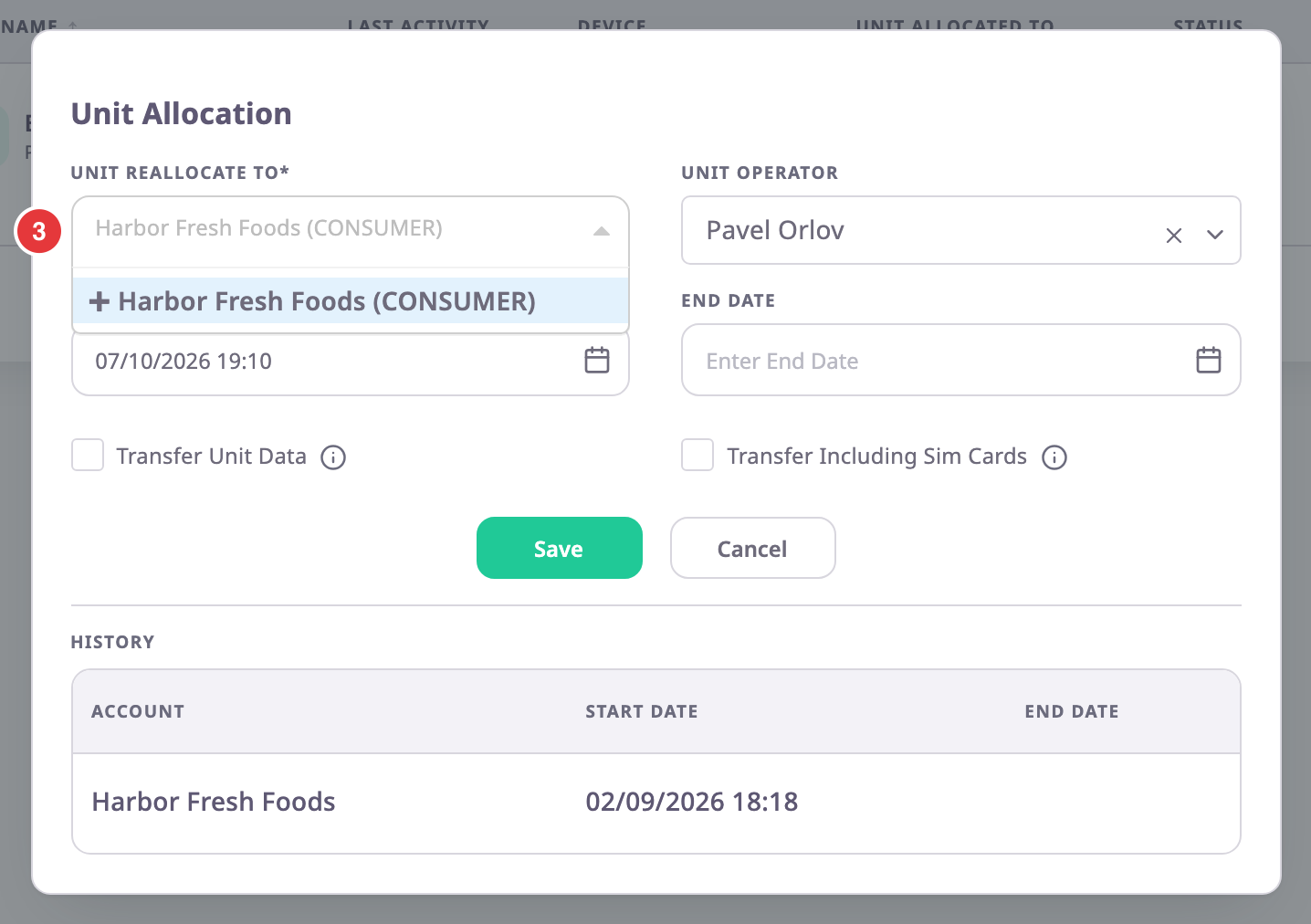
-
Optional: in Unit Operator, choose the operator.
¶ Set the period
- In Start Date, choose when the allocation starts. It is now unless you change it.
- Optional: in End Date, choose when the allocation ends.
¶ Transfer data and SIM cards
- Optional: select Transfer Unit Data to move the unit's history with it.
- Optional: select Transfer Including Sim Cards to move the SIM cards too.
¶ Save
- Select Save.
The message "Unit reallocated sucessfully" appears.
If the unit is in use by another account, a question names both accounts. Select Yes to end the current allocation and start yours, or No to keep it.
You can also start from the map. On the unit's row in the unit list, select More, then Allocate. The More button on the unit card opens the same menu. The menu has no Allocate for an archived unit, or when your account has restricted sub-accounts. See Unit list and Unit card on the map.
¶ Allocate several units at once
To move many units to the same account, select them in the units list, then select Allocation in the bar above the list. The dialog asks for the account, the dates and the transfer options once, and a confirmation states how many units move. It has no Unit Operator. See Act on many units at once and Unit Allocation dialog.
¶ What happens next
- The new account sees the unit from the start date. The previous account's allocation ends; in its units list the row shows an archive icon.
- Without Transfer Unit Data, the new account gets its own copy of the unit, and its history starts at the start date.
- The devices on the unit move to the new account. With Transfer Including Sim Cards, their SIM cards move too.
- The unit's Log tab on the map records the reallocation, and trips and reports are recalculated. See Services and Log tabs.