A maintenance reminder only sets a date or a reading. To hear about it, you need an alert rule built on the Service reminder template. The rule watches the reminders of its units and opens an incident at each notice stage.
¶ Before you start
- You need Alert Rules with Add to create the rule, and Maintainance to see the reminders. The Owner role has both.
- At least one reminder exists for the units you want to watch. See Create a maintenance reminder.
- Know how alert rules work. See Create an alert rule.
¶ How the notice stages work
A reminder passes through four stages, in this order:
| Stage | When it starts |
|---|---|
| First reminder | The First reminder time before the due date, for example seven days before. |
| Second reminder | The Second reminder time before the due date, for example one day before. |
| When due | A threshold is reached. |
| When overdue | The due time has passed and the service is still not recorded. |
The rule's Notify from field picks the first stage that raises an incident. Every later stage raises one too. The rule opens one incident per reminder, per stage, per service cycle.
¶ Set the first and second reminder
These two values decide when the first two stages start.
- In the side menu, select Maintenance.
- Select Add reminder, or select Edit on a reminder.
- In First reminder, choose how long before the due date the first stage starts.
- In Second reminder, choose the second time.
- Select Save Changes, or Update reminder when you edit.
If you leave both lists empty, the reminder uses the account default. The gear button on the list sets that default.

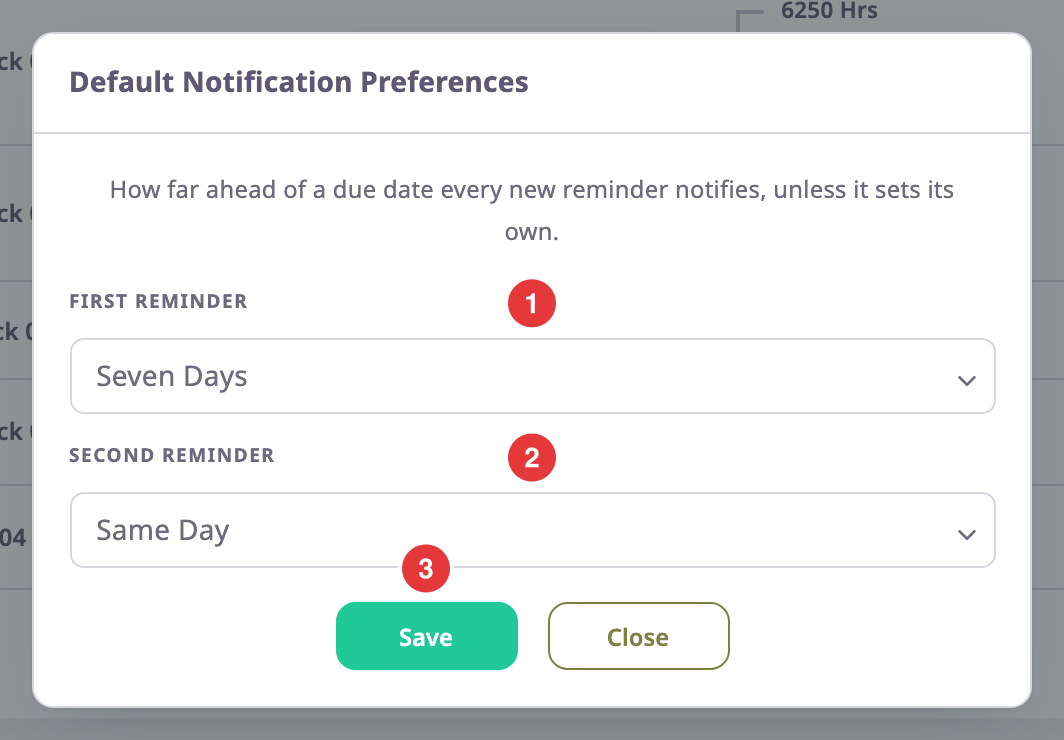
See Maintenance reminders list.
¶ Create the rule when you save a reminder
After you save a reminder for one unit, the app checks your enabled Service reminder rules.
- If one covers the unit, the dialog "Notifications are on for this unit" names it. You need no new rule.
- If none does, the dialog "Get notified about this service?" opens.
- Select Set up notification.
A new rule opens on the Service reminder template. It applies to the unit, notifies you, and is named after the unit, for example Service reminders: BX-418-R Reefer Truck 02. - Optional: in Notify from, choose a later stage.
- In the Actions section, check the channels you want.
- Select Save rule.
The rules list opens with the new rule, switched on.
After you create reminders for several units, the Result panel also offers Set up notification. It opens the same rule for every unit that got a reminder.
¶ Create the rule yourself
Use this to cover groups or all units with one rule.
-
In the side menu, select Alerts > Rules.
-
Select Add rule.
An empty rule form opens. -
In Name, enter Service due.
-
In Template, enter service.
-
Choose Service reminder.
The Condition section shows Notify from, set to First reminder.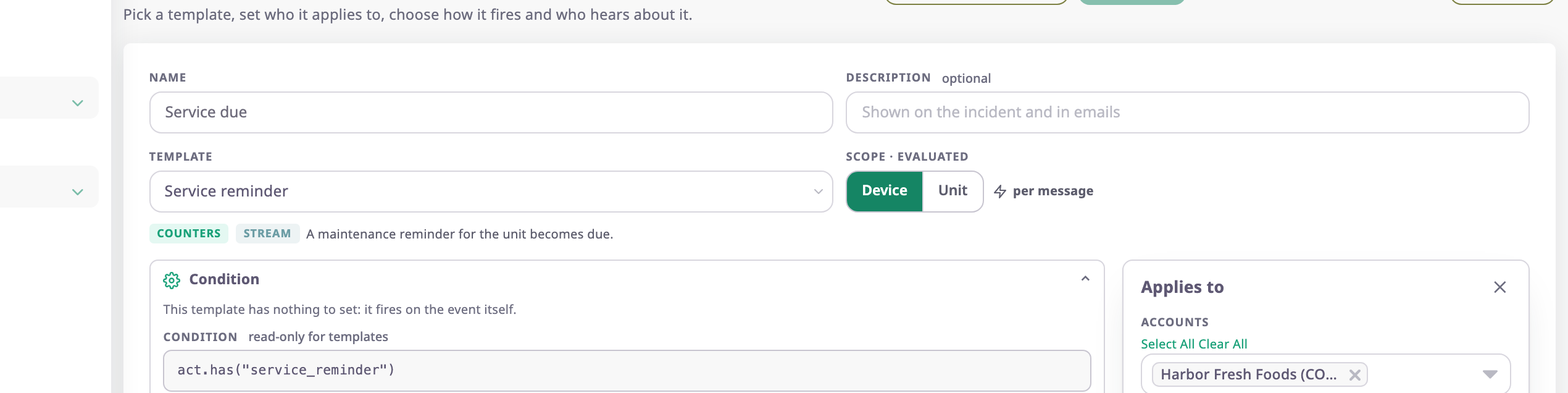
-
Optional: in Notify from, choose Second reminder, When due or When overdue.
-
In the Applies to panel, choose the units or groups to watch, or turn on All units, including ones added later.
-
In the Actions section, check the channels you want.
-
In Notify, choose who hears about it.
-
Select Save rule.
The rules list opens with the new rule, switched on.
The template's severity is info, and it cannot send device commands. See Alert rule template catalogue and Create an alert rule.
¶ See due services in the Alert Centre
-
In the side menu, select Alerts > Alert Centre.
The open incidents show first. -
Find the row named after your rule, for example Service due. Cleared incidents are under History.

-
Select the row to open the incident. See Incident details.
Acknowledge and resolve the incident as for any other. See Handle incidents.
¶ What happens next
- Recording the service starts a new service cycle. The next cycle's stages raise new incidents.
- Recording the service does not close an open incident. Resolve it yourself.