Devices or units? This page sends a command from the map to the device inside a unit, the tracking hardware. To set up which commands a device accepts, see Devices. For the difference, see Devices and units.
Send a command when you need a device to do something now, for example report its settings or restart. You pick the unit on the map, write or pick the command, confirm it, and watch its status in the unit's command log.
¶ Before you start
- To send commands, you need Execute Command on Devices. To see the command log, you need Execute Command Log History on Devices. Either one opens the view. The Owner role has both.
- The unit needs a device. Without one, the view reads "No device attached".
- A device receives a command the next time it connects to the server. A device that is off or out of coverage keeps the command waiting.
¶ Open the commands view
-
In the side menu, select Units > Tracking.
-
In the unit list, point at the row of the unit and select More.
The unit menu opens. -
Under Actions, choose Send command, marked 3.
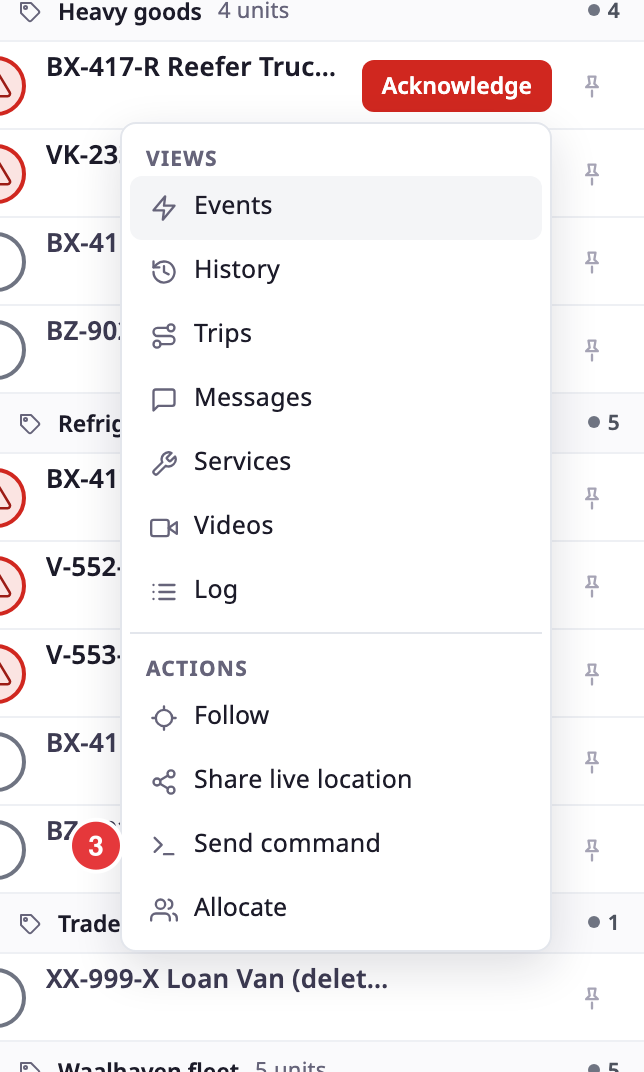
The Device commands view replaces the unit list. On a phone, it fills the screen.
You can also open it from the unit card. On a computer, select the command button at the end of the card's buttons. On a phone, select Command.
The view names the unit's device, with its model and IMEI. If the unit has several devices, a Device list shows them, with the main one first and marked Primary. Choose the device that should receive the command.
¶ Send a custom command
-
In Command, marked 4, keep Custom.
-
In Command text, marked 5, enter the exact text the device should receive, for example getinfo.
A counter under the field shows how many of the 500 characters you used.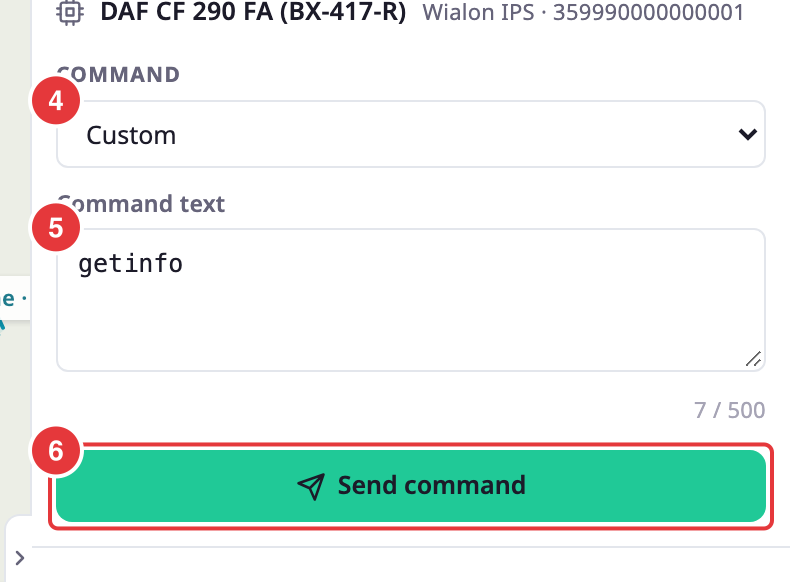
-
Select Send command, marked 6.
The form asks "Send this command?" and shows the device and the command text.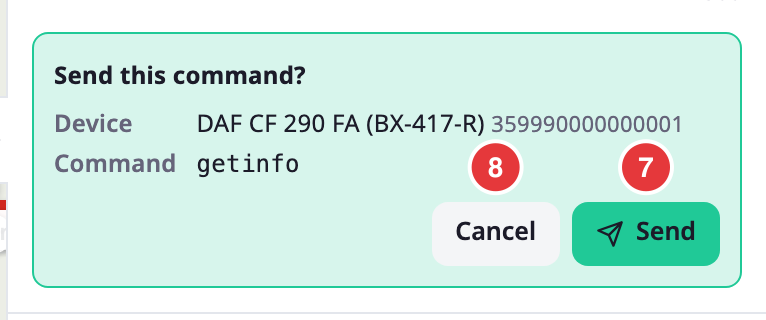
-
Select Send, marked 7.
A message reads "Command queued". The command appears at the top of the log, and a line under the form follows its status.
To change the text first, select Cancel, marked 8. The command text must not be empty: the form says "Enter the command text." and Send command stays unavailable.
¶ Send a saved command
A device can carry saved commands, set up on the device. They follow Custom in the Command list.
-
In Command, choose the saved command.
For a saved custom command, the form shows Sends and the text it sends, marked 1. For other commands, it shows their settings, which you can change.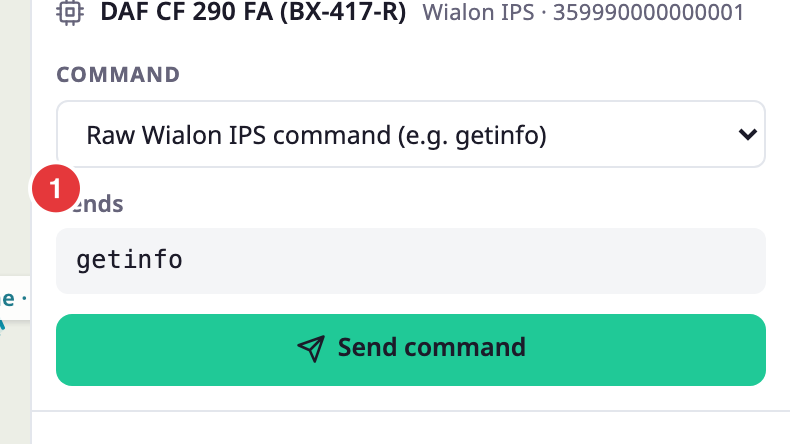
-
Select Send command.
-
Select Send.
If a saved command has no text, the form says "This saved command has no text to send." If it is turned off for the device, it says "This command is turned off for this device." You cannot send either one.
¶ Fields
| Field | Required | What it does | Allowed values / example | Notes |
|---|---|---|---|---|
| Device | Yes | Picks the device of the unit that receives the command. | One of the unit's devices | Shows only when the unit has more than one device. The first is marked Primary. |
| Command | Yes | Picks what to send. | Custom, then each saved command of the device | Starts on Custom. |
| Command text | Conditional | The exact text the device receives. | 1-500 characters. Example: getinfo | Shows only for Custom. The app drops spaces at the start and end. Ctrl+Enter (Cmd+Enter on a Mac) opens the confirmation. |
¶ Follow the command log
Under the form, Sent commands lists the commands sent to the device, newest first, with their count. A command you send joins the top of the list at once.
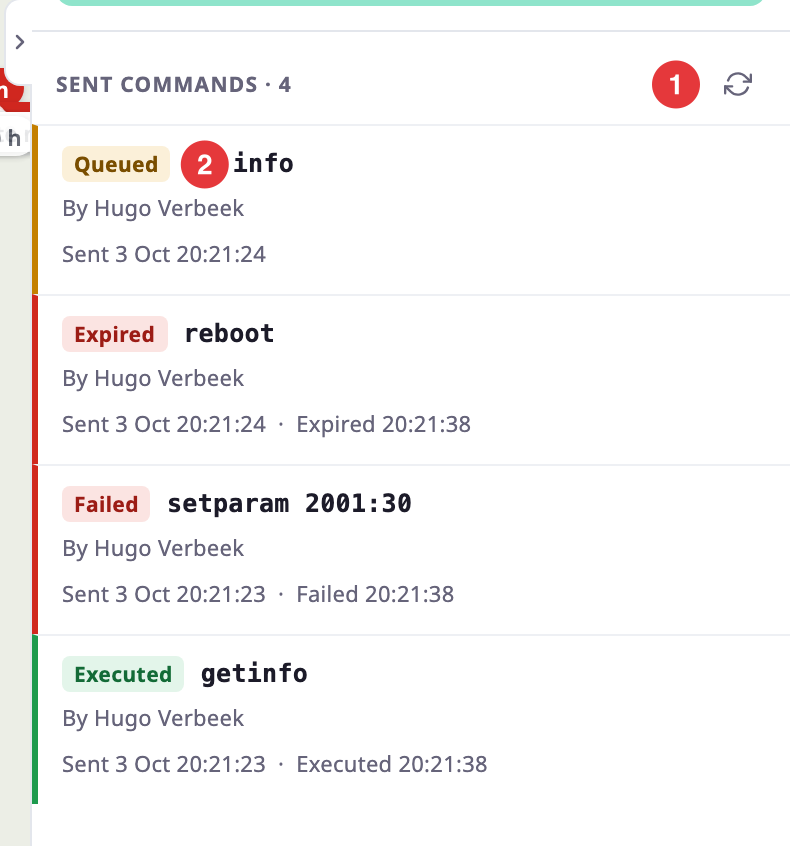
Each row shows:
- The status badge, marked 2, and the command text. For a saved command, the command name shows under the text.
- Why it ended that way, when the server gives a reason, for example "The device did not reply in time". The device's own words follow the reason when it sent any.
- Who sent it: "By" and the user's name, "By administrator", "Via the API" or "By the system". A command from an alert rule reads "By alert rule", with a link to the rule or its incident. When the unit has several devices, the device name follows.
- The times of each step: Created, Sent to device, Device replied and Completed, in your account's time format.
- The Device reply, as plain text. A binary reply shows as hex, marked HEX. A long reply shows its start; select Show the whole reply to read the rest. The app keeps the first 16 KB of a reply.
| Status | Meaning |
|---|---|
| Queued | Waiting for the device to connect. |
| Sent | Delivered, waiting for the device to confirm. |
| Accepted | The device confirmed it. |
| Sent, not confirmed | Delivered. This device does not confirm commands. |
| Rejected | The device refused it. |
| No reply | Delivered, but the device did not reply in time. |
| Expired | The device did not connect before the command expired. |
| Failed | The device did not run it, for example after several attempts. |
Under the form, a line says what happened to the command you sent last, for example "Waiting for the device to connect."
Statuses change on their own: the app receives each change as it happens. If that connection drops, the app reads the waiting commands again every few seconds and shows "Updating". Select the refresh button, marked 1, to read the log again yourself. Scroll down, or select Show older commands, to load older rows.
If the log is empty, it reads "No commands sent yet". If it cannot load, it shows the server's message or "Could not load the command log." with Retry.
The same statuses and replies show under Devices, in the device's command log. See Command log of a device.
¶ What happens next
The server keeps the command until the device connects, then sends it. The log shows each change as it happens. A role without Execute Command sees the log. In place of the form, a note reads "You can see the log but not send commands: that needs the Execute command right on devices."
A role without Execute Command Log History sees "The command log needs the Command history right on devices." instead of the log.
To leave the view, select Back at its top left. You return to where you opened it.