With a card or tag reader, a driver presents their card and the unit knows who is driving. No one assigns the driver by hand.
¶ Before you start
- The device must report the card's code, and be fitted to the unit. A dealer or a user who can edit devices adds the sensor.
- Every driver needs an operator with an Operator Code. See Add an operator.
¶ Give each operator the code on their card
- In the side menu, select Reference Data > Operators.
- In the operator's row, select the pencil icon.
- In Operator Code, enter the exact code the reader sends for that card, such as HF-D01.
- Select Update Operators.
The match is exact and sits inside the unit's account: the operator and the unit must belong to the same account.
¶ Add the Operator Assignment sensor to the device
- Open the device and select its Sensors tab. See Sensors tab.
- Add a sensor of the type OPERATOR_ASSIGNMENT. Name it, for example, Driver card.
- In Mode, choose how the reader works (see the next section).
- In Associate Code, enter the device parameter that carries the card code, such as {ibutton}. Select Choose to pick it from the device's last message.
- Optional: in Removal Codes, enter the codes that mean "no driver", separated by commas. The word empty stands for an empty code.
- Select Save.
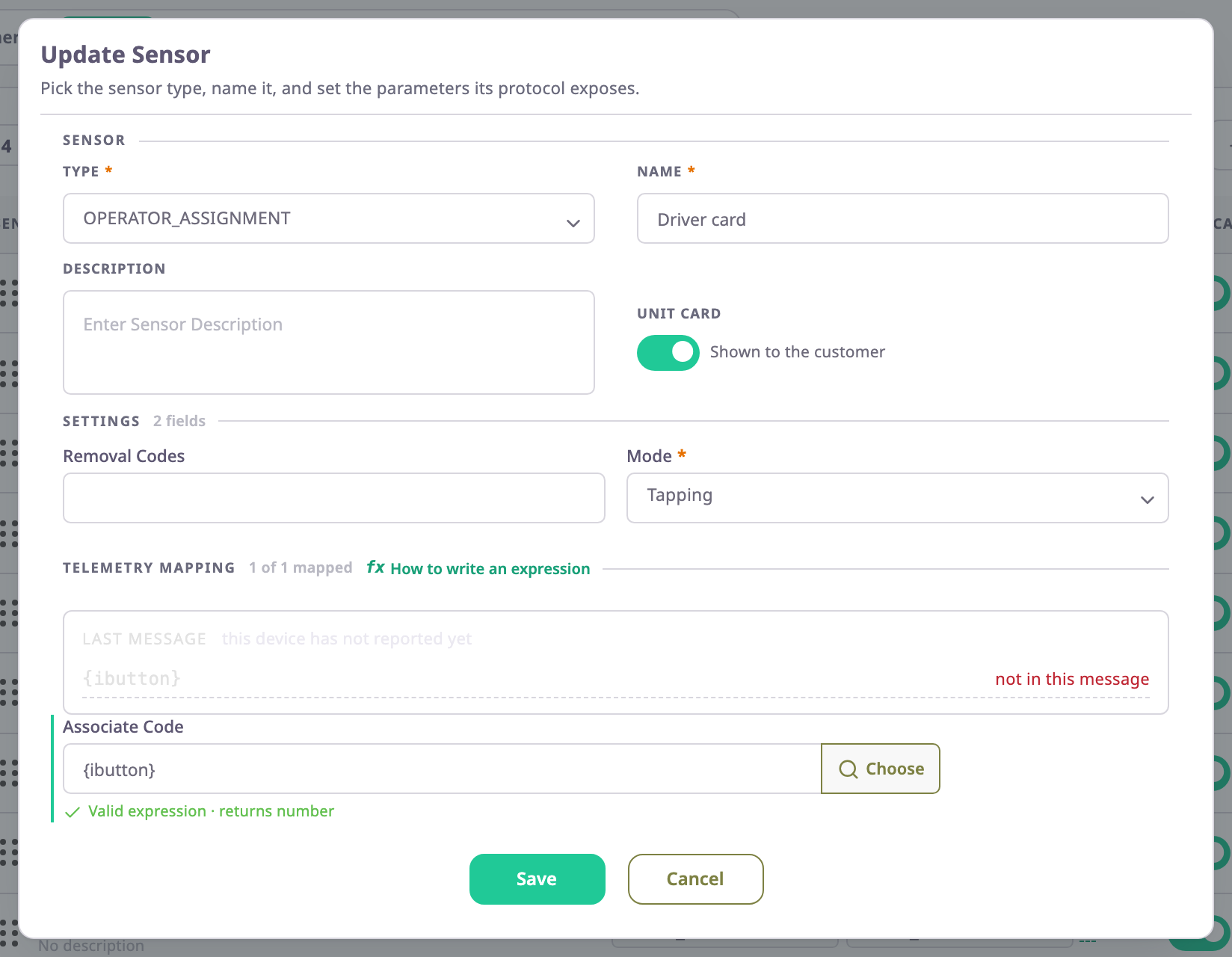
Which parameter carries the code depends on the device and its protocol. Choose lists the parameters of the device's last message. See Sensor form and Sensor types.
¶ What happens when a driver taps in and out
| Mode | What the unit does |
|---|---|
| Tapping | A card presented to the reader assigns that operator. Presenting the same card again removes them. A different card replaces the driver. A code of 0 or an empty code is ignored. |
| Constantly Inserted | The card stays in the reader. A code assigns the operator. A removal code, or an empty one if you listed it, unassigns them. |
The assignment starts at the time of the device's message and has no end date until the driver taps out or someone else takes over. If the code matches no operator of the account, nothing changes.
¶ Check the result
- In the operators list, the Linked Unit column shows the unit and Unit Allocated Since.
- In the operator's form, the Allocated units table has the new row.
- The report Driver assignments lists the periods. The Driver assigned and Driver unassigned alert templates can notify you.
¶ If the driver is not recognised
- Compare the code in the operator with the value in the device's last message. A difference of one character, or a different format, is no match.
- Check that the device is fitted to a unit and that the unit is in the account that holds the operator.
- In the sensor dialog, Associate Code shows "not in this message" when the device's last message does not carry that parameter.
- Check Mode: a Tapping sensor ignores a code of 0.