Create a template when no existing one answers your question, or when one is close but needs other columns. The quickest start is a copy of a template that already works.
¶ Before you start
- You need the Add template action of Reports. The Owner role has it.
- You can use only the data sources your role has a permission for. A role with only Trips & parkings, for example, sees only Trips, Parkings and Stops among the tracking data.
- To share the template with your whole account you need the Owner role. Anyone else saves to My templates.
¶ Start from a copy
-
In the side menu, select Reports > Create Report.
-
On the card of the template to start from, select the menu (three dots).
-
Select Save a copy, marked 3.
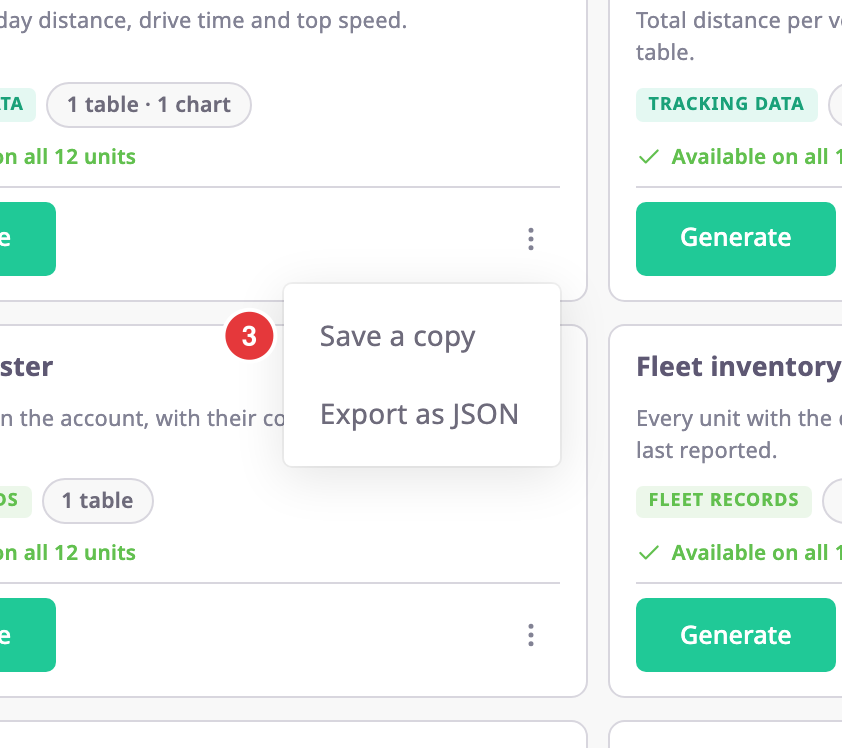
The copy opens in the builder, named "Name (copy)".
Change the name, then continue with step 5 of the next section, or go straight to Preview. Do not pick another source for a copied table: that replaces its columns.
¶ Start from scratch
-
In Reports > Create Report, select New template.
An empty builder opens with one table that reads the first source on your list.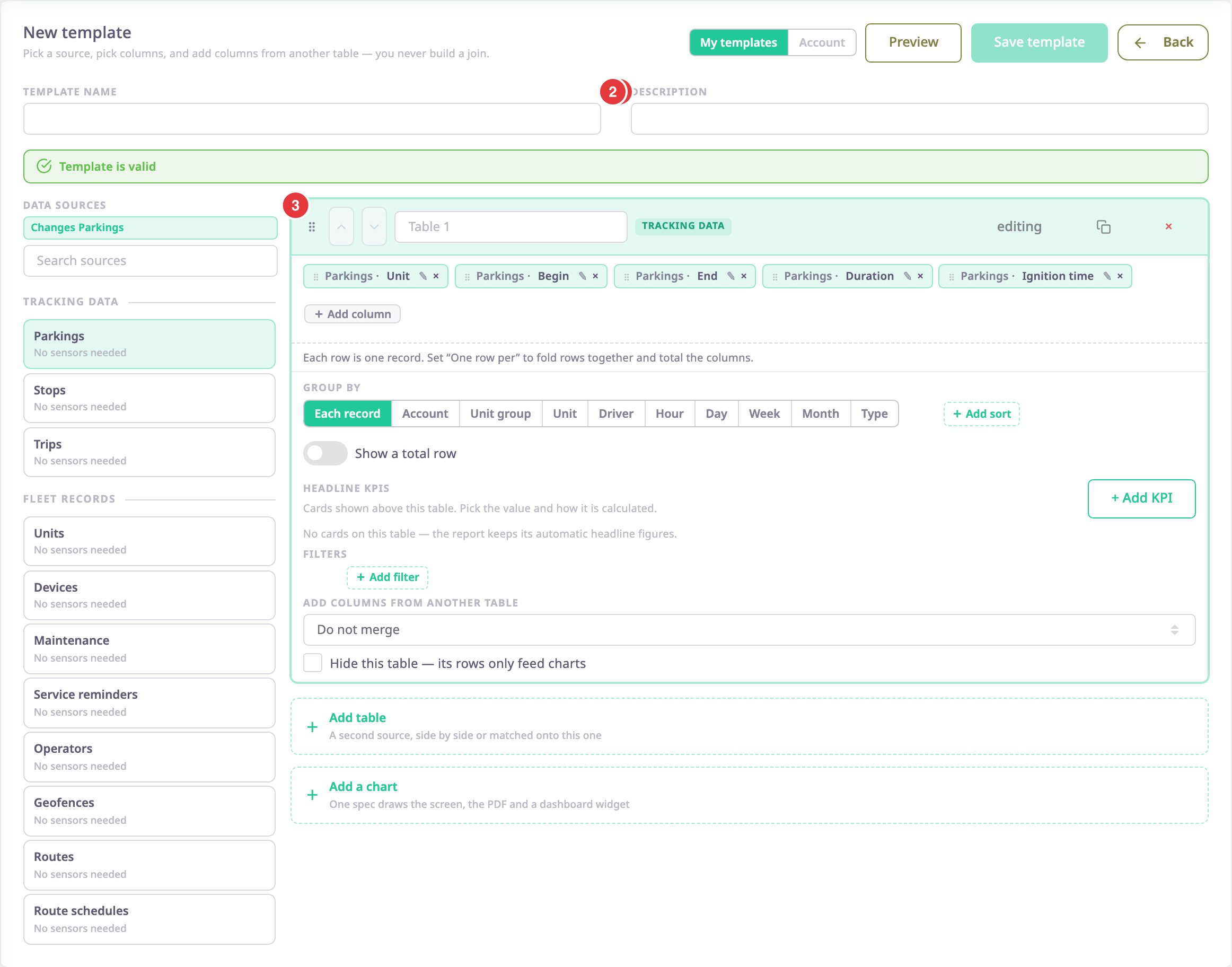
-
In Template name, marked 1, enter a name, for example Long trips this week.
-
Optional: In Description, marked 2, enter one line that says what the report is for. It shows on the template card.
-
Under Data sources, marked 3, select the source, for example Trips.
The table fills with a default set of columns for that source.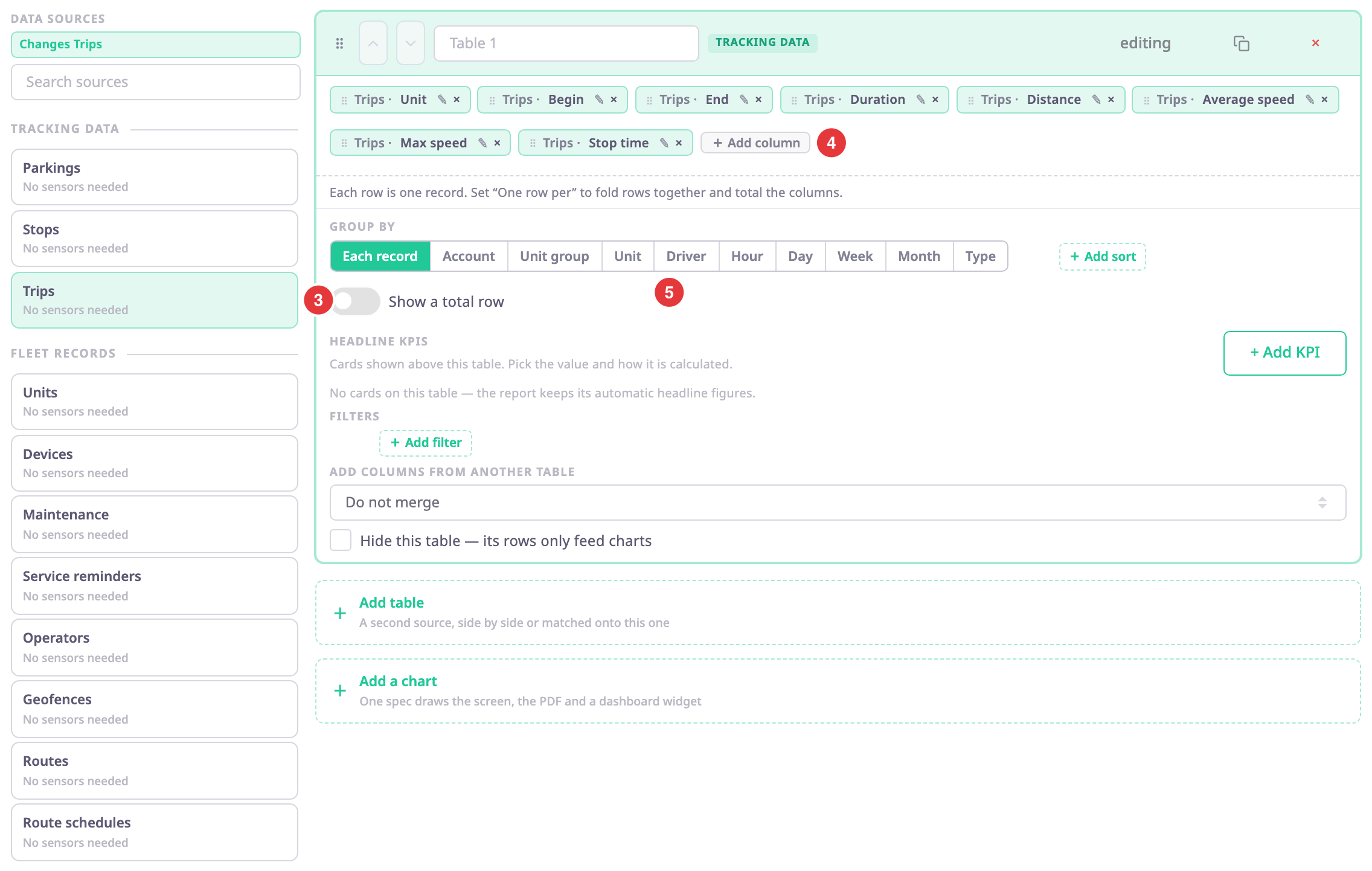
-
Remove the columns you do not need with × on their chip. Add others with Add column, marked 4.
-
Optional: Under Group by, marked 5, choose a key such as Unit or Day to fold the records into one row each. See Group, filter and total report rows.
-
Optional: Select Add a chart to draw the table. See Report chart settings.
The validation bar under the name says "Template is valid", or lists what to fix.
¶ Preview
-
Select Preview.
The Generate screen opens with your unsaved template. -
Choose a period and units.
-
Select Generate Report.
The report appears with your columns.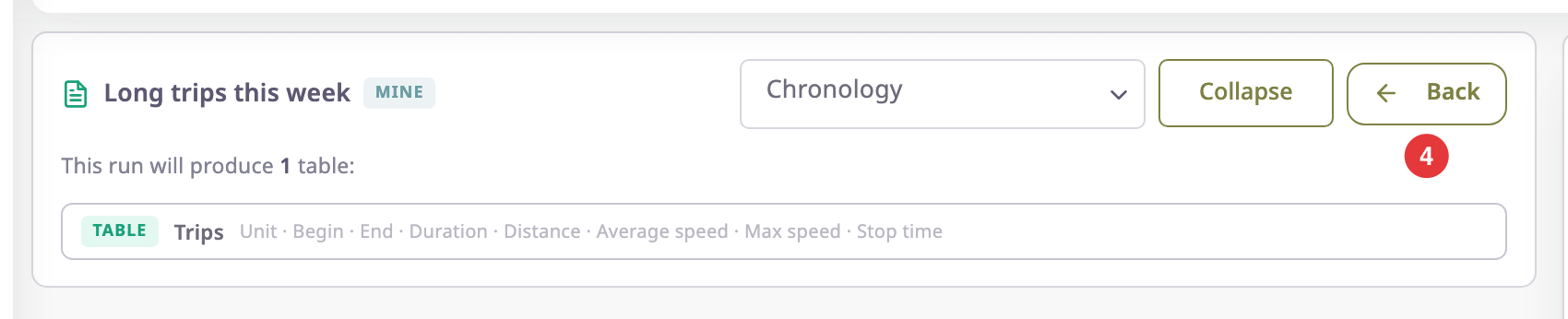
-
Select Back, marked 4.
The builder opens again with your changes.
You cannot pin a preview to a dashboard or schedule it until you save the template.
¶ Save and choose who sees it

- Choose who sees the template:
- My templates, marked 1: only you.
- Account, marked 2: everyone in your account. Only a user with the Owner role can choose it.
- Select Save template, marked 3.
The template library opens. The template is in My templates or Account templates.
If you select Back with unsaved changes, a dialog asks first. Discard changes leaves without saving.