Devices or units? This page is about devices, the tracking hardware installed in a vehicle or on an asset. For the vehicles and assets on the map, see Units. For the difference, see Devices and units.
Edit a device when you replace its SIM card, the installer changes its time zone, or you registered it with the wrong identifier or model. The unit the device is on keeps its name, groups and history.
¶ Before you start
- You need Devices > Edit. The built-in Owner role of a dealer account has it.
- You can change devices that your account owns, or that an account above yours owns. See Device ownership and allocation.
- Changing the identifier or the model affects how the app reads the device's messages. Change them only to match the hardware.
¶ Open the device
-
In the side menu, select Devices.
The Devices list opens. -
On the device's row, select Edit, marked 1.

The device opens on the General tab.
¶ Change the details
-
Change the fields you need, for example SIM Number 1 after a SIM card swap, or Time Zone.
-
Select Save, marked 1.

The app shows "Device updated successfully".
The limits of each field are in Device general settings. If the new identifier belongs to another device on the server, the app shows "Device already exists." and saves nothing.
Save saves only the General tab. The other tabs save their own settings.
¶ Change the model
Changing the model clears the device's sensors and commands and resets its trip and fuel settings. Note what you need before you start.
-
In Manufacturer, choose the new manufacturer, if it changes.
-
In Model, choose the new model.
-
Select Save.
The app asks "Do you really want to change device model ?".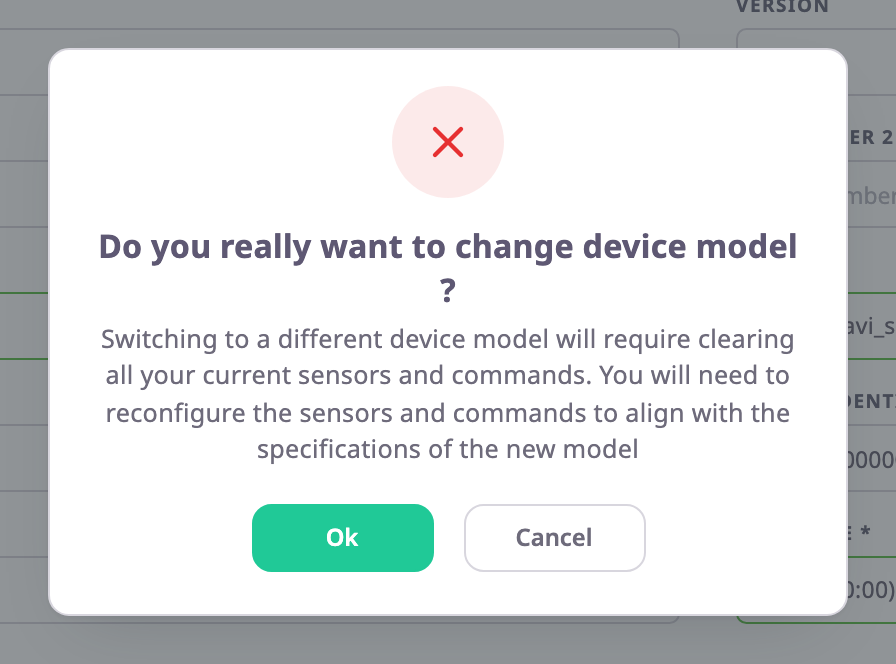
-
Select Ok.
The device gets the new model's default sensors and no commands. -
Set up the sensors again on the Sensors tab. See Sensors tab.
Cancel in the question puts back the last saved values of every field, not only the model.
¶ Discard changes
Select Discard, marked 2 in the image above, to put back the last saved values. Back also leaves without saving.
¶ If the page has no save button
The page opens without Save and Discard when your account may see the device but not change it. This happens, for example, on a device that a sub-dealer below you registered. See Device ownership and allocation.